WhatsApp Calling Is Available on Web and Mobile
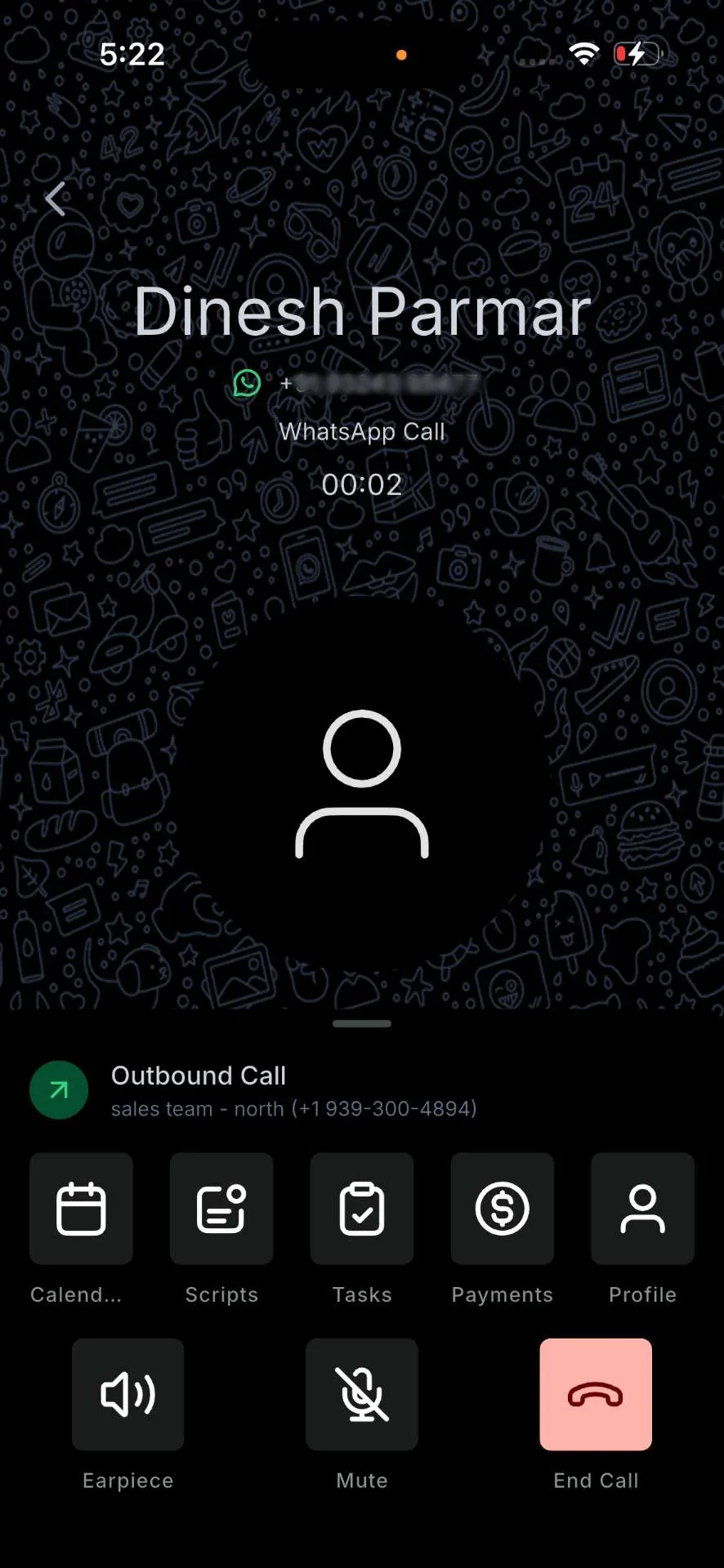
WhatsApp Calling is generally available in SMBcrm on web and the SMBcrm Mobile app. Teams can make and receive real-time voice calls inside the same WhatsApp conversation, without using an external dialer or sharing another phone number.
This gives support and sales teams a faster way to resolve high-intent or complex conversations while keeping the full history inside SMBcrm communication tools.
What Changed
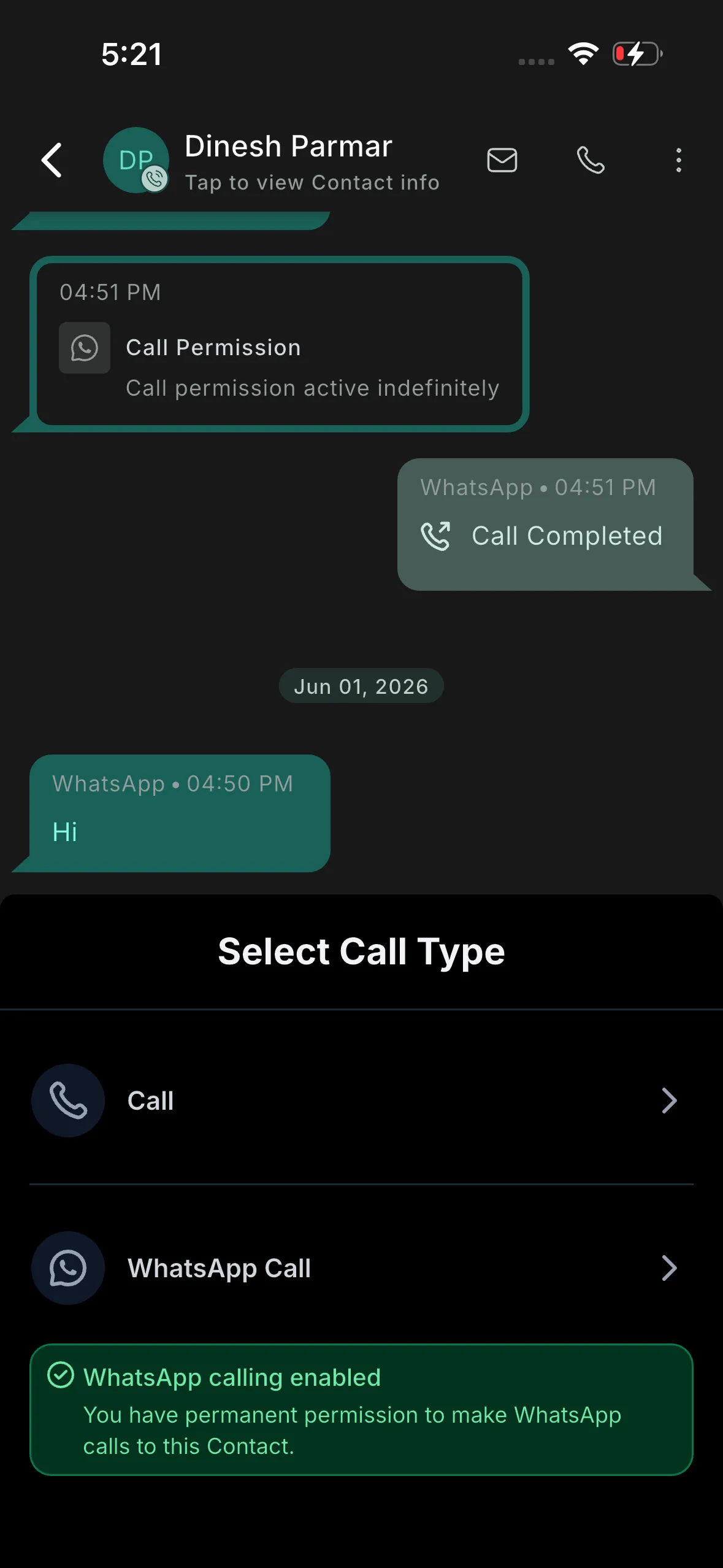
- Voice inside the conversation: Make and receive WhatsApp voice calls directly from the conversation view.
- Call buttons: Escalate from chat to voice with a call button inside the thread.
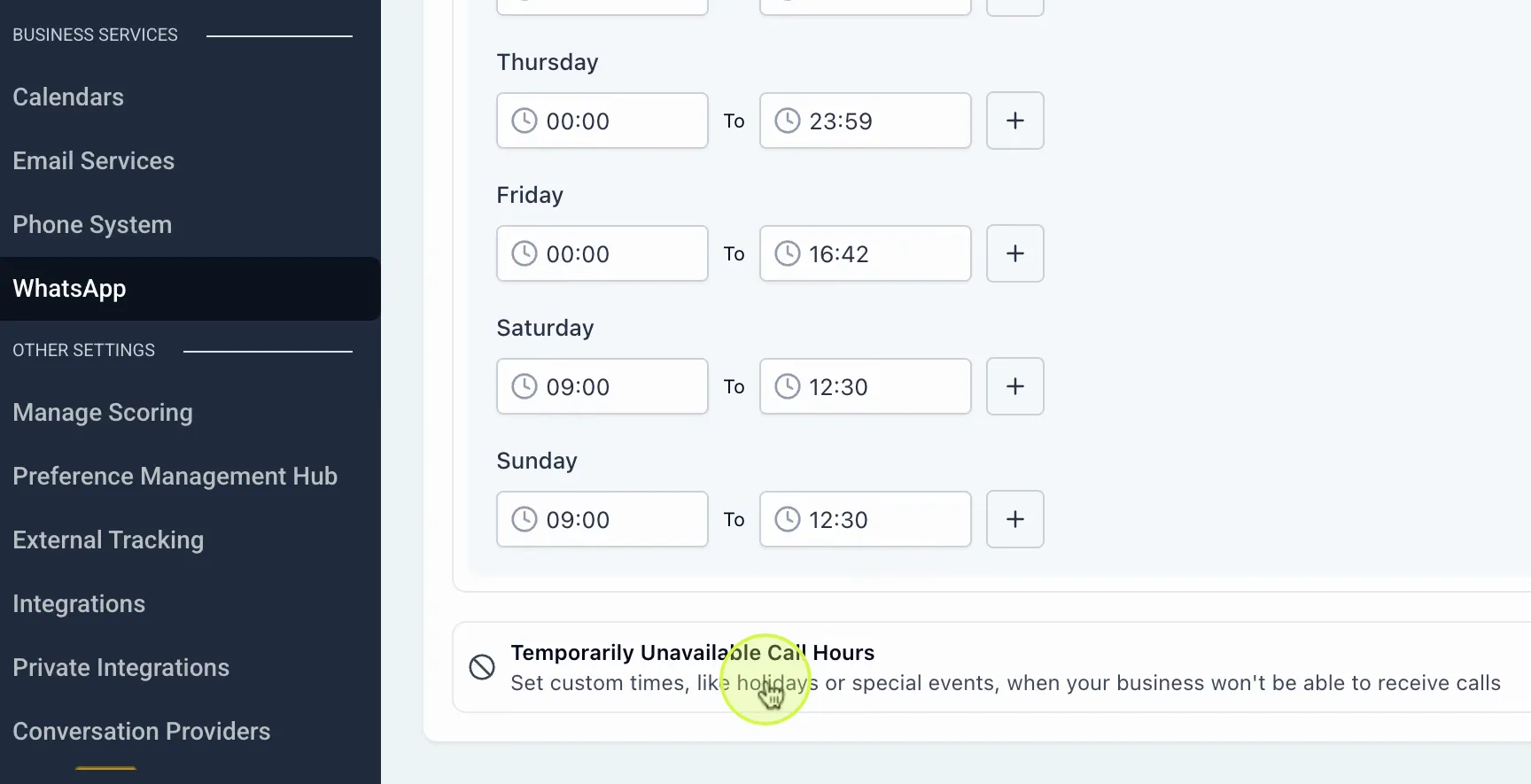
- Business calling hours: Set available hours and temporarily unavailable hours for breaks, holidays, or off-hours.
- Call permissions: Request permission before business-initiated calls when WhatsApp requires it.
- Mobile support: Place and receive WhatsApp calls from the SMBcrm Mobile app.
- Call logs and reporting: Inbound and outbound WhatsApp calls are logged alongside other calls, with disposition tracking available in reporting.
Activation Requirements
Before activating WhatsApp Calling, each account needs:
- A phone number in connected state
- A WhatsApp Business Account messaging limit at the 2,000 tier or higher
- A phone number that is not on coexistence
On Web
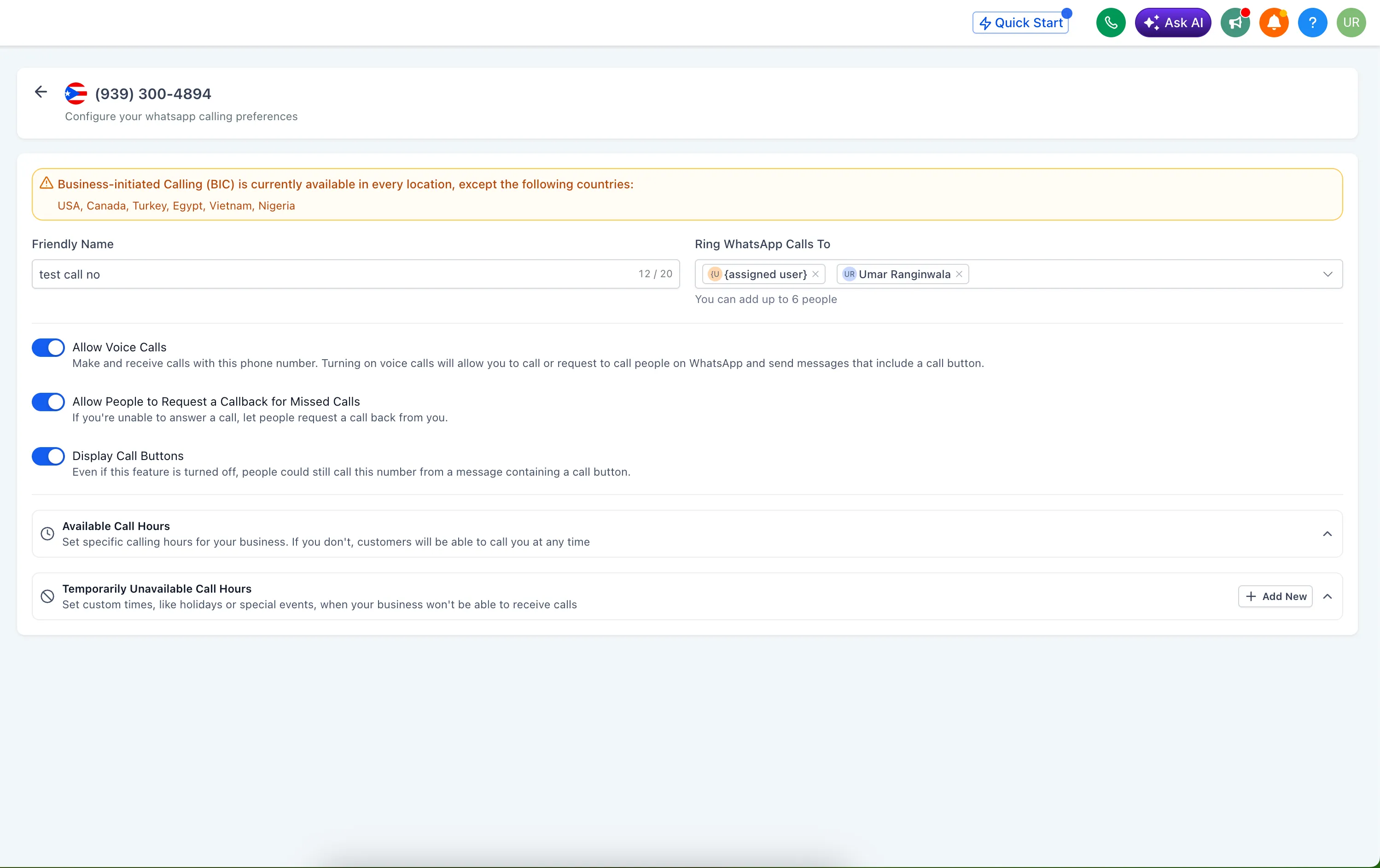
- Go to Settings > WhatsApp > Calling and select the phone number.
- Set a Friendly Name and choose who calls ring to under Ring WhatsApp Calls To. You can add up to 6 people.
- Turn on Allow Voice Calls to make and receive calls.
- Optionally enable Allow People to Request a Callback for Missed Calls and Display Call Buttons.
- Set Available Call Hours and Temporarily Unavailable Call Hours to control when the team is reachable.
On the SMBcrm Mobile App
Use the SMBcrm Mobile app with version 4.18 or later. From a conversation, tap the call button, select WhatsApp Call, and connect.
If a call cannot be placed, the app shows why.
Routing Inbound Calls
Use Ring WhatsApp Calls To to decide who receives inbound WhatsApp calls. Add up to 6 team members, and an inbound call will ring all of them at once so the first available person can answer.
Routing options include:
- Named users: Add specific people, such as a sales team or front desk.
- Assigned owner routing: Ring the contact’s assigned owner so the customer reaches the person already managing the relationship.
Use Friendly Name to label each configuration, such as “Sales Team” or “Front Desk,” so numbers remain easier to manage across accounts.
Call Dispositions and Reporting
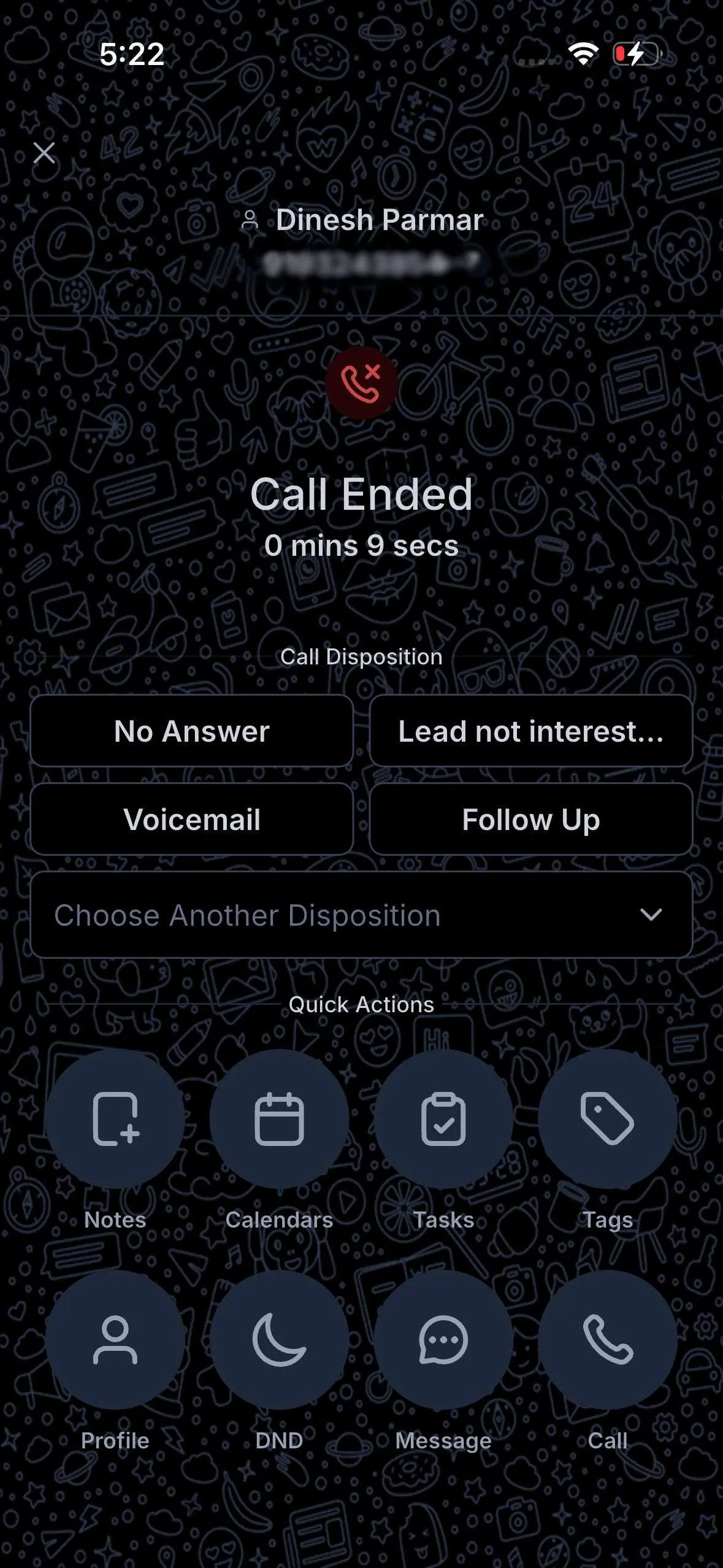
Every WhatsApp call ends with a Call Summary so the team can capture the outcome without leaving the conversation. The summary shows the contact, phone number, call status, and call duration, then prompts the agent to select a custom disposition.
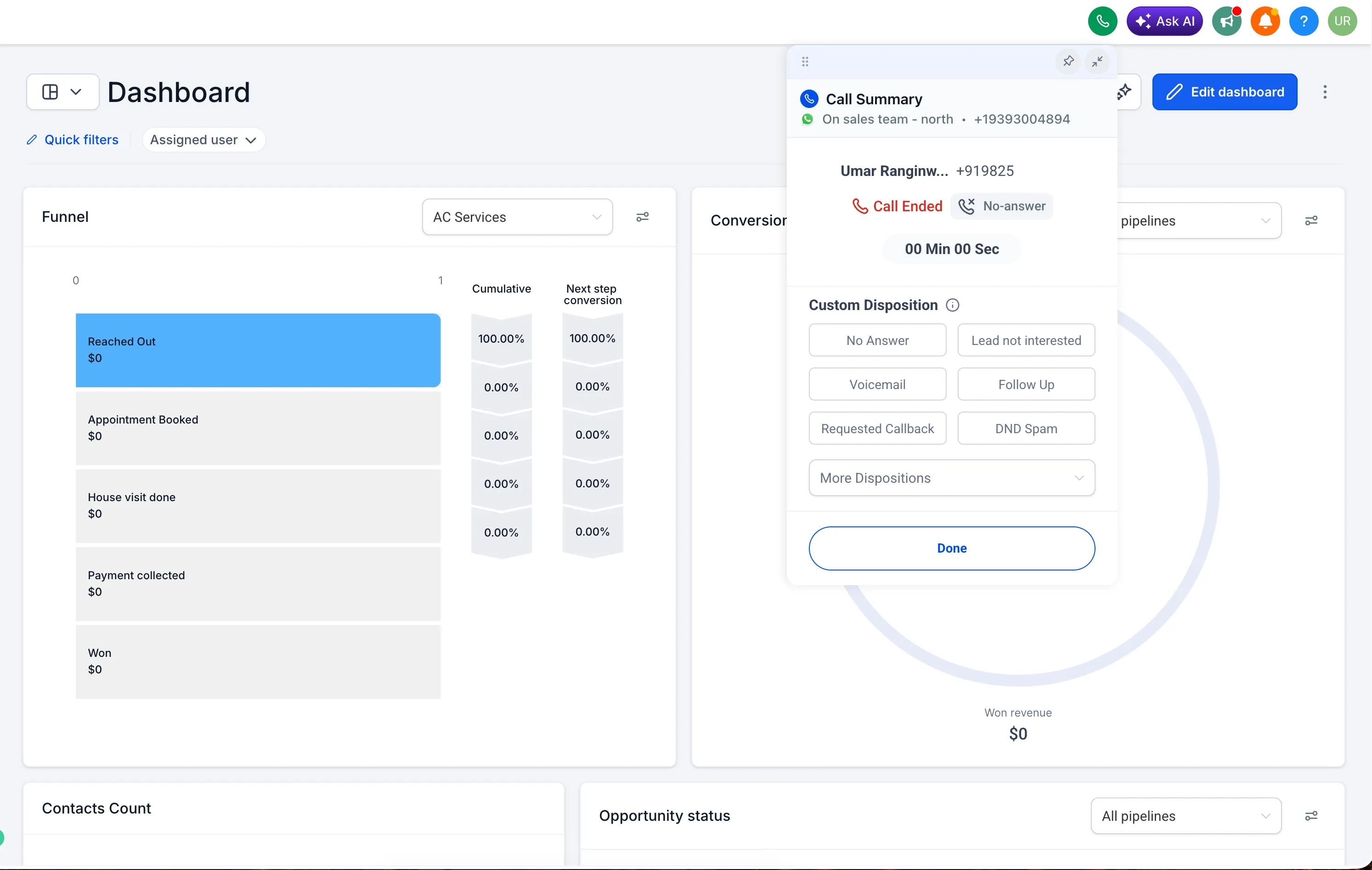
Default dispositions include No Answer, Lead not interested, Voicemail, Follow Up, Requested Callback, and DND Spam. Account admins can edit these or add their own under Settings > Phone System > Voice > Call Dispositions, up to 10 per account.
Logging is optional, and one outcome is saved per call to keep call data clean.
Dispositions can also trigger follow-up workflows. In Automation, use a Call Details trigger, filter by Custom Disposition, and choose which outcomes should start follow-up actions such as sending an SMS or email, booking an appointment, or adding the contact to a pipeline or campaign.
Dispositions appear in Reporting > Call Reporting as a column and filter, helping teams review outcomes by user or team.
On the SMBcrm Mobile app, custom dispositions are available for iOS and Android. Disposition options appear only when the selected account matches the call’s account, so use the switch option when taking calls across multiple accounts.
Call Permission Rules
WhatsApp controls permission rules for calls, and the requirements depend on who starts the call.
Customer-Initiated Calls
When a customer calls your business, no permission is required. If Allow Voice Calls is enabled, customers can call your WhatsApp number from any country where WhatsApp is available.
Business-Initiated Calls
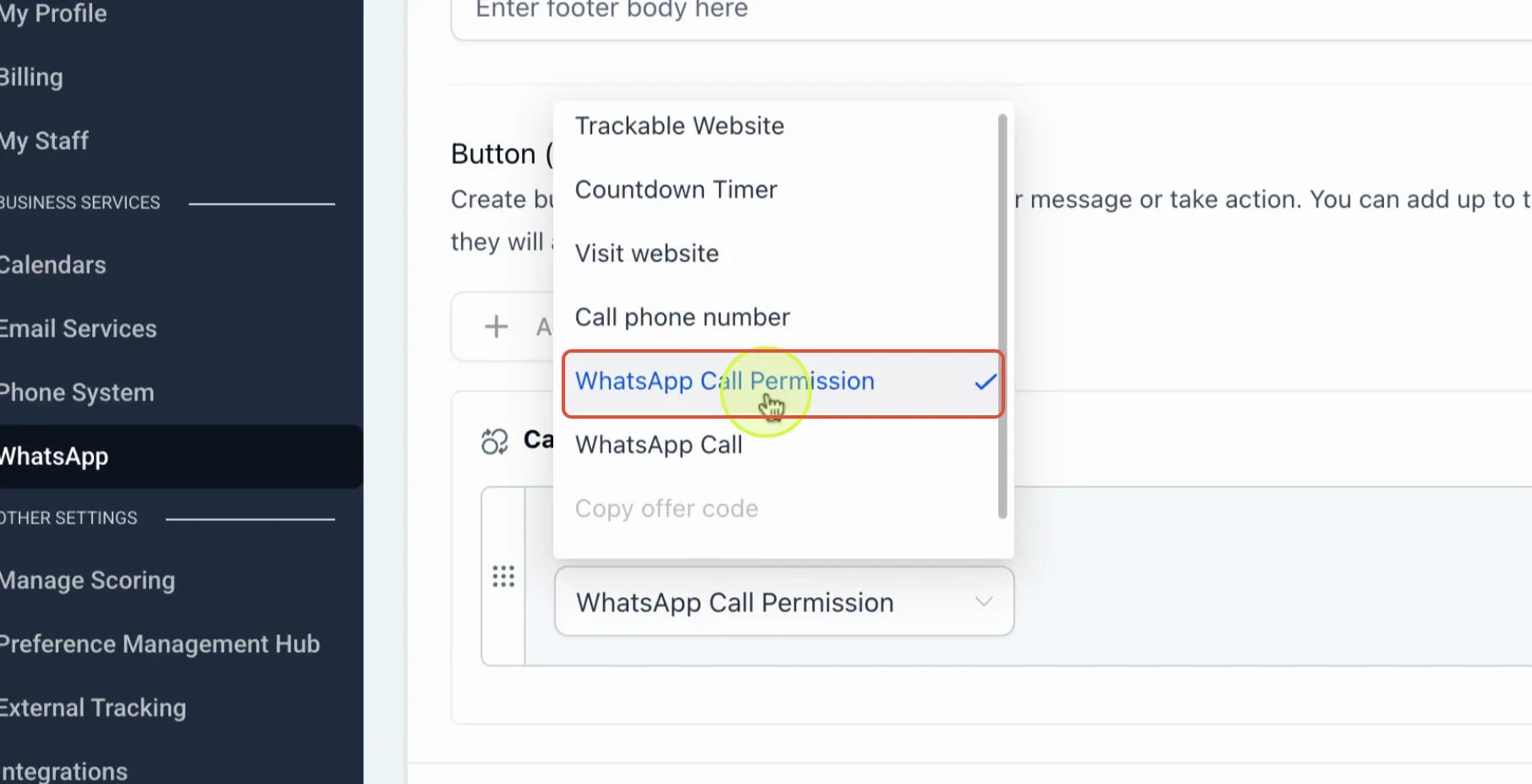
When your team calls a customer first, the customer must grant permission. Permission is requested through a template message with a call permission request.
The customer can choose:
- Always allow calls: Permanent permission to call them.
- Temporarily allow calls: Time-limited permission, valid for 7 days.
- Not now: The request is declined.
After permission is granted:
- You can place up to 5 connected calls in any 24-hour period during the active permission window.
- When a call connects, the limits reset and permission can be requested again right away.
Additional guardrails:
- You can send one permission request every 24 hours.
- You can send up to two requests in any 7-day period if the customer has not responded.
- If 4 calls in a row go unanswered, permission is automatically revoked and must be requested again.
These limits are set by WhatsApp.
Availability by Country
Inbound WhatsApp calls work everywhere WhatsApp is available.
Business-initiated WhatsApp calling is available in every country or region except the USA, Canada, Turkey, Egypt, Vietnam, and Nigeria, where WhatsApp does not currently permit it. In those countries, teams can still receive inbound WhatsApp calls and display call buttons so customers can call with one tap.
Why It Matters
Keeping voice calls inside WhatsApp helps teams preserve conversation context and maintain a complete logged history.
- Resolve complex questions faster than a long message thread.
- Connect with high-intent leads when they are ready to talk.
- Reduce channel switching while keeping calls tied to the contact record.
- Improve reporting with call outcomes captured at the source.
In Case You Missed It
For another recent update, see June Template Release: Websites, Funnels, Email, Social, and Ads.
Release Images
Need Help Applying This Update?
Want help turning this update into a working part of your CRM, marketing, or automation setup?
Get Started or schedule a demo and we’ll help you map the right next step.