SMBcrm has updated WhatsApp onboarding to make setup clearer for different business situations. Accounts can now choose from three paths: connect an existing WhatsApp Business App, create a new WhatsApp Business Account, or migrate from another provider while preserving existing assets.
This update is part of SMBcrm’s broader Communication features and is designed to reduce setup friction for businesses already using WhatsApp, businesses starting fresh, and teams moving from another provider.
What Changed
Migrate from Another Provider
Accounts using another WhatsApp Business Solution Provider can now move through a self-service onboarding flow instead of creating a brand new account.
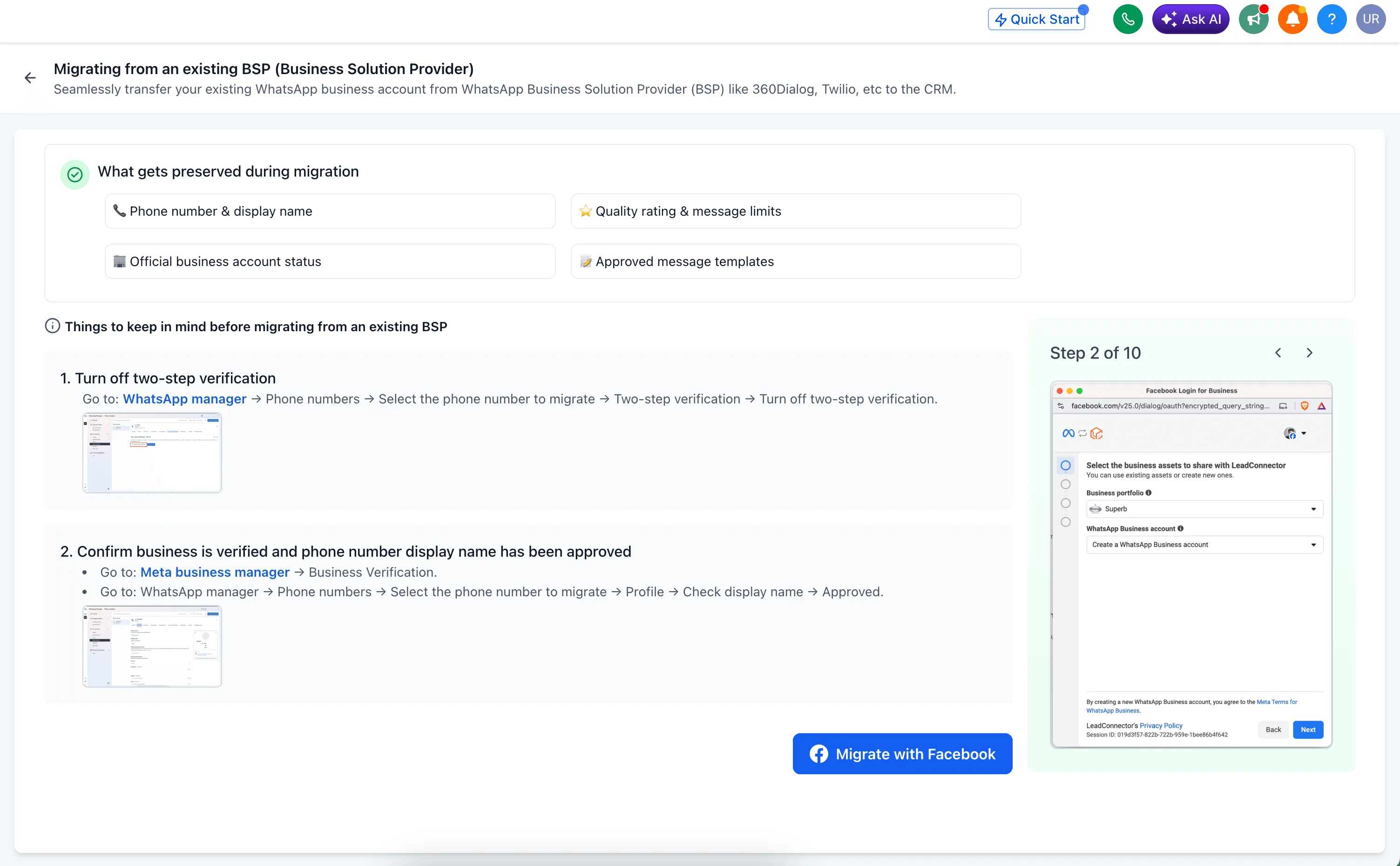
According to the source release, migration preserves:
- Phone number
- Display name
- Quality rating
- Messaging limits
- Official Business Account status
- Previously approved templates
The flow also validates eligibility before migration begins.
Redesigned WhatsApp Onboarding
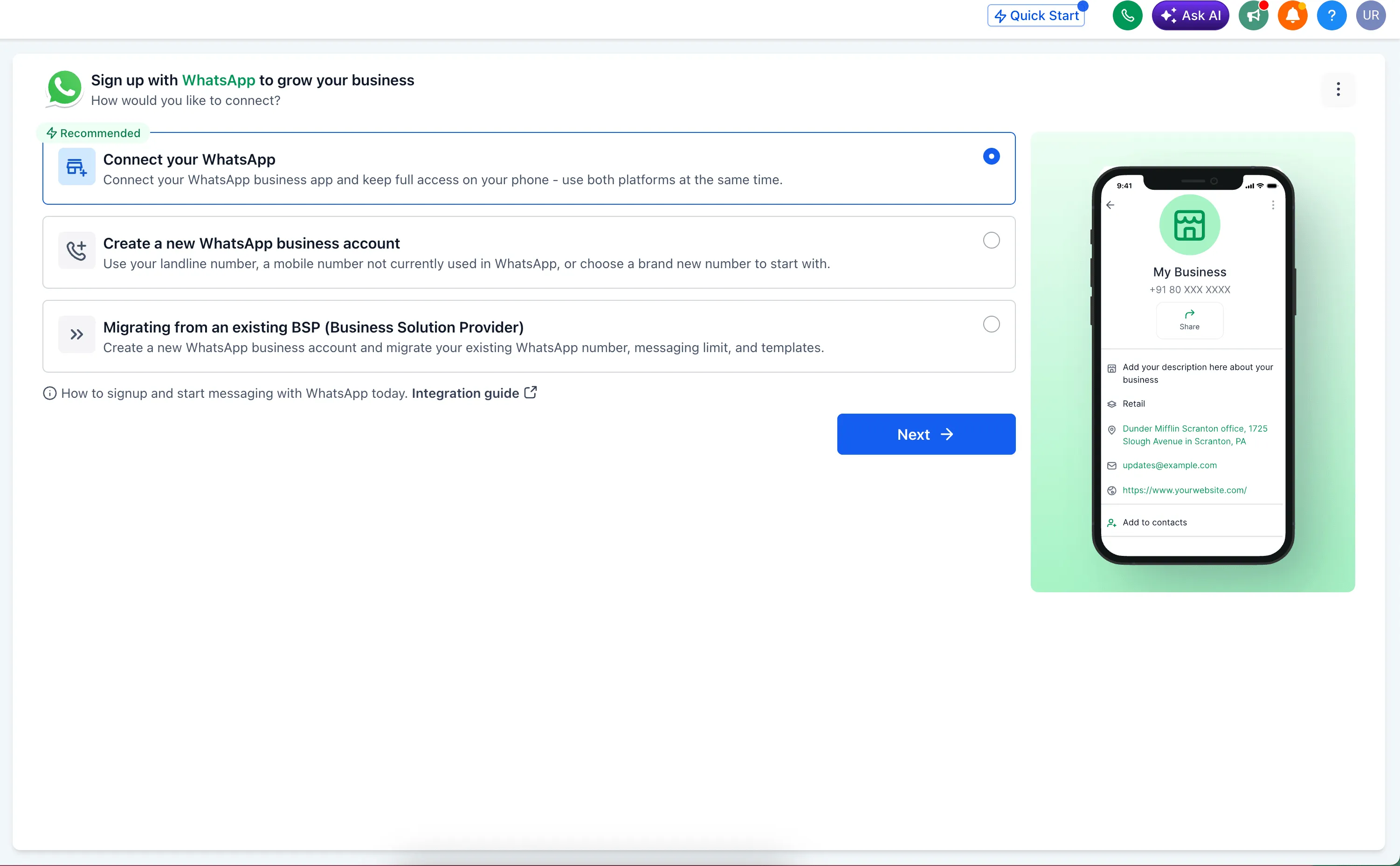
The onboarding experience now presents three clear options with guidance for each one:
- Connect your WhatsApp to link an existing WhatsApp Business App while continuing to use it on your phone
- Create a new WhatsApp Business Account for a new setup using a landline, a mobile number not currently on WhatsApp, or a brand new number
- Migrate from an existing provider to move an existing WhatsApp Business Account into SMBcrm
For accounts that connect an existing WhatsApp Business App, up to 6 months of chat history will sync automatically.
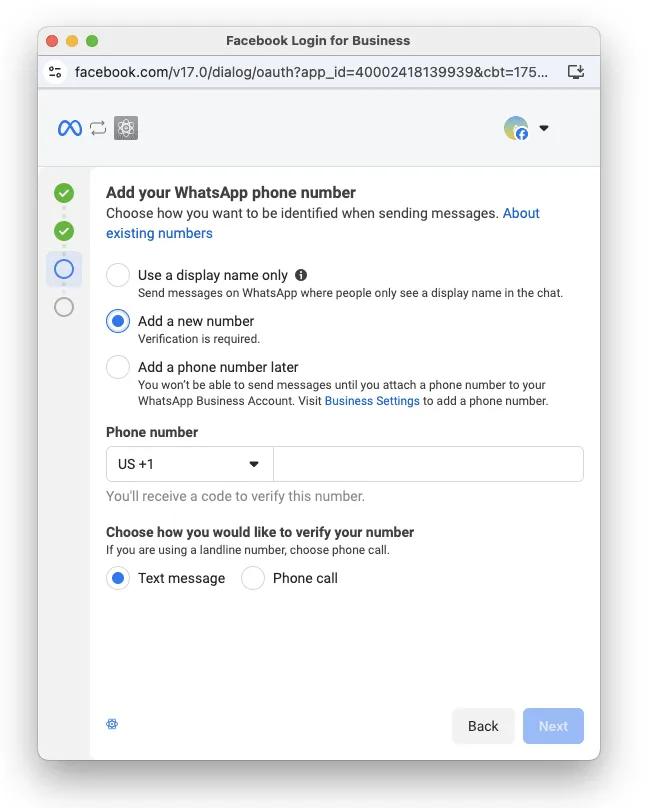
555 Business Phone Numbers
Eligible accounts can claim up to two 555 business phone numbers during onboarding.
The source release states these numbers:
- Use the US country code and 555 area code
- Work like standard business phone numbers inside the WhatsApp Business Platform
- Are verified automatically
The release also notes that 555 numbers cannot be migrated to another WhatsApp Business Account or used outside the WhatsApp Business Platform, and display names must be approved before messages can be sent.
How to Get Started
Go to Settings → WhatsApp in your account, then choose the setup path that fits your situation.
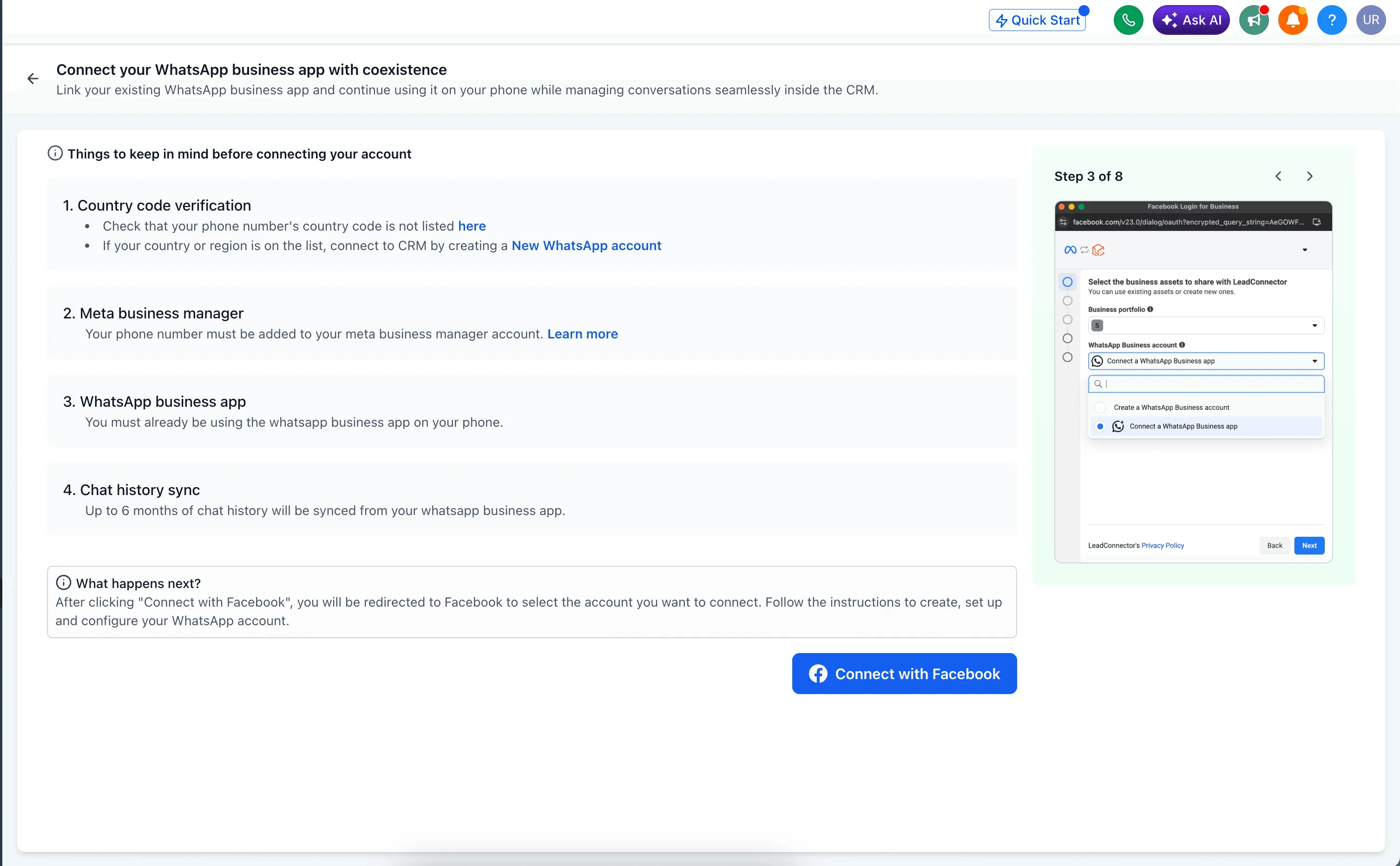
Option A: Connect Your WhatsApp
Use this option if you already use the WhatsApp Business App and want to manage conversations inside SMBcrm without interrupting phone-based usage.
Before starting:
- Verify your phone number’s country code is not on the restricted list
- Confirm your phone number is added to your Meta Business Manager account
- Make sure you are already using the WhatsApp Business App on your phone
Then select Connect with Facebook and follow the guided steps.
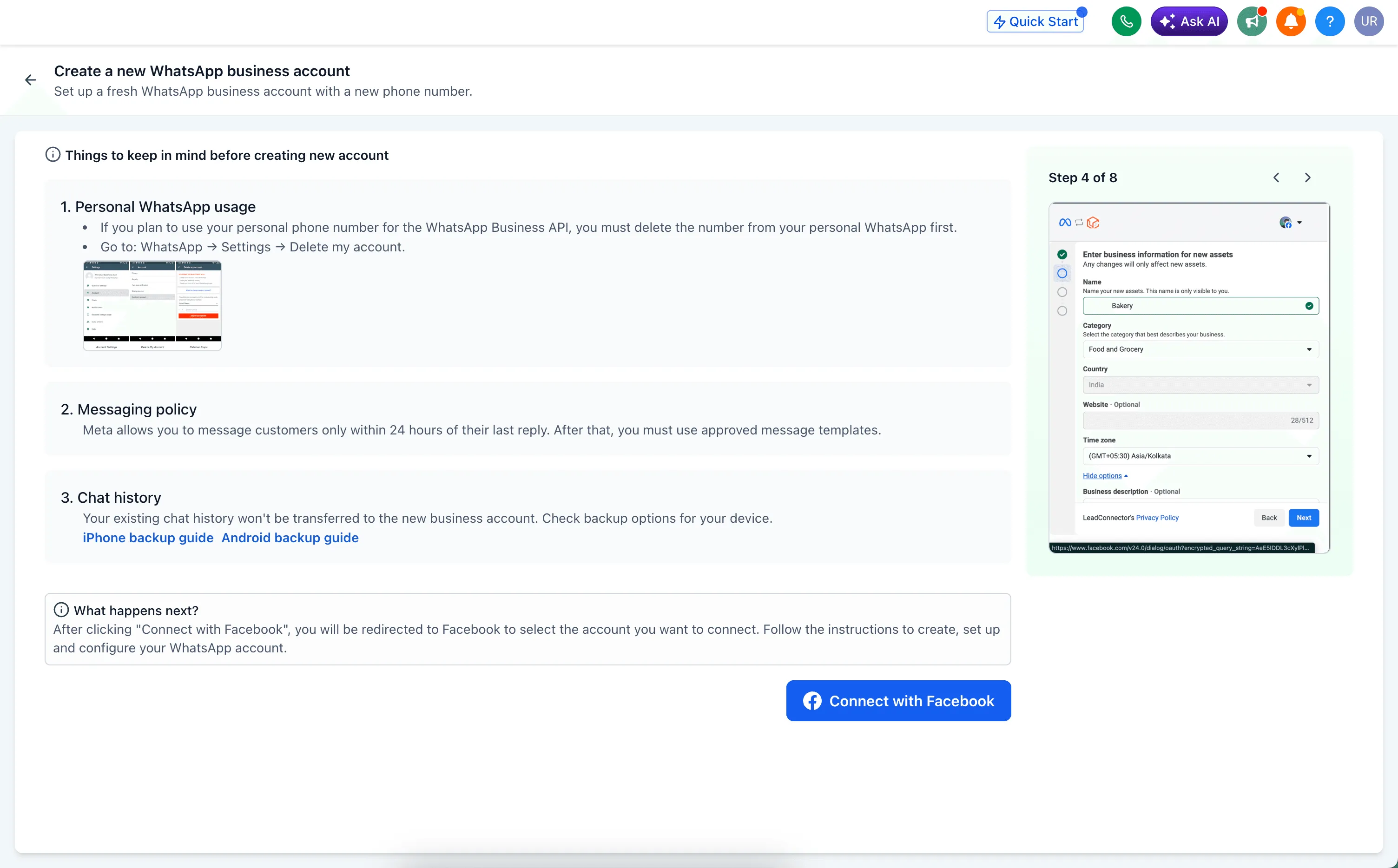
Option B: Create a New WhatsApp Business Account
Use this option if you want a fresh WhatsApp Business setup.
Before starting:
- If you plan to use a personal phone number, remove it from personal WhatsApp first
- Existing chat history will not transfer, so back up chats before proceeding
- If eligible, you may see the option to claim a 555 business phone number during setup
Then select Connect with Facebook and complete the setup flow.
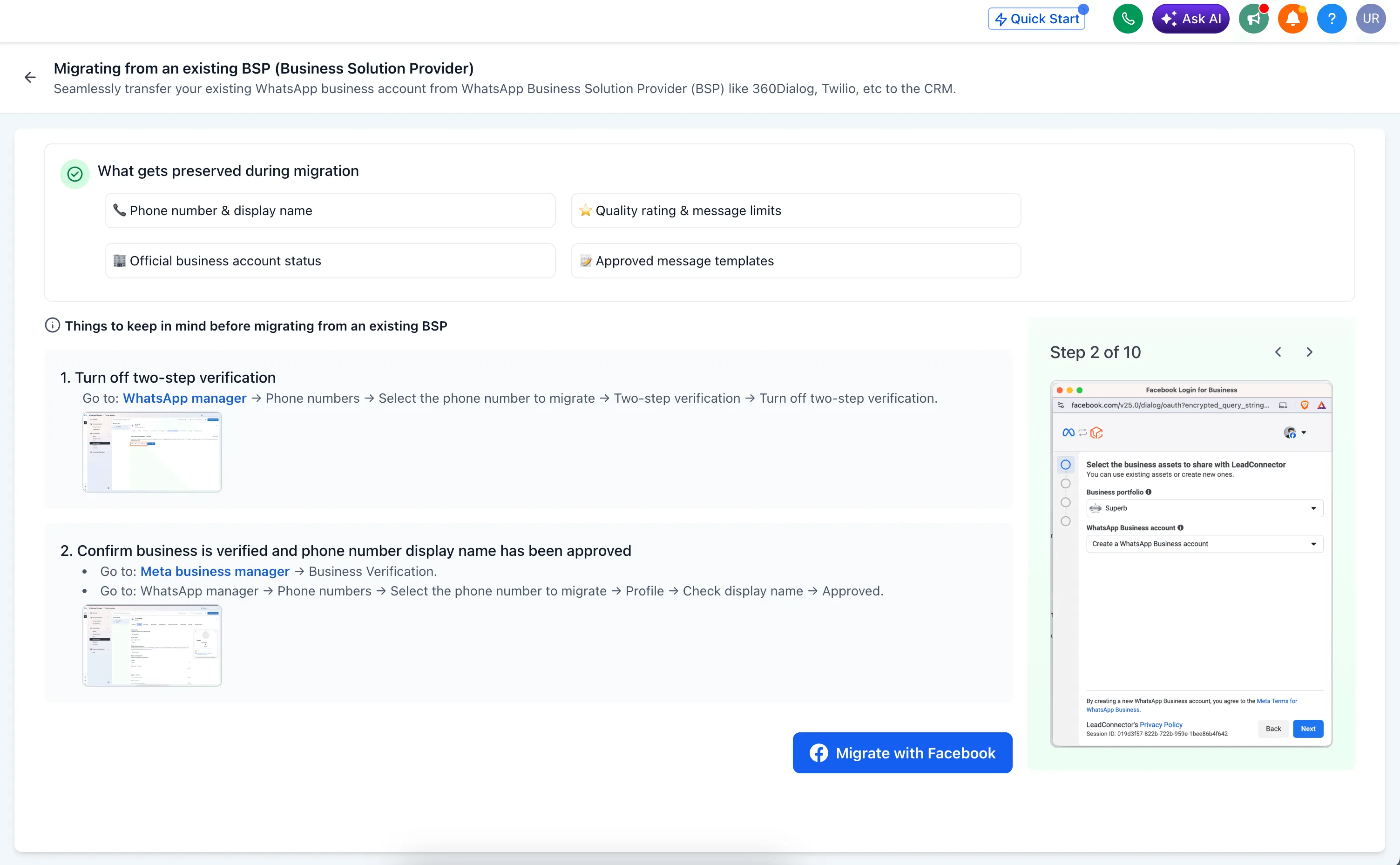
Option C: Migrate from an Existing Provider
Use this option if your WhatsApp Business Account is currently managed by another provider and you want to preserve your existing setup.
Before starting:
- Turn off two-step verification in WhatsApp Manager
- Confirm your business is verified in Meta Business Manager
- Confirm your phone number display name is approved
Then select Connect with Facebook and complete the embedded signup flow.
Why It Matters
This update helps solve three common setup problems:
- Businesses can move from another provider without losing key WhatsApp assets
- Teams already using WhatsApp on their phone can bring conversations into SMBcrm
- New WhatsApp setups can start faster, including with eligible 555 business numbers
The source release also says this can reduce onboarding time and lower support needs related to migrations, number setup, and asset preservation.
In Case You Missed It
You can also read Communities Events Now Support Live Rooms.
Release Images
Need Help Applying This Update?
If you’d like help rolling this out in SMBcrm, visit Support or request a demo.