Payment Links now support custom checkout button text, giving you more control over the final call to action customers see before they complete a payment.
What changed
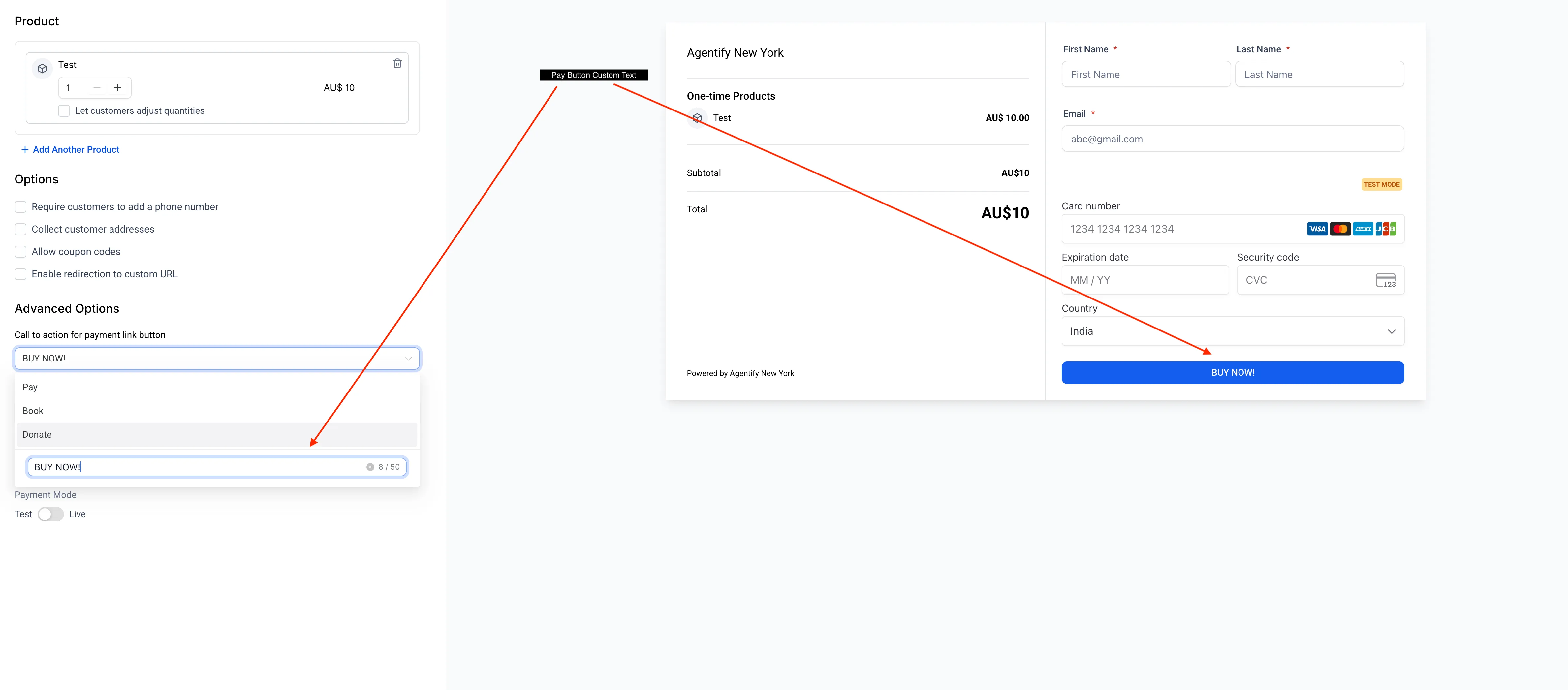
In the Payments & Commerce Payment Link builder, Advanced Options now includes a custom button text field.
You can choose one of the default labels, Pay, Book, or Donate, or enter your own label up to 50 characters. The custom text appears instantly in the checkout preview, so you can confirm what customers will see before publishing.
Why it matters
A checkout button that matches your offer can make the payment step clearer for customers. This is useful for subscriptions, registrations, memberships, events, services, donations, courses, and other offers where a generic button label may not fit.
With custom button text, you can:
- Match the button label to the offer
- Keep checkout language aligned with your brand
- Avoid workarounds such as changing product names just to influence the checkout CTA
- Preview the button text before saving
How to use it
- Open Payments, then Payment Links.
- Open an existing Payment Link or create a new one.
- Scroll to Advanced Options.
- Under “Call to action for payment link button,” choose Pay, Book, Donate, or enter custom text.
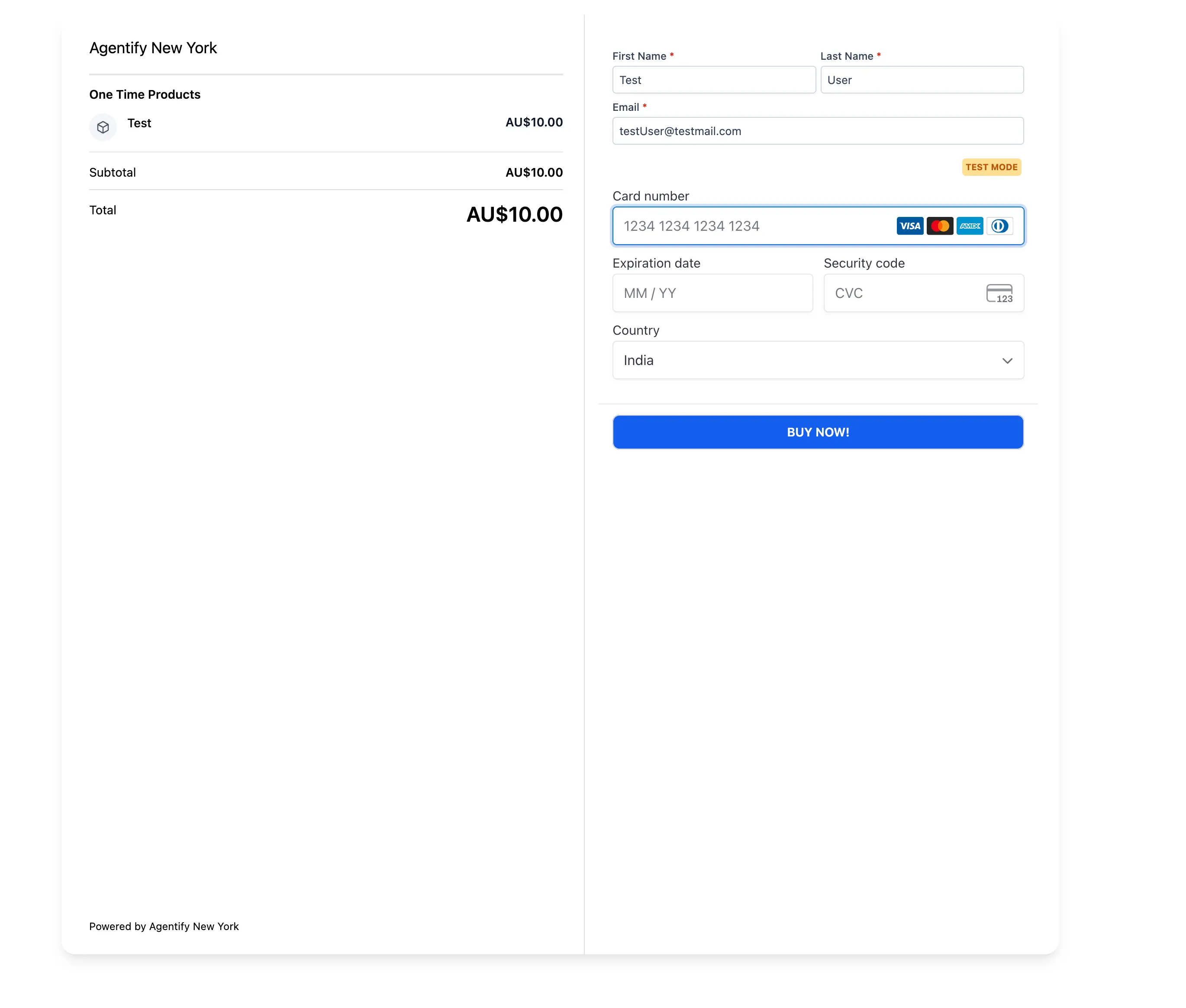
- Preview the checkout button text and save when ready.
Good to know
- Custom button text is available on all Payment Link types.
- Custom labels can be up to 50 characters.
- The setting is available in the web Payment Link builder.
- Customers can see the custom text on all devices.
- Changes apply to new sessions. Customers already on a checkout page will see the previous label until they refresh.
In Case You Missed It
If you use automation, read Python Support Added to Custom Code Actions.
Need Help Applying This Update?
Want help turning this update into a working part of your CRM, marketing, or automation setup?
Get Started or schedule a demo and we’ll help you map the right next step.