Ad Manager now supports Custom Values in eligible ad copy fields for Meta, Google, and LinkedIn campaigns. This helps teams reuse saved business details in campaign copy while reviewing the final resolved text before publishing.
This update is especially useful for teams creating repeatable lead capture campaigns that need consistent business names, cities, support emails, offers, service areas, phone numbers, or other saved values.
What changed
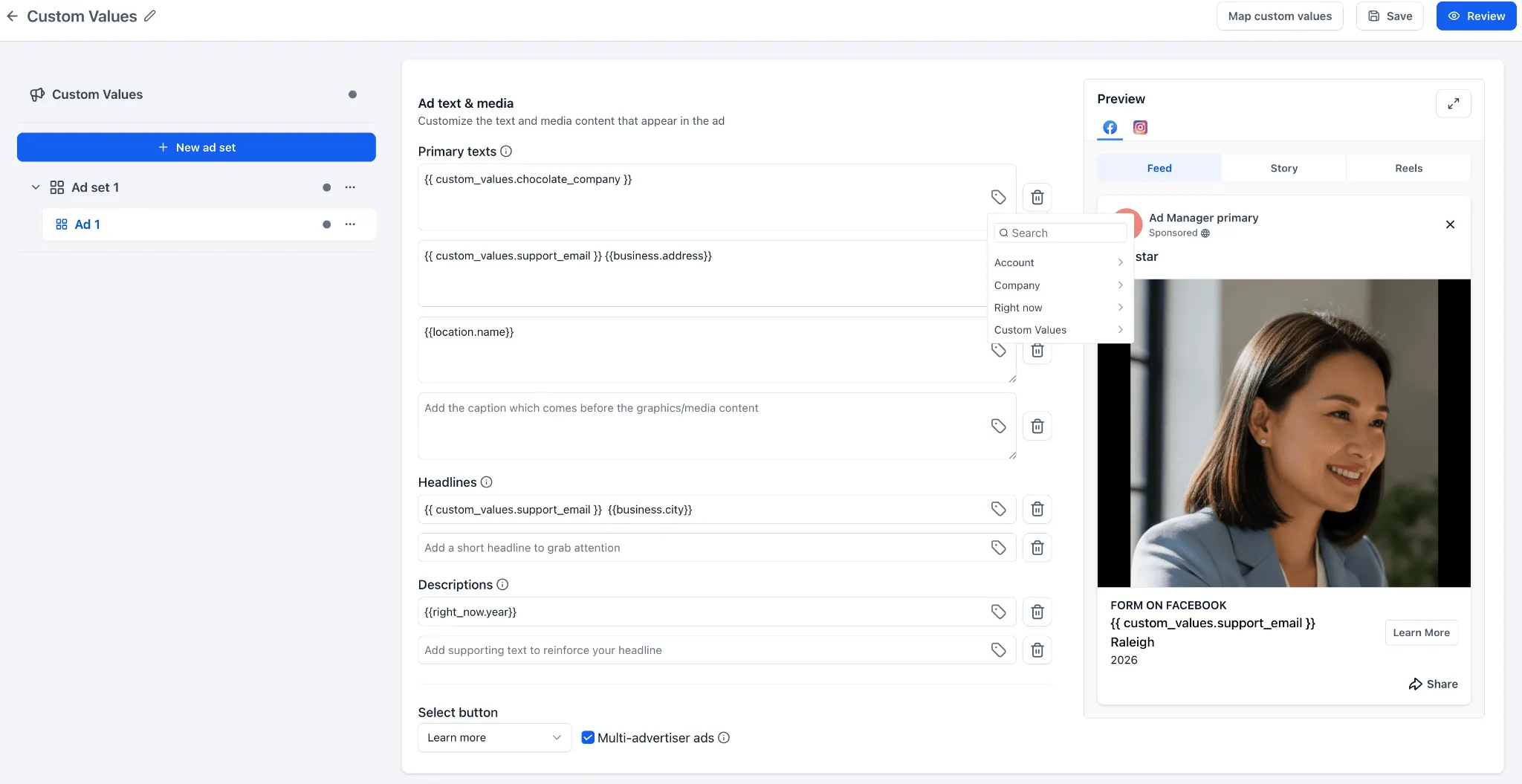
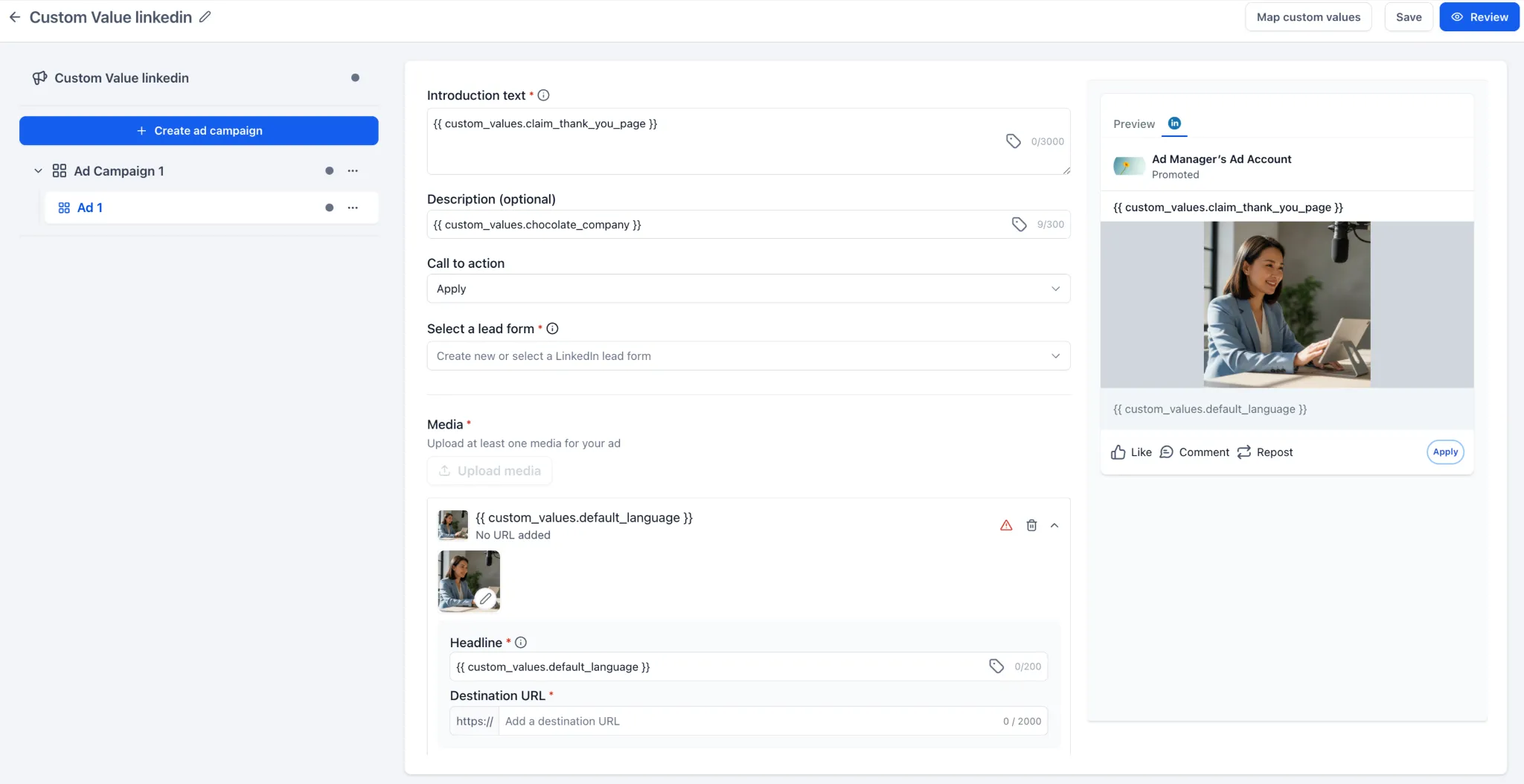
Insert Custom Values into ad copy
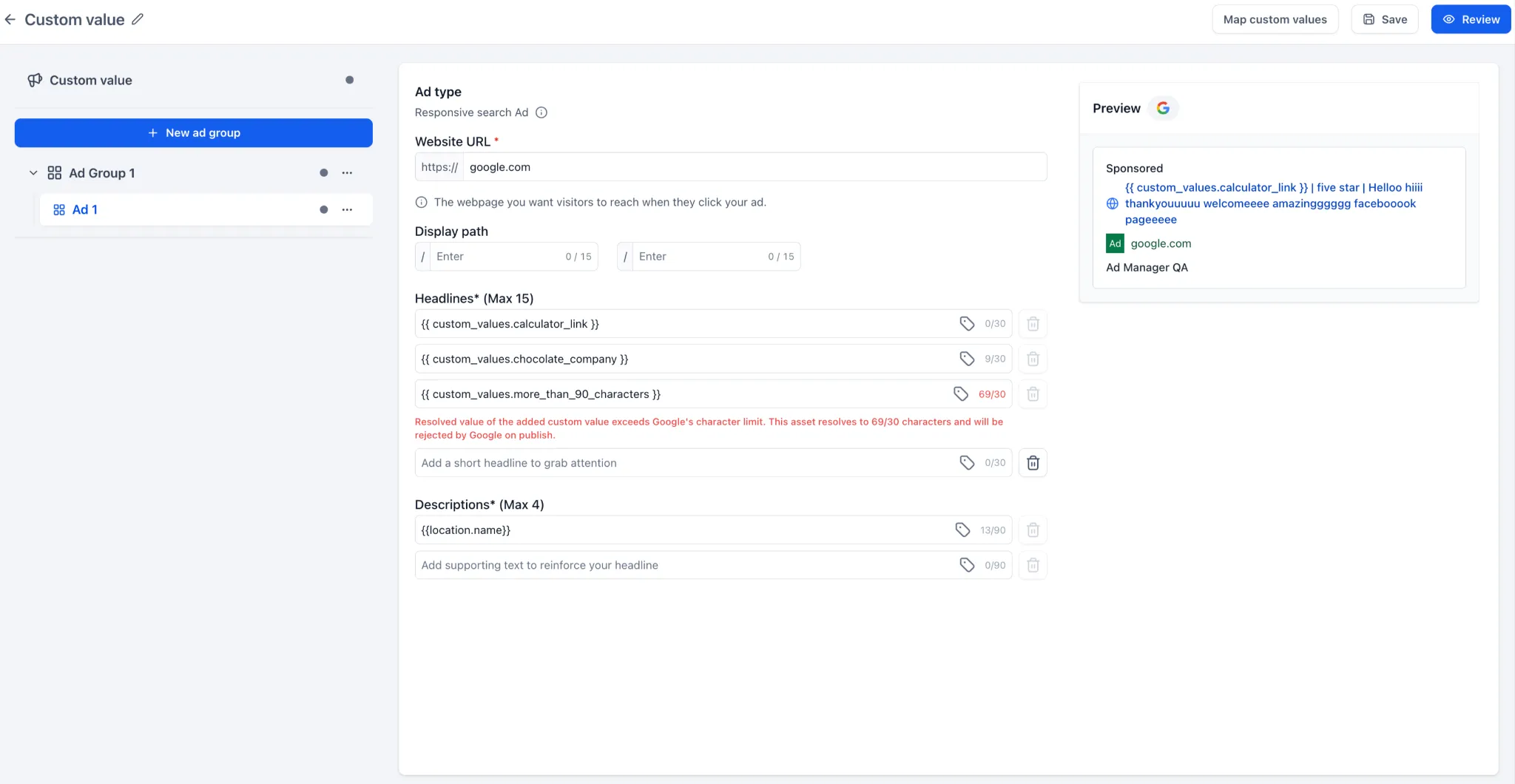
You can now insert saved Custom Values into supported ad copy fields, including fields such as primary text, headlines, descriptions, and introduction text.
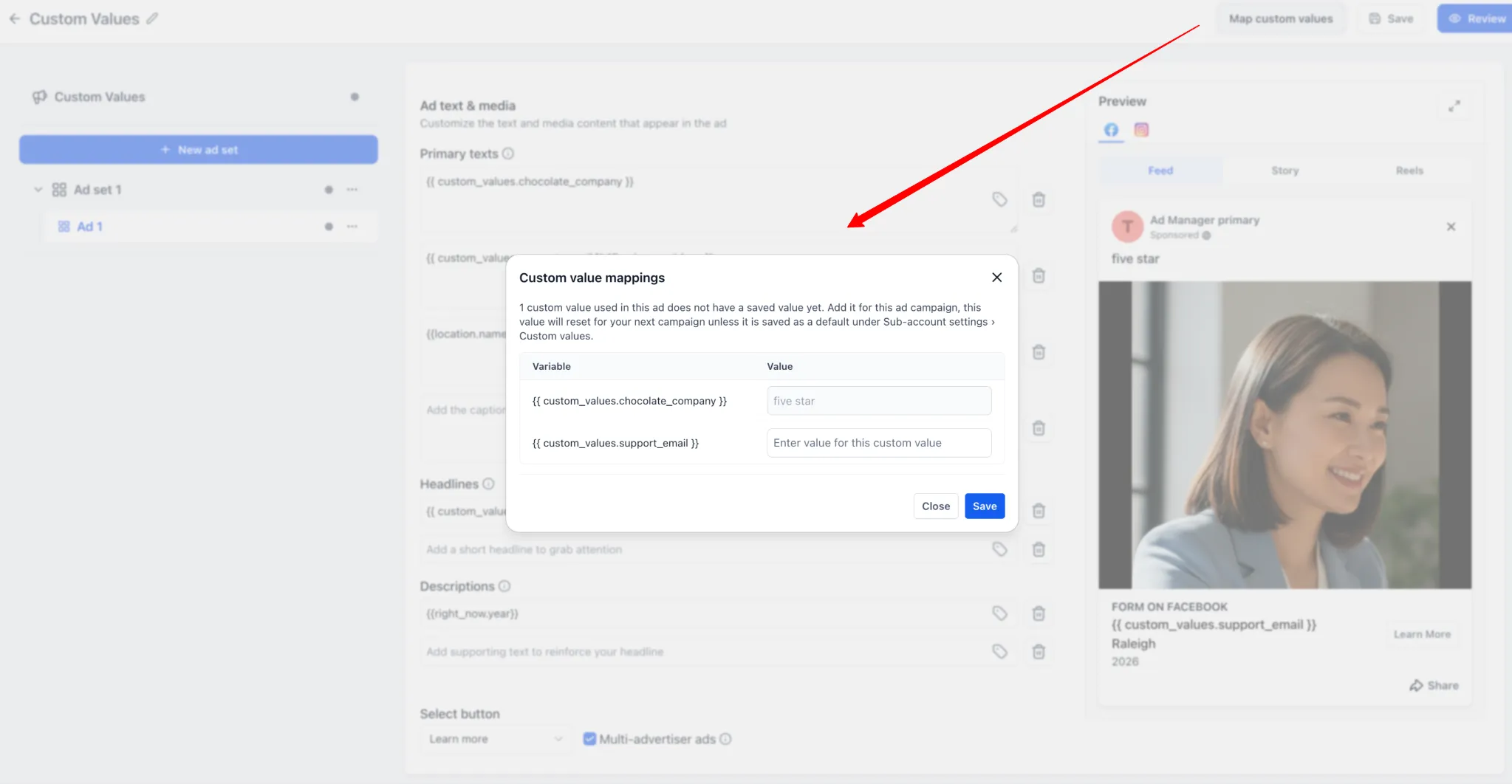
Map values before publishing
The Map custom values action lets you add or review missing values used in a campaign before publishing. Campaign templates can also retain Custom Value keys, making it easier to reuse a template across accounts while mapping account-specific values before launch.
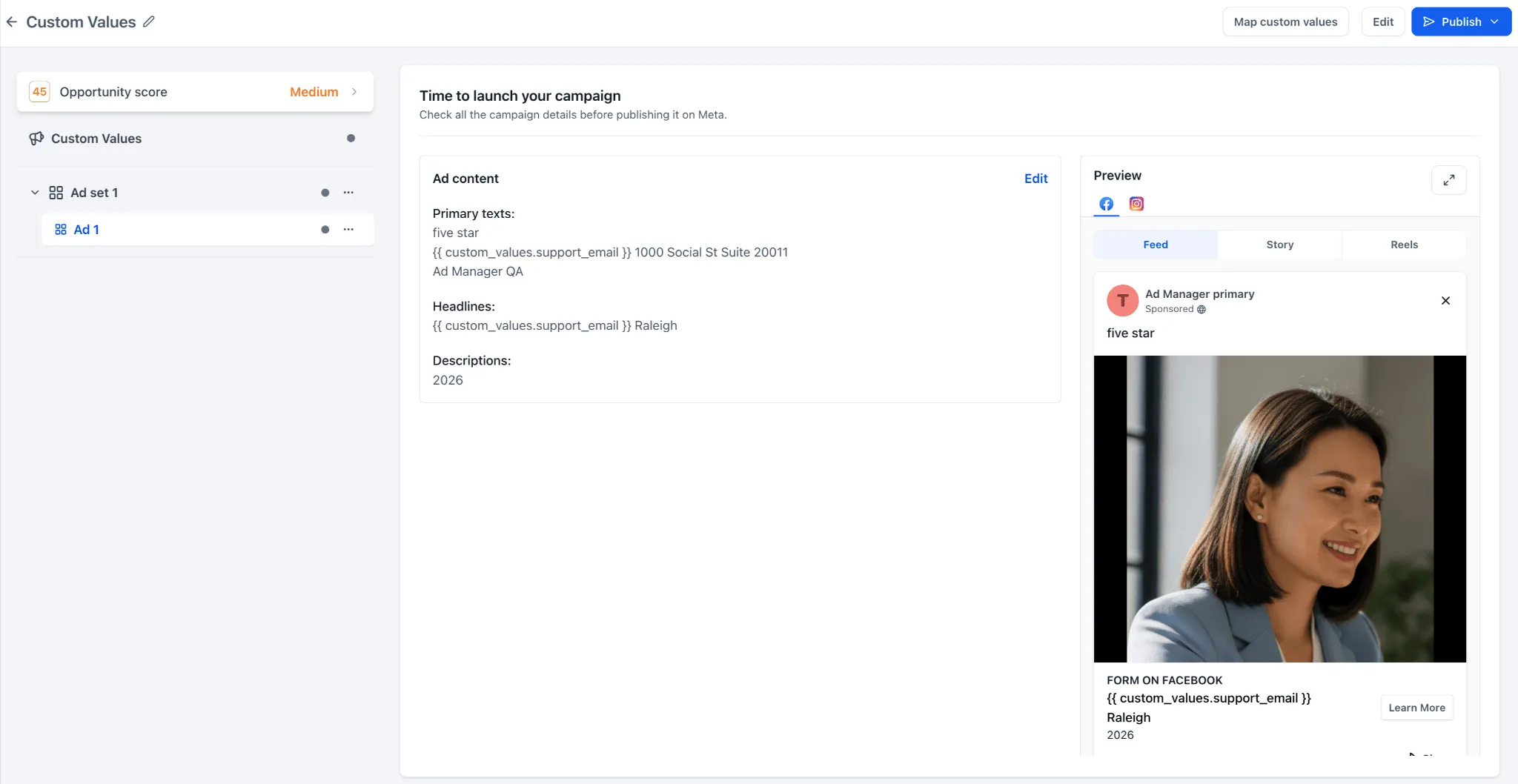
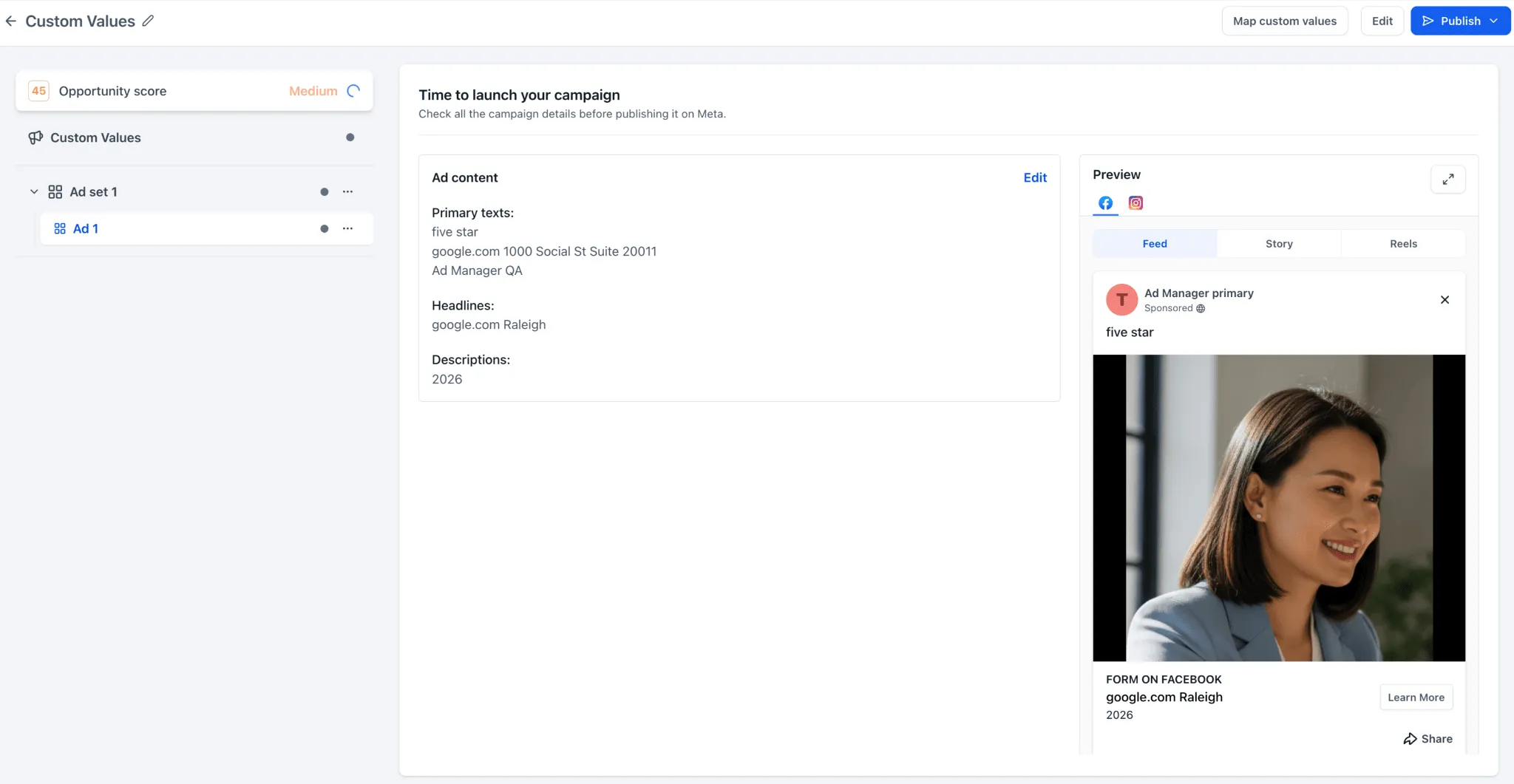
Review resolved ad copy
Preview and review screens now show the final resolved copy, so you can verify what will appear in the published ad.
Safer publishing validation
Ad Manager alerts you when Custom Values are missing, invalid, empty, or exceed platform character limits. These warnings help reduce publishing issues caused by incomplete or invalid campaign copy.
How to use it
- Go to Ad Manager.
- Create or edit a Meta, Google, or LinkedIn campaign.
- Open the ad copy section.
- Select the Insert Custom Values icon beside a supported copy field.
- Search for and select the Custom Value you want to use.
- Continue building the campaign.
- Use Map custom values if any value needs to be added or reviewed.
- Review the resolved copy in the preview or review screen.
- Publish the campaign once validations are cleared.
Important notes
- Custom Values are supported only in eligible ad copy fields.
- Custom Values are not supported in URL fields, CTA dropdowns, lead form selectors, media upload fields, targeting, budget fields, or bid strategy fields.
- Campaigns can be saved as drafts even if Custom Values still need attention.
- Warnings appear when required Custom Values are missing, invalid, empty, or exceed character limits.
- Updating a Custom Value after publishing will not automatically update already-running ads. The campaign must be re-published after changes are made.
In Case You Missed It
For related Ad Manager guidance, see Better Meta Ad Campaign Validation in Ad Manager.
Release Images
Need Help Applying This Update?
Want help turning this update into a working part of your CRM, marketing, or automation setup?
Get Started or schedule a demo and we’ll help you map the right next step.