SMBcrm now supports full editing for both paid and unpaid service bookings. Teams can update an existing appointment without canceling it and creating a replacement booking.
This helps keep booking details, order records, and payment information aligned when customers request changes after scheduling.
What changed
You can now edit an existing service booking to:
- Add or remove services
- Add, update, or remove add-ons
- Change the assigned staff member
- Apply, update, or remove coupons
- Update appointment details without recreating the booking
For teams managing appointment sales through Payments & Commerce, these edits help keep booking and payment records synchronized.
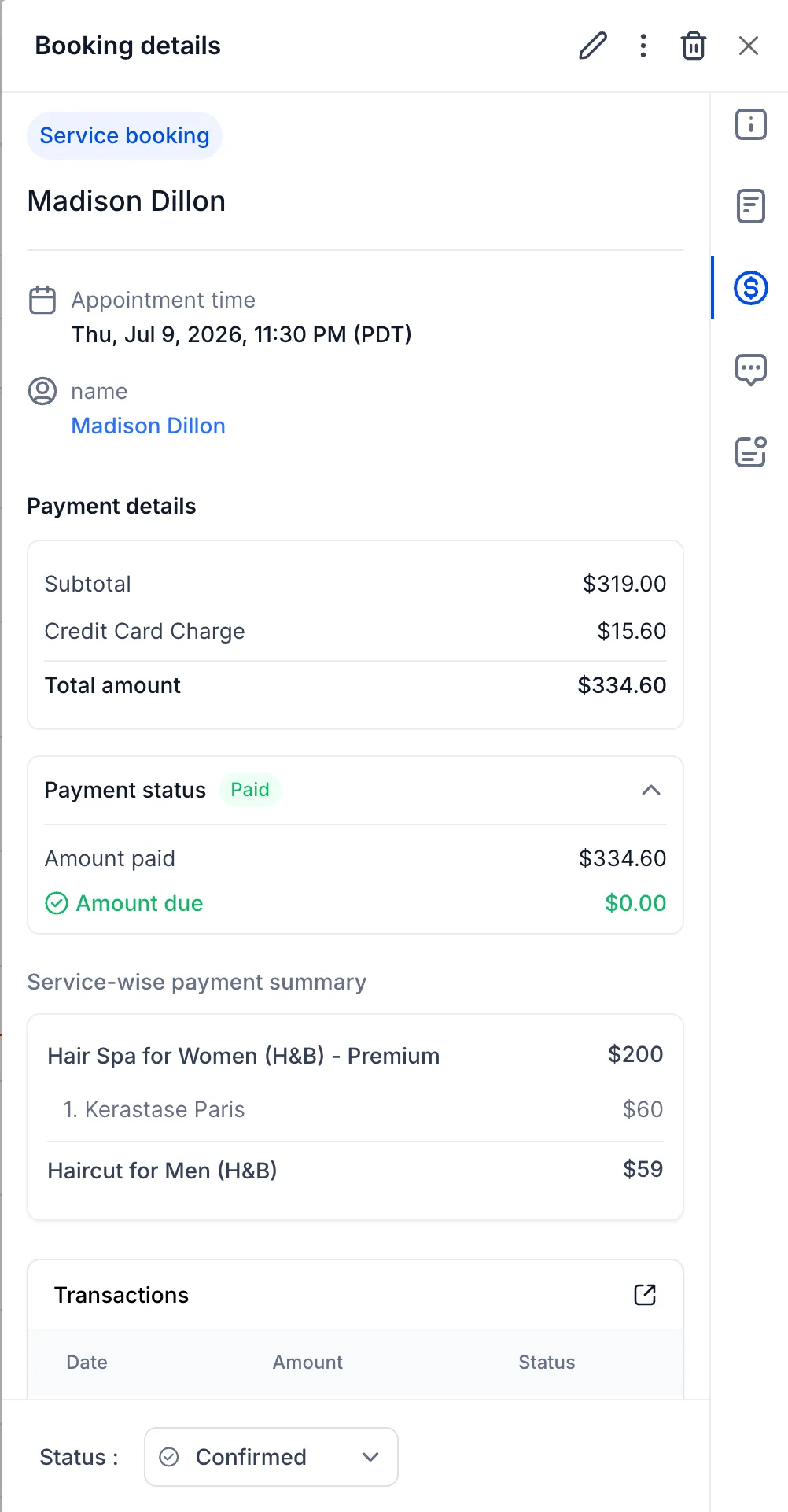
Payment totals stay in sync
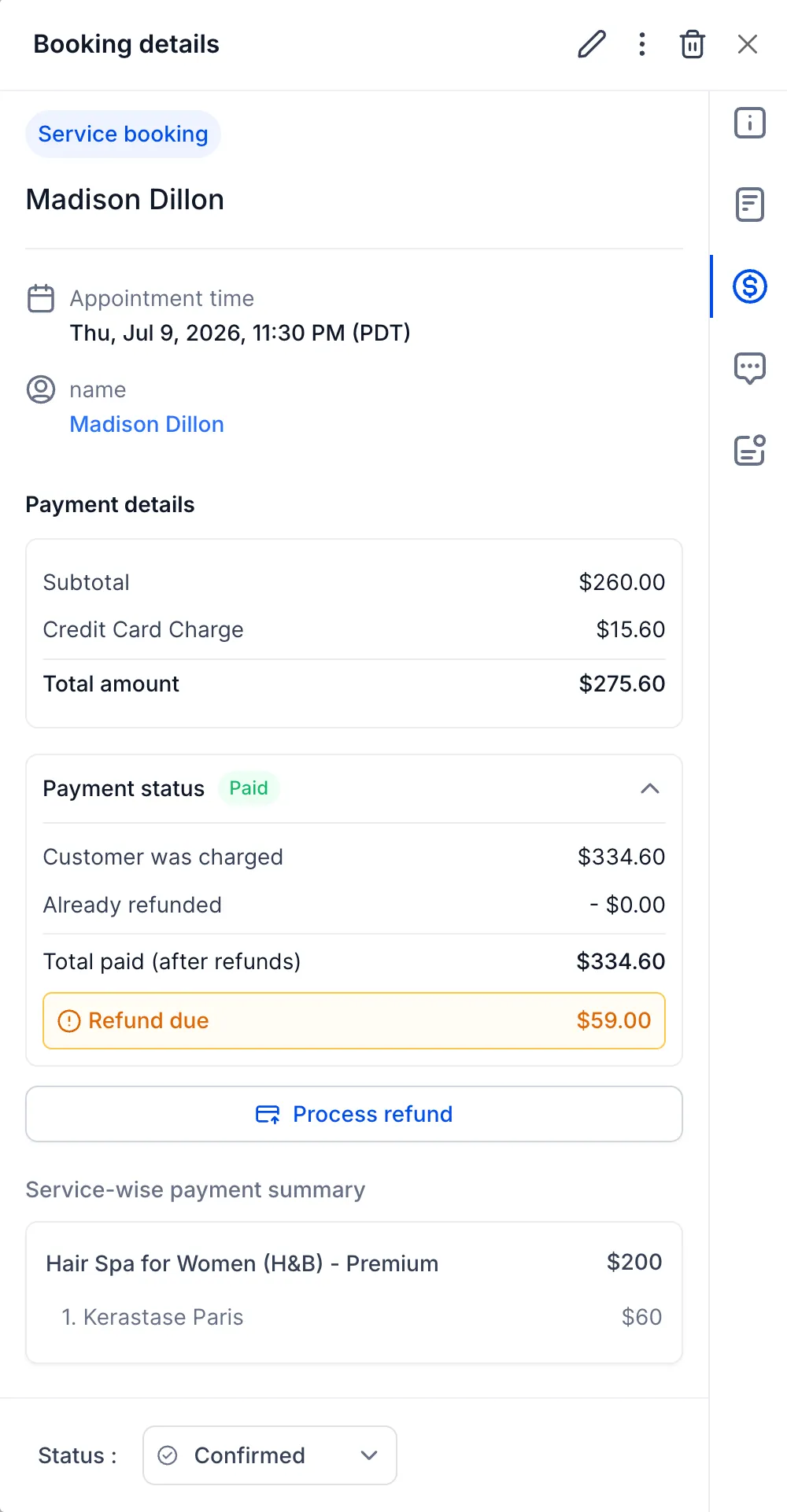
When a booking is edited, SMBcrm automatically recalculates the booking total and updates the payment status. The appointment can show whether additional payment is required, the booking is fully paid, or a refund is due.
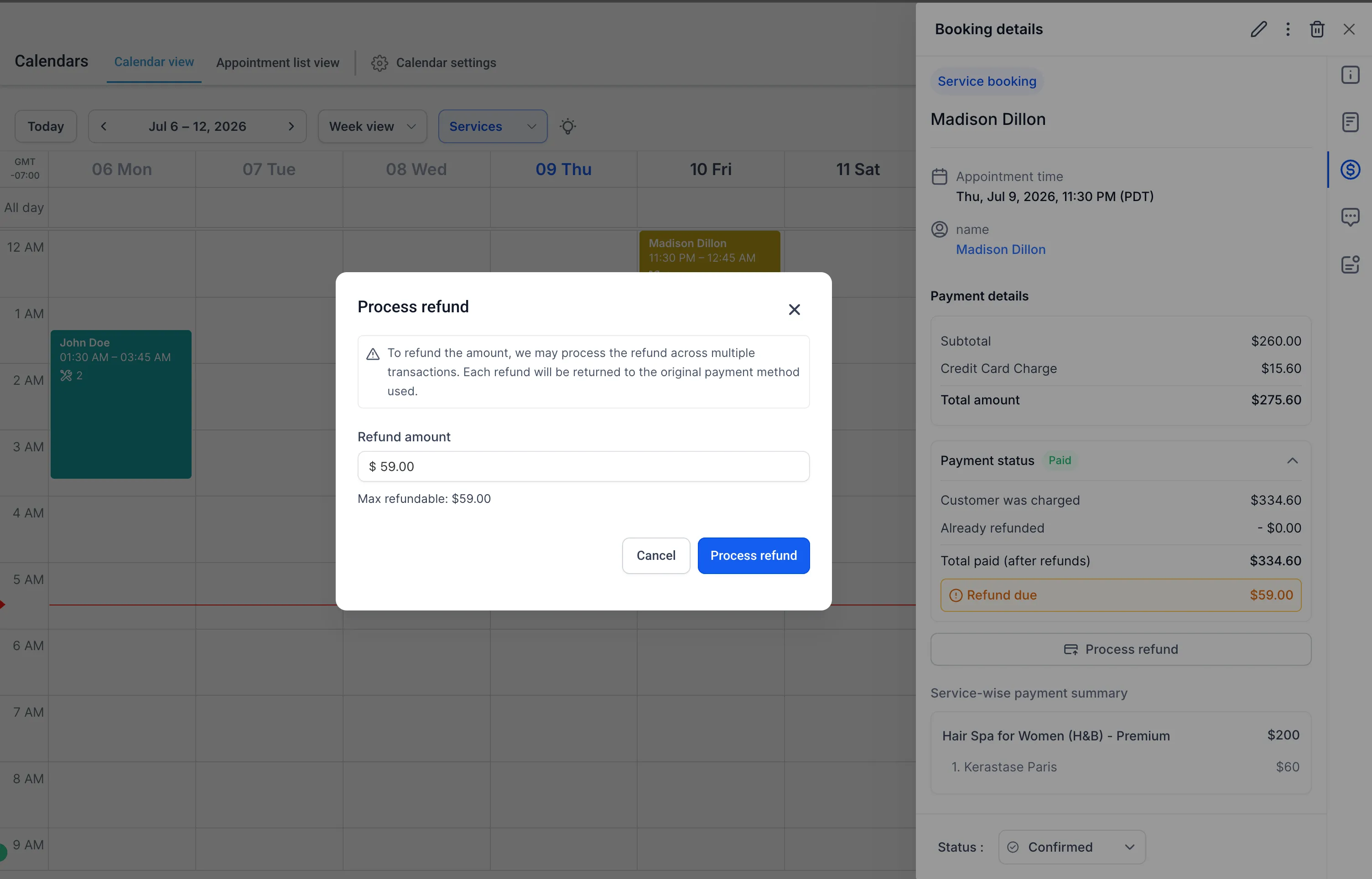
If a refund is due, it can be processed directly from the appointment modal. If a refund has been initiated and is still processing, editing is temporarily disabled until the refund is completed. During that time, the appointment can still be rescheduled.
Orders remain connected
Each service booking remains linked to its associated order. When the booking is edited, the existing order is updated instead of creating a new order.
This keeps order history cleaner and helps ensure services, payments, and appointment details stay aligned through the booking lifecycle.
SMBcrm Mobile app support
Support for editing service bookings in the SMBcrm Mobile app is complete and scheduled to roll out during the week of July 20.
How to use it
- Open an existing service booking.
- Select Edit.
- Make the required changes, such as changing services, add-ons, staff, coupons, or booking details.
- Save the changes.
- Review the updated payment status.
- If a refund is due, process it from the appointment modal.
Why it matters
This update gives teams more flexibility when customers need booking changes after an appointment is created. It reduces the need to cancel and rebuild bookings, while keeping payments, orders, and appointment details in sync.
In Case You Missed It
For another recent scheduling update, read Rentals Booking Is Now Available in SMBcrm.
Need Help Applying This Update?
Want help turning this update into a working part of your CRM, marketing, or automation setup?
Get Started or schedule a demo and we’ll help you map the right next step.
Explore this in SMBcrm
Connect booking to the next conversation.
Explore calendars and lead capture, then see how a booking fits into the wider CRM workflow.
Explore calendars and lead captureAlready using this feature? Find setup help