HubSpot Actions and Trigger Added to Workflows
SMBcrm workflows can connect with HubSpot for contact-centered automation. In the Automation builder, teams can react when contacts are created in HubSpot, then create, find, search, or associate contact records as part of a workflow.
What changed
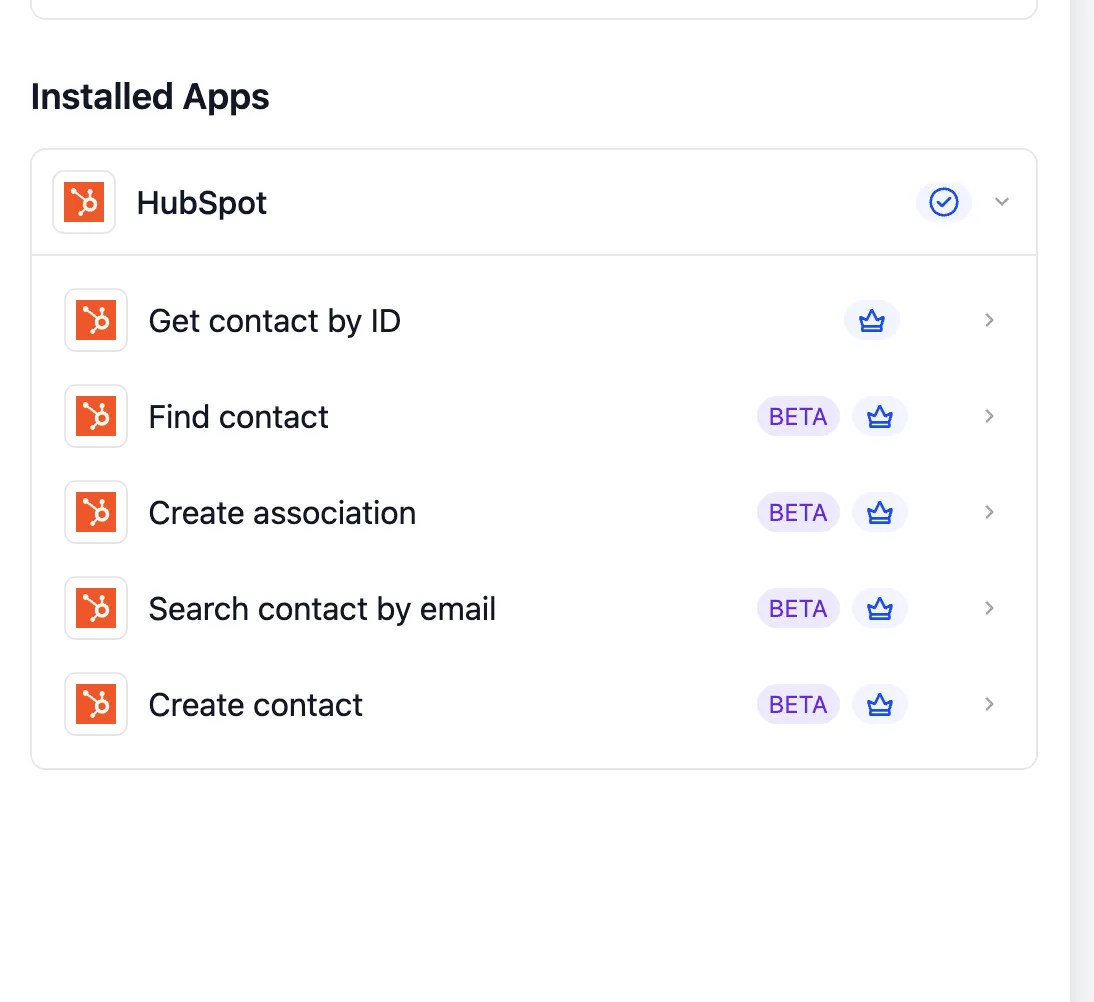
The HubSpot integration includes one instant trigger and five workflow actions.
Trigger
- New Contact Created: Fires when a contact is created in HubSpot and returns the contact payload, including standard and custom properties.
Actions
- Create Contact: Creates a HubSpot contact using standard fields such as email, first name, last name, and phone. Custom contact properties are supported.
- Find Contact: Looks up a contact by record ID, email, or filter and returns matching contact records for downstream workflow steps.
- Get Contact by ID: Fetches the latest state of a contact by HubSpot record ID.
- Search Contact by Email: Runs an exact email lookup, which is useful for deduplication before creating a contact.
- Create Association: Associates an existing contact with a company, deal, or ticket in HubSpot.
These trigger and actions are premium workflow features.
How to connect HubSpot
Before a HubSpot trigger or action can run, the integration must be connected so workflows can read from and write to the HubSpot portal.
Recommended setup path:
- Open Automation > Workflows and choose or create a workflow.
- Add a HubSpot trigger or action from the Apps tab.
- Select the HubSpot trigger or action you want to use.
- Click Connect Now on the action card.
- Sign in to HubSpot through OAuth and authorize the required scopes for contacts and associations.
- Save the connection.
You can also connect from Settings > Integrations by locating HubSpot, clicking Connect, and completing OAuth authorization.
Example: Trigger a workflow from a HubSpot contact
To run a workflow when a contact is created in HubSpot:
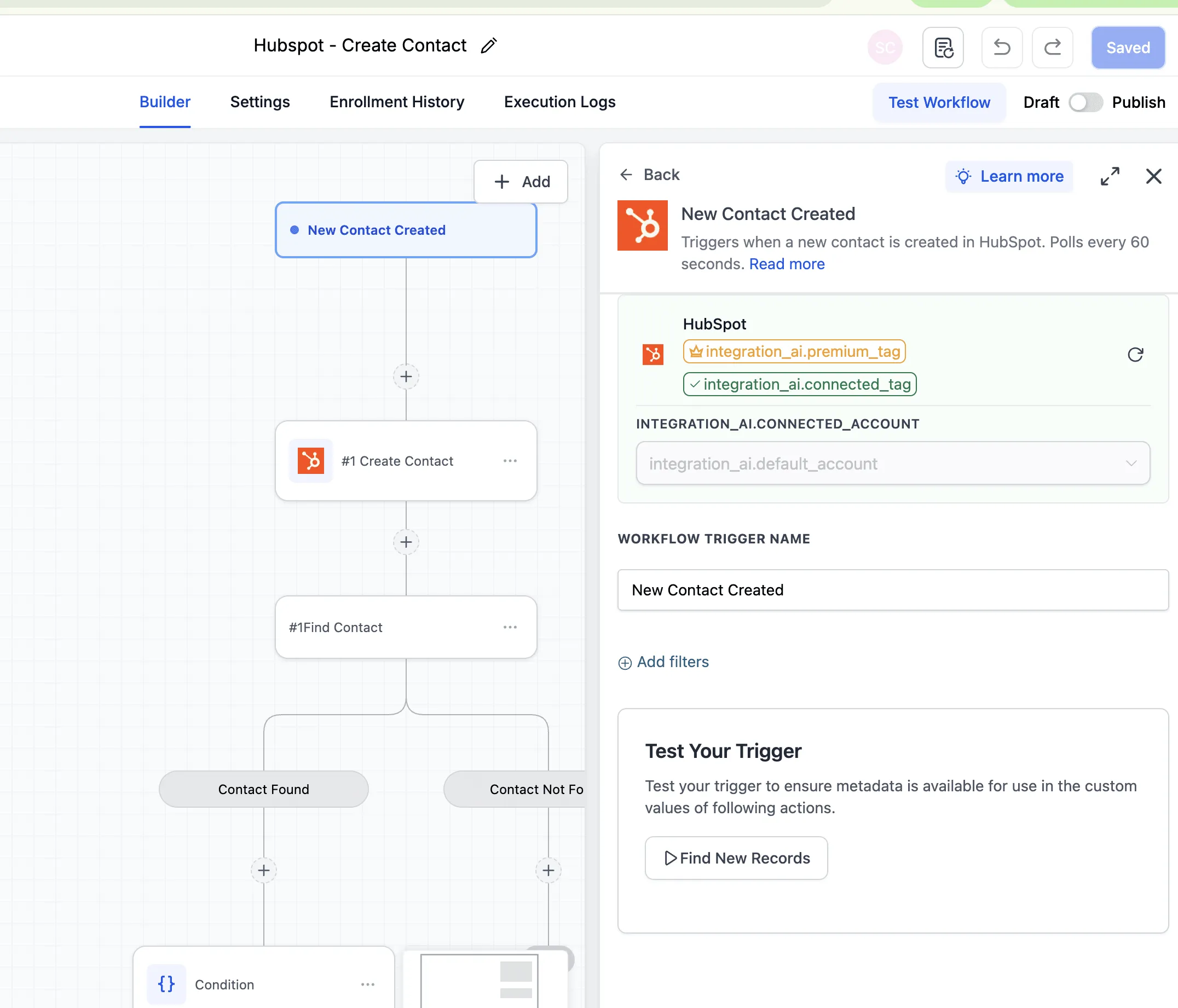
- Add the New Contact Created trigger from the Apps tab.
- Give the trigger a clear name, such as New HubSpot Lead.
- Add optional filters for lifecycle stage, source, or another contact property.
- Use Find New Records in the test panel.
- Select a returned contact as the mapping reference.
- Save the trigger.
Testing locks the payload schema so later workflow steps can map fields cleanly.
Example: Create a HubSpot contact from a form
A common workflow is to create a HubSpot contact from a form submission.
- Add a workflow step and choose HubSpot from the Apps tab.
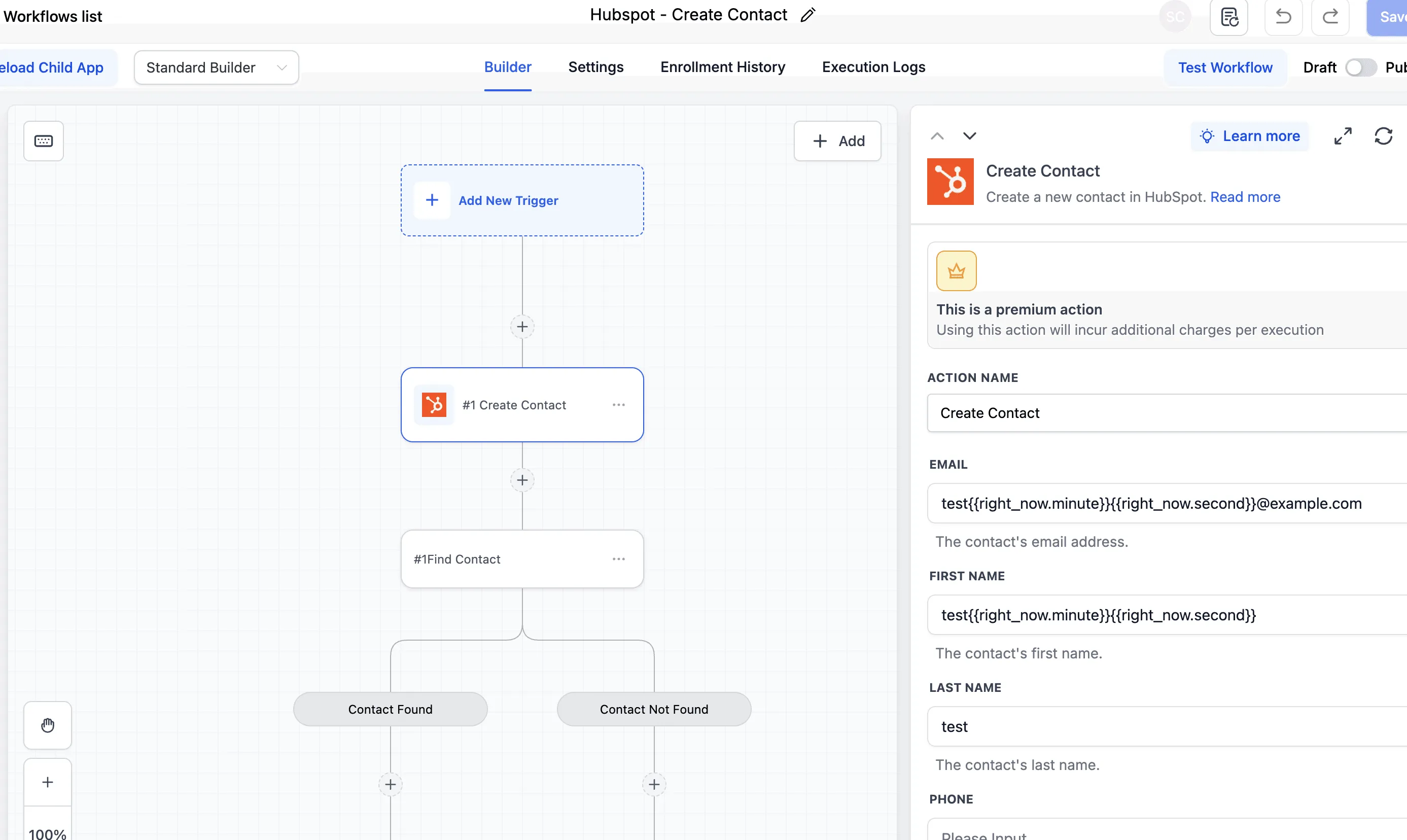
- Select Create Contact.
- Connect HubSpot if this is the first HubSpot action in the workflow.
- Map the required email field, for example
{{contact.email}}. - Map first name, last name, phone, and any supported custom properties.
- Save the action.
For cleaner data, run Search Contact by Email before Create Contact. If a contact is found, use the existing record or skip creation. If no contact is found, continue to Create Contact. HubSpot uses email as the primary deduplication key.
Common workflow patterns
Form-to-contact with deduplication
Use a form submission trigger, search HubSpot by email, then create the contact only when no matching record is found. You can optionally add a Create Association step to connect the contact to a company or deal.
HubSpot to SMBcrm contact sync
Use the New Contact Created trigger to mirror HubSpot contacts into SMBcrm. The workflow can find an SMBcrm contact by email, then create or update the SMBcrm contact with HubSpot data such as email, name, phone, and lifecycle stage.
Contact-to-company association
After a lead submits a form, the workflow can search or create the contact, find the related company, and associate the contact with that company in HubSpot.
Testing notes
Before publishing, test both the trigger and the action.
- For triggers, use Find New Records and confirm the Trigger Data Response includes the fields you plan to map.
- For actions, use Test Action and verify that the contact appears in HubSpot with the expected properties.
- If custom properties do not populate, confirm the property exists in HubSpot before mapping it.
- Workflow variables are supported in fields, including values such as
{{contact.email}}and{{right_now.minute}}.
If Create Contact fails, such as when an email is malformed, the error appears in the workflow execution log and the workflow continues based on its branching.
Additional notes
The integration works with the free HubSpot CRM tier. Some HubSpot-side features, such as certain HubSpot workflow automations or custom property types, may require paid HubSpot plans.
Create Association links a contact to another HubSpot record, typically a company, deal, or ticket. The relationship is visible from both records in HubSpot.
In Case You Missed It
For another Workflow Builder improvement, read Resize and Expand Workflow Builder Sidebars.
Need Help Applying This Update?
Want help turning this update into a working part of your CRM, marketing, or automation setup?
Get Started or schedule a demo and we’ll help you map the right next step.