SMBcrm now lets users choose to receive inbound calls only during their working hours. When enabled, calls that arrive outside a user’s selected availability automatically skip that user and continue to the phone number’s existing backup.
The setting is off by default, so call routing does not change until it is turned on. During working hours, calls ring the user the same way they do today.
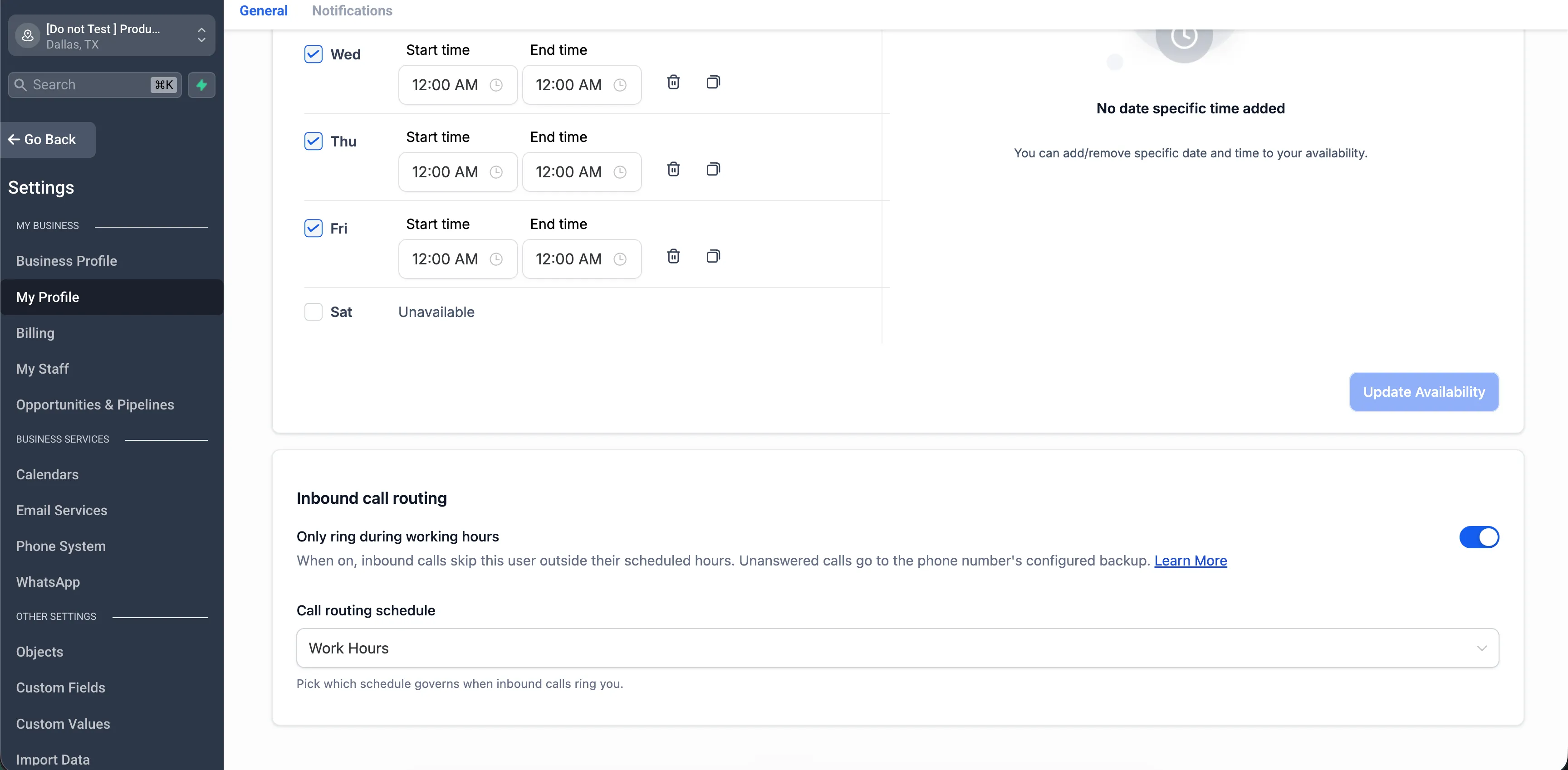
Where to Find It
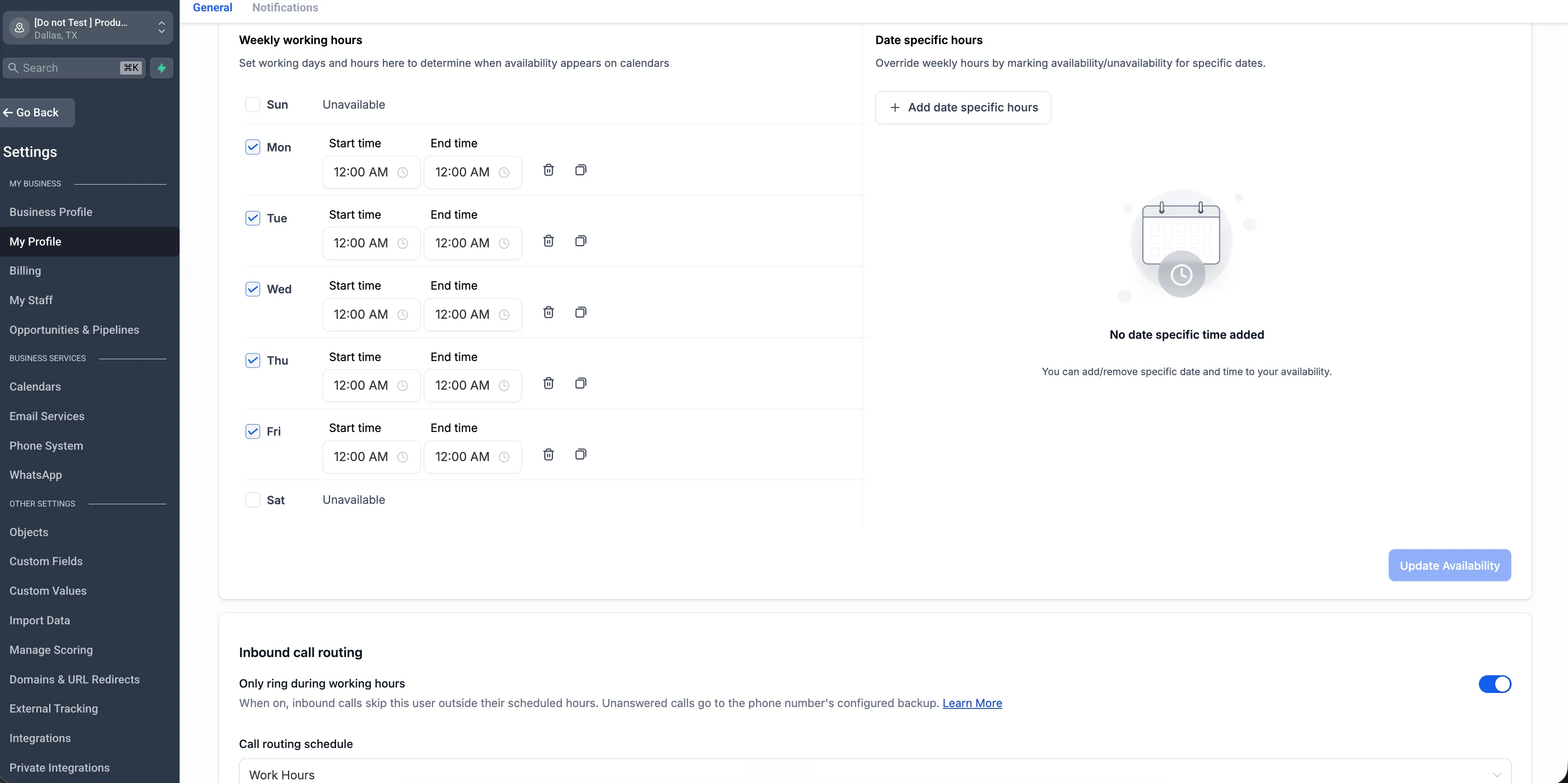
Users can turn this on from Settings > My Profile in the Inbound call routing card.
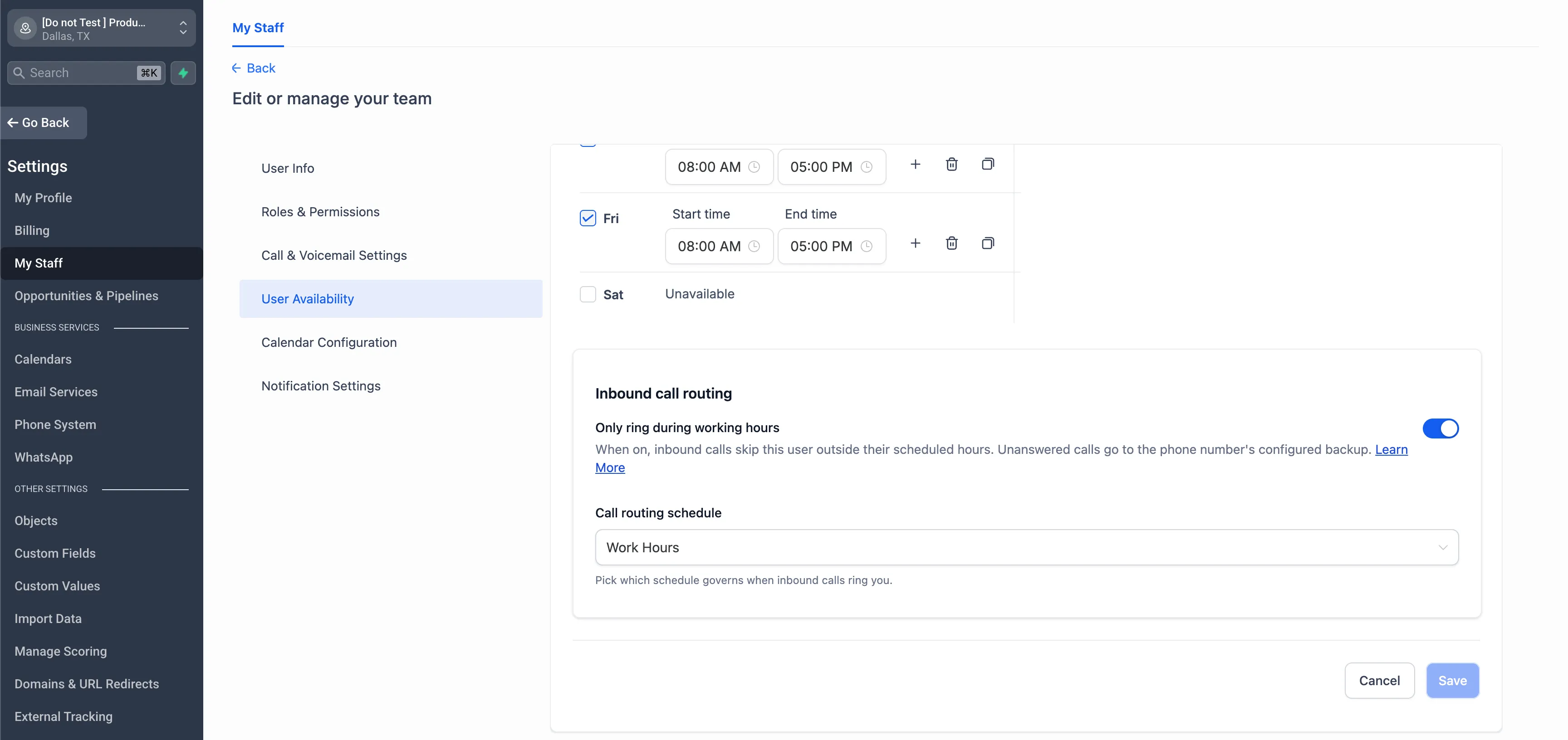
Admins can also manage the setting for team members under Settings > My Staff > Edit > User Availability.
How Call Routing Works
- Direct calls: If a user is assigned and outside working hours, the call skips that user and goes to the number’s backup.
- Ring all: Only teammates outside their working hours are skipped. Anyone still within working hours rings as normal. If everyone is outside working hours, the call goes to the number’s backup.
- Call menu (IVR): If a connect step is set to ring a user who is outside working hours, that user is skipped while the other people and numbers on the step still ring. If that user was the only target, the step connects no one and the workflow continues on its normal not connected path.
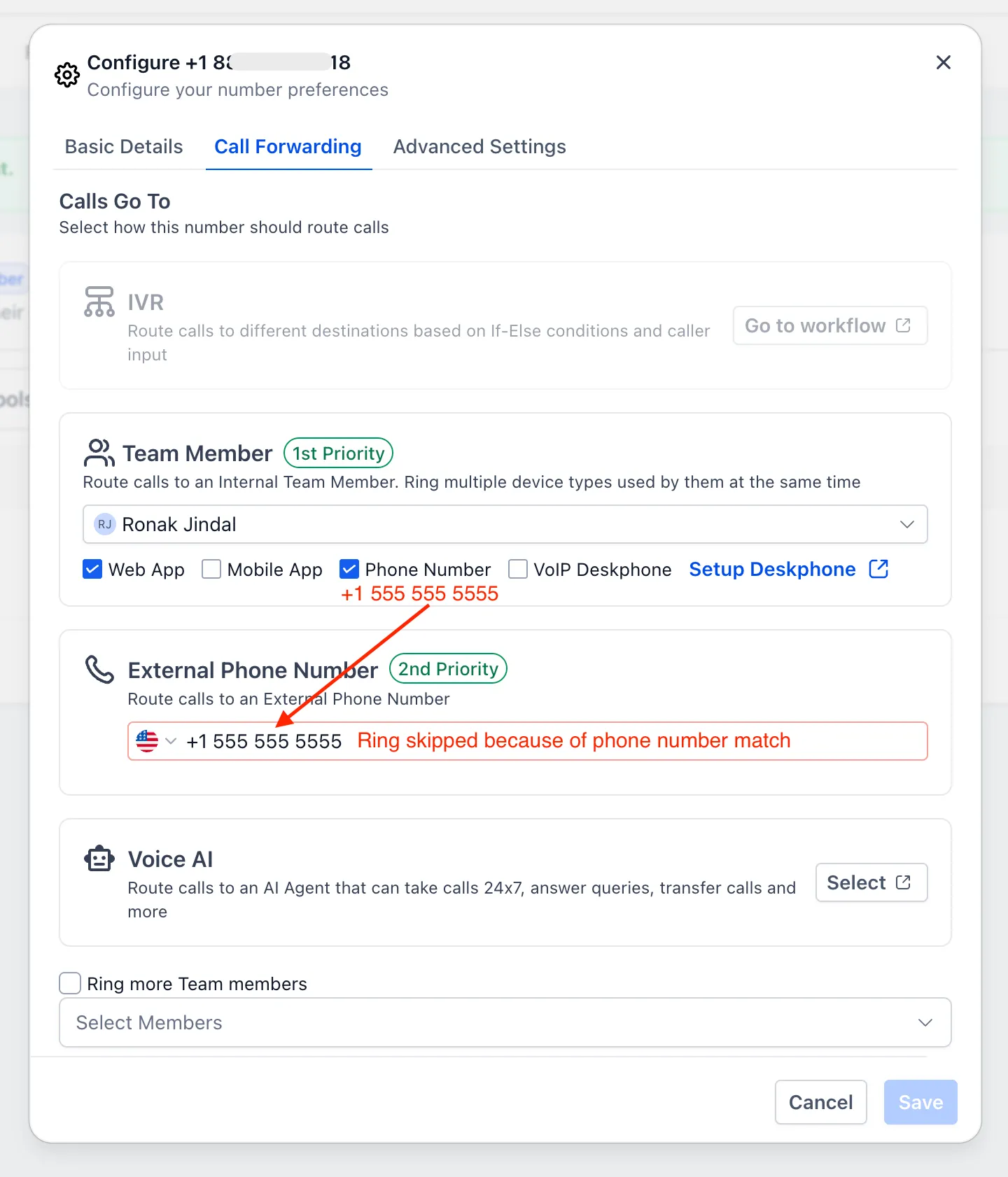
- Forwarding numbers: If a user’s own phone is also set as the phone number’s forwarding number or business number, it is skipped when the user is outside working hours. This helps the call continue to the backup instead of reaching the unavailable user.
Handling Holidays and Days Off
The schedule used for this feature supports date-specific hours. These override normal weekly hours for a single date.
To mark a holiday or day off, add a date-specific day with no hours. This removes the user from inbound calls for that date without changing the regular weekly schedule.
Admin Control
Admins can control whether team members can change this setting through the Manage calendars permission.
If a staff member should not be able to change their own call availability, remove the Manage calendars permission from that role under Settings > My Staff > Roles and Permissions. When the permission is off, the Inbound call routing card cannot be used for that user, and attempts to change the setting are blocked.
Known Limitations
- Transfers are not covered in this release. This applies to inbound calls to assigned users, ring all, and call menu (IVR) steps.
- Per-user backup options are not included yet. Calls outside working hours follow the phone number’s existing backup.
In Case You Missed It
For another recent update, see June Template Release: Websites, Funnels, Email, Social, and Ads.
Need Help Applying This Update?
Want help turning this update into a working part of your CRM, marketing, or automation setup?
Get Started or schedule a demo and we’ll help you map the right next step.
Explore this in SMBcrm
Connect calls with the customer conversation.
Explore phone tools and the shared inbox, then review call routing, staff availability, and usage charges before setup.
Explore the phone systemAlready using this feature? Find setup help