Use Media Library Assets in AI Studio
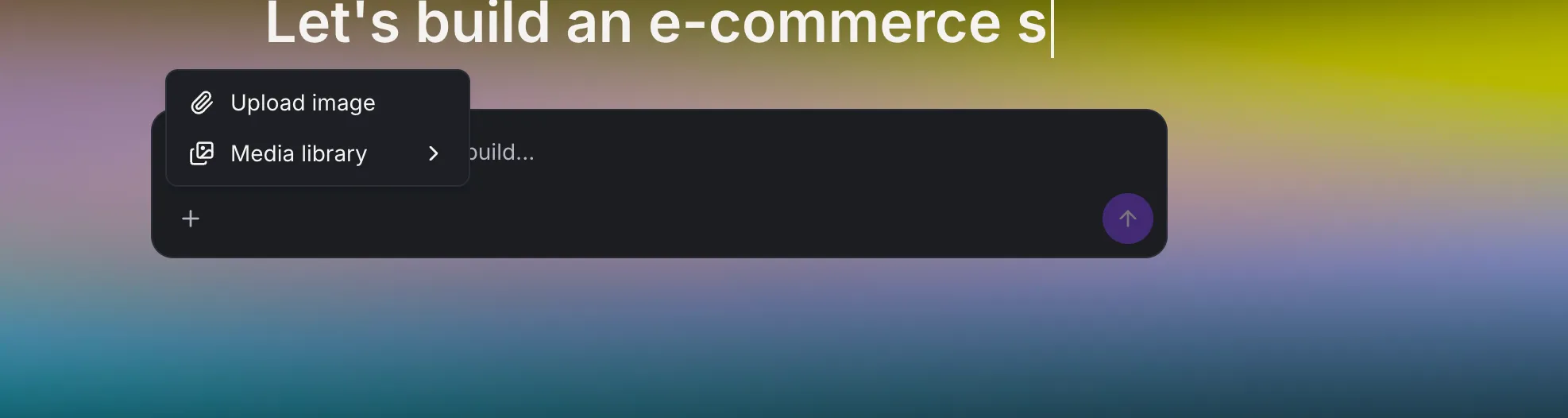
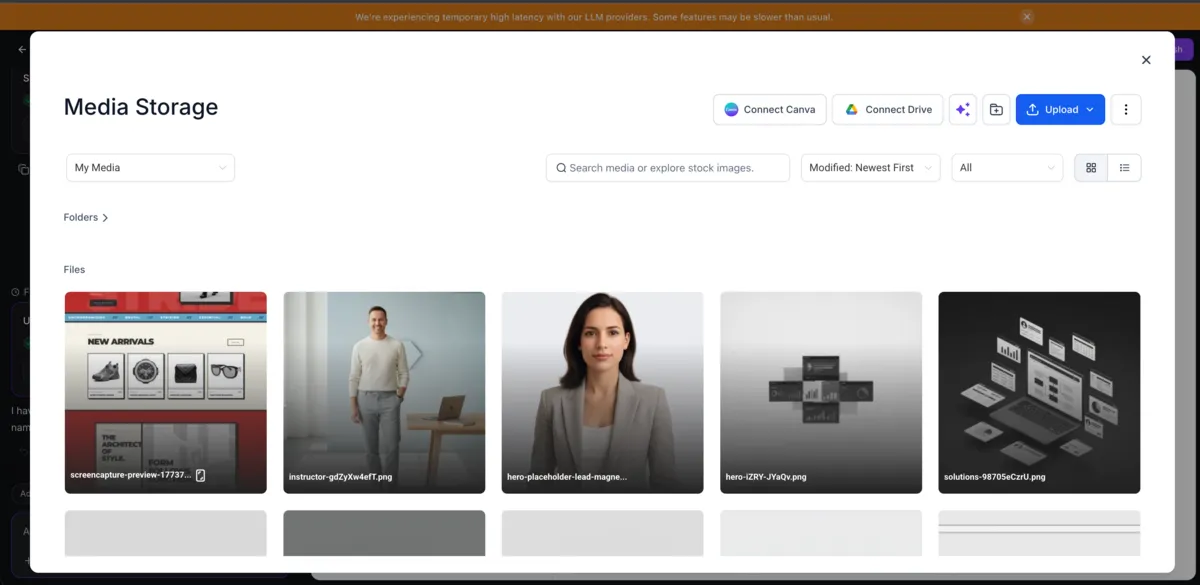
AI Studio now integrates with Media Library, so you can browse and reuse images and assets you already manage in SMBcrm while working in chat, Visual Edits, and Publish.
This helps builders stay on-brand without leaving AI Studio or re-uploading the same files. You can still upload directly from your device when needed.
What changed
With this update, Media Library assets are available across key AI Studio workflows:
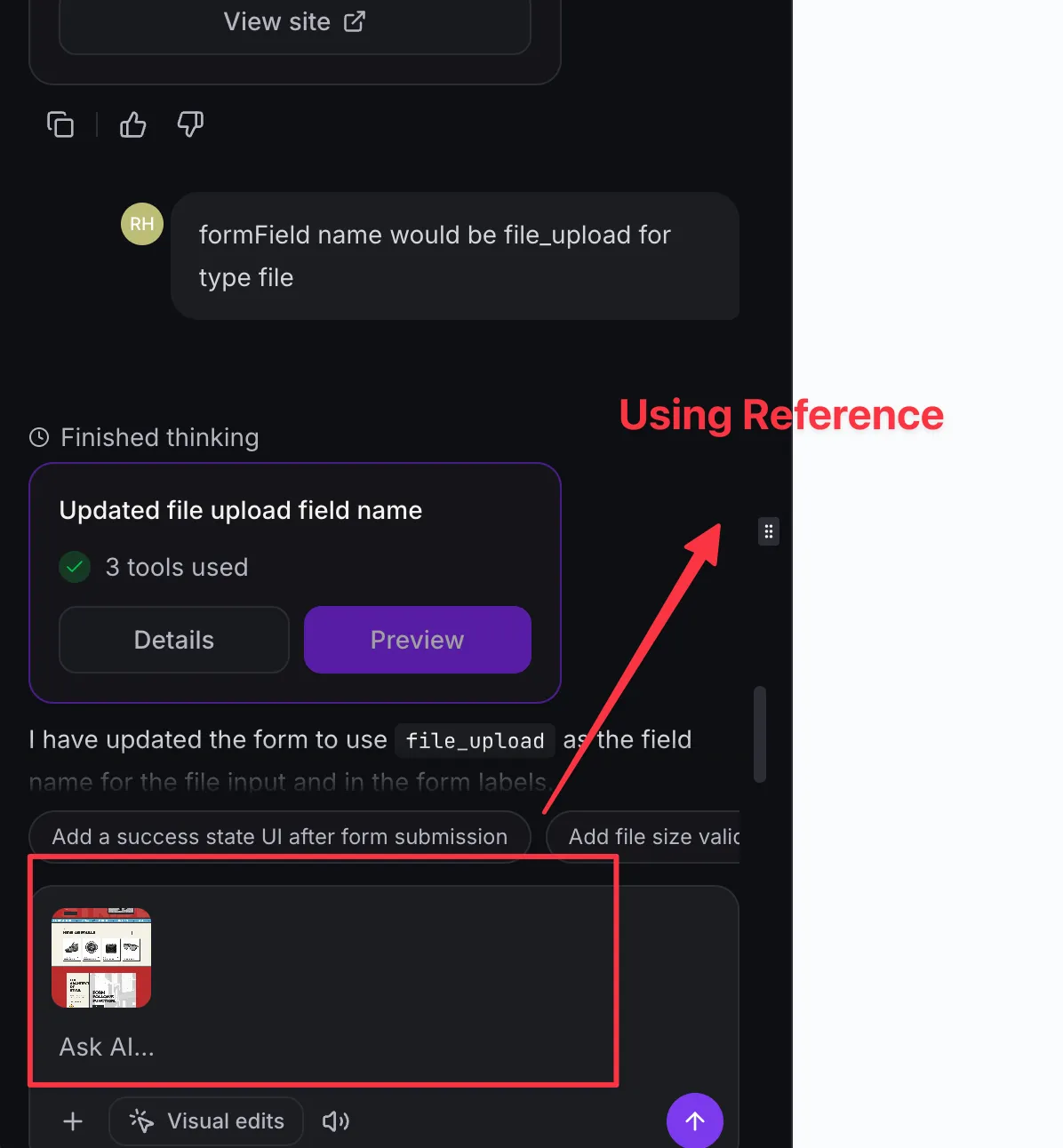
- Add Media Library images as references in chat so AI Studio can better match your brand visuals.
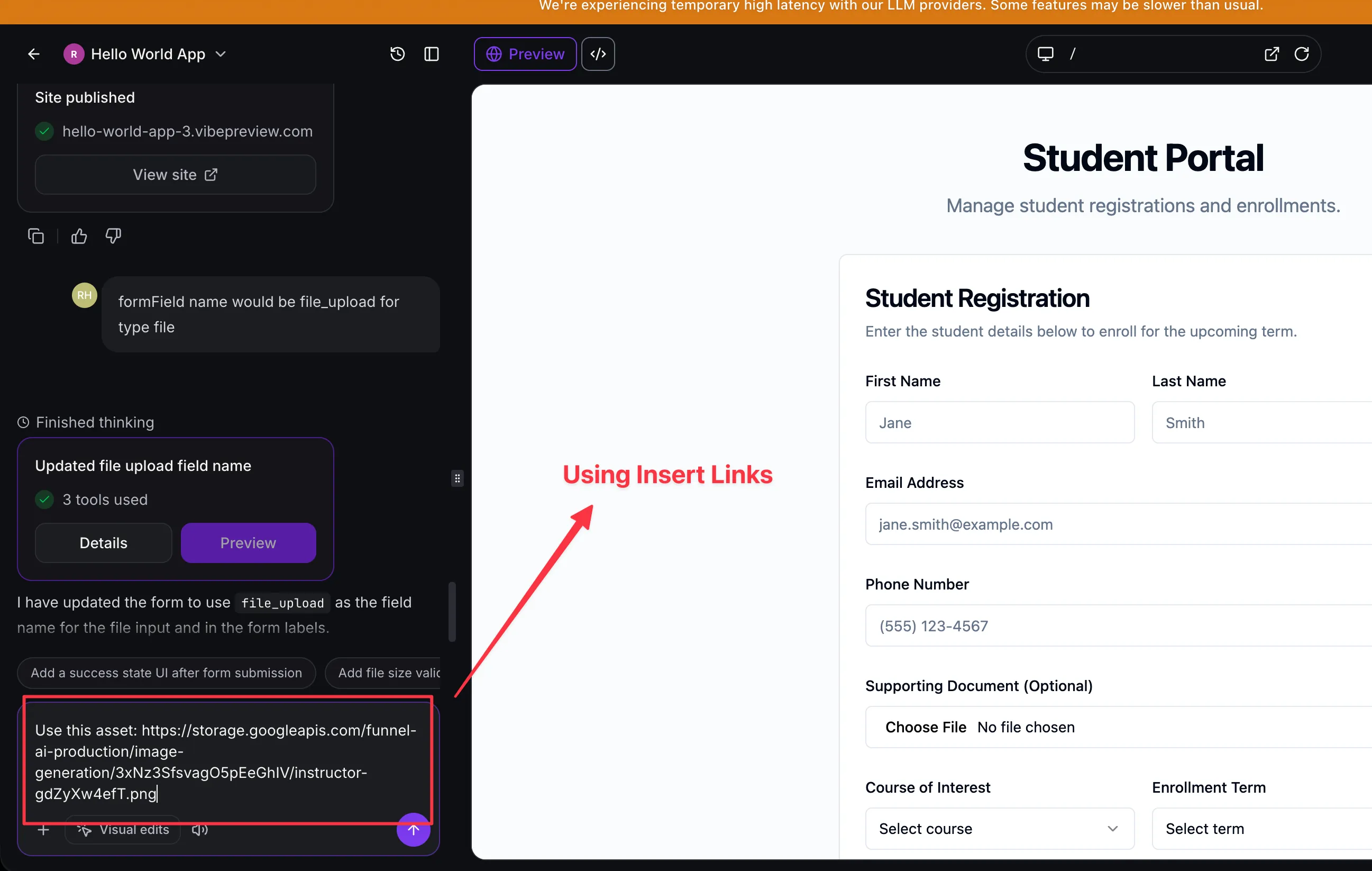
- Insert Media Library asset links for images, documents, video, or audio directly into prompts.
- Replace page images in Visual Edits by selecting an image element and choosing an asset from Media Library.
- Set favicon and social images from Media Library in Publish settings.
- Upload, paste, or drag and drop images from your device when an asset is not already available.
Learn more about SMBcrm’s broader AI features and how they support faster content and site-building workflows.
How to use it
In chat
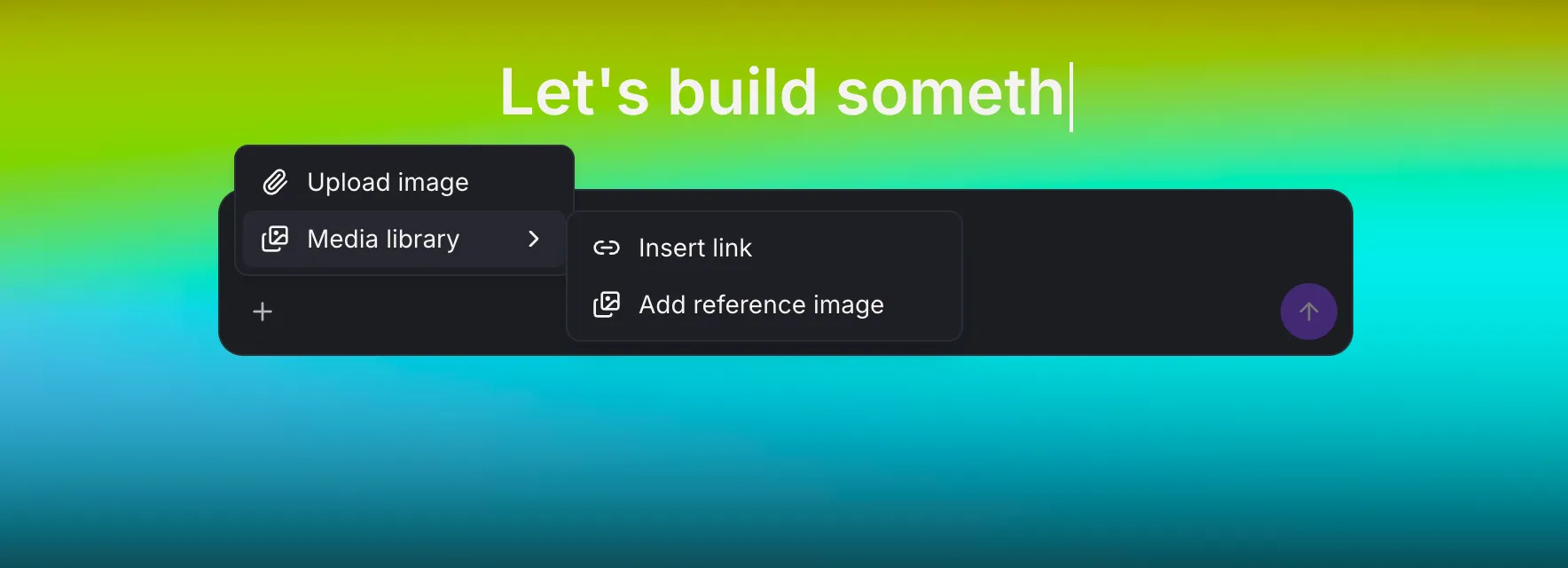
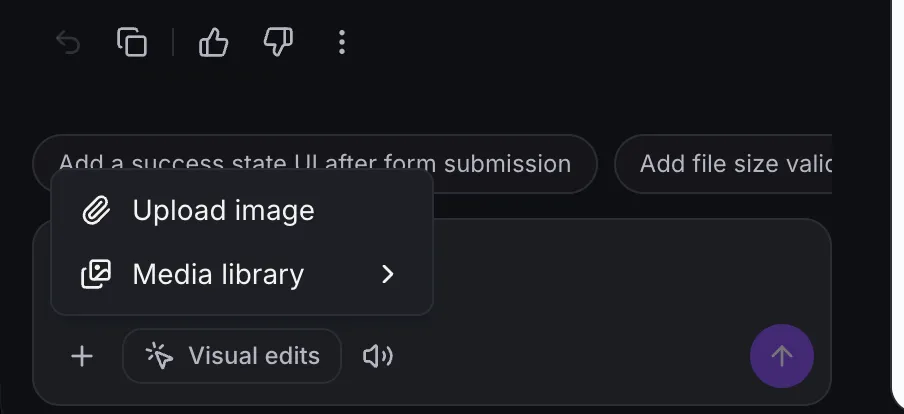
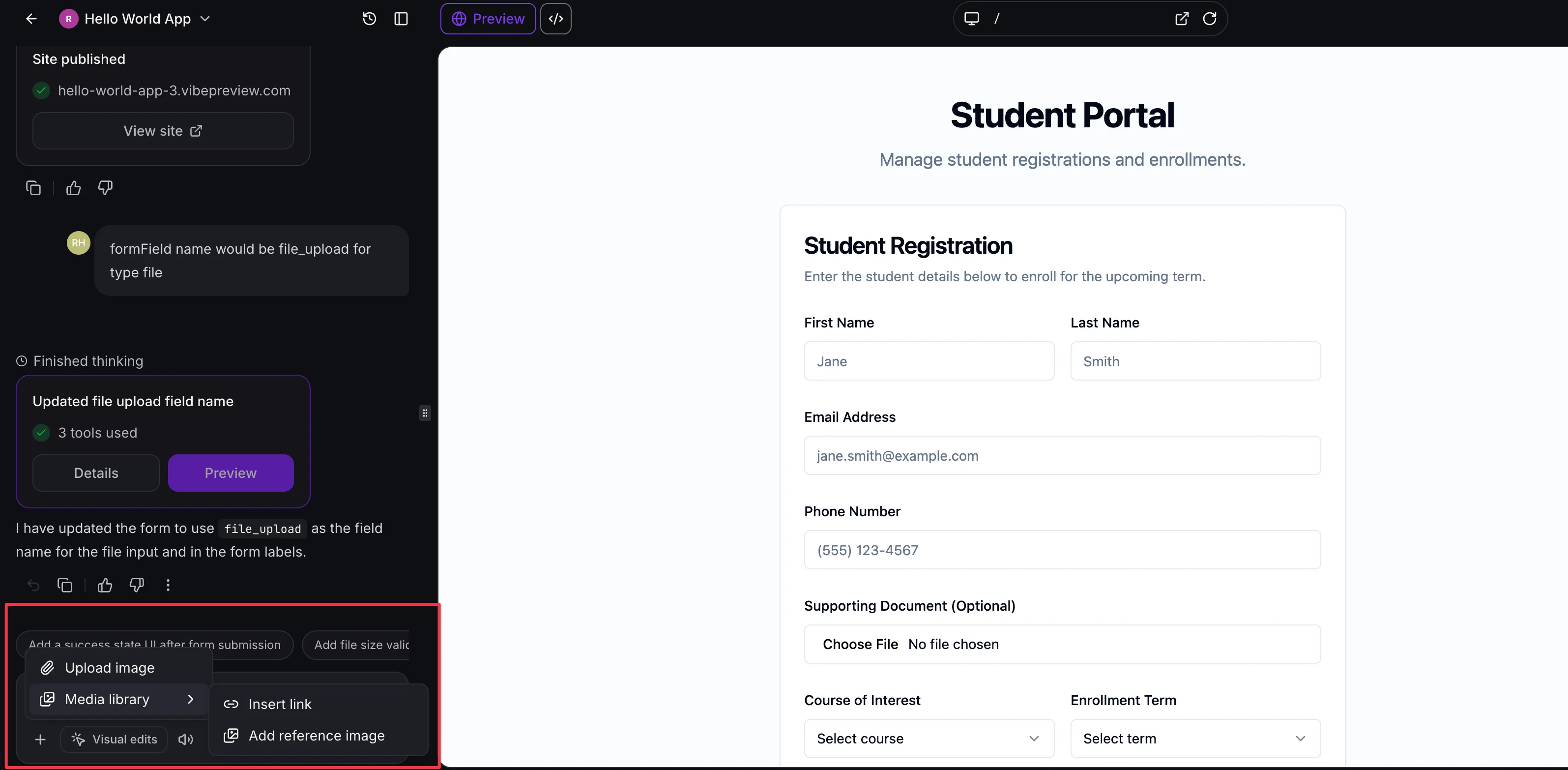
Open the attach menu, choose Media Library, then add a reference image or insert an asset link. You can also upload from your device, paste an image, or drag files into the composer.
In Visual Edits
Select an image element on the page, then use the Media Library button next to the Image URL field to choose a replacement.
In Publish settings
Use the Media Library option in the favicon and social image fields, or upload a file from your device.
Good to know
Files can still be uploaded directly from your device. Media used in AI Studio stays attached to the project when it is remixed or loaded from a snapshot, helping keep assets and branding consistent across builds.
Release Images
Need Help Applying This Update?
Want help turning this update into a working part of your CRM, marketing, or automation setup?
Get Started or schedule a demo and we’ll help you map the right next step.