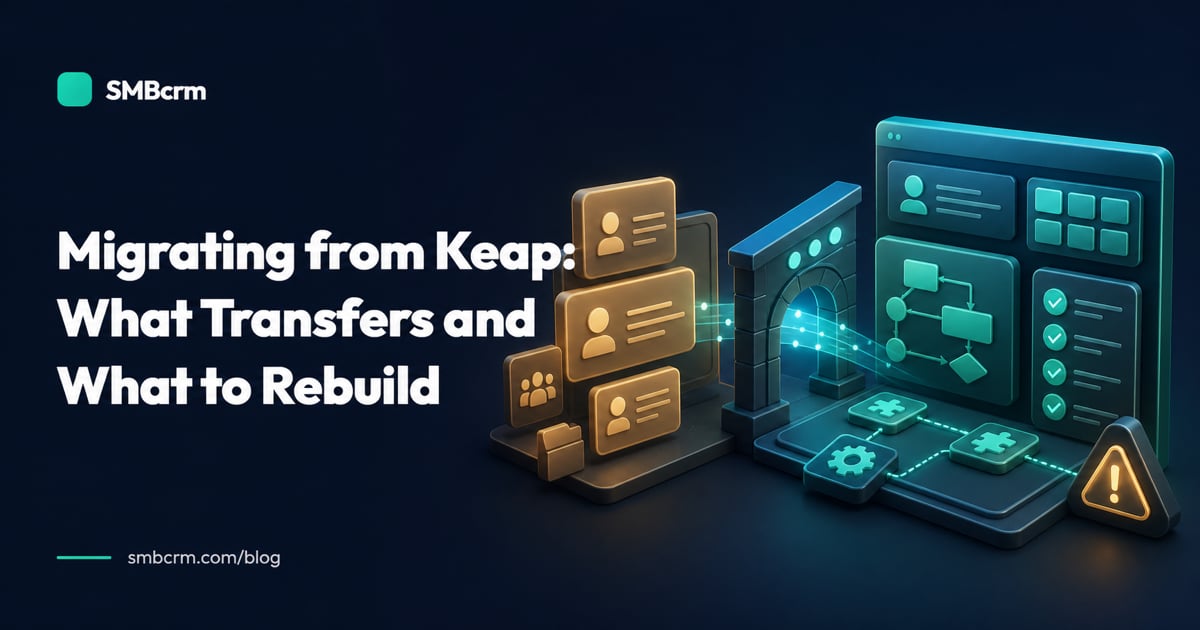
A Keap migration starts with an awkward fact: Keap does not put your whole account into one portable export. Contacts are relatively straightforward. Notes, tags, deals, payment records, email history, automations, and connected apps each need a separate decision.
That does not make the move unsafe. It means the project should be treated as a controlled rebuild around a verified data transfer, not a one-click copy.
This guide focuses on the Keap-specific edges. For the broader process of choosing an owner, mapping fields, testing a sample, and managing a final data freeze, use our step-by-step CRM switching guide.
Keap has multiple editions and legacy account configurations. Its current export documentation primarily covers Pro and Max, so confirm the equivalent reports and permissions in your own account before setting a cutover date.
The short answer: what transfers and what does not
| Area | What can commonly transfer | What normally needs mapping, rebuilding, or testing |
|---|---|---|
| Contacts | Standard fields and custom fields through CSV | Destination field types, owners, duplicates, consent, and opt-outs |
| Tags and notes | Separate Keap reports tied back to contact IDs | Re-association, formatting, authors, timestamps, and spot checks |
| Deals and pipelines | Possibly through a managed or custom extraction process | Pipeline stages, open deals, owners, values, and history |
| Orders and transactions | Separate reports, depending on edition and processor | Products, invoices, payment connections, subscriptions, and reconciliation |
| Email history | A separate archive may preserve some history | Inbox connections, sending domains, templates, suppression rules, and deliverability |
| Automations | Documentation, screenshots, copy, and logic can be carried forward | Triggers, delays, branches, messages, forms, goals, and stop conditions |
| Integrations | Credentials and configuration can be inventoried | OAuth connections, API keys, webhooks, field mappings, and end-to-end tests |
The most important distinction is between records and behavior. A record is a row of contact data. Behavior is what the system does when a form is submitted, a tag is applied, an invoice fails, or a deal changes stages. Records can often be imported. Behavior must work in the destination system’s own logic.
What you can usually take out of Keap
Contacts and custom fields
Keap’s current contact export instructions say the CSV includes standard and custom contact fields. That makes contacts the best place to begin.
Keep the Keap contact ID as its own column, even if the new CRM does not require it. That ID is the safest key for reconnecting notes and tags from separate reports. Export with an account that can see the full database, save an untouched original, and download large exports promptly because Keap’s emailed download links expire after 24 hours.
Before importing, map each Keap field to a destination field with the same purpose and a compatible type. A text field should not silently land in a date field, and a multi-select value should not be squeezed into a single-choice dropdown. Create the required destination fields before loading the records.
Tags and notes, through separate reports
Keap does not include tags or notes in its contact export. Its documentation points Pro and Max users to the Tag Tracker report for tags and the Task Note Report for notes.
Export those reports before cleanup. Then decide which tags still drive a real business rule. Some may represent a useful segment, while others exist only because an old automation needed a workaround. Importing every legacy tag can make the new account harder to manage.
For notes, test whether the destination preserves the contact association, note body, date, and author in a useful format. If a field cannot be retained, keep the original report as a searchable archive rather than forcing the data into the wrong place.
Sales and transaction reports
Sales data needs its own export plan. Keap Pay users can download transaction CSVs from the Payments Dashboard; custom date ranges are limited to 31 consecutive days, and active filters affect the file. Other Keap editions and external processors may use different reports.
Export enough history to reconcile open invoices, successful payments, refunds, disputes, and recurring charges. Treat those files as financial records for validation and retention. They are not a portable payment setup.
The deal-export exception
Keap’s June 2026 support article says exporting deals from the Pipeline is not currently supported. Do not discover that after the contact import.
Inventory every pipeline and stage, then capture the open deals your team still needs. For each deal, record the contact, stage, owner, value, expected close date, status, and next action. If a migration service offers to move pipelines, ask how it will extract the data, which fields it covers, and how you will verify the result. The word “pipeline” can mean the stage structure, the deal records, or both.
What to rebuild, reconnect, and prove
Automations
A Keap automation contains more than its email copy. It may depend on tags, forms, products, opportunity stages, timers, field values, task outcomes, links, and external calls.
Even Keap’s own Solution Launchpad documentation says some dependencies must be configured manually when an automation moves between Keap accounts. A cross-platform migration has more translation work.
Create an automation ledger with the trigger, audience, branches, delays, messages, assignments, exit conditions, and downstream integrations for every live process. Rebuild the highest-risk flows first: new-lead response, appointment reminders, quote follow-up, failed-payment recovery, and opt-out handling. Test them with controlled records before enabling live sends.
Email connections and sending reputation
Do not treat the activity feed as a complete mail archive. Keap’s Gmail sync documentation says history begins when sync is enabled, attachments are not synced, and only messages associated with a contact’s primary email address appear.
Preserve important correspondence in the source mailbox or a separate archive. In the destination CRM, reconnect each user’s inbox, authenticate the sending domain, confirm the from-address rules, and import opt-outs and suppression data before marketing sends begin. Test delivery to several mailbox providers instead of judging success from a “sent” status.
Payments and subscriptions
Never put card data into a migration spreadsheet. Keap’s tokenized-payment documentation explains that payment tokens are processor-specific and that the API no longer accepts raw card details.
Document the active processor, subscriptions, payment plans, retry rules, invoices, checkout forms, tax settings, receipts, and payment-triggered automations. Your processor and destination platform determine whether a token can remain usable or a customer must securely enter payment details again. Run test charges, failed-payment handling, refunds, and receipts before redirecting live checkout traffic.
Integrations, forms, calendars, and phone settings
Connected systems do not ride along in a contact CSV. Inventory Gmail or Microsoft inboxes, Zapier, QuickBooks, payment gateways, forms, calendars, webhooks, tracking scripts, phone numbers, and any API-based tools.
Reconnect each service with a current account owner, then inspect its field mapping and trigger history. Submit every important form, book and cancel an appointment, create a deal, send a reply, and confirm that the expected record and follow-up appear once. “Connected” is only a setup state; the completed round trip is the test.
A practical Keap migration checklist
Before cutover
- Name one migration owner and define who can approve the final switch.
- Confirm the Keap edition, administrator access, integrations, processors, pipelines, and live automations in scope.
- Export contacts, tags, notes, transaction reports, and any other account-specific reports. Keep the original files unchanged.
- Record contact IDs, field definitions, users, pipeline stages, open deals, consent status, and suppression rules.
- Document automation triggers, branches, delays, copy, stop conditions, and dependencies.
- Set a data-freeze window and write down the conditions that would postpone the cutover.
- Keep Keap access available for validation and rollback.
During migration
- Create destination users, fields, pipelines, permissions, sending domains, and basic settings first.
- Import a representative pilot that includes duplicates, custom fields, opt-outs, notes, and awkward records.
- Resolve skipped rows and bad mappings before importing the full contact set.
- Load tags and notes through their separate association process.
- Recreate open deals and validate the pipeline structure with the people who use it.
- Rebuild priority automations and reconnect integrations while live sends remain disabled.
Validation
- Reconcile record totals for contacts, notes, tags, open deals, and financial reports.
- Sample records across different owners, dates, stages, and customer types.
- Verify custom-field values, phone and date formats, consent status, opt-outs, and owner assignments.
- Test forms, calendars, email, SMS, pipeline changes, integrations, and payment flows where applicable.
- Check that each automation fires once, follows the correct branch, and stops when it should.
- Have sales, service, marketing, and finance approve the records and processes they own.
Cutover and rollback
- Freeze edits in Keap and capture the final changes since the main export.
- Import the final delta, then switch forms, calendars, integrations, inboxes, and team activity one connection at a time.
- Monitor failed imports, duplicate sends, assignment errors, payment failures, and missing leads.
- Define who can roll a connection back and how quickly that decision must be made.
- Keep Keap read-only until the new system passes the agreed validation period and retention requirements are satisfied.
- Cancel only after the business owners sign off and the required archive is secured.
If you are moving from Keap to SMBcrm
SMBcrm’s current migration offer covers contacts, pipelines, and notes at no charge on every plan, and the team helps rebuild automations. That service reduces the manual workload, but it does not change Keap’s source-system limits. Confirm how your Keap edition, open deals, historical email, payment setup, attachments, and connected apps will be handled before cutover.
Use SMBcrm vs Keap for a direct feature and pricing comparison, then review the Keap alternatives guide if you are still evaluating other destinations. SMBcrm’s onboarding and support can help with setup and training after the data plan is agreed.
Move after the test passes
Plan the transfer around Keap’s actual export boundaries, validate the rebuilt workflows with real scenarios, and keep a usable rollback path. SMBcrm’s 60-day money-back guarantee gives you a fit window, but the migration checklist is what protects the cutover.
See plans & pricing or schedule a demo to review the scope of your Keap migration.