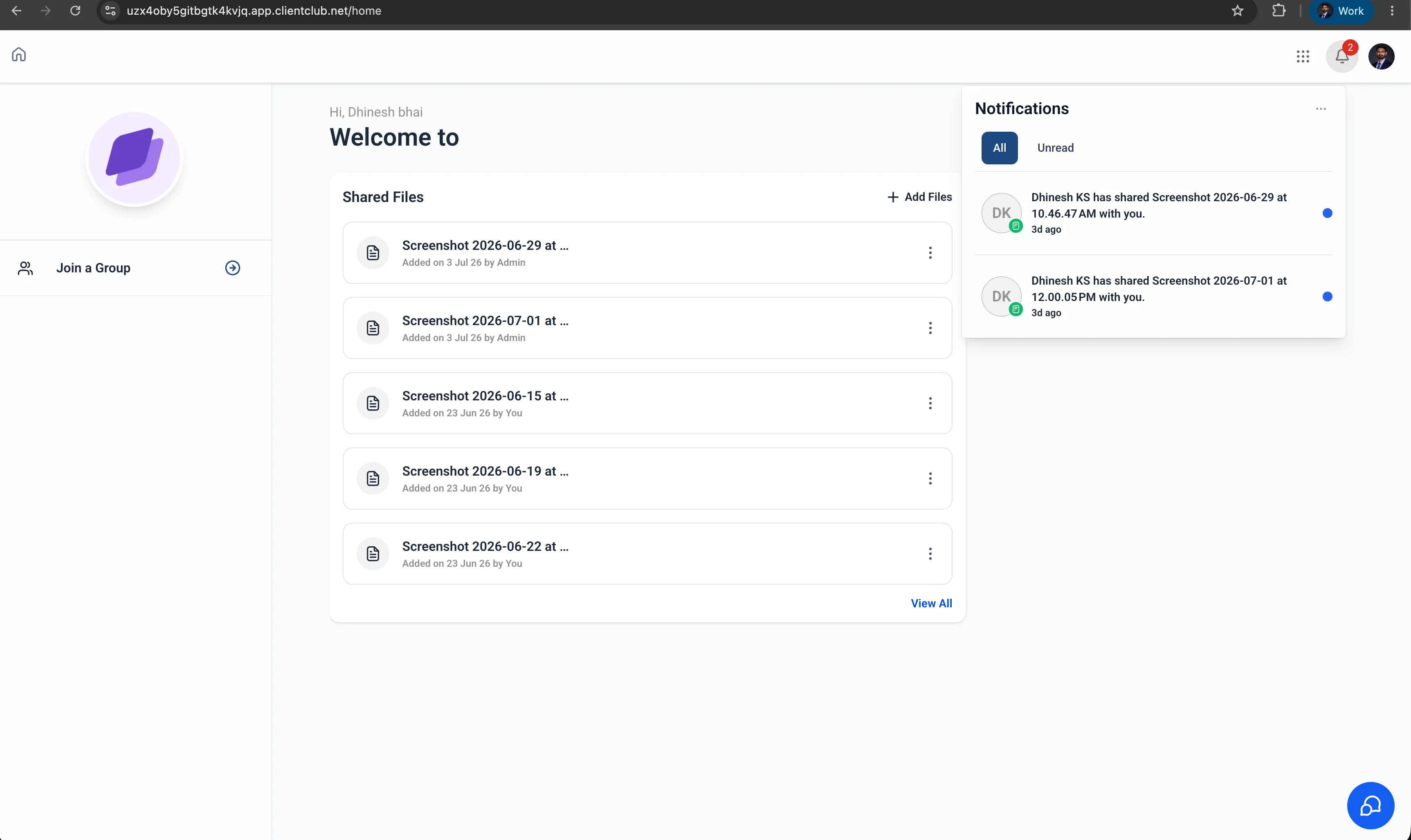
Clients can receive a notification when an admin shares a file with them through the Client Portal. Notifications are available in the web portal and the branded mobile app.
Share a file
Open the contact’s Files section, choose Upload to Client Portal, and save the shared file. That sharing action triggers a notification for the contact through their enabled channels.
Client notification preferences
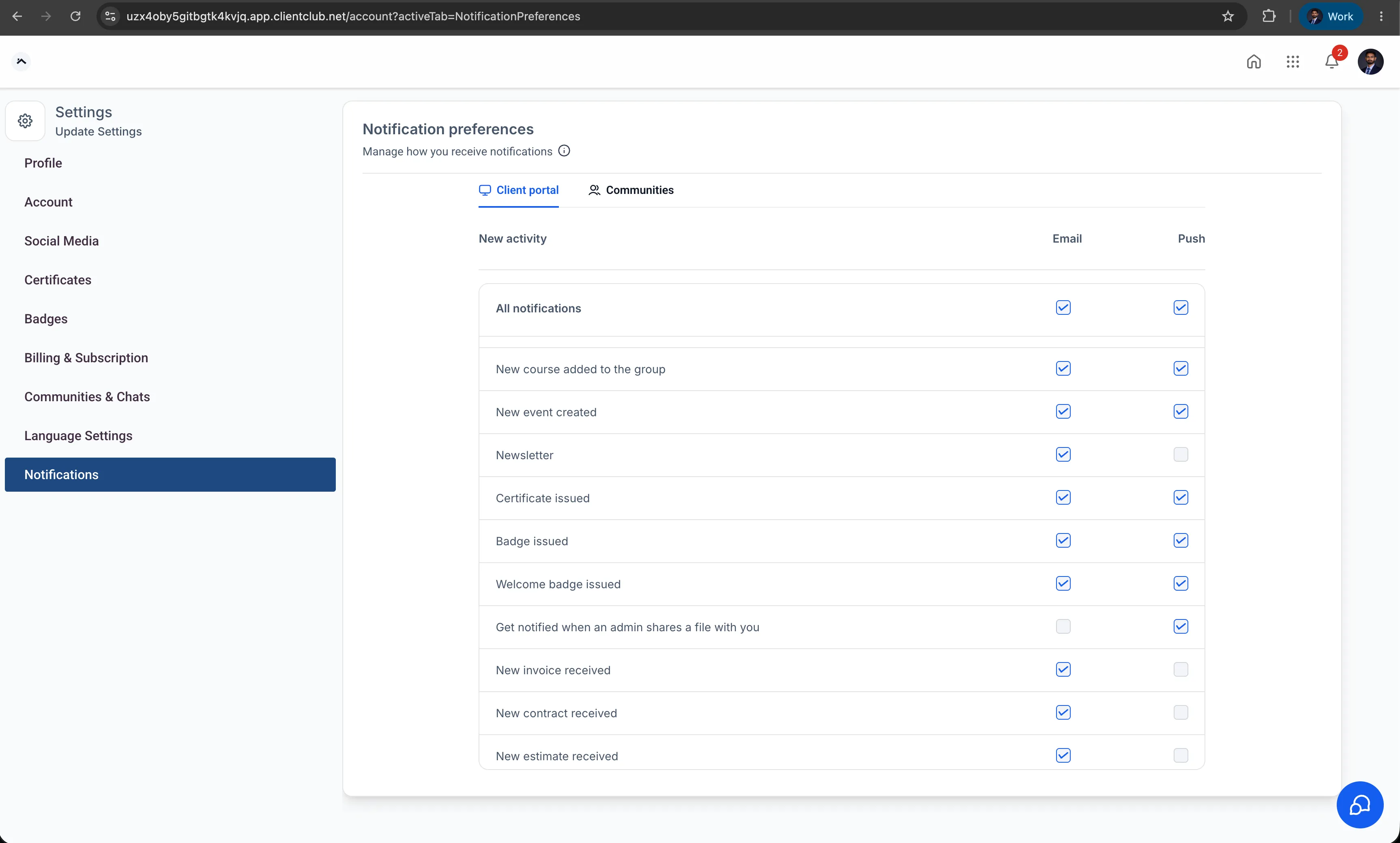
Clients can manage file-sharing notifications in Settings → Notification Preferences. Supported channels are in-app notifications and push notifications.
Push delivery depends on the client enabling those notifications. A shared file remains available in the portal for the client to open.
Release images
Need Help Applying This Update?
Want help turning this update into a working part of your CRM, marketing, or automation setup?
Get Started or schedule a demo and we’ll help you map the right next step.
Explore this in SMBcrm
See the customer side of the CRM.
Explore the client portal and decide which documents, invoices, and conversations customers should be able to access.
Explore the client portalAlready using this feature? Find setup help