Client Portal File Uploads Can Trigger Workflows
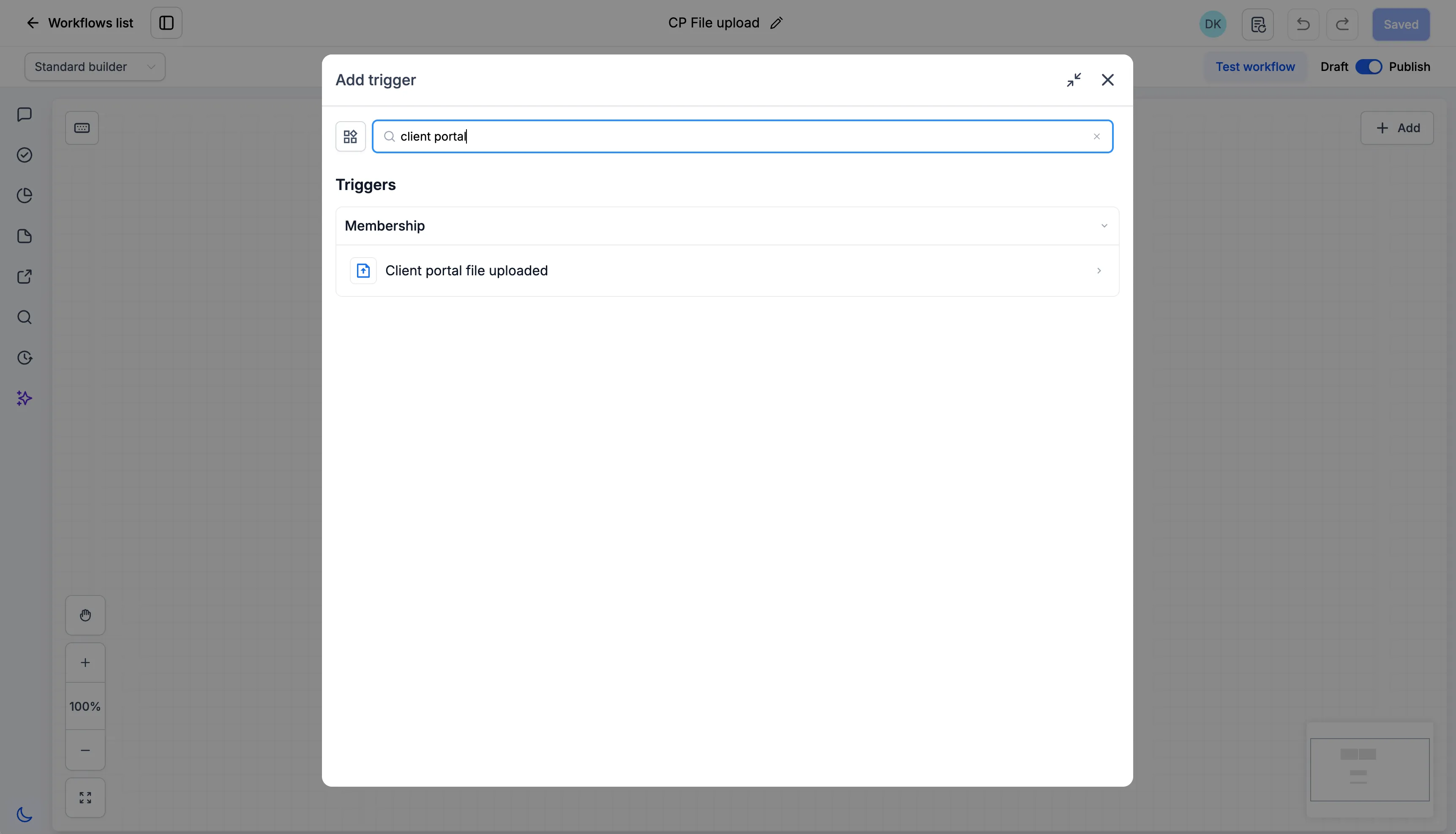
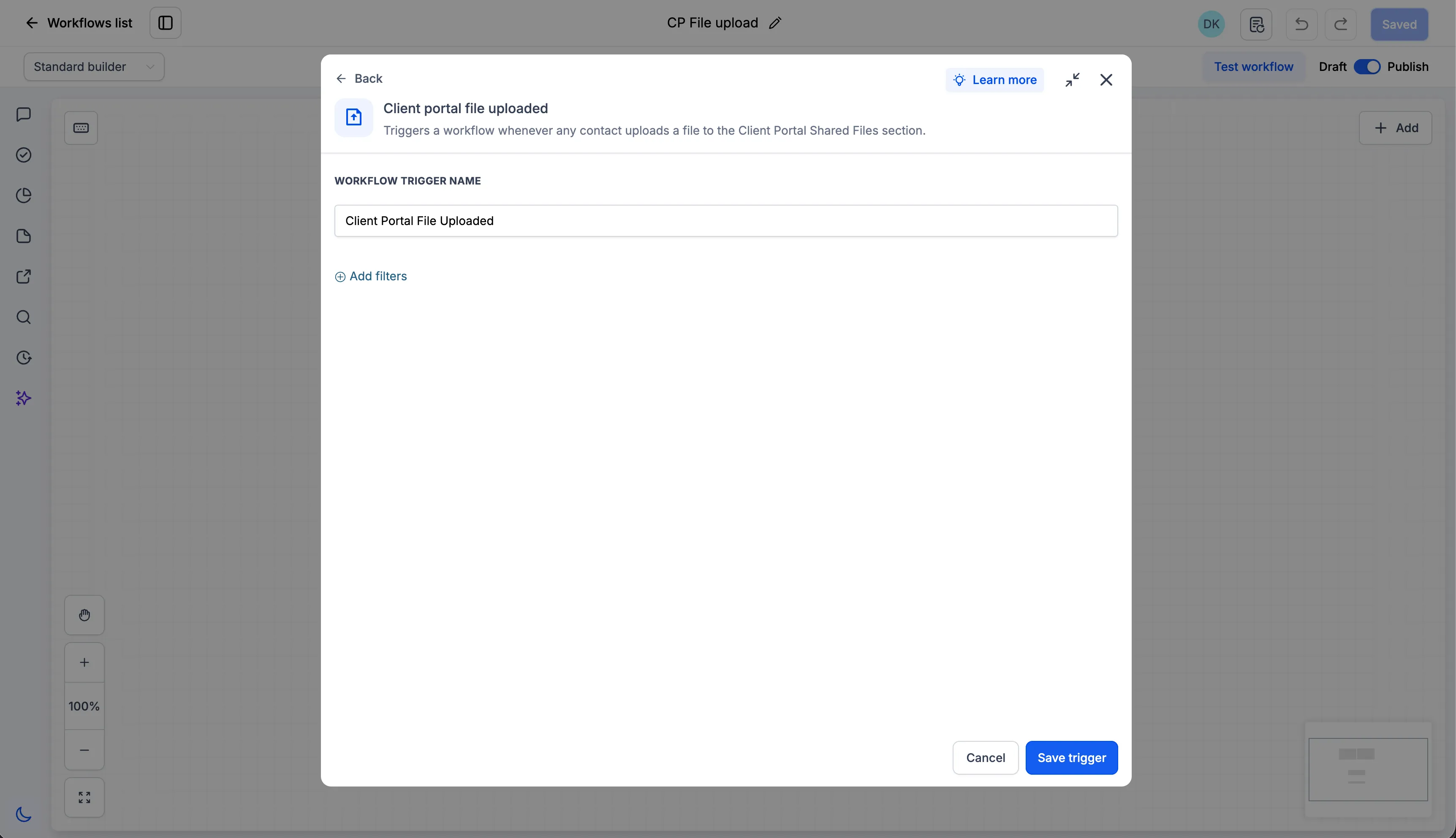
SMBcrm now supports a Client Portal File Uploaded workflow trigger. Teams can use Automation to start follow-up actions when a contact uploads a document through Client Portal Shared Documents.
What changed
When a contact uploads a file in Shared Documents, the trigger can start a workflow automatically. This helps teams reduce manual monitoring, avoid missed uploads, and support document-driven processes such as onboarding, reviews, approvals, and compliance workflows.
How to use the trigger
- Go to Automation, then Workflows.
- Create a workflow or edit an existing one.
- Add the Client Portal File Uploaded trigger.
- Configure the workflow actions you need.
- Publish the workflow.
Sharing files through the Client Portal
To make a file available to a contact:
- Open the contact record.
- Select the Files icon in the right-side navigation panel.
- Upload a file.
- Select Upload to Client Portal.
- Save the file.
The file will be available to the contact in their Client Portal.
Uploading files as a Client Portal user
Client Portal users can go to Shared Documents, select Share File, upload one or more files, and submit them. Up to 10 files can be uploaded at a time, and multiple file types are supported.
After files are submitted, the Client Portal File Uploaded trigger fires automatically.
In Case You Missed It
Read Recover Expired Domains Inside SMBcrm for the recent domain recovery update.
Need Help Applying This Update?
Want help turning this update into a working part of your CRM, marketing, or automation setup?
Get Started or schedule a demo and we’ll help you map the right next step.