SMBcrm communities and courses now support Dark Mode on the web. Members can switch to a darker viewing experience, while community owners can manage separate light and dark brand palettes.
This update applies across Memberships & Education experiences, including communities, courses, lessons, events, chats, and related account surfaces.
What changed
Dark Mode for members
Members can switch between light and dark appearances from the top navigation. Their selected appearance is remembered across refreshes and applies across the community experience.
Separate brand palettes for owners
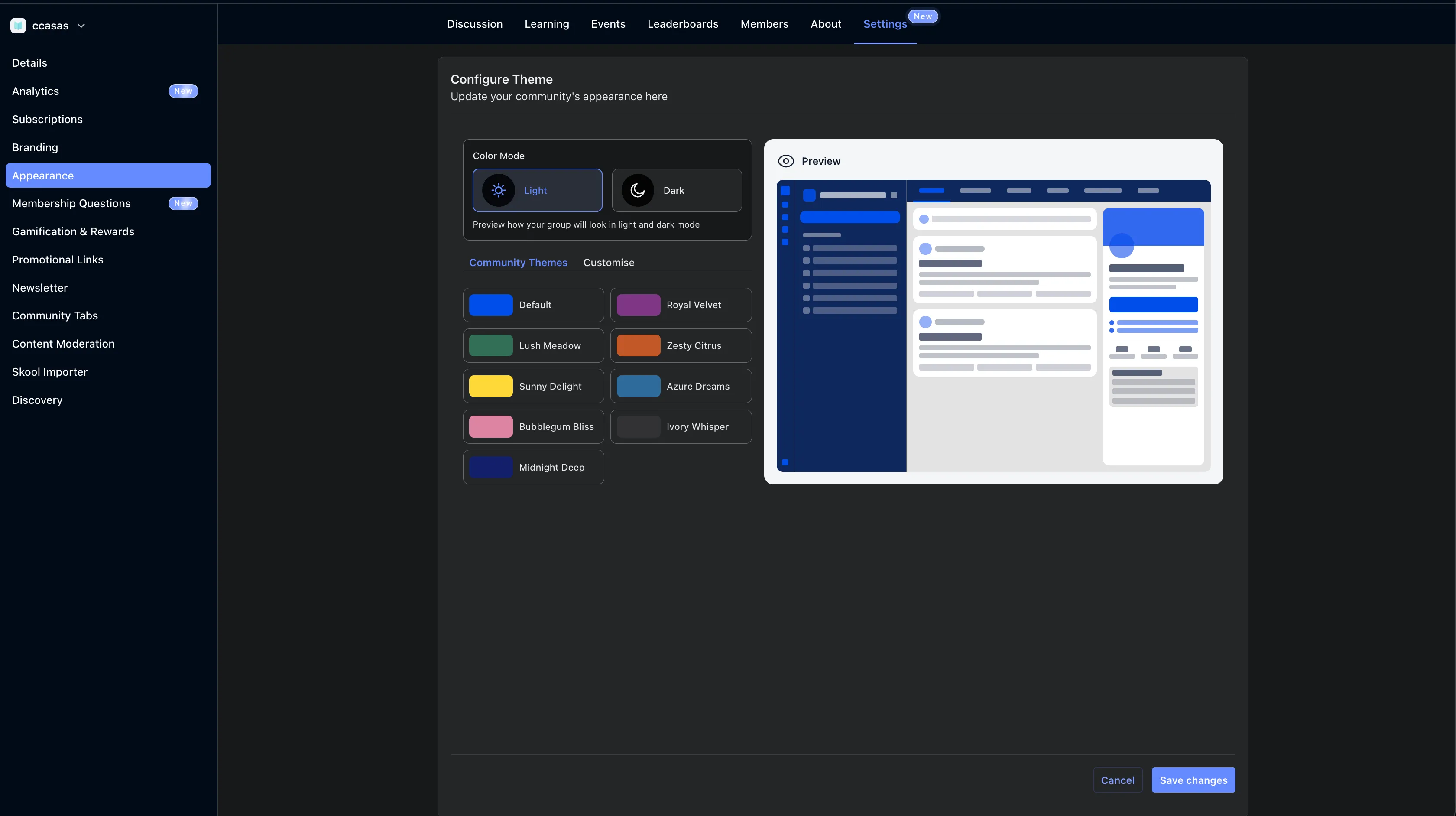
Community owners can configure and preview light and dark color palettes independently from Settings → Appearance. Editing one palette does not overwrite the other.
Owners can choose from preset community themes or customize the palette, then preview changes before saving.
Where Dark Mode applies
Dark Mode is designed to cover the main community and learning experience, including:
- Posts, comments, channels, chats, and members
- Events, calendars, mentions, and attachments
- About pages and community cards
- Courses, lessons, assessments, assignments, quizzes, and live-session surfaces
- Discovery, home showcases, onboarding, pricing, integrations, information pages, and account surfaces
How it works
For members
- Open a community on the web.
- Select the appearance switcher in the top navigation.
- Choose Dark Mode.
- SMBcrm remembers the preference automatically.
For community owners
- Open the community settings.
- Go to Appearance.
- Select the Light or Dark color mode.
- Choose a preset theme or customize the palette.
- Preview the changes in real time.
- Save the changes.
Existing communities continue working without configuration changes. Legacy custom themes will use their existing palette when a separate dark palette has not been configured.
Notes
- Dark Mode is available on the web.
- Light and dark palettes are configured independently.
- Changes to one palette do not affect the other.
- Member appearance preferences persist across sessions.
- A few surfaces, such as Studio navigation, do not yet retain the setting on navigation. This is a known follow-up.
Release Images
Need Help Applying This Update?
Want help turning this update into a working part of your CRM, marketing, or automation setup?
Get Started or schedule a demo and we’ll help you map the right next step.