Skip to content
· New Feature Social Media

Delete Published Posts Directly from Social Planner

You can now delete published posts from the social network itself without leaving Social Planner, so typos and outdated content are easy to remove.

S
SMBcrm Team · June 16, 2026

Overview

We didn’t just add a delete button, we made it possible to remove published content from the social network itself, without leaving Social Planner. ✨ Whether it’s a typo, outdated information, or a post that went out by mistake, you can now

Details

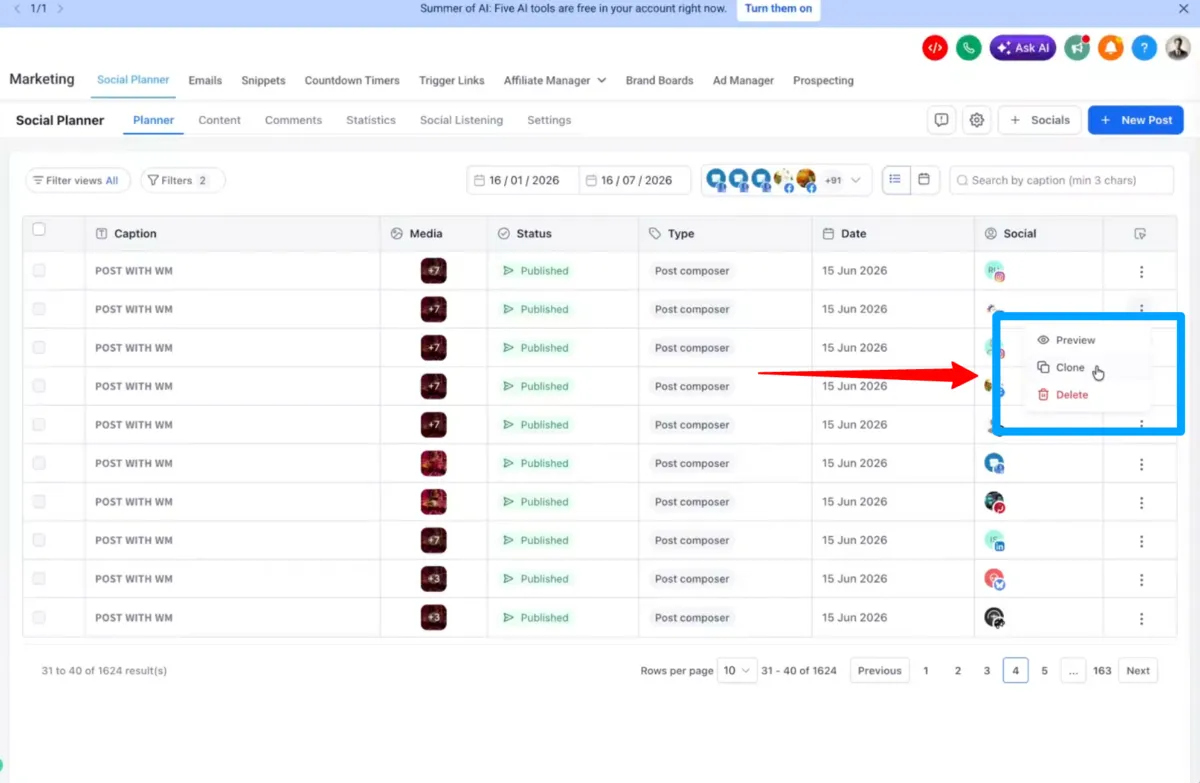
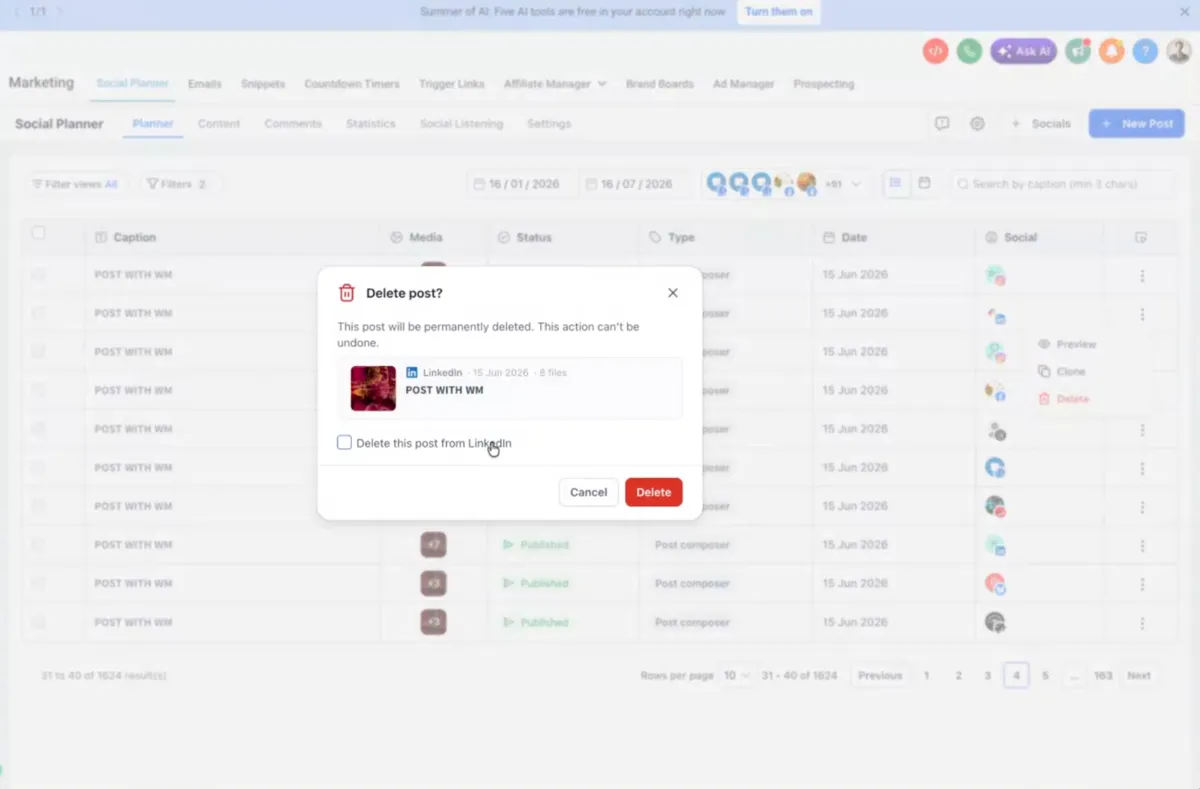
We didn’t just add a delete button, we made it possible to remove published content from the social network itself, without leaving Social Planner. ✨ Whether it’s a typo, outdated information, or a post that went out by mistake, you can now delete posts directly from Social Planner and, where supported, remove them from the social platform at the same time. No more switching tabs. No more logging into multiple networks. Just one place to manage your content lifecycle. ** 🚀 What’s new ** 1. Delete Published Posts from Social Networks - You can now delete published posts directly from Social Planner. When deleting a post, you’ll see a new option: - Delete from Social Planner only - Delete from the social network (Facebook,Linkedin etc) 2. Works Across Multiple Platforms Native deletion is supported for: - Facebook - LinkedIn - Google Business Profile - YouTube - Pinterest - Threads - Bluesky - Community For platforms that don’t support third-party deletion (Instagram and TikTok), posts can still be removed from Social Planner while remaining live on the platform. 3. Delete Any Post Status The same delete experience now works for: - Draft posts - Scheduled posts - Published posts Whether content is planned or already live, you can manage it from a single workflow. 4. Built-In Reconnect Flow If the connected social account has expired or become disconnected: - A reconnect prompt appears automatically - Reconnect without leaving the workflow - Continue the deletion process once access is restored 5. Consistent Experience Everywhere The delete workflow is available from: - Post List View - Calendar View ** 👷 How to use this feature ** - Go to Marketing → Social Planner - Locate the post you want to delete - Open the 3-dot menu image - Click Delete - (Optional) Enable Delete this post from the selected social platform - Confirm deletion image If the account requires reconnection, follow the prompt and continue the process. ** 💡 Why it matters ** - Quickly remove incorrect or outdated content - Manage takedowns without switching platforms - Save time for agencies managing multiple accounts - Keep content management centralized in Social Planner - Ensure “delete” actually means delete when platform APIs support it ** 📝 Notes ** - Native platform deletion depends on platform API support - Instagram and TikTok do not currently allow third-party post deletion - Posts can still be removed from Social Planner on unsupported platforms - Reconnect prompts appear automatically when account access expires


Need Help Applying This Update?

Want help turning this update into a working part of your CRM, marketing, or automation setup?

Get Started or schedule a demo and we’ll help you map the right next step.

Tags New Feature Social Media
Share
60-day money-back guarantee

See what's new in SMBcrm.

Every release adds more ways to capture leads, automate work, and grow — all included in your plan.

60-day money-back guarantee

Full refund within 60 days if SMBcrm isn't right for you

No setup fees

Get started in minutes, we handle the heavy lifting

Cancel anytime

No long-term contracts, stay because you want to