You can now remove schema markup directly from pages in the Website and Funnel Builder. This update makes it easier to clean up outdated, incorrect, or unwanted structured data without starting over.
What changed
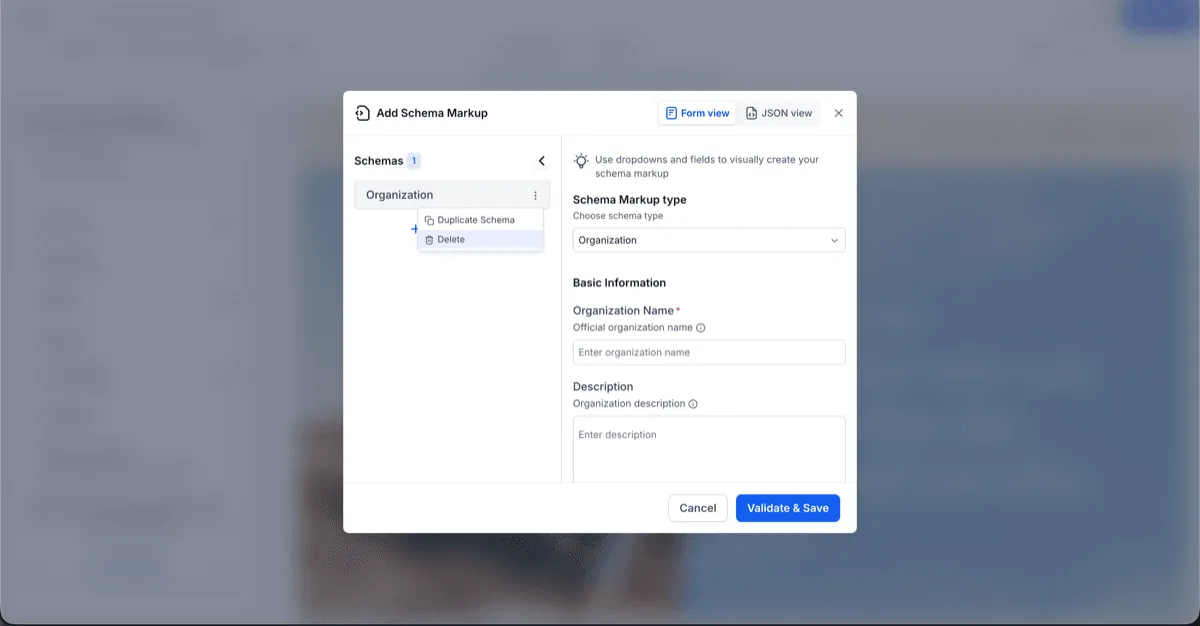
You can now delete schema markup in three ways:
- Form View
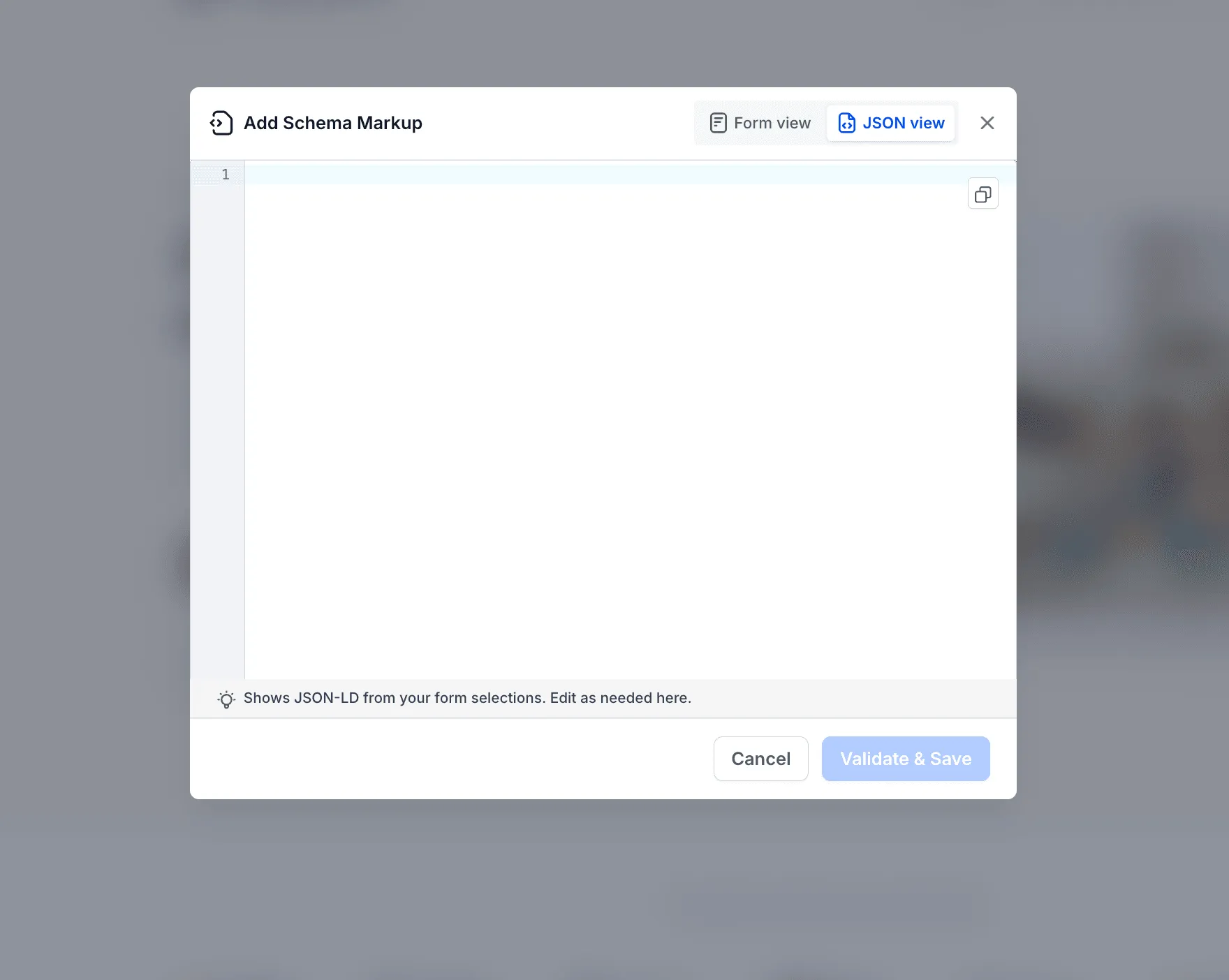
- JSON View
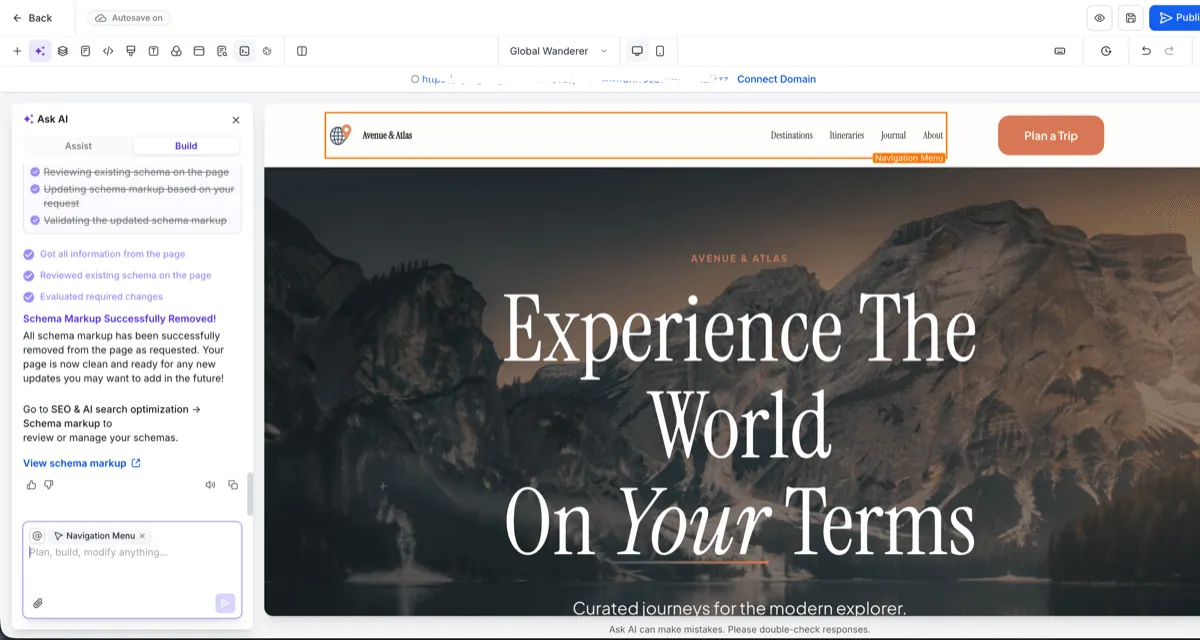
- AI chat
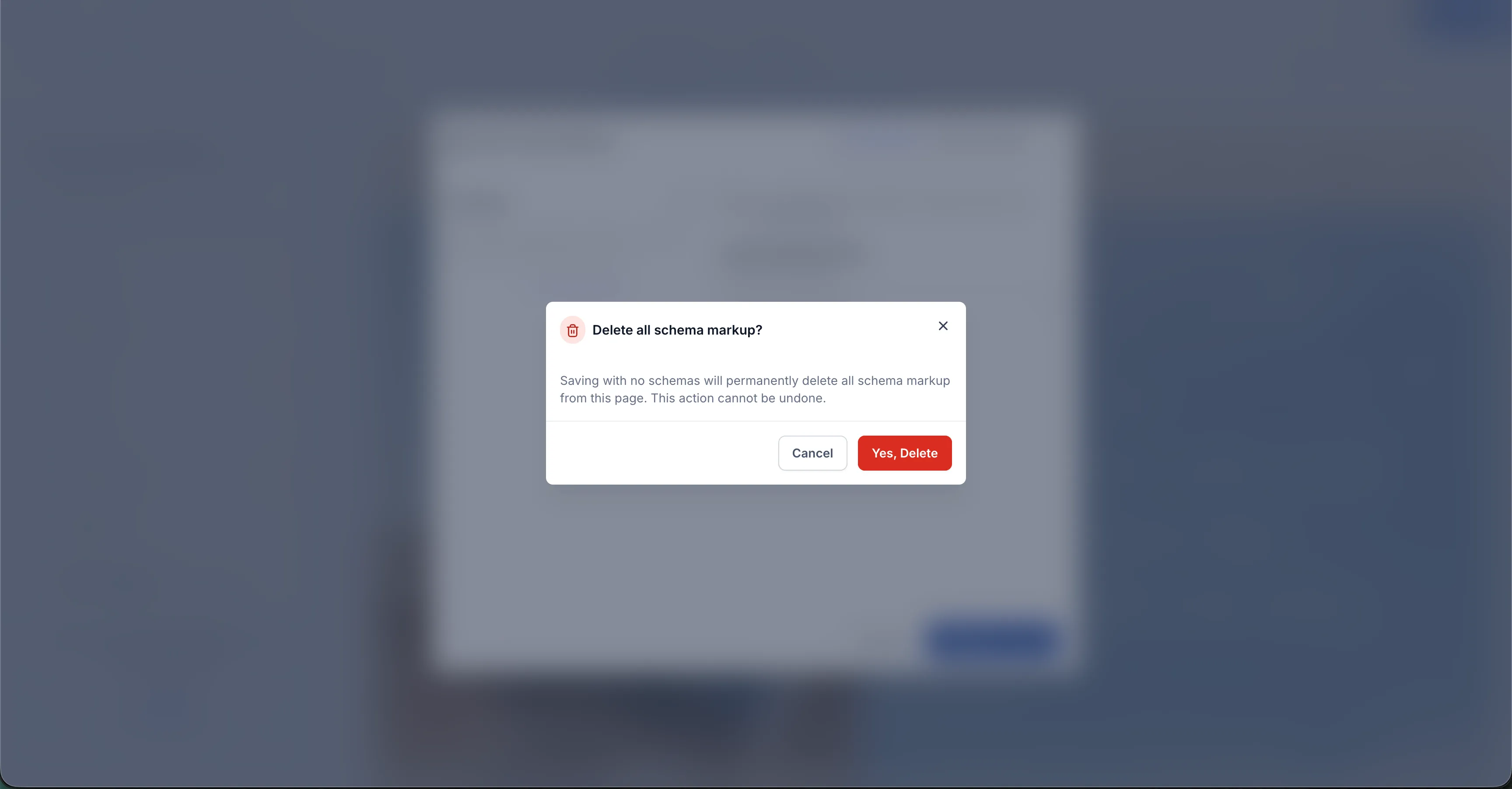
You can remove a single schema or clear all schema markup from a page. Before deletion is completed, the builder shows a confirmation message.
Where it works
This applies to page editing in both the Website Builder and Funnel Builder.
How to remove schema markup
Delete from Form View
- Open the page in the Website or Funnel Builder.
- Go to SEO & AI search optimization and open Schema Markup.
- In Form View, use the menu next to a schema to delete that item.
- To remove all schema markup, delete each schema from the list, then click Validate & Save.
- Confirm the deletion when prompted.
Delete from JSON View
- Open Schema Markup and switch to JSON View.
- Remove the JSON-LD code from the editor.
- Click Validate & Save.
- Confirm the deletion when prompted.
Delete with AI chat
- Open the available AI chat inside the builder.
- Ask it to remove schema markup from the current page, such as deleting all schema markup or removing a specific schema type.
- Review the result shown in chat.
Recovery option
If schema markup is removed by mistake, you can recover it through page version history:
- Open the page in the builder.
- Restore a previous version that still contains the schema markup.
- Copy the JSON-LD from that version.
- Return to the latest page version, paste the script back into JSON View, then save and publish.
Good to know
- Deletion only affects the page you are editing.
- Removed schema markup can be recovered through version history.
- Changes appear in preview after saving, and go live when the page is published.
In Case You Missed It
You can also read about Ask AI for WhatsApp Campaigns and Template Management.
Related SMBcrm Features
Need Help Applying This Update?
If you’d like help rolling this out in SMBcrm, visit Support or request a demo.