SMBcrm has improved the calendar setup experience so it is easier to find and fix missing required fields while editing and saving a calendar.
Previously, if required fields were missing, selecting Save changes would not complete the save, but the interface did not clearly guide users to the issue. That could make it unclear whether the calendar had been saved and lead to extra troubleshooting.
What’s Changed
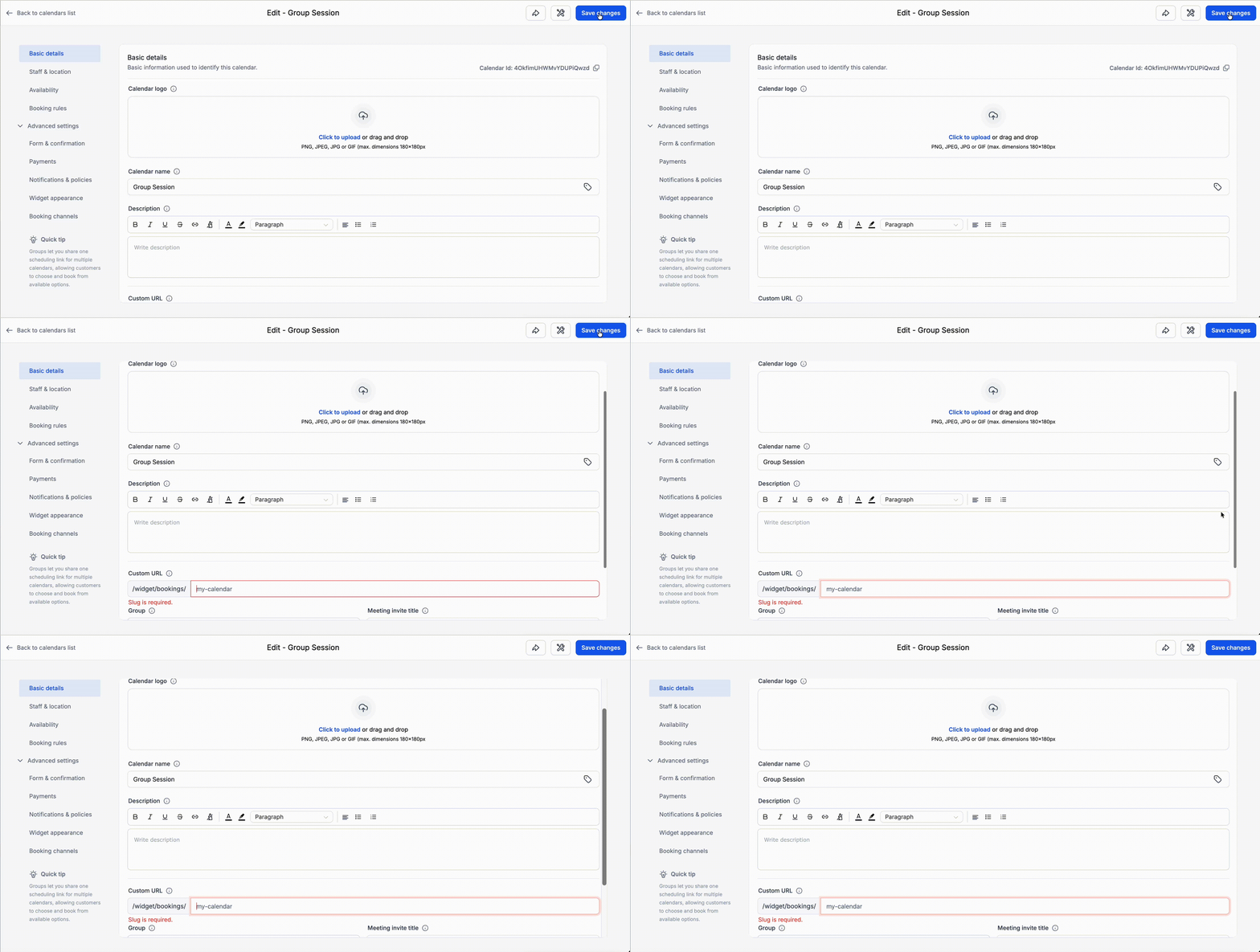
- If a required field is missing in the current tab, the page now scrolls directly to that field.
- If the issue is in a different tab, SMBcrm navigates to the correct tab automatically.
- Validation errors are highlighted more clearly so they can be fixed quickly.
How It Works
When you click Save changes and there are validation errors:
- If the error is in the current tab, SMBcrm scrolls to it and highlights it.
- If the error is in another tab, SMBcrm opens that tab and highlights the error there.
Why It Matters
This update helps reduce confusion during calendar setup by making missing fields easier to spot. It also speeds up troubleshooting and makes it clearer why a calendar could not be saved.
In Case You Missed It
You can also read about Category-First Booking for Services.
Need Help Applying This Update?
If you’d like help rolling this out in SMBcrm, visit Support or request a demo.