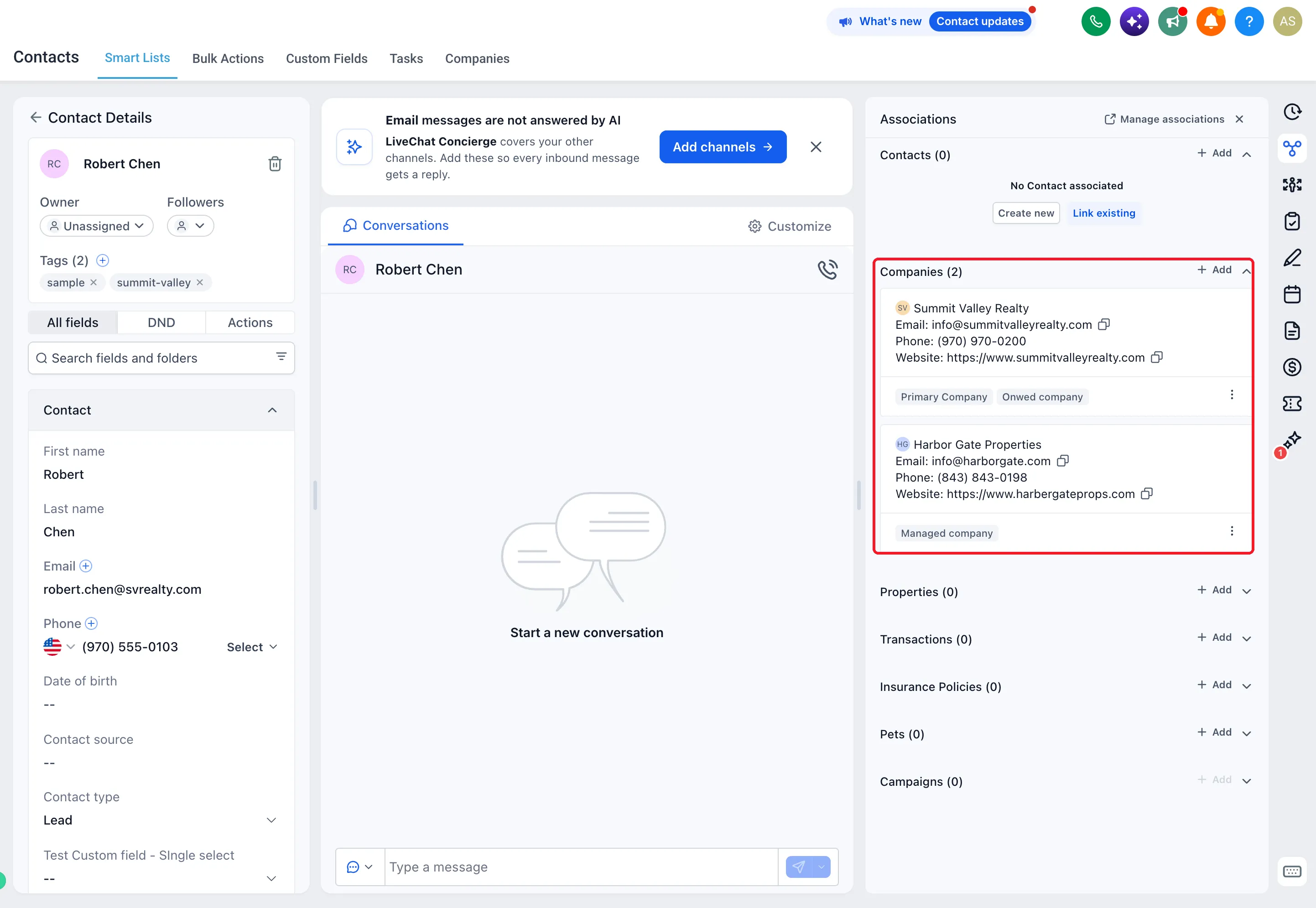
Connect a single contact to every company they work with using custom association labels in SMBcrm CRM. This helps you manage consultants, shared accountants, and owners without duplicating their contact details or replacing their Primary Company.
What Changed
- Multiple company connections: Create a custom association label that allows many companies, then link a contact to each relevant company.
- Add more connections: Continue adding companies from the contact’s associations, within the label’s relationship limits.
- Link from either record: Add companies to a contact, or link an existing contact from a company’s Associations tab.
- Preserve Primary Company: Additional associations sit alongside the contact’s Primary Company rather than replacing it.
How to Set It Up
- In Labs, enable Association Labels and Multiple Companies for Contacts.
- Go to Settings > Objects > Companies > Associations and select Create association.
- Choose Contacts, name the labels, and set the relationship to Many Companies.
- Open a contact, click Add next to Companies, select a company, and choose your custom label.
- Save and repeat for other companies within the label’s limits.
You can also open a company and link an existing contact through Associations > Contacts.
What to Keep in Mind
- Primary Company is a system label: It cannot be edited and links one company per contact. Use a custom association label for additional company connections.
- Automation still uses Primary Company: Domain name and business name automation associate contacts with companies under Primary Company by default.
- Company merge fields use Primary Company: Additional links do not change which company supplies merge-field values. Keep Primary Company accurate so your content uses the intended company details.
- Check records and limits: Search for existing contacts and companies before creating records, and make sure your custom association allows the number of links you need.
Release Images
Need Help Applying This Update?
Want help turning this update into a working part of your CRM, marketing, or automation setup?
Get Started or schedule a demo and we’ll help you map the right next step.