Deleting a store now removes only the pages tied to that store, helping prevent accidental changes to the rest of your website.
What changed
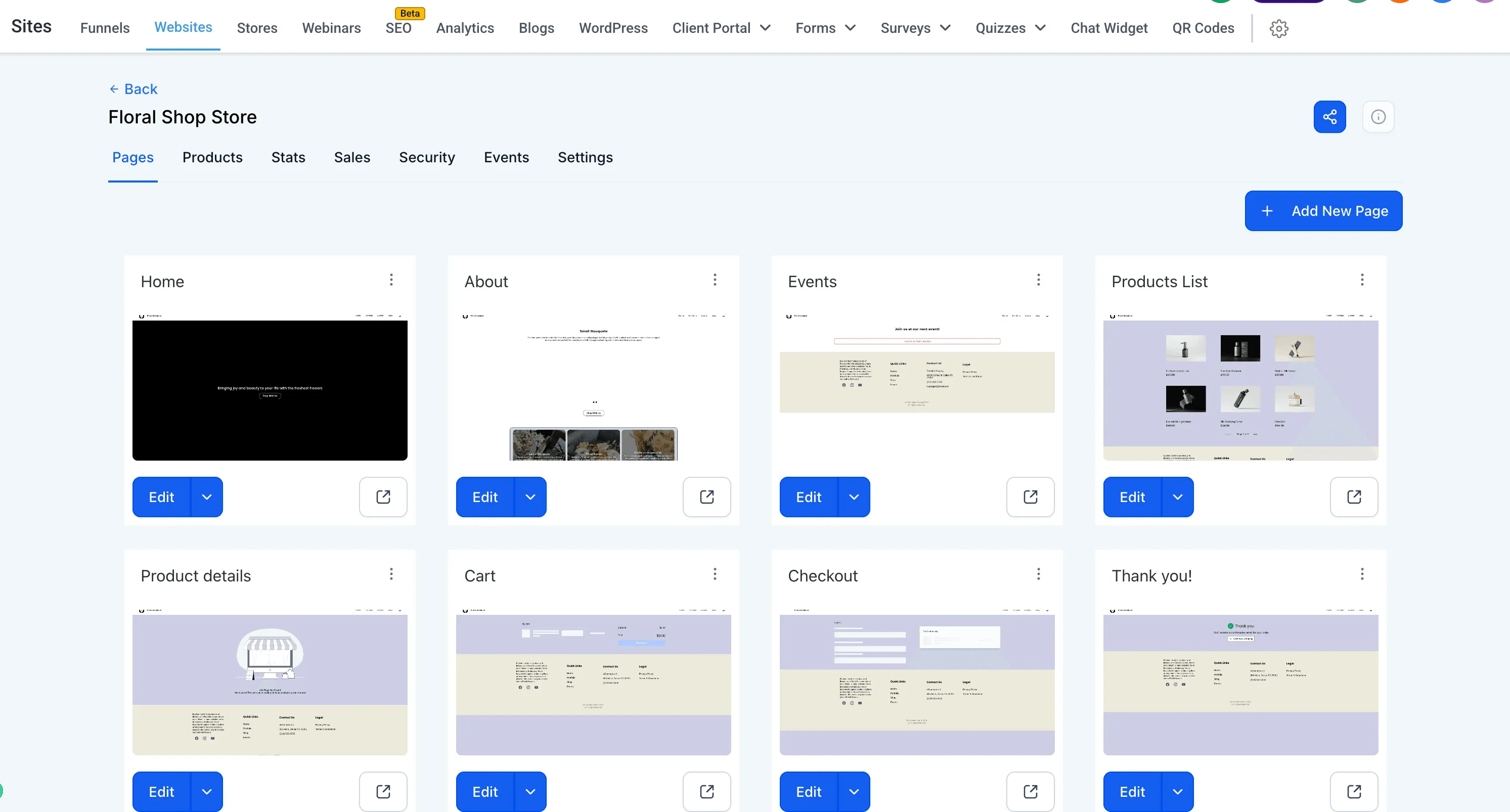
Store deletion is now limited to store-related pages only. This includes pages such as:
- Products List
- Product Details
- Cart
- Checkout
- Thank You
Your main website pages, such as Home or About, are not affected when you delete a store.
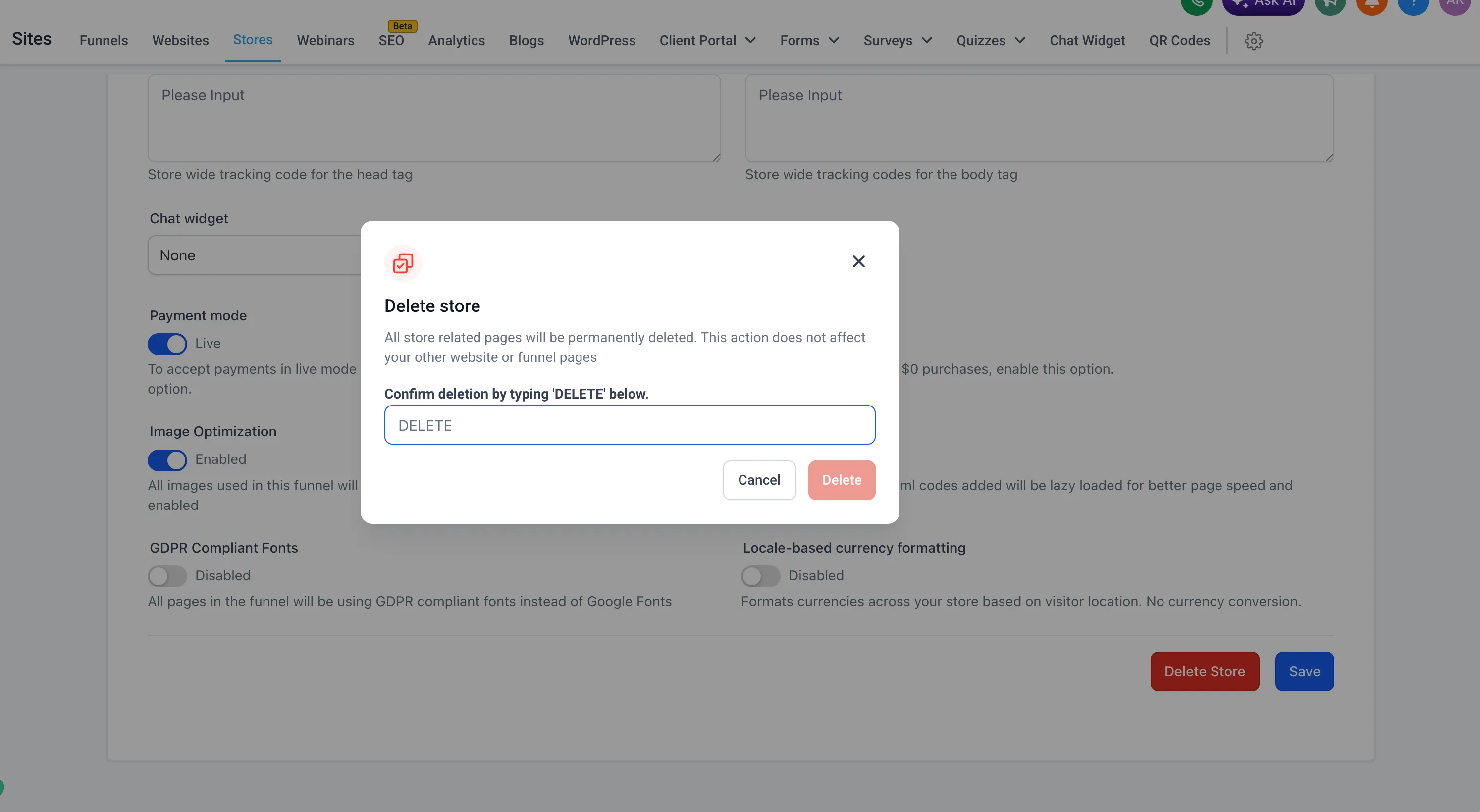
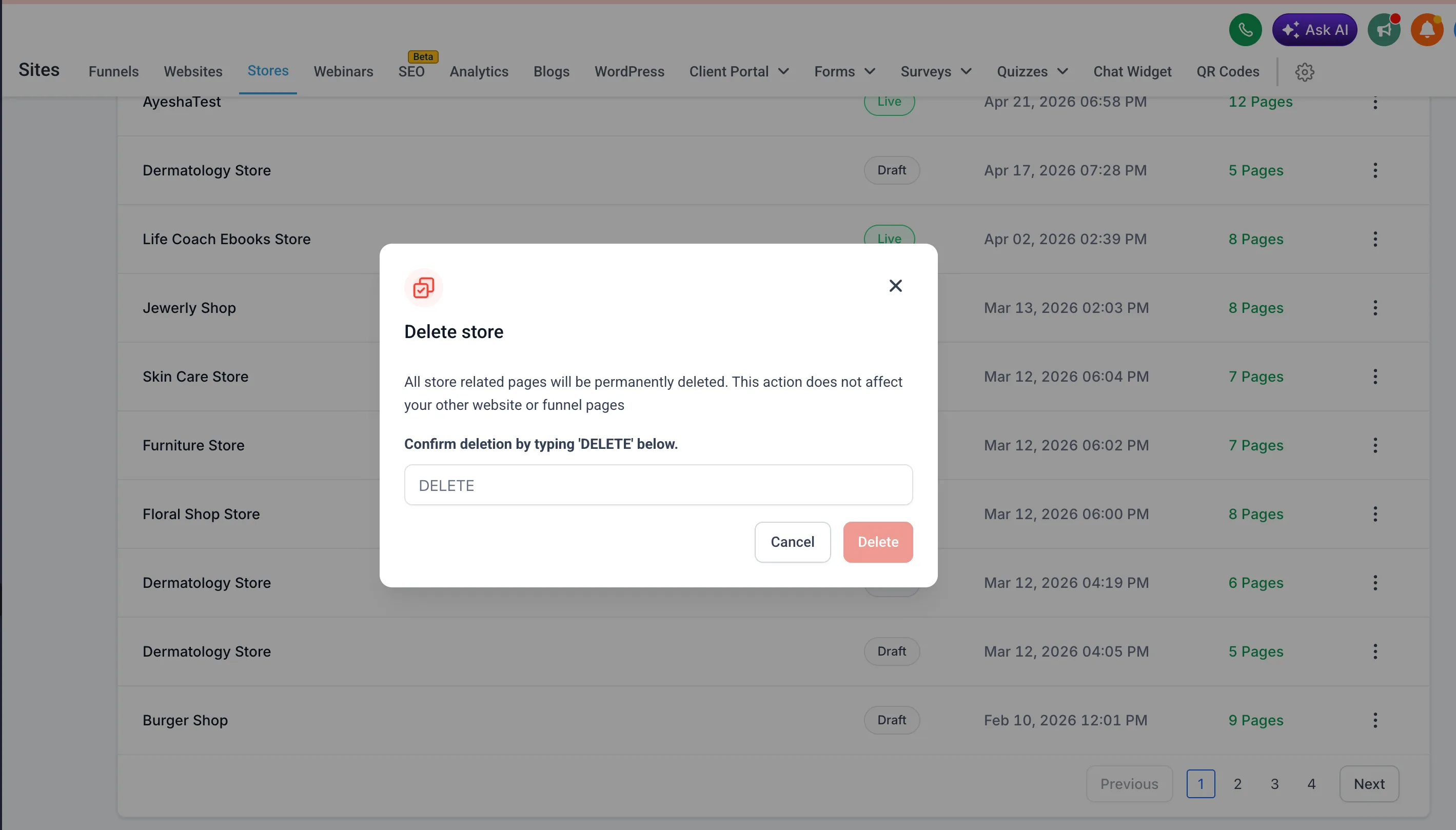
This behavior now works the same way whether you delete a store from the Stores list or from Store Settings.
What stays the same
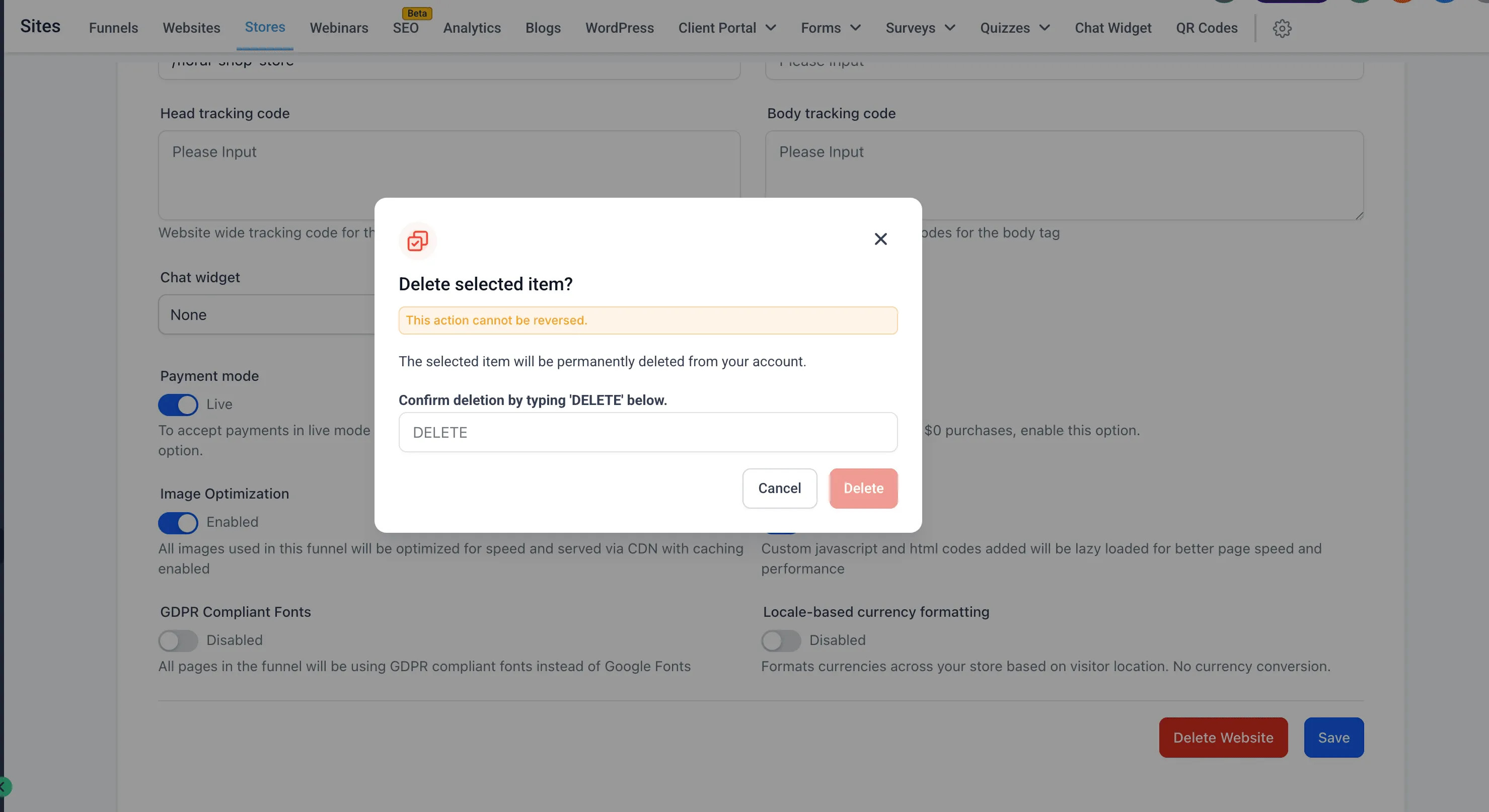
Deleting a website from the Websites section still removes the entire website, including any associated store pages.
This keeps a clear distinction between deleting a store and deleting a website.
Why this matters
This update reduces the risk of deleting an entire website when the goal is only to remove a store. The confirmation message has also been updated to make the outcome clearer before you proceed.
How to delete a store
- Go to Stores and choose the store you want to delete.
- Open the three-dot menu or go to Store Settings.
- Click Delete Store.
- Type DELETE in the confirmation window and continue.
Key points
- Only store pages are deleted
- Main website pages remain intact
- The behavior is consistent across store deletion entry points
- To remove an entire website, use Delete Website under Website Settings
In Case You Missed It
You can also read about Locale-Based Currency Formatting for Store Elements.
Release Images
Need Help Applying This Update?
If you’d like help rolling this out in SMBcrm, visit Support or request a demo.