Keyword search is now available in SMBcrm Conversations, helping teams find past messages without scrolling through threads or remembering which contact sent them. It adds two ways to search your customer communications: across the inbox and within an individual conversation.
Search Across Conversations
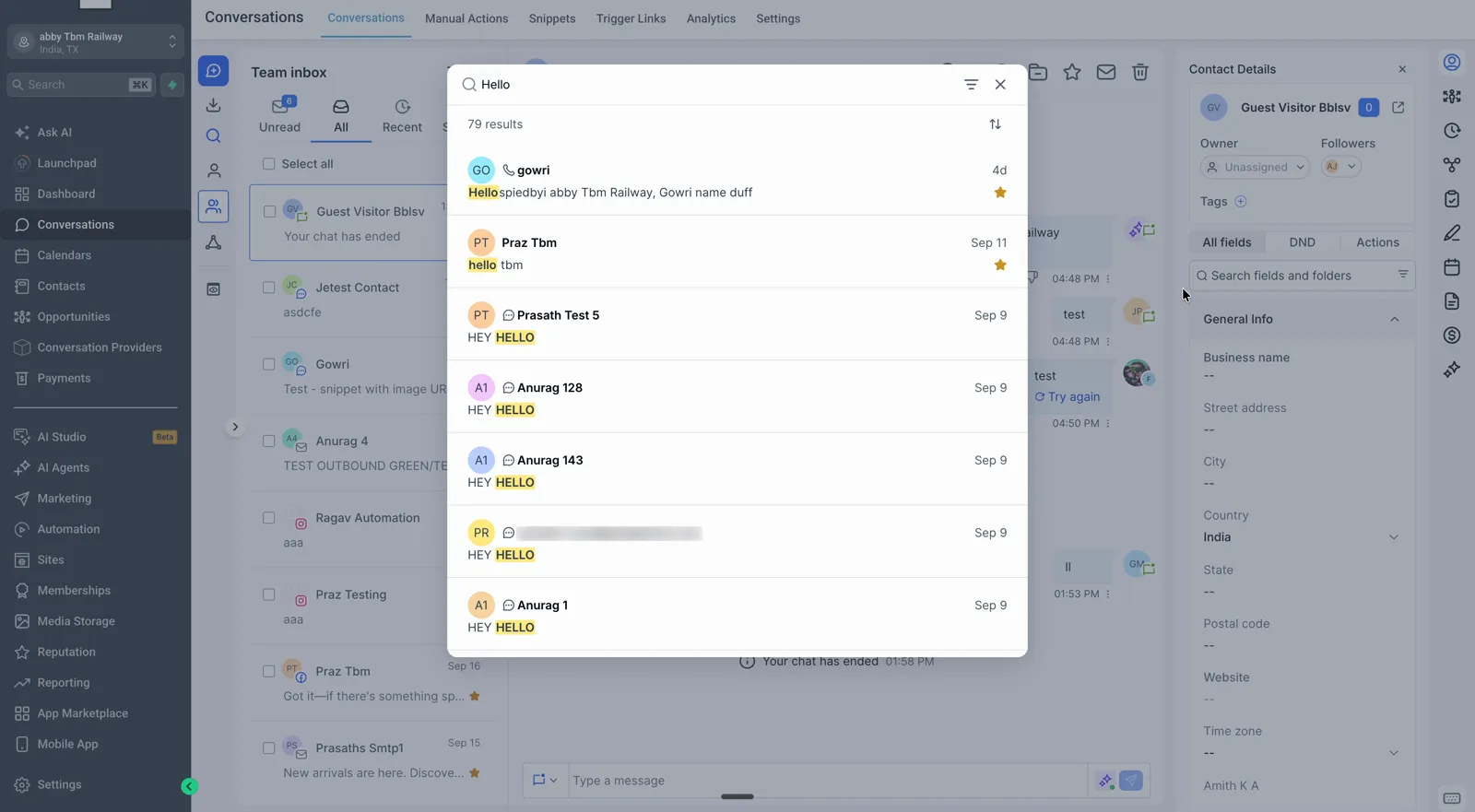
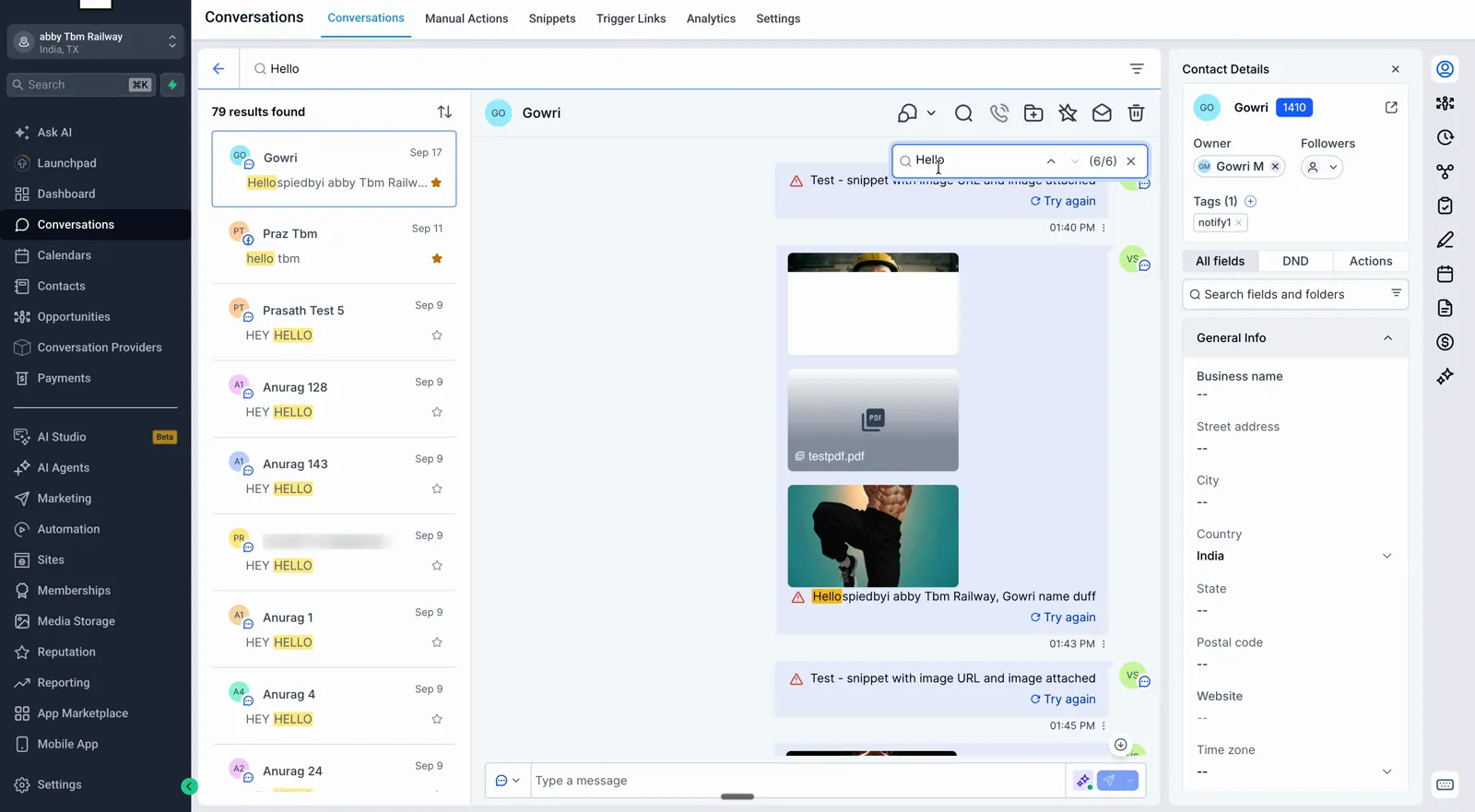
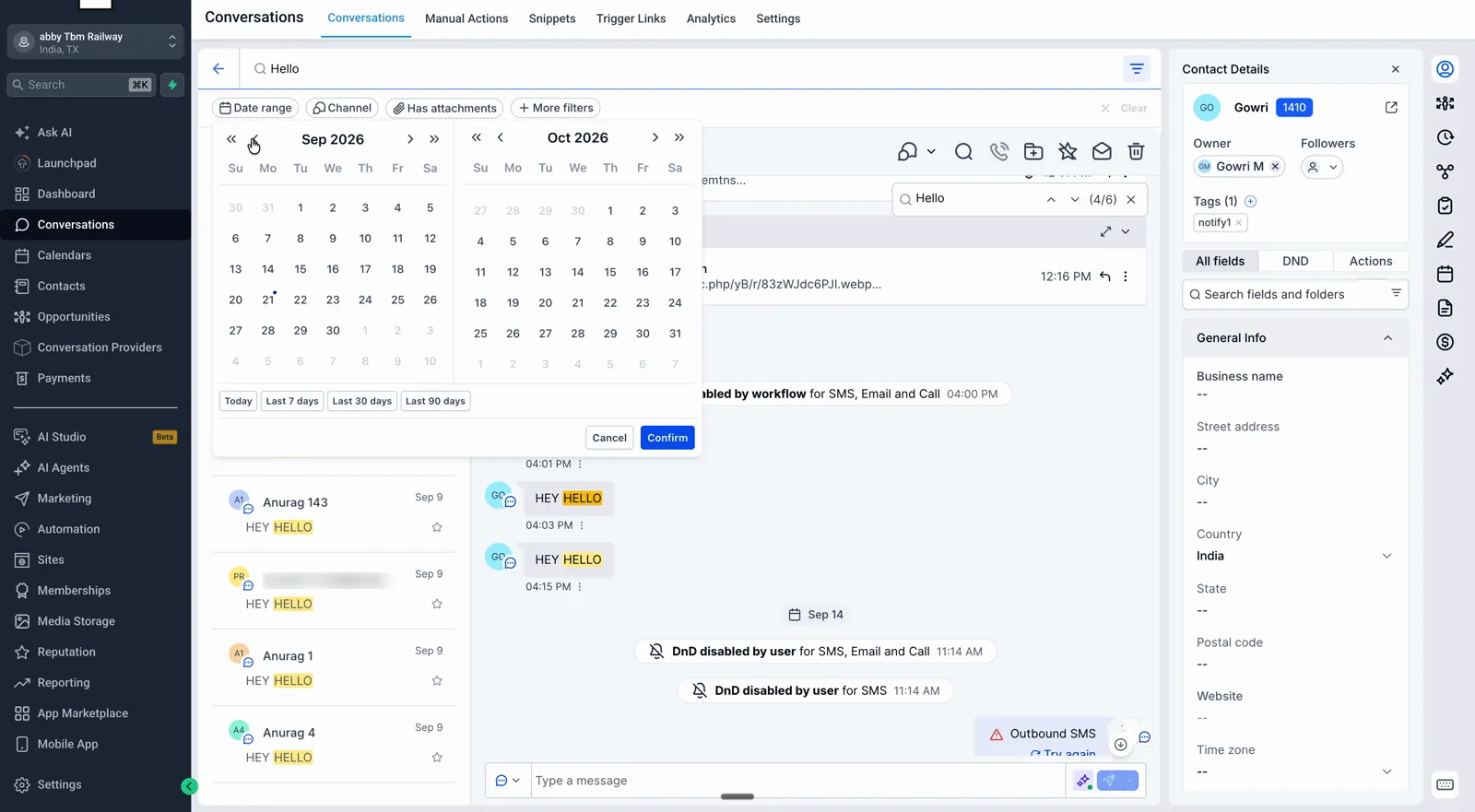
Enter a word or phrase in the inbox search box to find conversations containing it. Results appear as you type, with a total count and a matching-message preview for each contact. The keyword is highlighted, and selecting a result opens the conversation at the matching message.
The same search box also accepts a contact name, email address, or phone number.
Search Within a Conversation
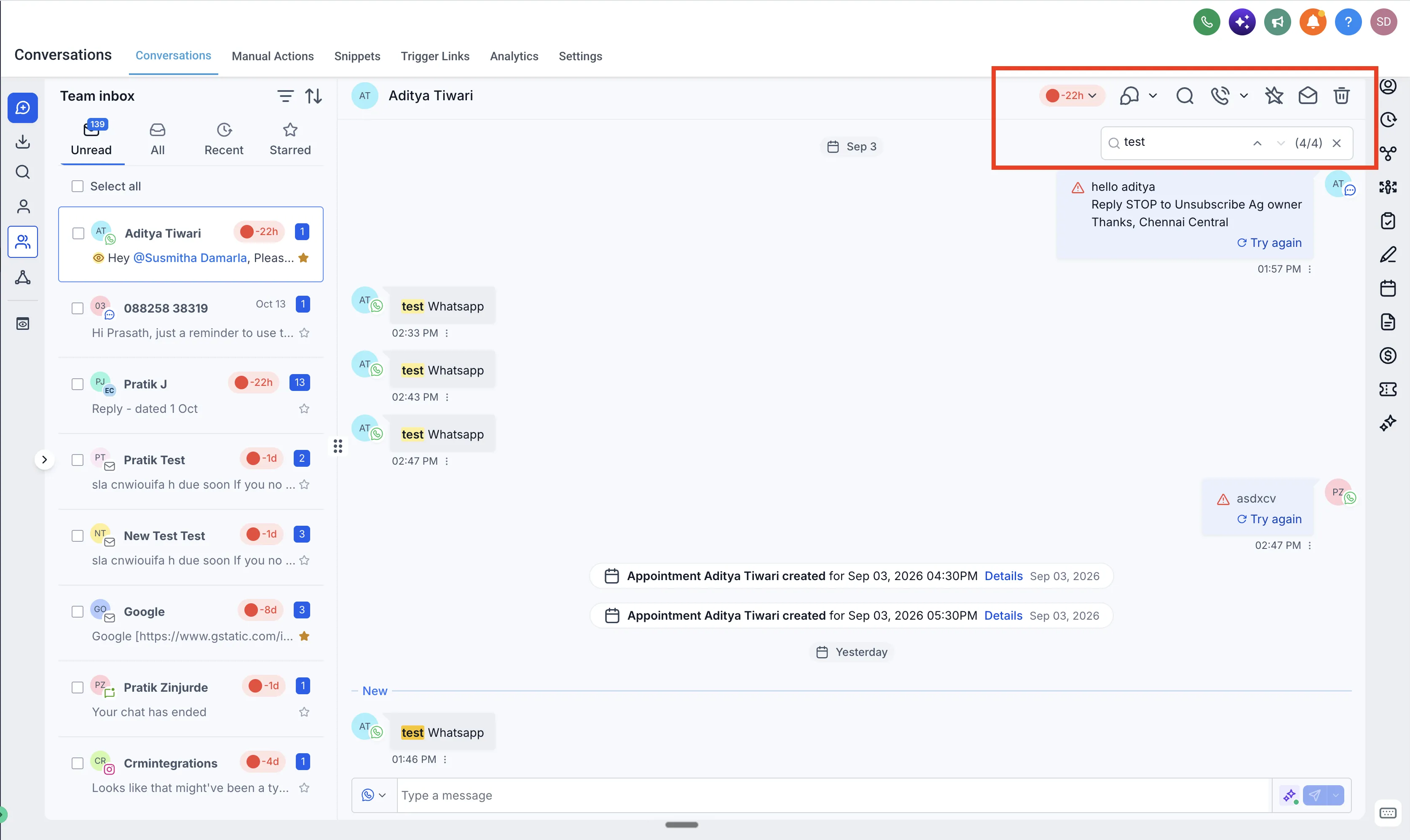
Use the search icon in a conversation’s header to find messages in that thread. Each match is highlighted, a counter shows your position, and up and down arrows let you move between matches.
When you open a result from an inbox keyword search, that keyword is already filled in.
Narrow Your Results
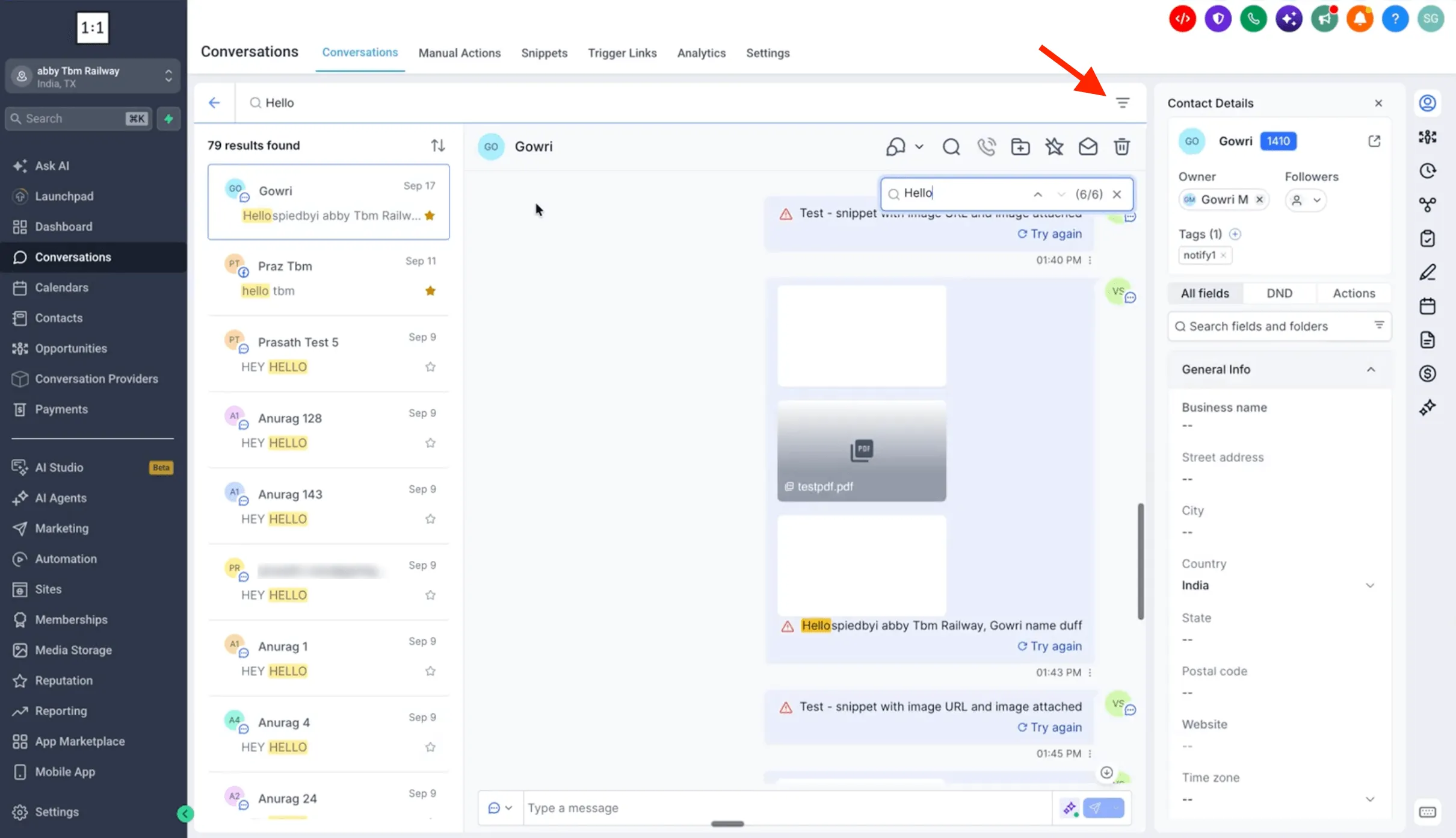
Use the filter icon on the results list to narrow searches by:
- Date range
- Channel: Email, SMS, Facebook, WhatsApp, or Instagram
- Direction
- Owner
- Attachments
- Followers
How to Get Started
- Open Conversations and select the search icon at the top of the conversation list in the left navigation bar.
- Enter a keyword, contact name, email address, or phone number.
- Select a result to open the matching conversation.
- Use the conversation’s header search to find additional matches within that thread, or filter the results list to narrow your search.
This makes it easier to retrieve a quoted price, promised date, complaint, or product mention without manually reviewing a long message history.
Release Images
Need Help Applying This Update?
Want help turning this update into a working part of your CRM, marketing, or automation setup?
Get Started or schedule a demo and we’ll help you map the right next step.