SMS Dashboard Widgets and Custom Metrics
SMBcrm dashboards now include a dedicated SMS section in the widget panel, giving teams a clearer view of communication activity alongside email and calls.
What changed
- A dedicated SMS section is available in the dashboard widget panel.
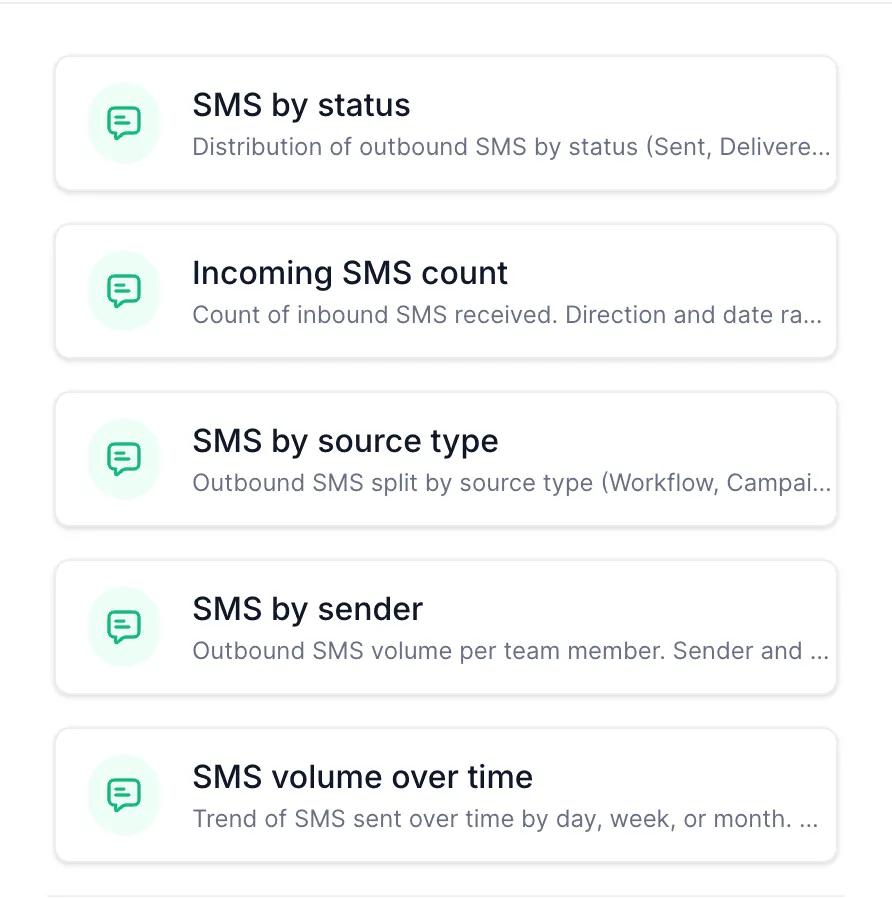
- Five ready-to-use widgets are included: SMS by status, Incoming SMS count, SMS by source type, SMS by sender, and SMS volume over time.
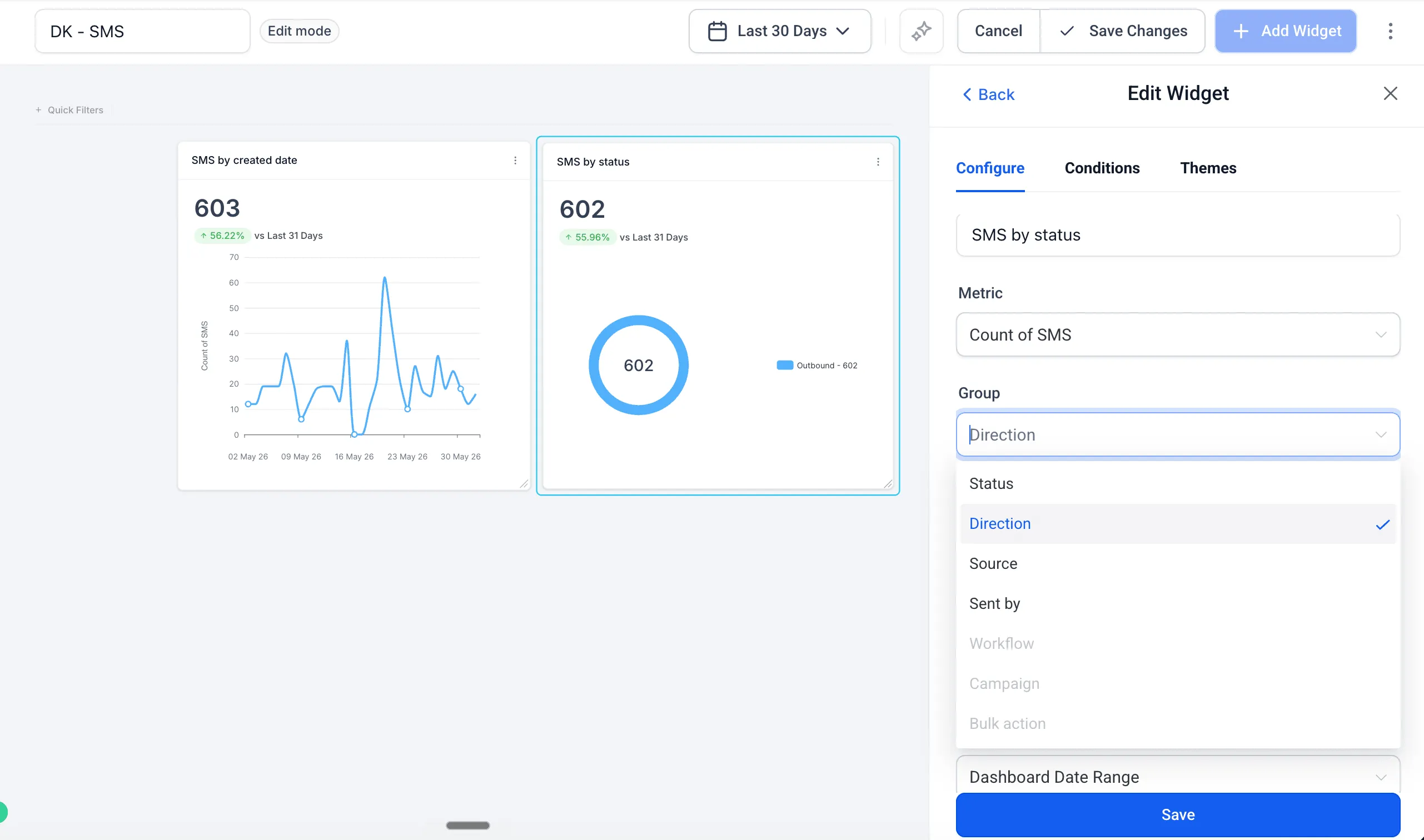
- Each widget can be configured with filters for delivery status, direction, source, or sender.
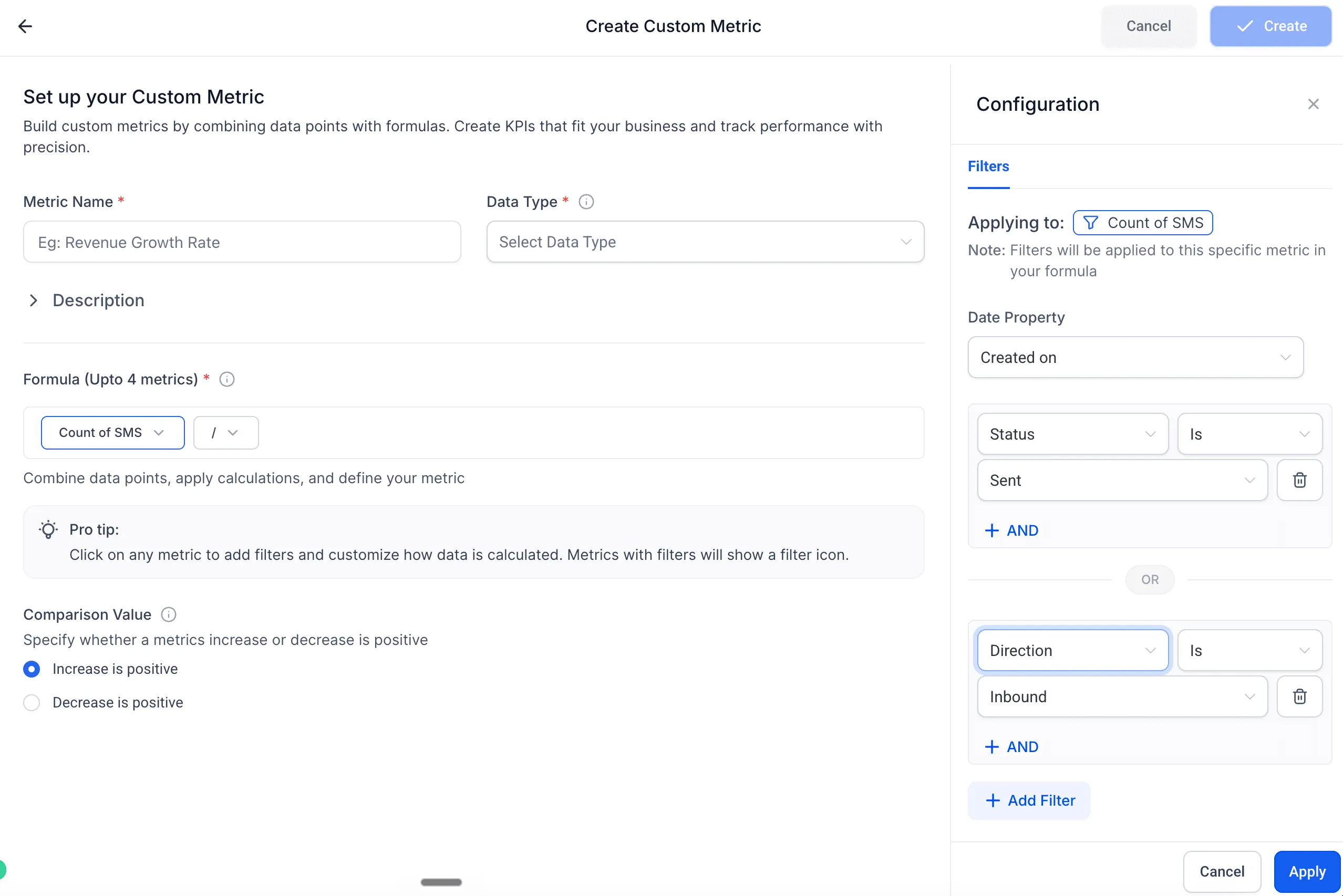
- SMS is available as a dimension in Custom Metrics, so teams can build KPIs such as delivery rate or inbound volume with the formula builder.
How to add an SMS widget
- Open any dashboard and select Edit Dashboard.
- Select + Add Widget and scroll to the SMS section.
- Choose a widget, configure filters and chart type, then select Save Changes.
Why it matters
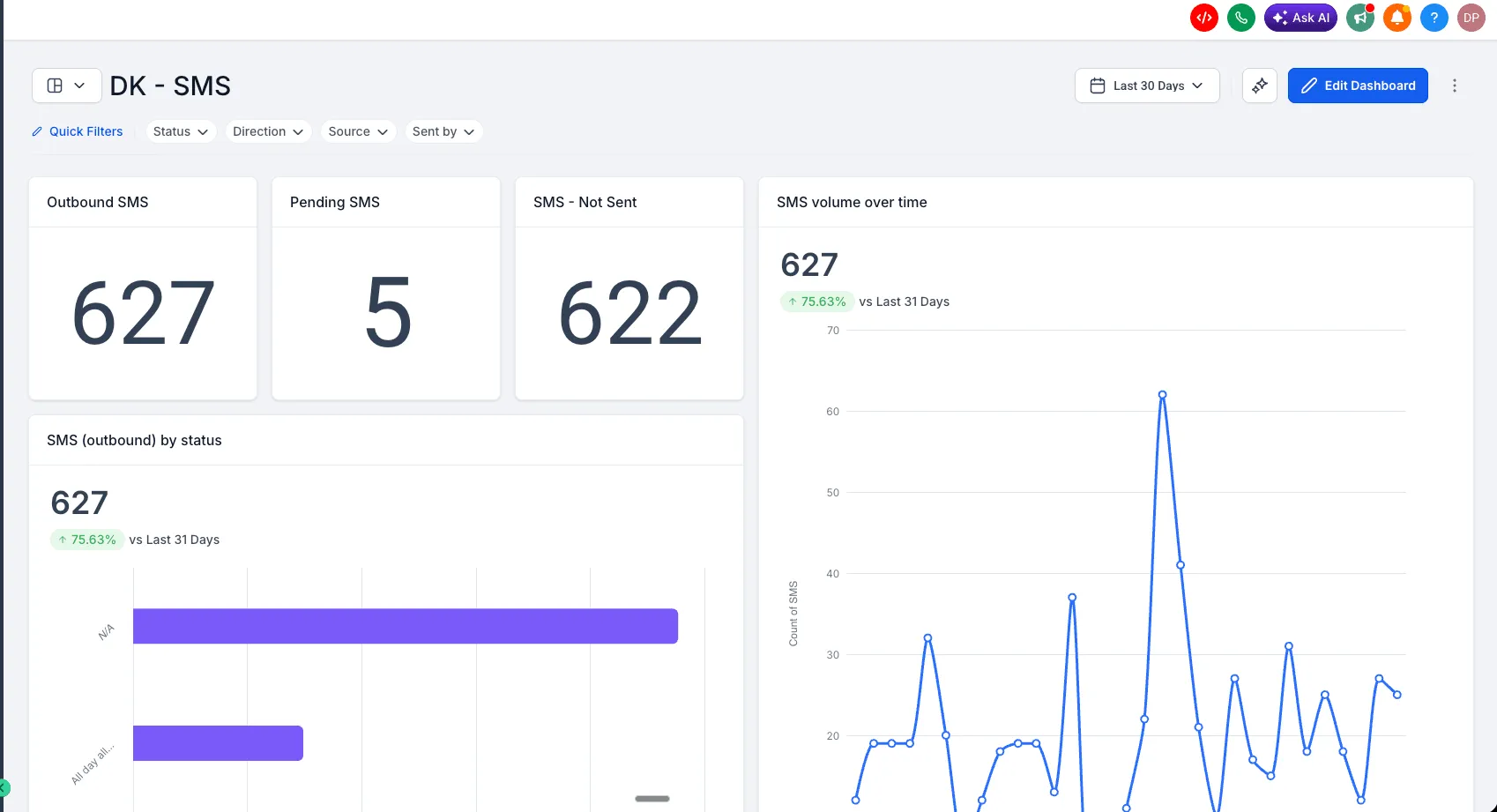
SMS reporting helps teams review messaging activity without switching tools or filtering through conversations.
- See SMS activity alongside emails and calls in one dashboard.
- Monitor delivery health by status, including sent, delivered, failed, or undelivered messages.
- Break down SMS volume by source, such as workflow, campaign, or bulk action.
- Review inbound and outbound SMS activity to understand two-way conversation performance.
Notes
- All SMS widgets support filtering by status, direction, source, and sender.
- Filters can be combined for more precise segmentation.
- SMS widgets are available on all plans that include Dashboards & Reporting.
- SMS reporting is available in Dashboards, Reporting, and Custom Metrics.
In Case You Missed It
For another reporting update, see Dashboard Widgets for Services and Rentals.
Need Help Applying This Update?
Want help turning this update into a working part of your CRM, marketing, or automation setup?
Get Started or schedule a demo and we’ll help you map the right next step.