Social Connect Invite lets agencies invite clients to connect their own social accounts through a password-protected external page. Clients do not need access to your SMBcrm account or need to share their social account credentials. Connected social accounts are automatically added to the appropriate account.
Create and Share an Invite
- Go to Settings → Labs and enable Social Connect Invite.
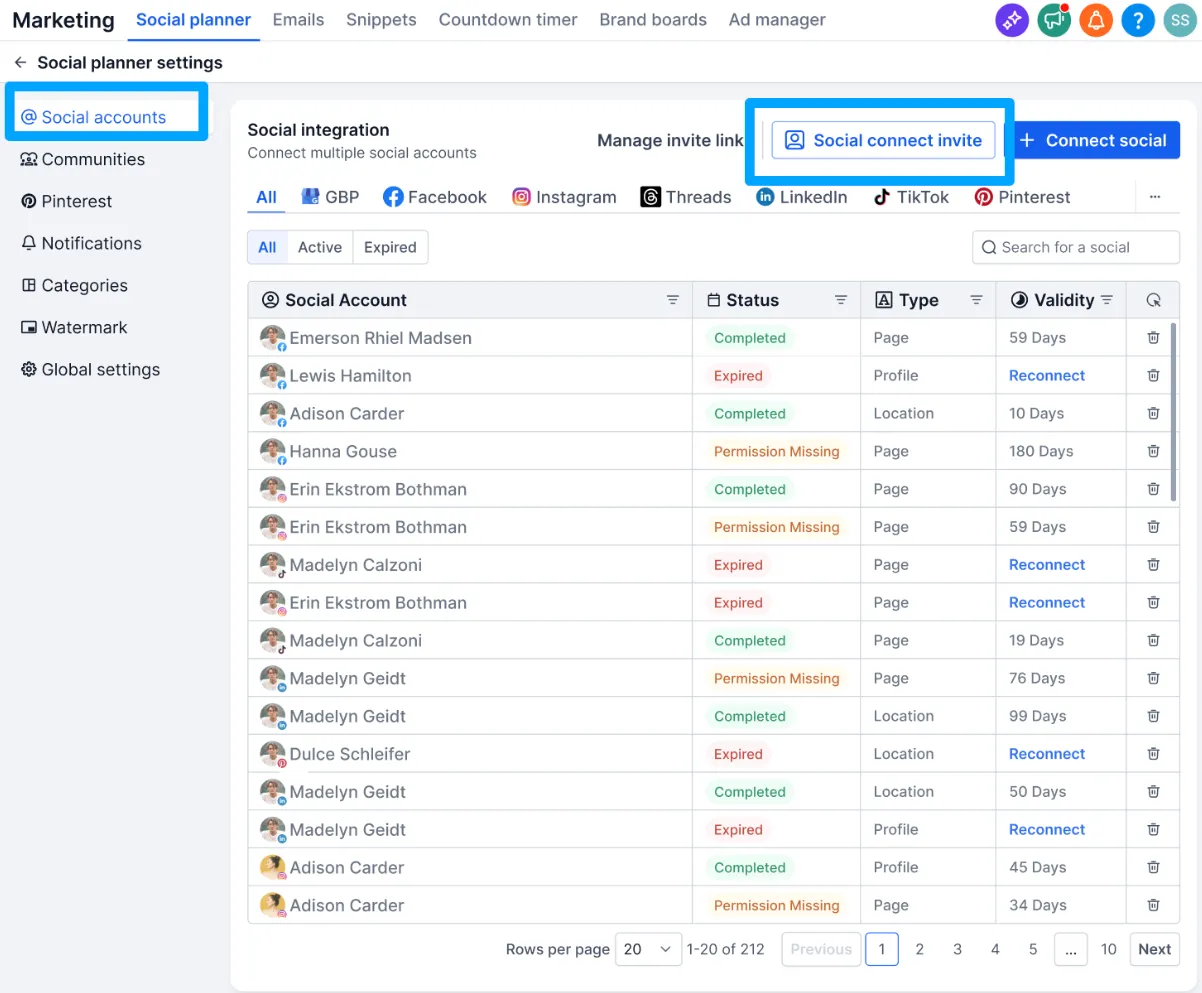
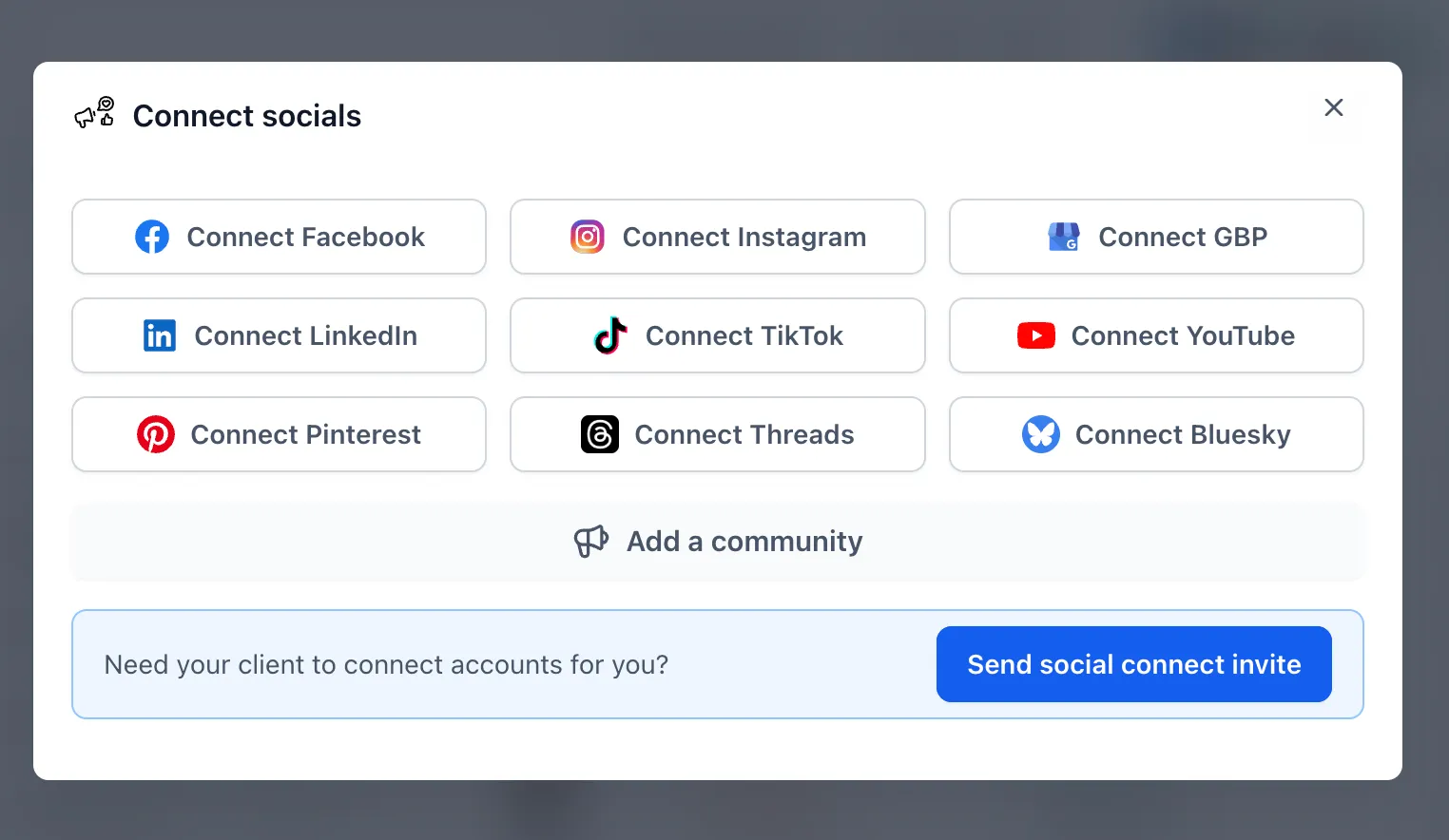
- Open Marketing → Social Planner → Settings → Social Accounts, or click + Socials.
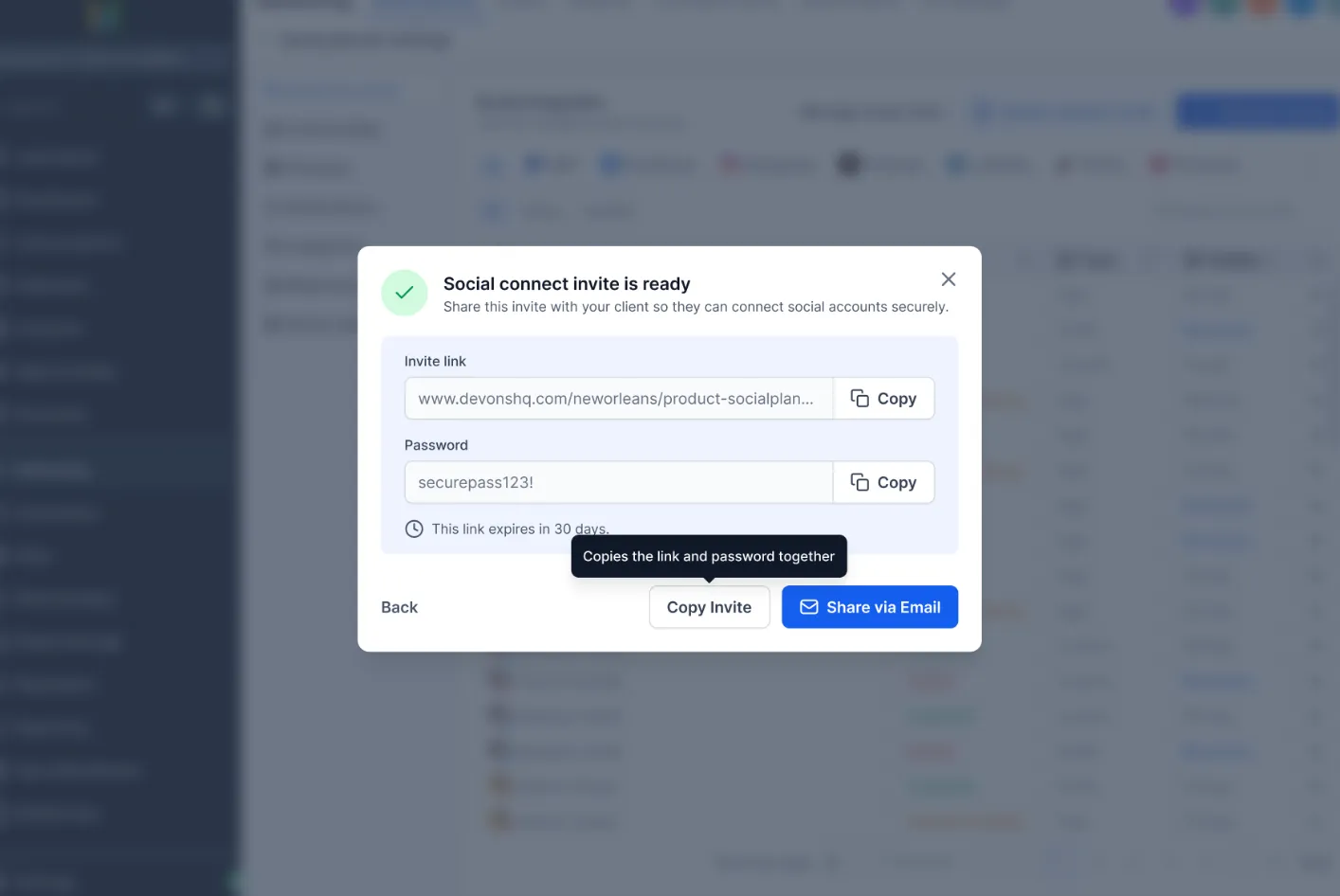
- Select Social Connect Invite and generate an invite with an auto-generated or custom password.
- Send the invite directly from Social Planner, or copy the link and password to share through your preferred communication channel.
- Your client opens the external page and connects their social accounts. Once connected, those accounts appear in your account.
Manage Invite Access
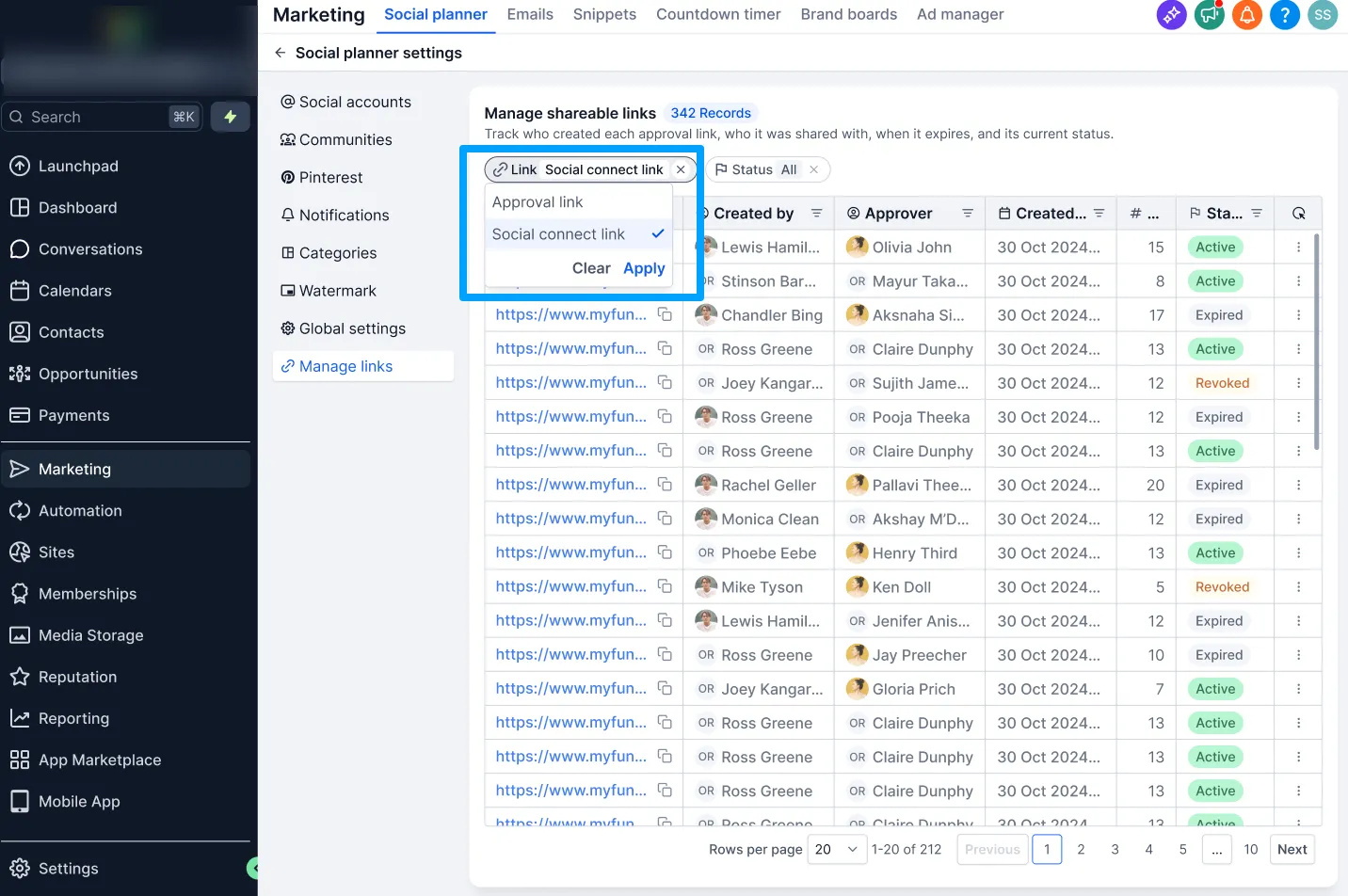
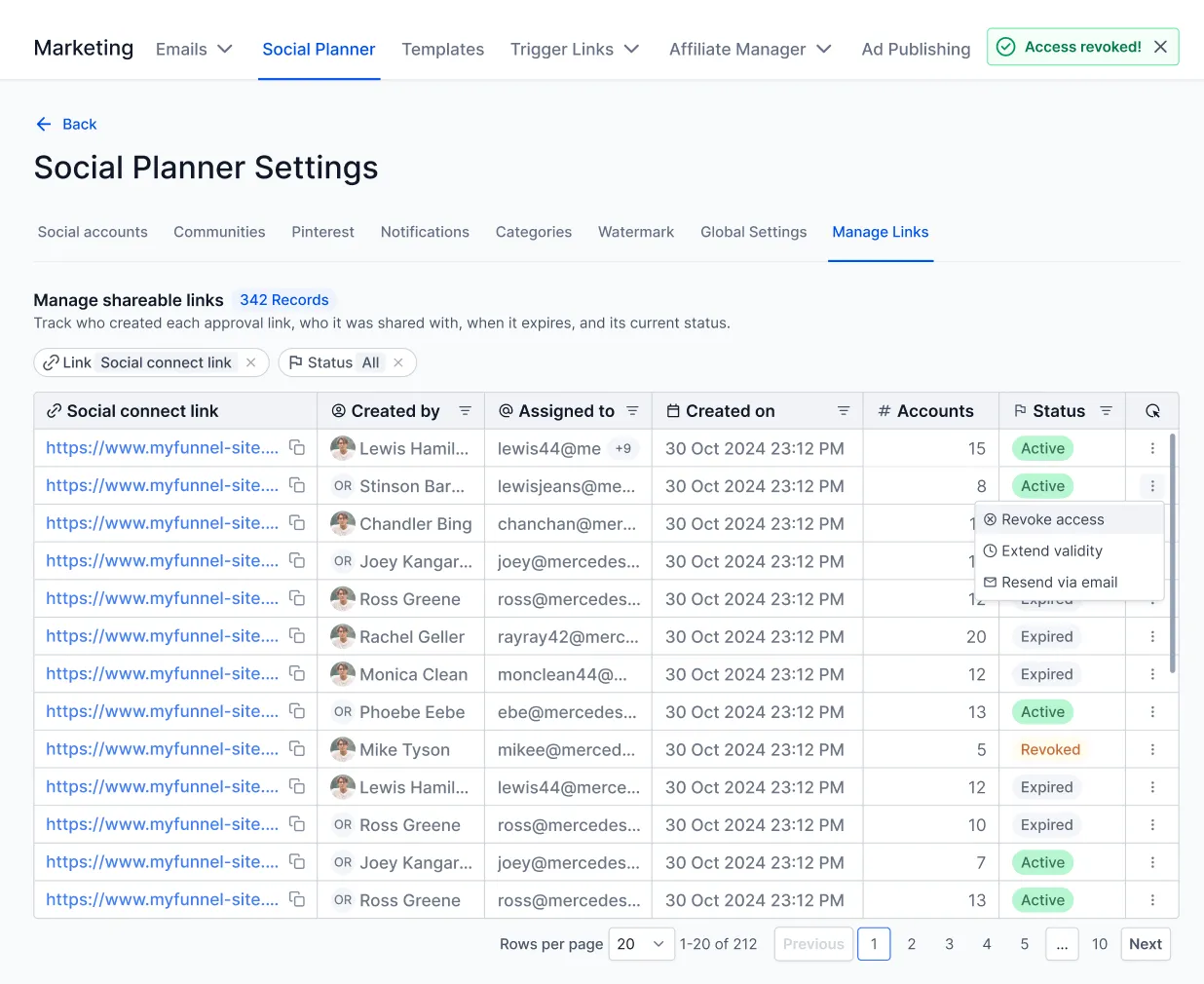
Go to Settings → Manage Links → Social Connect Link to extend an invite’s validity, regenerate it, or revoke it.
- Invite links expire 30 days after creation.
- Revoking an invite immediately disables access.
- Anyone with both the link and password can connect social accounts to your account. Share them only with trusted clients.
This workflow reduces onboarding back-and-forth while keeping client connection invites manageable from one place.
Release Images
Need Help Applying This Update?
Want help turning this update into a working part of your CRM, marketing, or automation setup?
Get Started or schedule a demo and we’ll help you map the right next step.