Transfer Calls Without Personal Phone Numbers
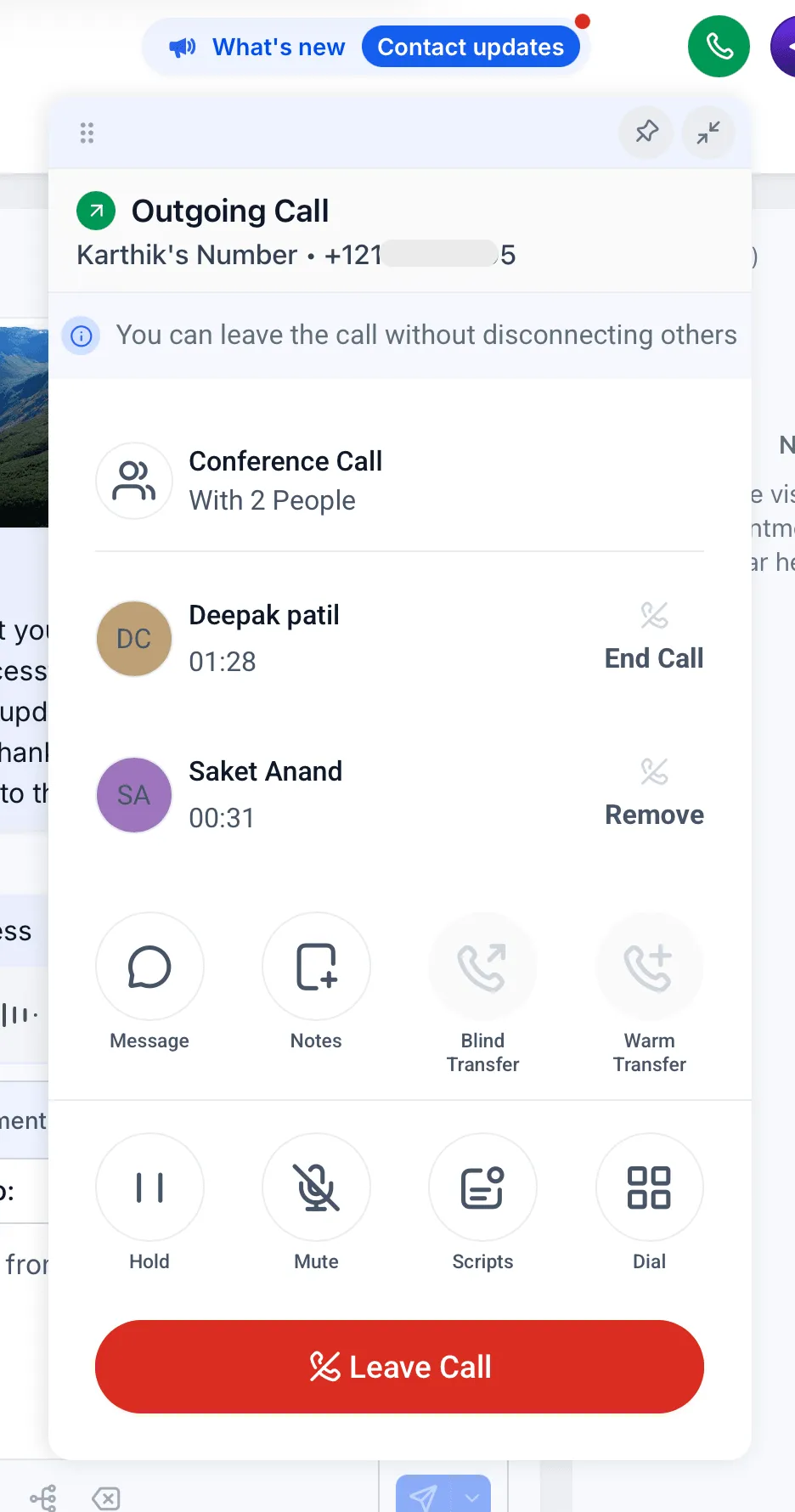
SMBcrm now supports transferring calls to teammates who do not have a personal phone number configured. During a warm or blind transfer, the transfer list shows which device types each teammate can receive calls on.
How call transfers work
- Start a regular inbound or outbound call from the web app.
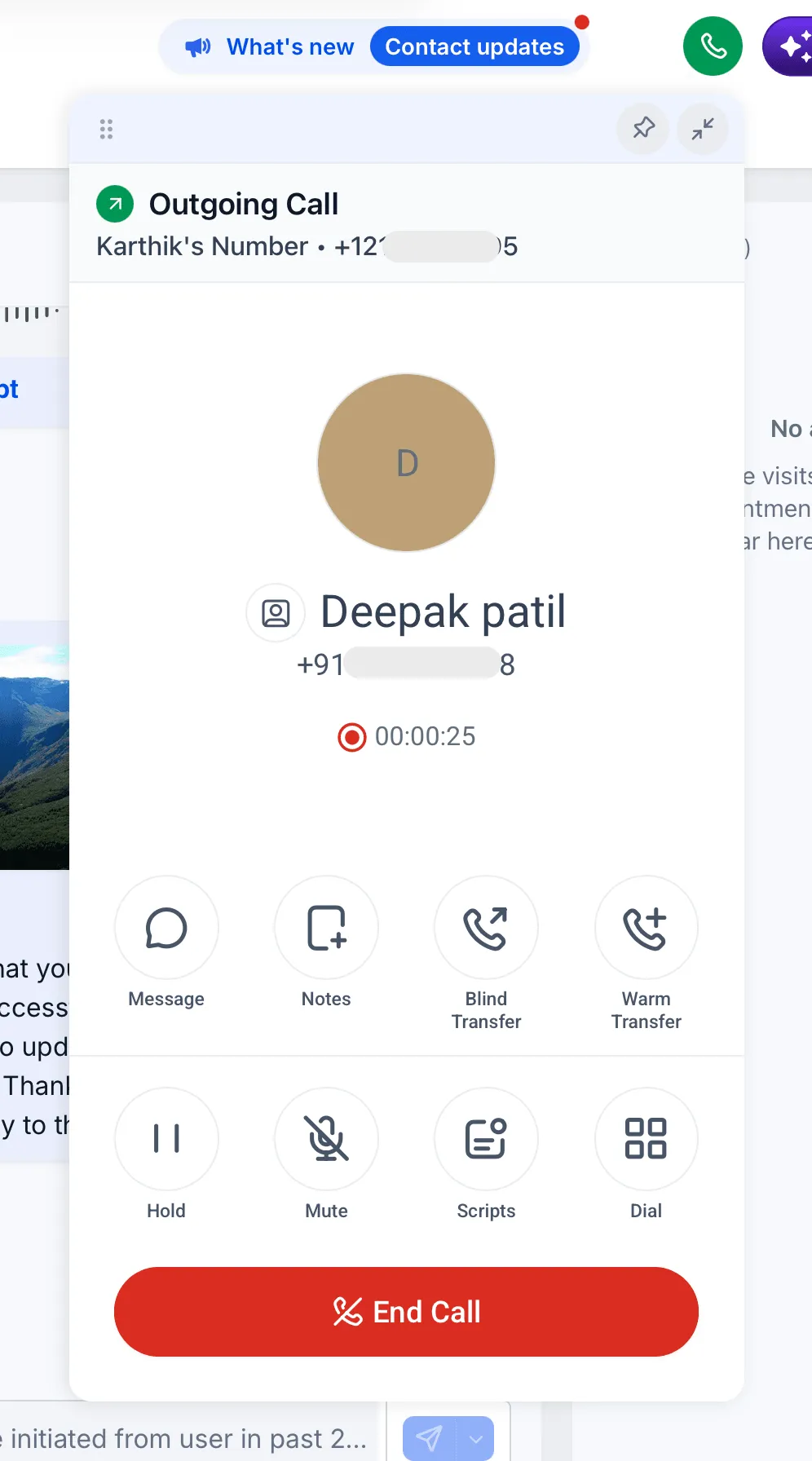
- Select warm transfer or blind transfer.
- Choose the staff member you want to transfer the call to. SMBcrm shows the device types they can receive the transferred call on.
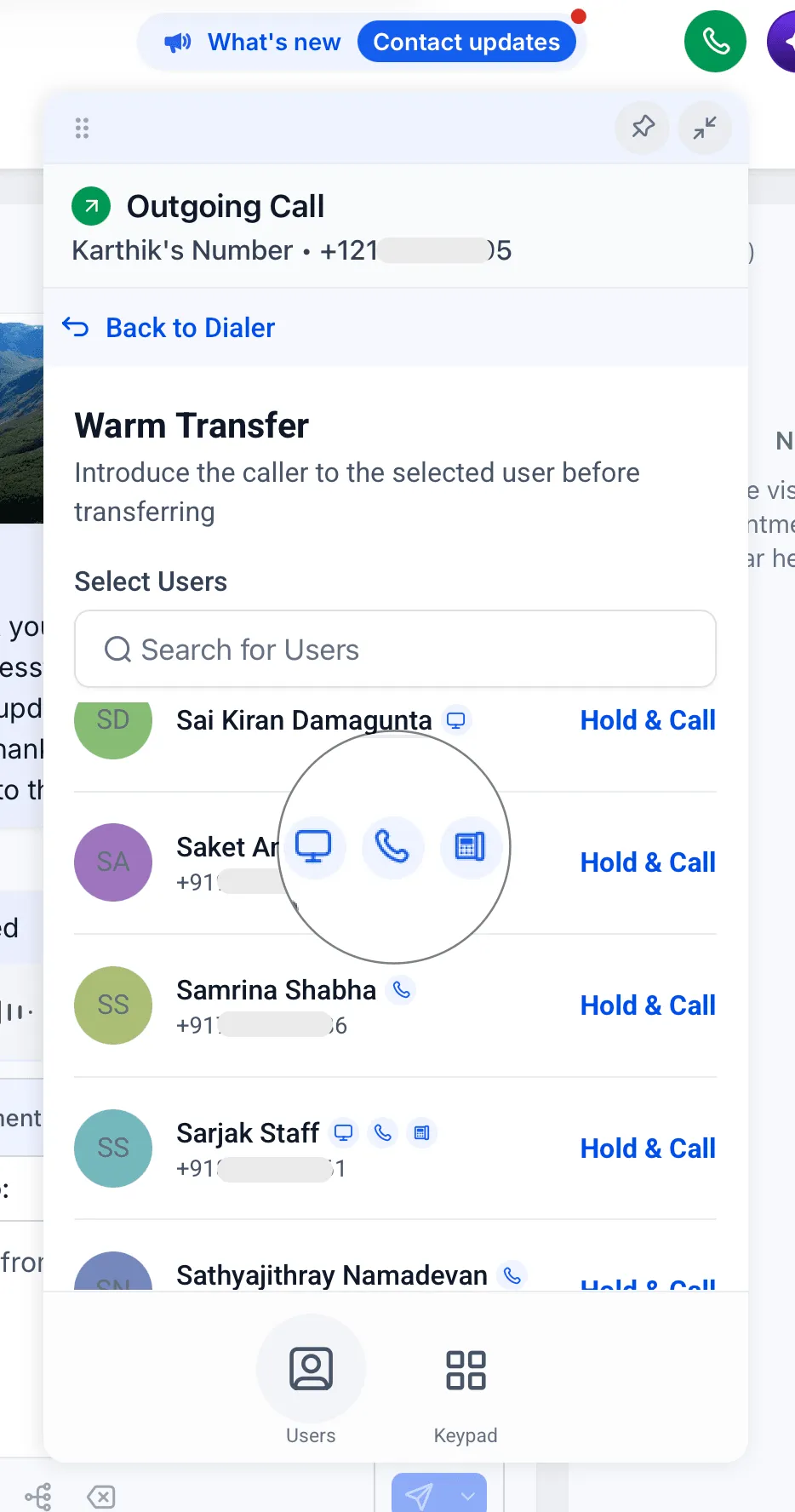
- For a warm transfer, select Hold & Call.
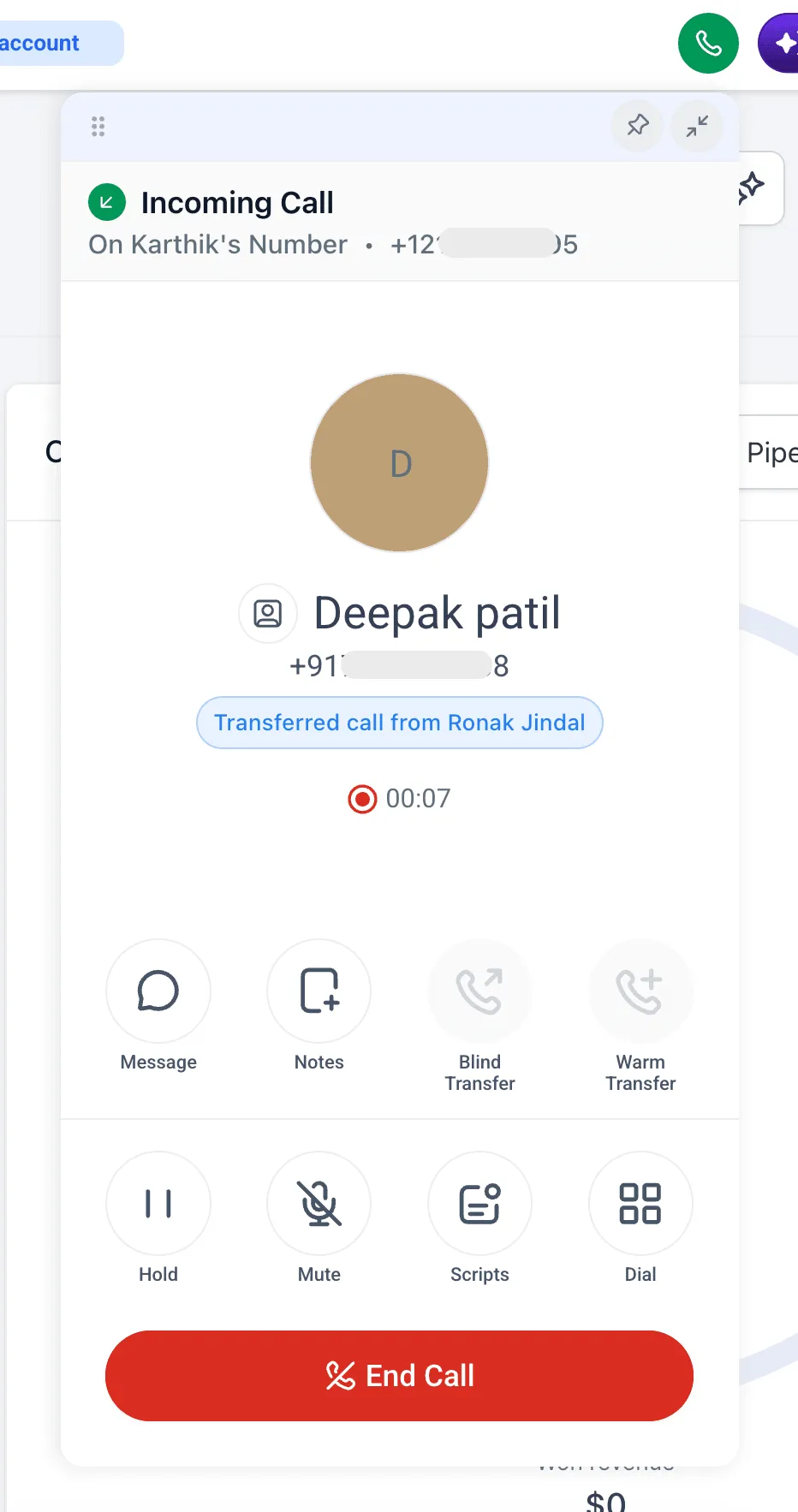
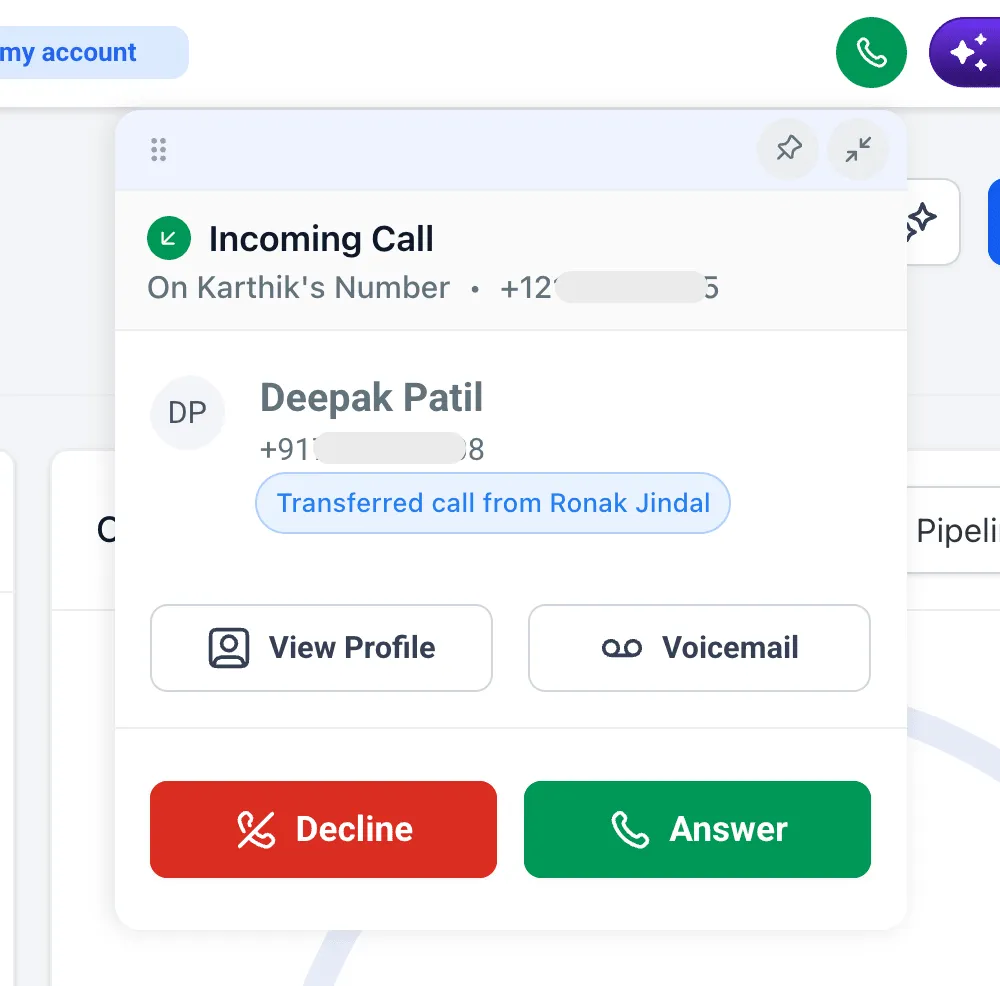
- If the recipient answers on the web app, they can see that the call was transferred before answering.
Key details
- Works for warm and blind transfers.
- Works for inbound and outbound calls.
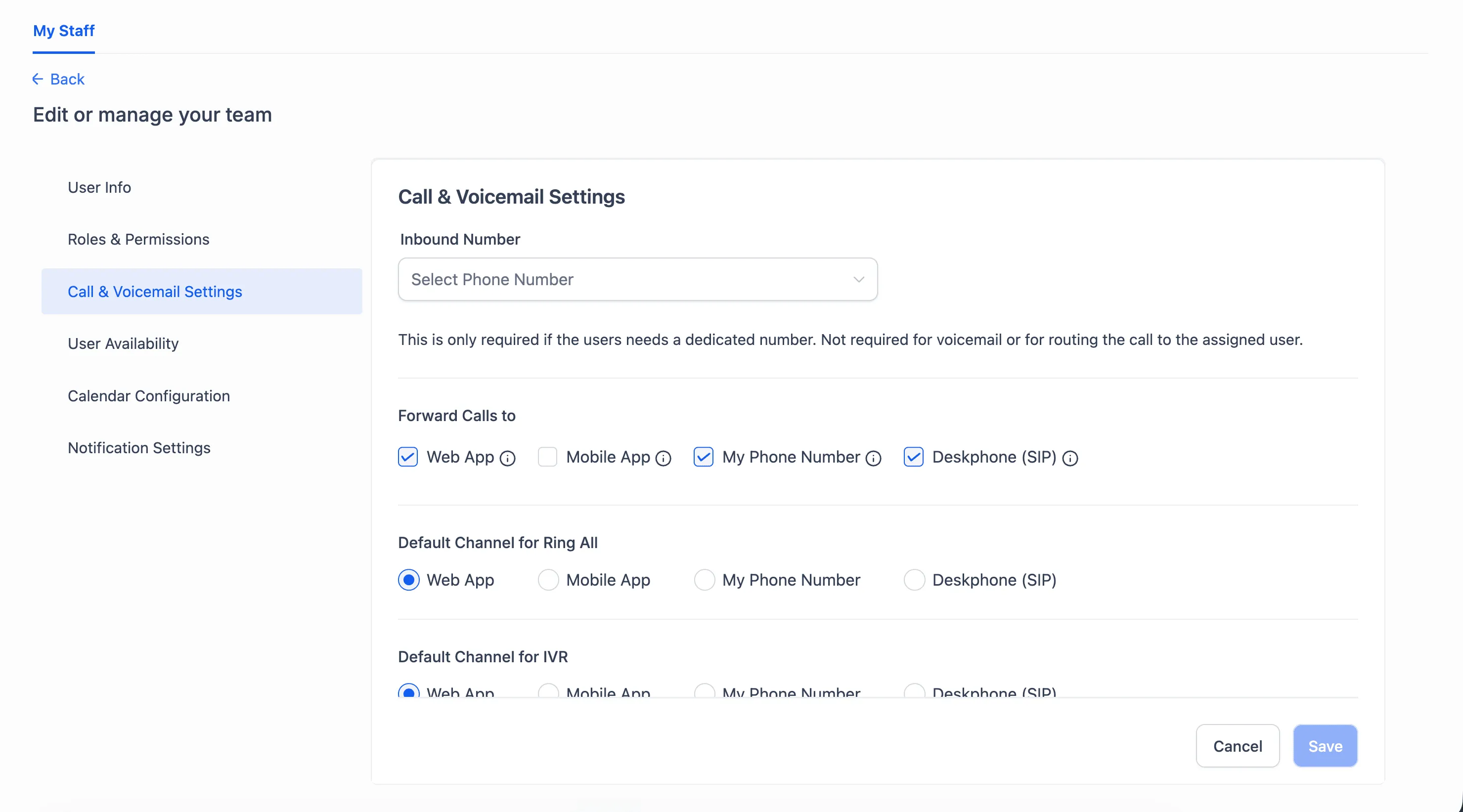
- Transfers ring every device the teammate has set under “Forward calls to” at the same time: web app, configured phone, and SIP desk phone.
- Teammates with no device configured are hidden from the transfer list.
- Re-transferring a call that was already transferred to you is not supported yet.
- SMBcrm Mobile app support as a transfer source and destination is coming in a few weeks.
Enable it through Labs
- Open admin settings, then go to Labs > Account.
- Find “Transfer calls to any device a teammate uses” and select “Activate Feature”.
- Select the accounts you want, then use Bulk Actions > Enable Access.
- Save your changes.
In Case You Missed It
For another recent workflow update, see Contact Tag Updates Now Require Confirmation.
Release Images
Need Help Applying This Update?
Want help turning this update into a working part of your CRM, marketing, or automation setup?
Get Started or schedule a demo and we’ll help you map the right next step.