Start here
A record import is one part of the move.
The connector brings over supported CRM data. Your forms, automations, sending setup, and team processes need their own setup and testing. Keep HubSpot available until you've checked both.
Step 01
Prepare for the move
Decide what your team needs on its first day in SMBcrm. List the records and active processes you're moving, who will check each one, and what you can keep in a secure archive.
- Save original exports of your contacts, companies, deals, and required history. Keep record IDs and relationship information. Work from copies when cleaning data.
- Document owners, custom properties, lists, forms, workflows, and connected tools. Save email designs and any reporting history you'll need later.
- Keep unsubscribe, bounce, and consent information with your migration records. Check how each status will restrict sending in SMBcrm.
- Set up your users and permissions. Keep destination automations inactive during migration so imported records don't receive unintended messages.
Step 02
Connect HubSpot and start your import
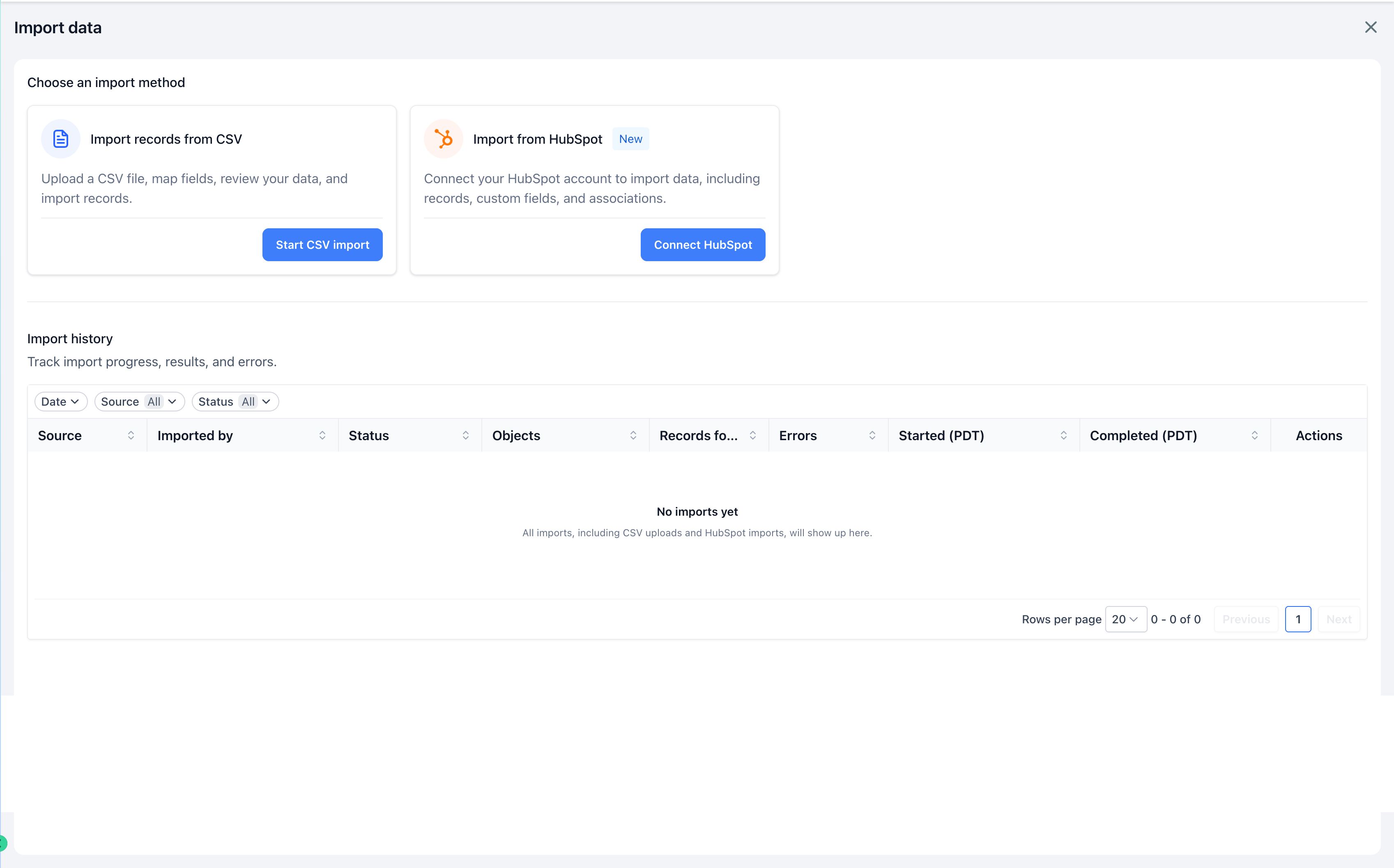
In SMBcrm, open Contacts → Import → Import data. Choose Connect HubSpot on the Import from HubSpot card.
- Sign in to HubSpot. Choose the correct HubSpot account and complete the authorization prompts.
- Read the setup tips. Confirm your backup and data preparation before continuing.
- Select your data. Choose the objects you need and review the included properties and related records.
- Check the preview. Compare record counts with your inventory and review which properties will be included.
- Start the import. Select Confirm and start import, then confirm the next dialog. It runs in the background; return to Import history for progress.
What goes where
- HubSpot contacts and companies
- Contacts and Companies in SMBcrm
- HubSpot deals
- Opportunities, with supported pipelines and stages
- Properties and related records
- Supported custom fields, notes, tasks, emails, and associations
Deals need their associated contacts. Imported emails are read-only, and matching destination records aren't overwritten. Review the HubSpot importer overview alongside the choices shown in your account.
Need to use a CSV instead?
Choose Start CSV import on the same screen. Upload an export, map its columns, and review the data before importing. Test a small file first. CSV is a separate route: don't import the same records through both methods without a duplicate-handling plan. Plan unsupported history and relationships separately.
Step 03
Check your results before moving on
Open the completed run in Import history. Review object totals, then inspect individual records with errors or warnings. Download the results so you can track what needs attention.
Compare a few real examples with HubSpot: a contact with several deals, a company with multiple contacts, an opted-out contact, and a record with custom fields and history. Check relationships and values as well as totals.
If something is missing
Use the error message and source record ID to investigate. Review conflicting field keys with your administrator; don't delete fields containing live data just to clear an error. Save required files separately and verify that they open in SMBcrm.
Agree on a correction plan before rerunning. Reimports can add duplicates, particularly after records have been deleted or restored. For unresolved errors, give SMBcrm support the import details and affected IDs through a private support conversation.
Step 04
Rebuild the processes your team relies on
Work through your inventory with the people who use each process. Keep each replacement inactive until its test passes.
- Workflows and sequences: recreate triggers, branches, delays, assignments, and stop conditions in SMBcrm. Test with controlled records.
- Forms and booking: rebuild fields, notifications, thank-you pages, and follow-up. Test from the public page through to the assigned record.
- Email and messaging: rebuild templates and personalization, connect sending channels, and test replies and unsubscribe behavior.
- Lists and reporting: recreate the filters and definitions your team actually uses. Compare the results with your saved HubSpot reports.
- Integrations and payments: reconnect required tools and check data direction, ownership, and errors. Scope tickets, products, invoices, and any other unlisted objects separately.
Step 05
Switch your team over
Choose a cutover time and name the person who can approve it. Pause HubSpot edits for the final transfer, account for changes since your test, then switch forms, inboxes, integrations, and daily work in an agreed order. Avoid having both platforms send the same follow-up.
A rerun won't update matching records. If your test used a separate account, complete the final import into your intended SMBcrm account. If you've already imported there, agree on a manual or supported CSV update process for changed records with your administrator before cutover.
Keep a rollback plan and access to your source data until the team accepts the result. Check contract and retention requirements before canceling HubSpot.
Ready-to-launch checklist
Tick these off with your team. Checks apply to this page visit only.
After launch, review failed automations, duplicate records, form delivery, and integration errors. Give unresolved issues an owner instead of treating a completed import as the end of the project.
Your next step
Bring your migration questions.
Use SMBcrm onboarding and support to work through your setup. If you're still evaluating the move, review the HubSpot comparison or schedule a demo.
Schedule a DemoFor a deeper planning checklist, read Migrating from HubSpot: A Small-Business Guide.