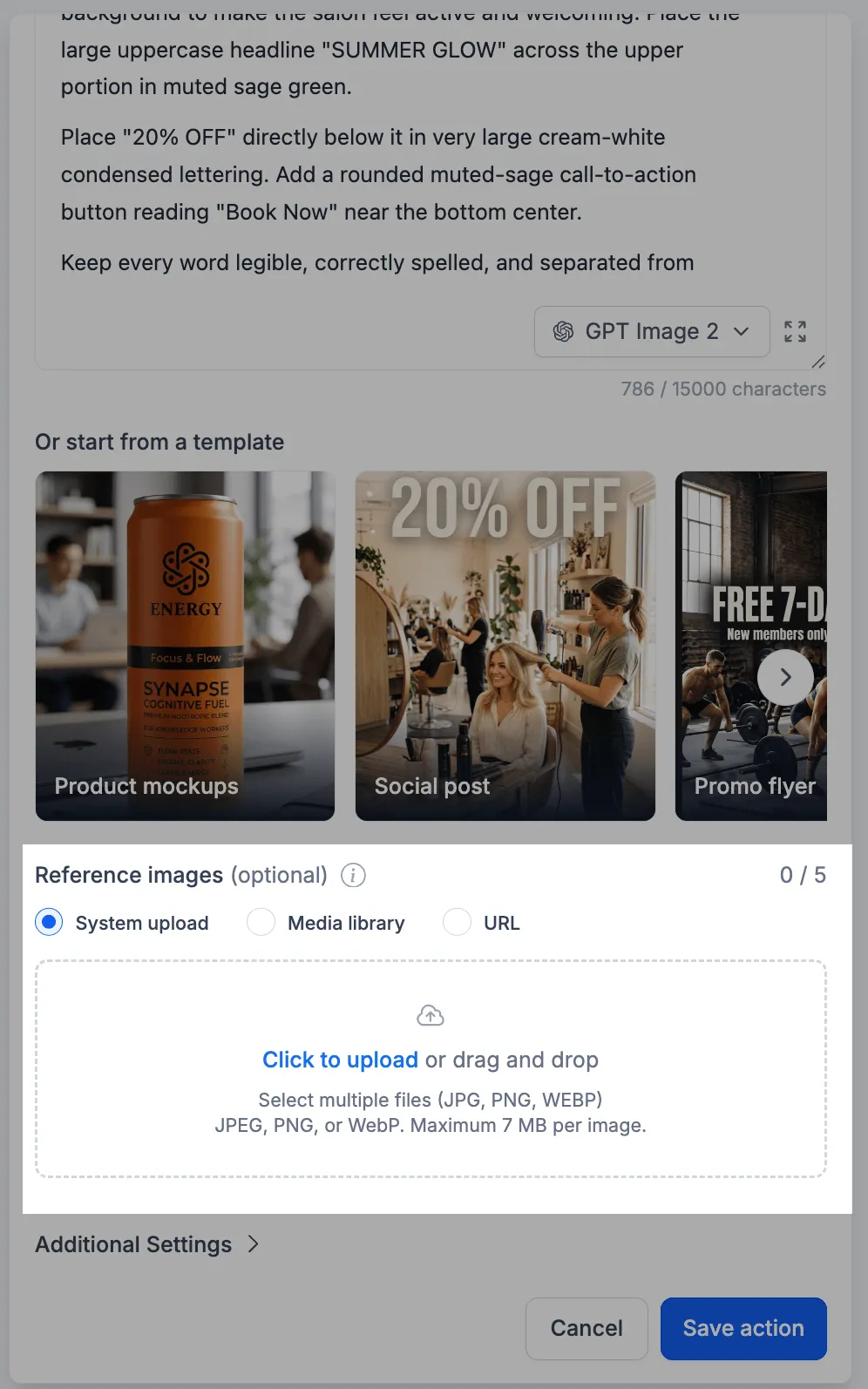
The AI Image Generation workflow action now accepts up to five reference images alongside a text prompt. References give the action visual context for the image you want to generate.
Add reference images
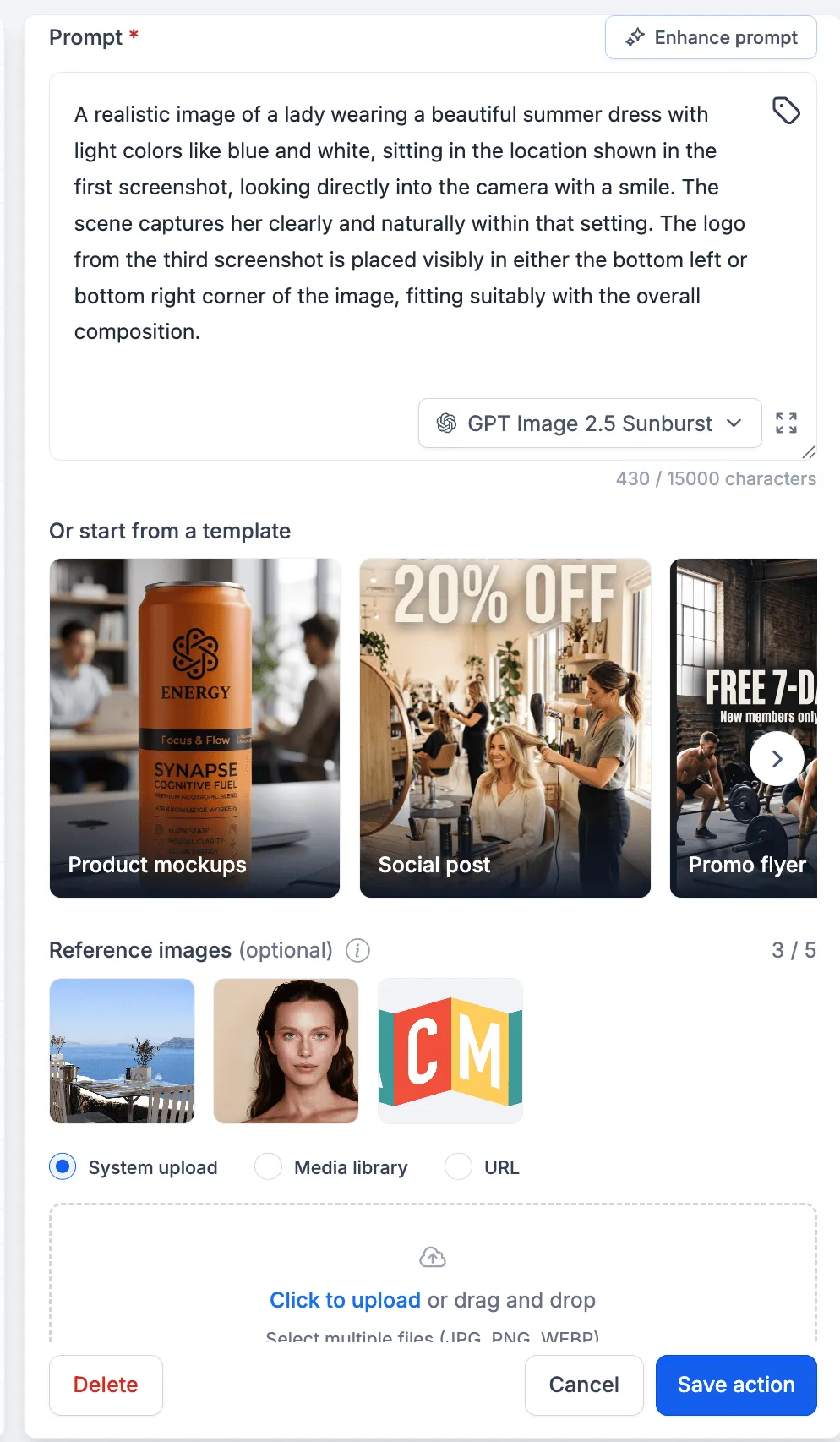
Open the action in a workflow and add your prompt. In the reference-image section, upload an image, select one from the Media Library, or provide an image URL.
URL fields support dynamic values from contacts, webhooks and earlier workflow actions. This lets a workflow supply a different reference image when the relevant input changes.
Explain each image’s role
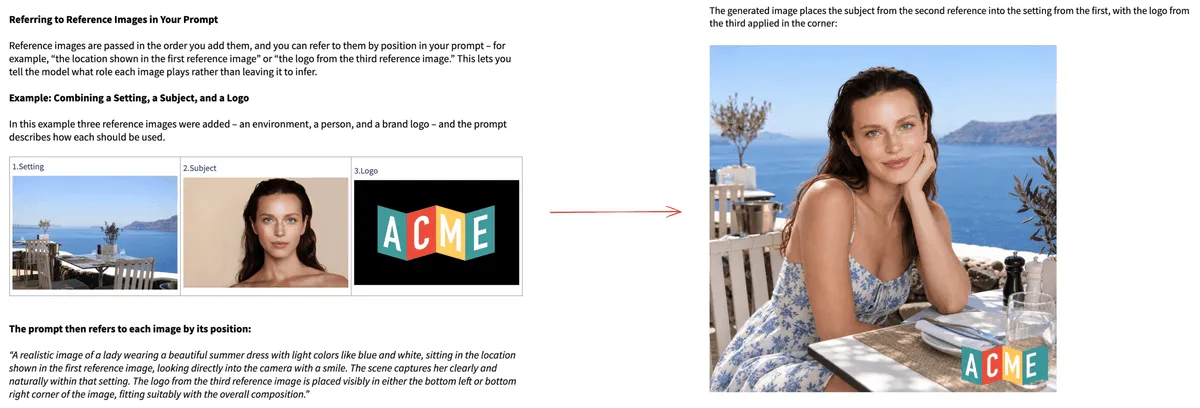
Reference order matters. In your prompt, identify images by position and describe how to use them—for example, use the first image for the subject and the second for the setting.
Save the action after adding the references and prompt. Review generated images before using them in customer-facing material; a reference provides guidance rather than a guarantee of an exact reproduction.
Release images
Related SMBcrm Features
Need Help Applying This Update?
Want help turning this update into a working part of your CRM, marketing, or automation setup?
Get Started or schedule a demo and we’ll help you map the right next step.