AI Analyze Video is available under AI Actions in SMBcrm workflows. Provide a public video URL and a prompt to analyze the video’s visuals and audio, then use the text response in later workflow actions.
This is a premium action with an additional charge for each execution.
What You Can Analyze
- YouTube videos: Public watch, short-link, and Shorts URLs are supported.
- Direct video files: Use a public link to an MP4, MOV, WebM, MPEG, FLV, WMV, or 3GP file.
- Dynamic URLs: Insert a video URL from a previous step or a custom value, including videos supplied through forms, webhooks, or AI Video Generation.
Each action analyzes one video URL. The URL must be public. Page links from Vimeo, TikTok, and similar sites are blocked by those sites, so use a supported YouTube link or a direct video file link instead.
Configure the Analysis
Choose Gemini 3.8 Flash, the default model, or Gemini 3.5 Flash Lite. Your prompt can request a summary, transcript, timestamped list, or yes-or-no check. Prompts also support custom values.
The response can be saved to a custom field, sent by email or SMS, passed to a webhook, or used by another AI action. You can also pair the action with AI Video Generation to review a generated video before sending it to a customer.
How to Use It
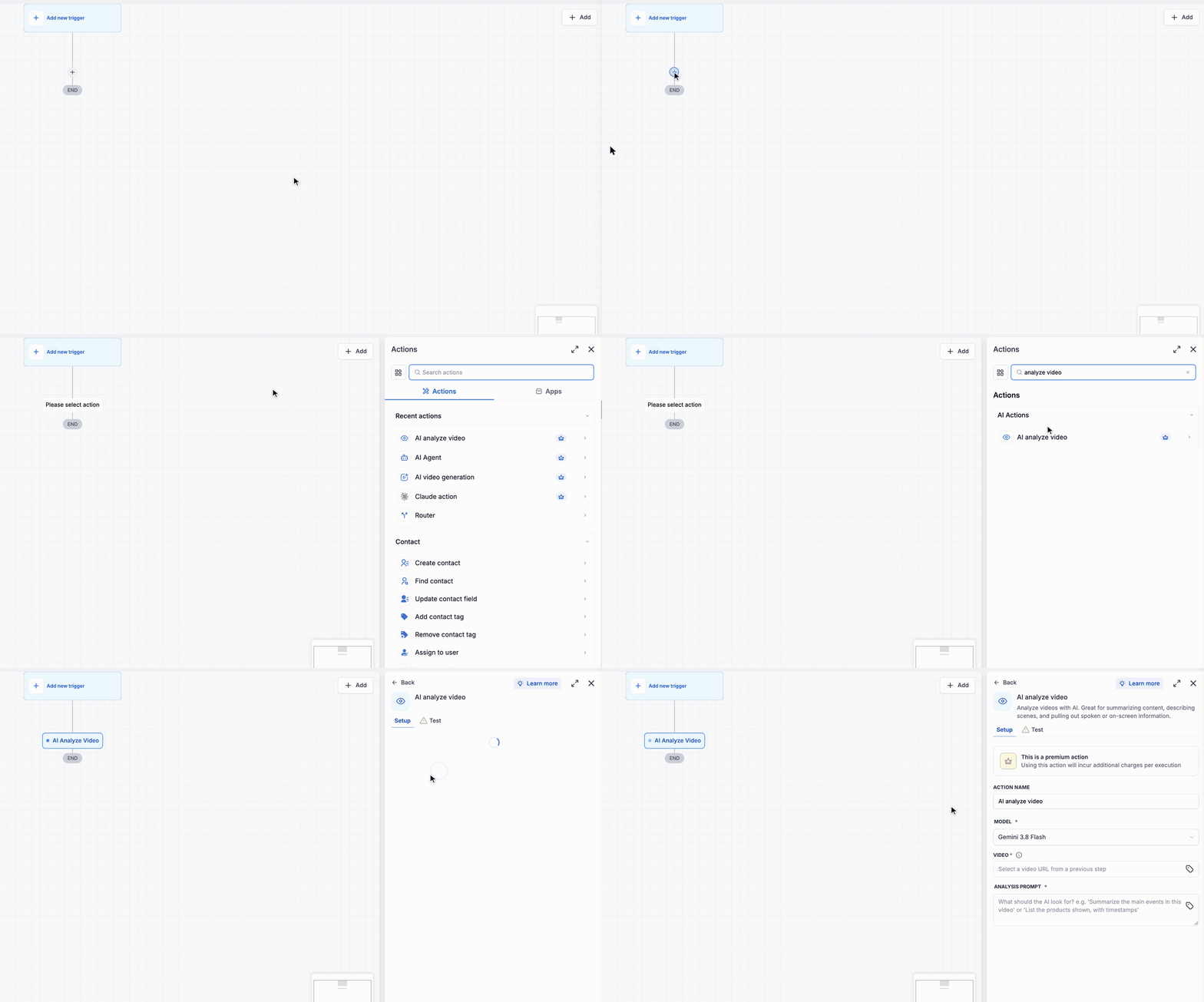
- Go to Automation > Workflows and open a workflow.
- Add AI Analyze Video from AI Actions.
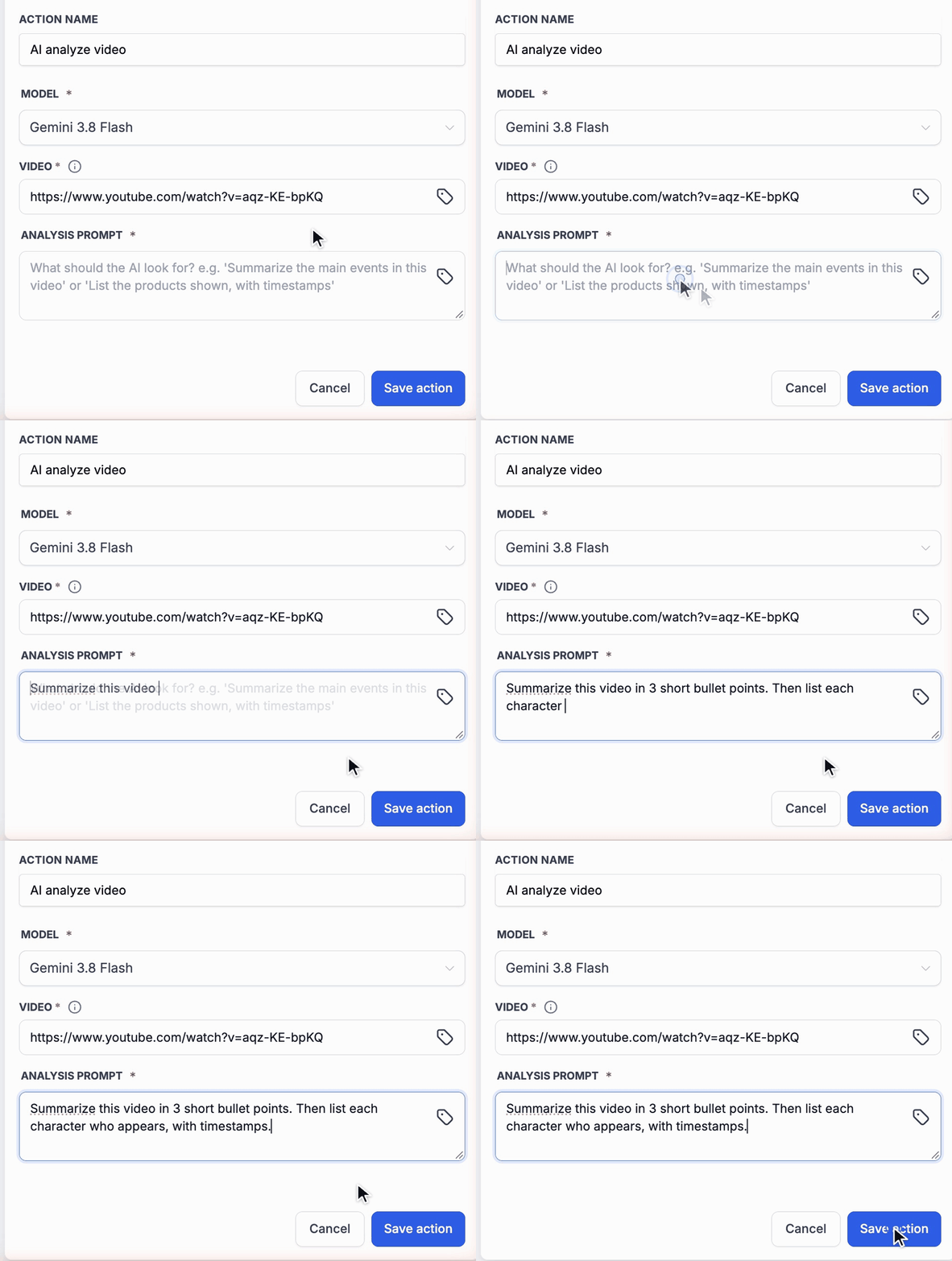
- Select a model and enter a public video URL, or insert a dynamic value.
- Write a prompt describing what to analyze and how to format the answer.
- Optionally, open the Test tab and select Test Action to review the Response using trigger data before publishing.
- Save the action and use its Response value in subsequent steps.
Responses may contain Markdown headings and bullets. Request plain text in your prompt when needed. Longer videos take more time to process.
Usage Charges
Video analysis is billed per execution based on tokens consumed. Cost depends on the selected model, video length, and response length. Longer videos and more detailed responses cost more than shorter clips and brief answers.
Release Images
Need Help Applying This Update?
Want help turning this update into a working part of your CRM, marketing, or automation setup?
Get Started or schedule a demo and we’ll help you map the right next step.