Alt Text Support for Social Planner Images
SMBcrm Social Planner now supports alt text for images, helping teams create more accessible social content without switching to native social platforms.
What changed
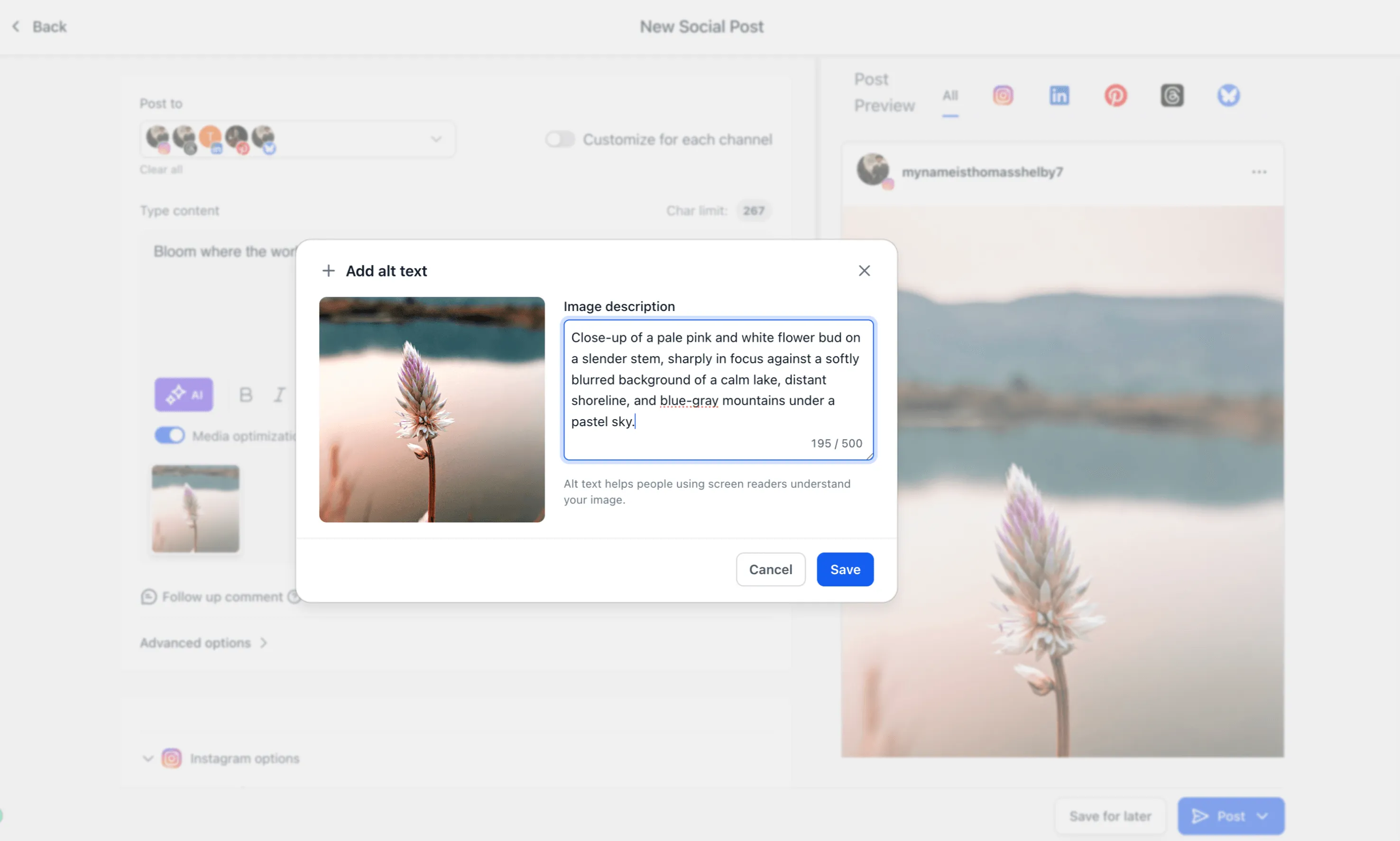
You can now add custom alt text to each image uploaded in Social Planner.
- Works for single-image posts
- Works for multi-image posts and carousels
- Stores alt text individually for each image
- Allows edits before publishing
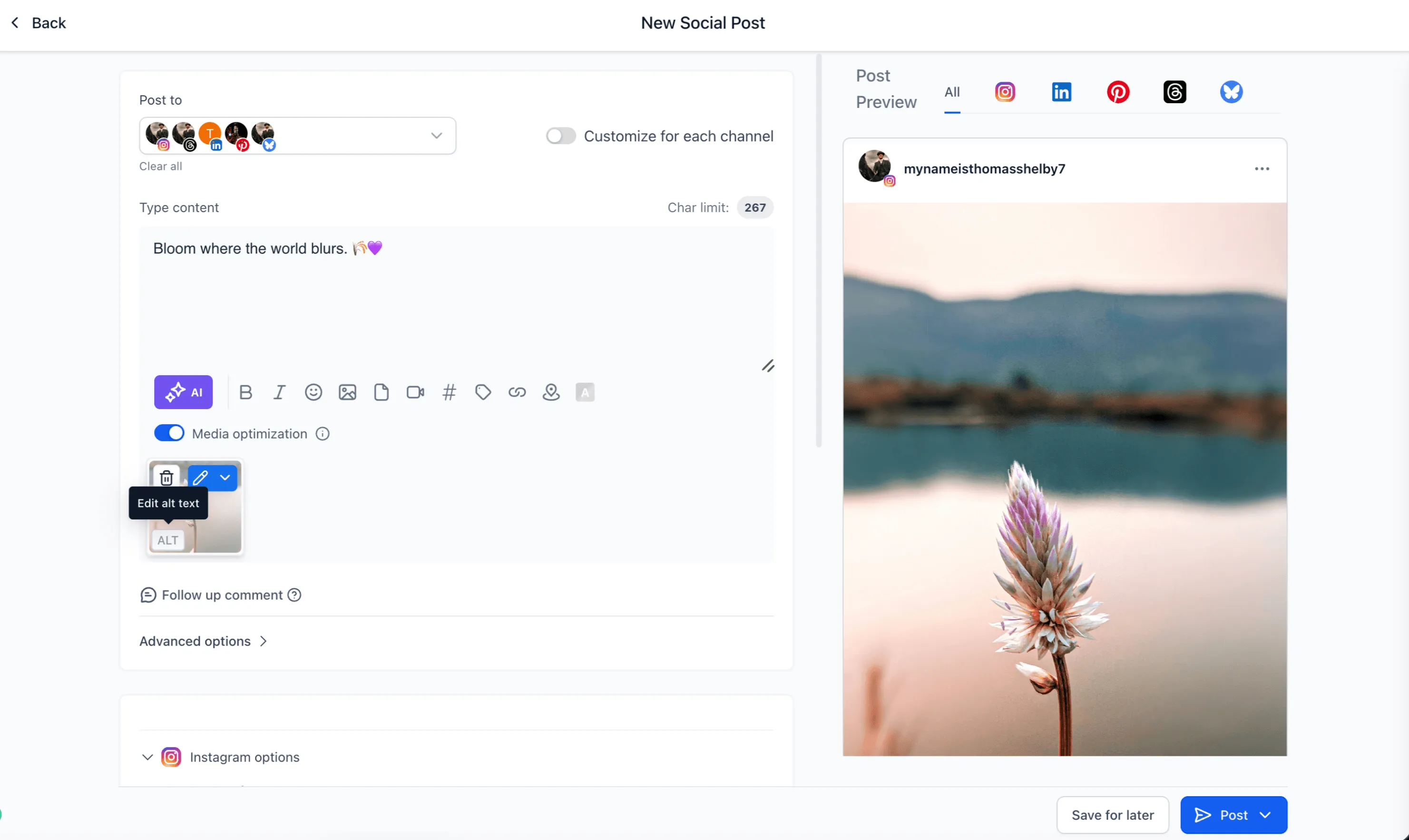
- Shows a visual indicator when an image has alt text configured
Each image in a carousel or multi-image post can have its own description, so users can provide accurate context for every image instead of relying on one generic description.
Social Planner sends alt text to platforms that accept it and skips it for platforms that do not.
How to add alt text
- Go to Marketing > Social Planner.
- Create a post.
- Upload one or more images.
- Hover over an image and select Alt Text.
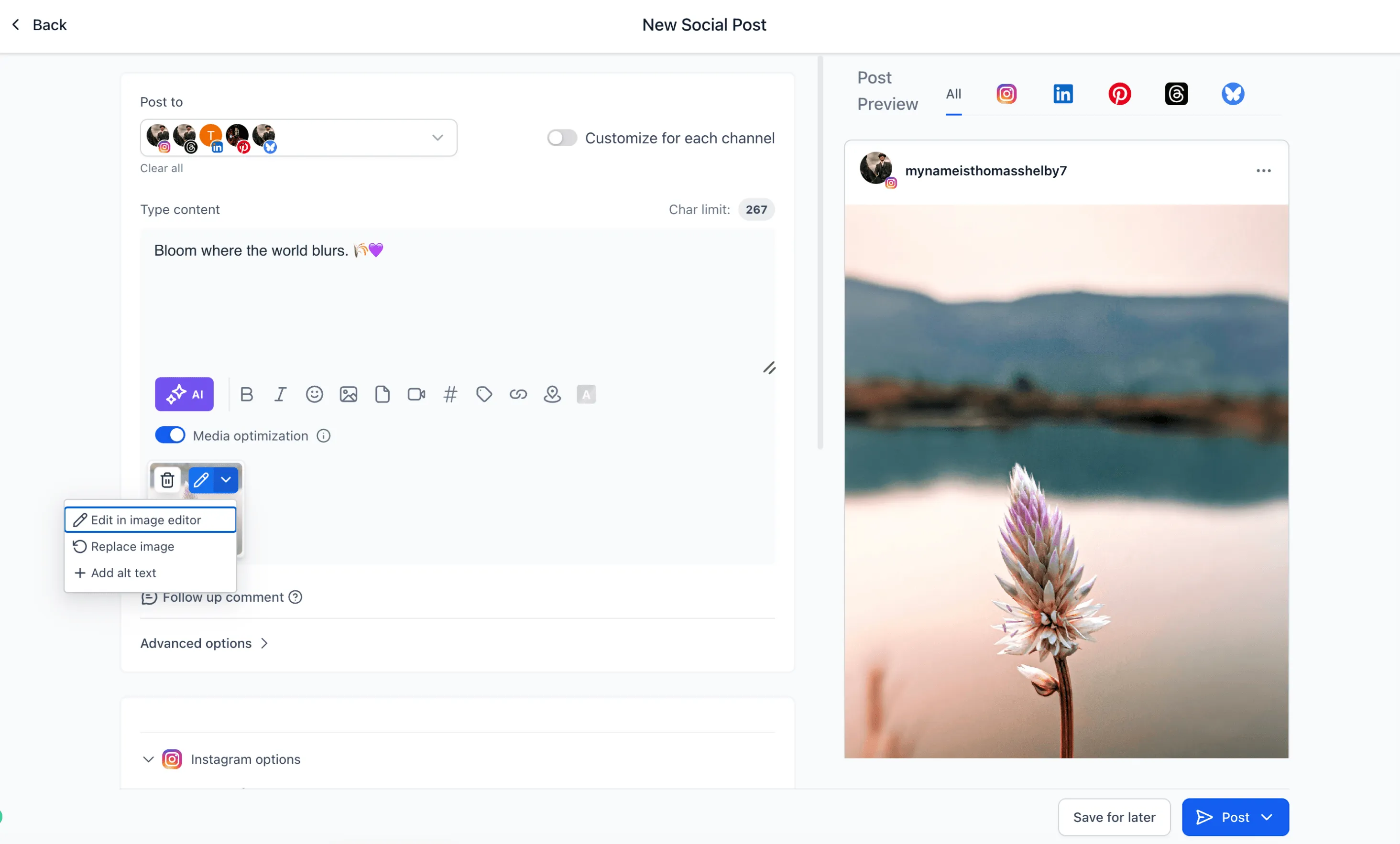
- Enter a description for the image.
- To change it later, select the Alt Text icon again and update the description.
- Save, schedule, or publish your post.
Why it matters
Alt text helps improve accessibility for visually impaired audiences and supports more inclusive social media publishing. It also keeps the workflow inside Social Planner, reducing the need to edit posts natively after publishing.
Notes
- Alt text is configured per image, not per post.
- Images can be updated or edited before publishing.
- Alt text is used automatically on platforms that support it.
In Case You Missed It
For another Social Planner update, read Facebook Background Text Posts in Social Planner.
Need Help Applying This Update?
Want help turning this update into a working part of your CRM, marketing, or automation setup?
Get Started or schedule a demo and we’ll help you map the right next step.