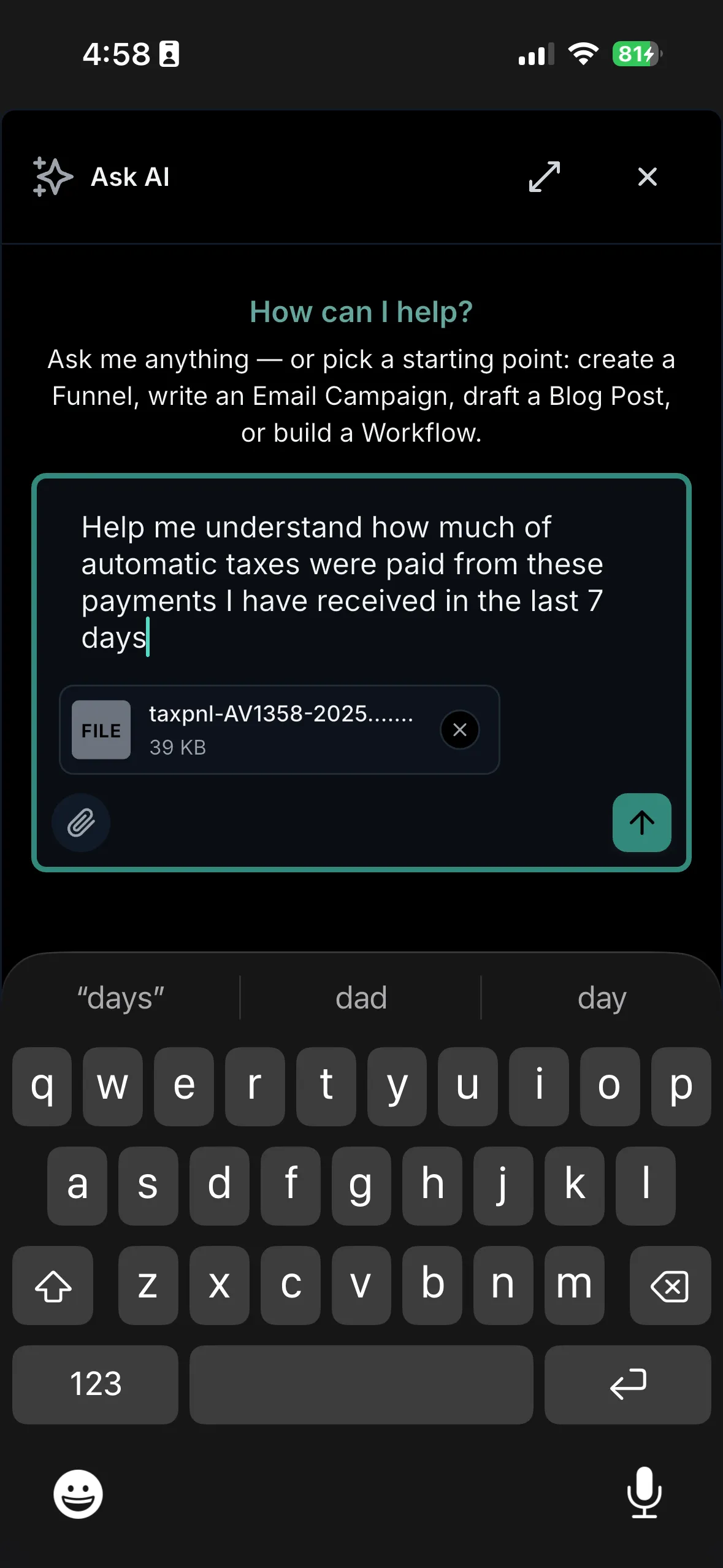
Ask AI in the SMBcrm Mobile app can now read images and documents attached in the chat composer. This makes it easier to ask questions about files without copying details into chat manually.
Use it with screenshots, PDFs, CSVs, contracts, and files already stored in your Media Library. The assistant can review the attached content and respond based on the file you provide.
What changed
You can tap the paperclip in Ask AI and attach a file from one of four sources:
- Camera
- Gallery
- Files
- Media Library
Files upload in the background while you continue typing. When ready, the attachment appears as a chip and is sent with your next message.
Why it matters
This update helps users work with document-based questions directly from mobile:
- Save time by attaching a screenshot instead of retyping what it shows.
- Ask about a PDF, CSV, or contract from your phone.
- Use existing Media Library files without uploading them again.
- Get answers based on the file content, not only typed context.
For broader assistant capabilities, see SMBcrm AI features.
How to use it
- Open Ask AI from the SMBcrm Mobile app navigation.
- Start a new chat or open an existing chat.
- Tap the paperclip in the composer.
- Choose Camera, Gallery, Files, or Media Library.
- Wait for the upload chip to show the file is ready, then type your question and send.
Availability
The release lists availability as version 4.21.0+844.
In Case You Missed It
Read how AI Studio form submissions can trigger workflows.
Need Help Applying This Update?
Want help turning this update into a working part of your CRM, marketing, or automation setup?
Get Started or schedule a demo and we’ll help you map the right next step.