Ask AI Computer is now available in the SMBcrm Mobile app. It uses the same private cloud machine as the web experience to browse in Chrome, fill out forms, run code, and work with files.
Start, Monitor, and Take Over Tasks
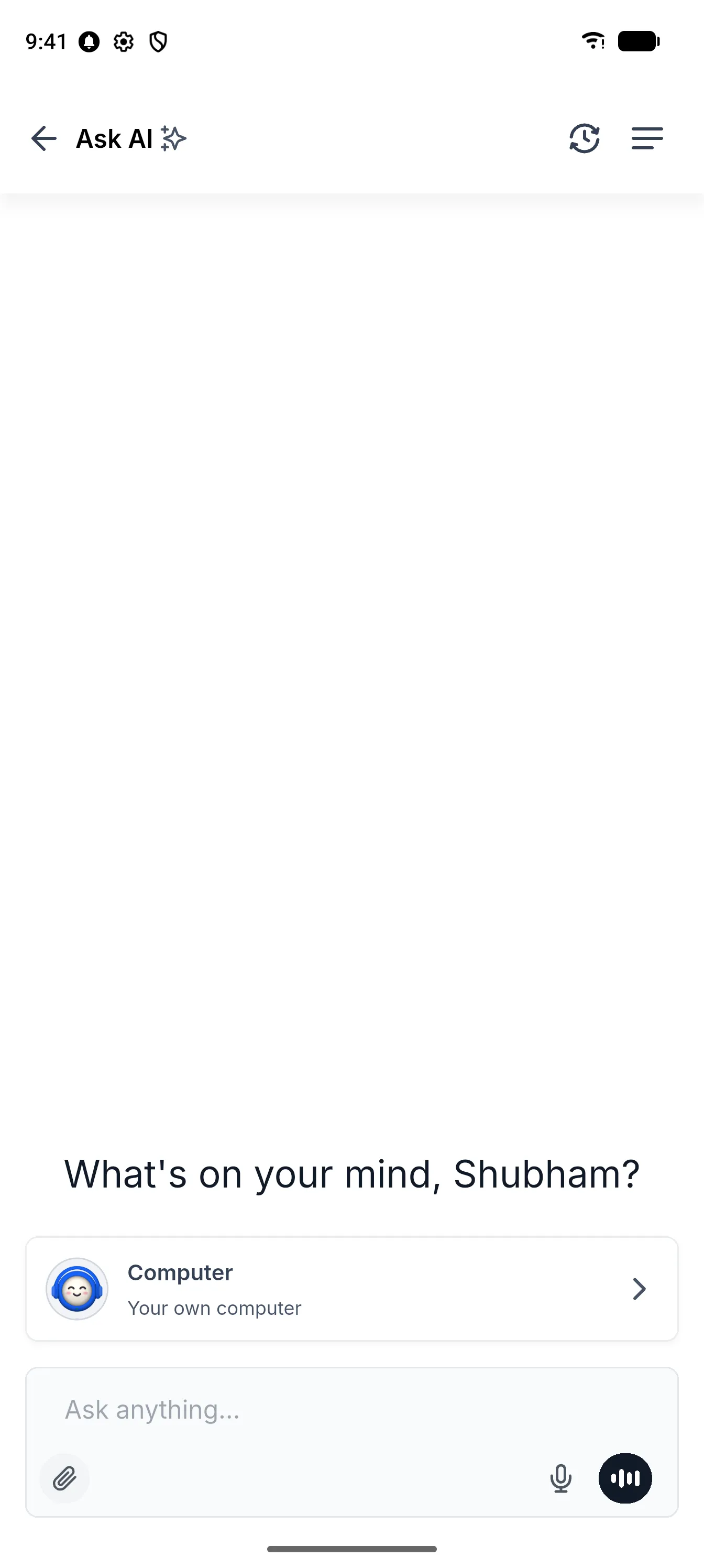
A Computer row above the composer in every new chat gives you access to the Computer. Its dedicated chat is also available in History.
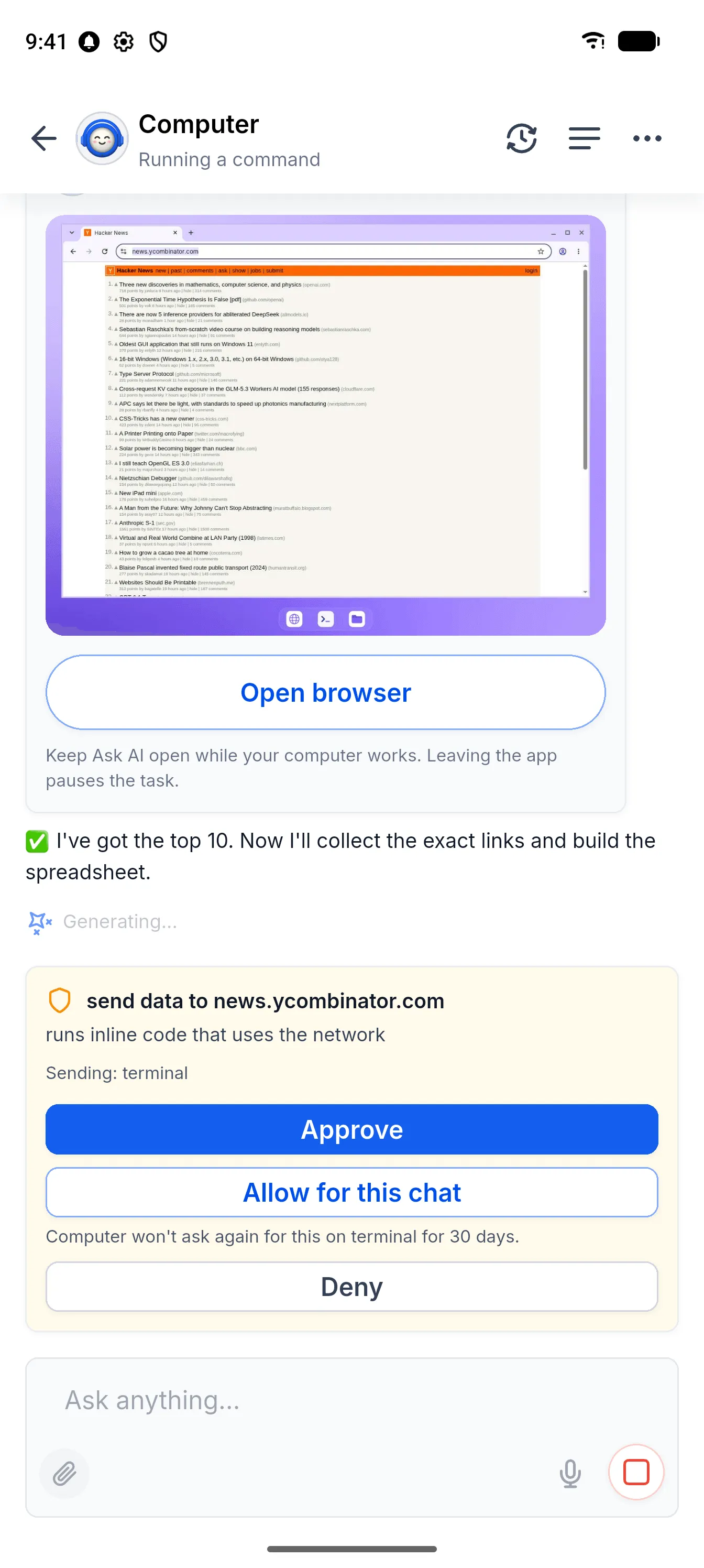
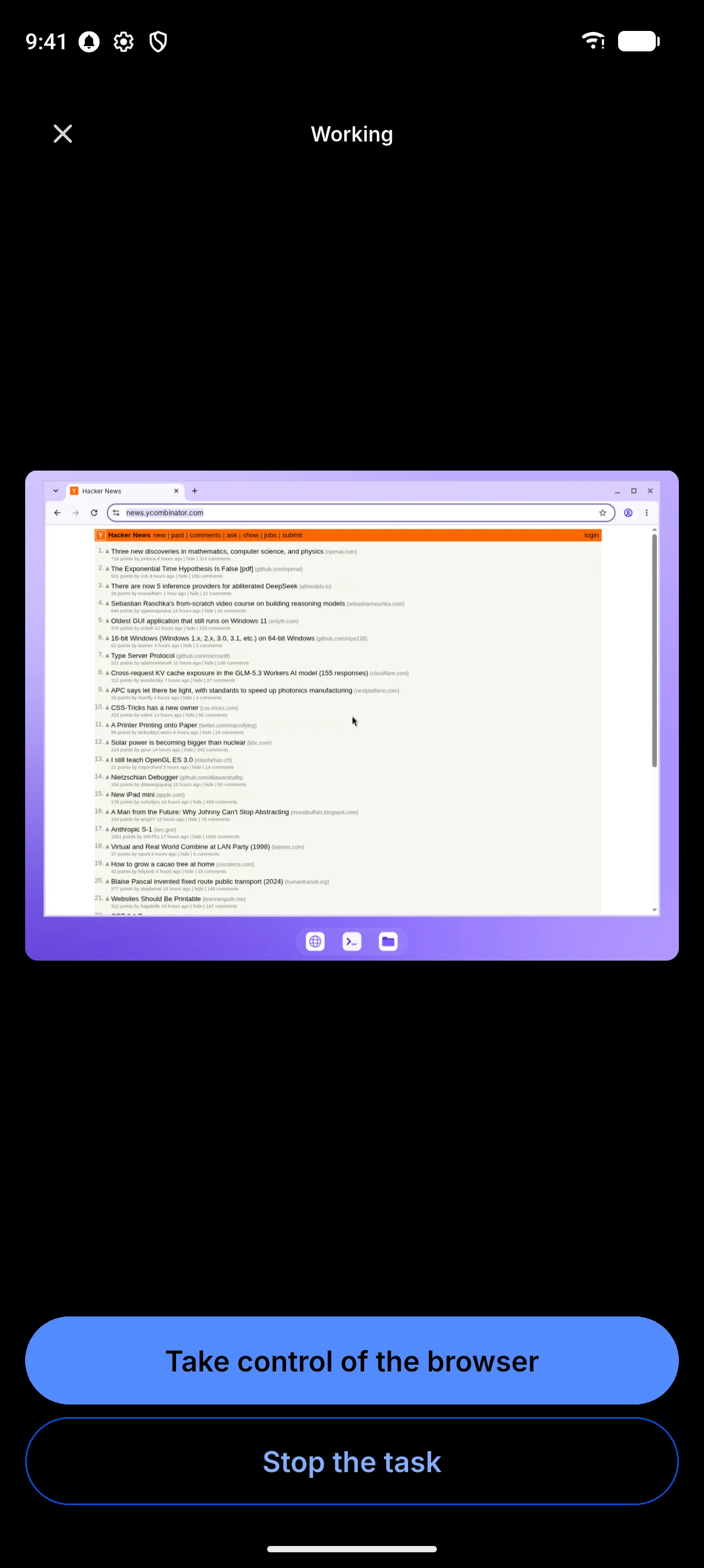
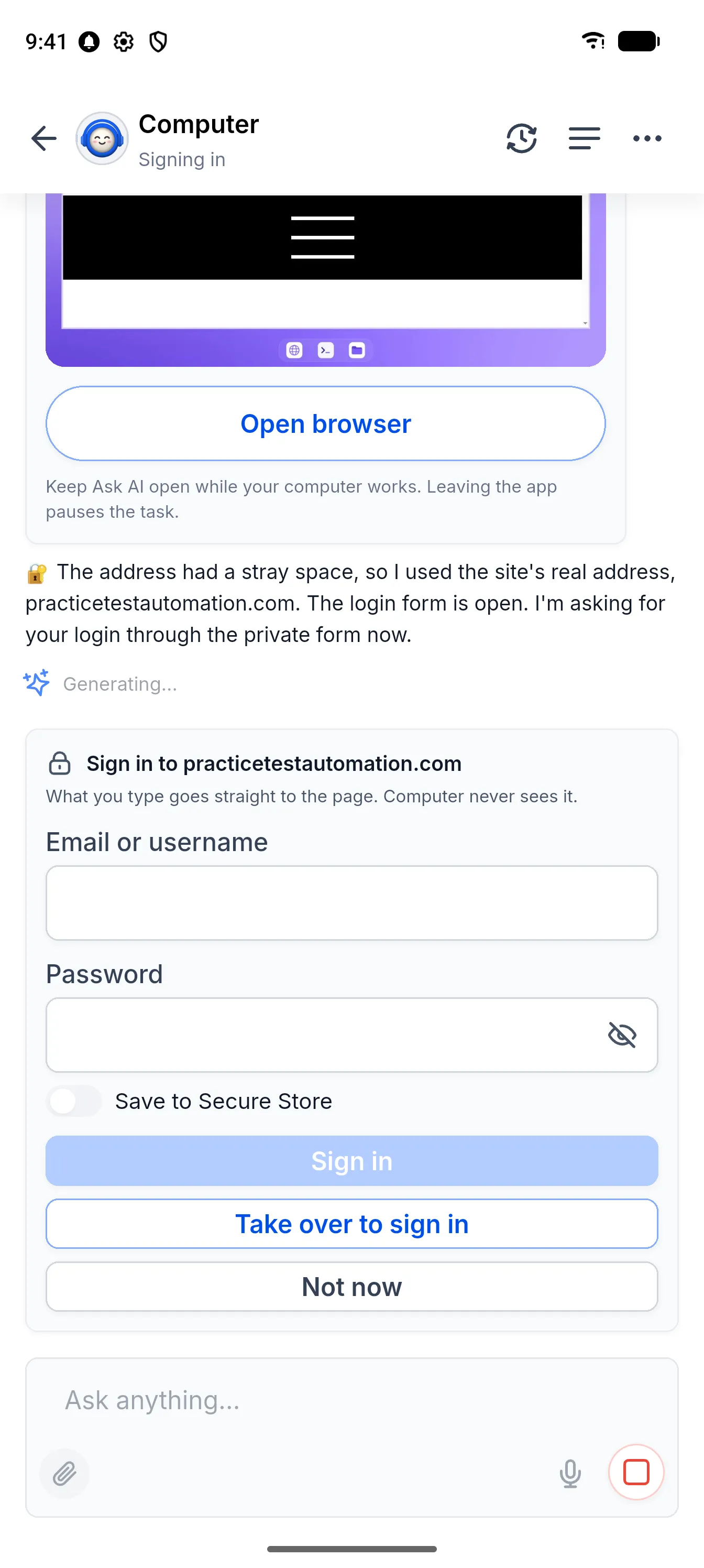
- Watch live: Open the browser full screen to see the desktop and whether the Computer is working, idle, done, needs your input, or is under your control.
- Take control: Tap to click, drag with two fingers to scroll, and type with your phone’s keyboard. Hand control back to let Ask AI continue.
- Keep chatting: A live status pill follows you across chats. Tap it to return to the Computer.
- Respond to requests: Approve, deny, or select “Allow for this chat,” which lasts 30 days on that site. Review and revoke permissions under Allowed actions in Settings.
For example, if a task started on the web pauses for a bank’s one-time code, you can open the browser on your phone, take control, enter the code, and hand control back.
Private Sign-Ins and Saved Logins
The private sign-in form sends what you type directly to the page, so Ask AI does not see it. Sign-in details stay out of chat.
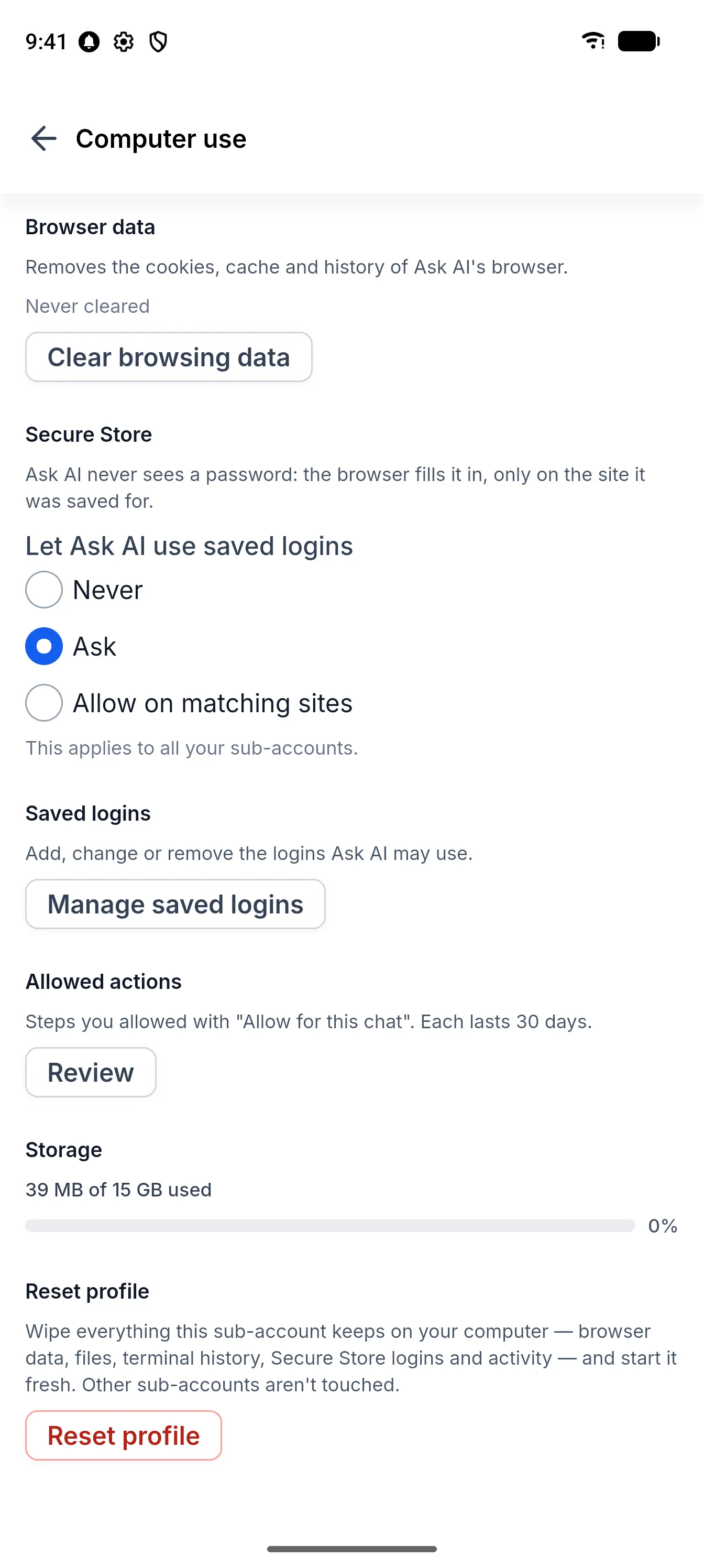
Secure Store lets you add, edit, and delete saved logins for each account. Choose whether saved logins are never used, used only after asking, or used on matching sites. The Computer will not fill a saved password on a look-alike site.
Files, History, and Cross-Device Access
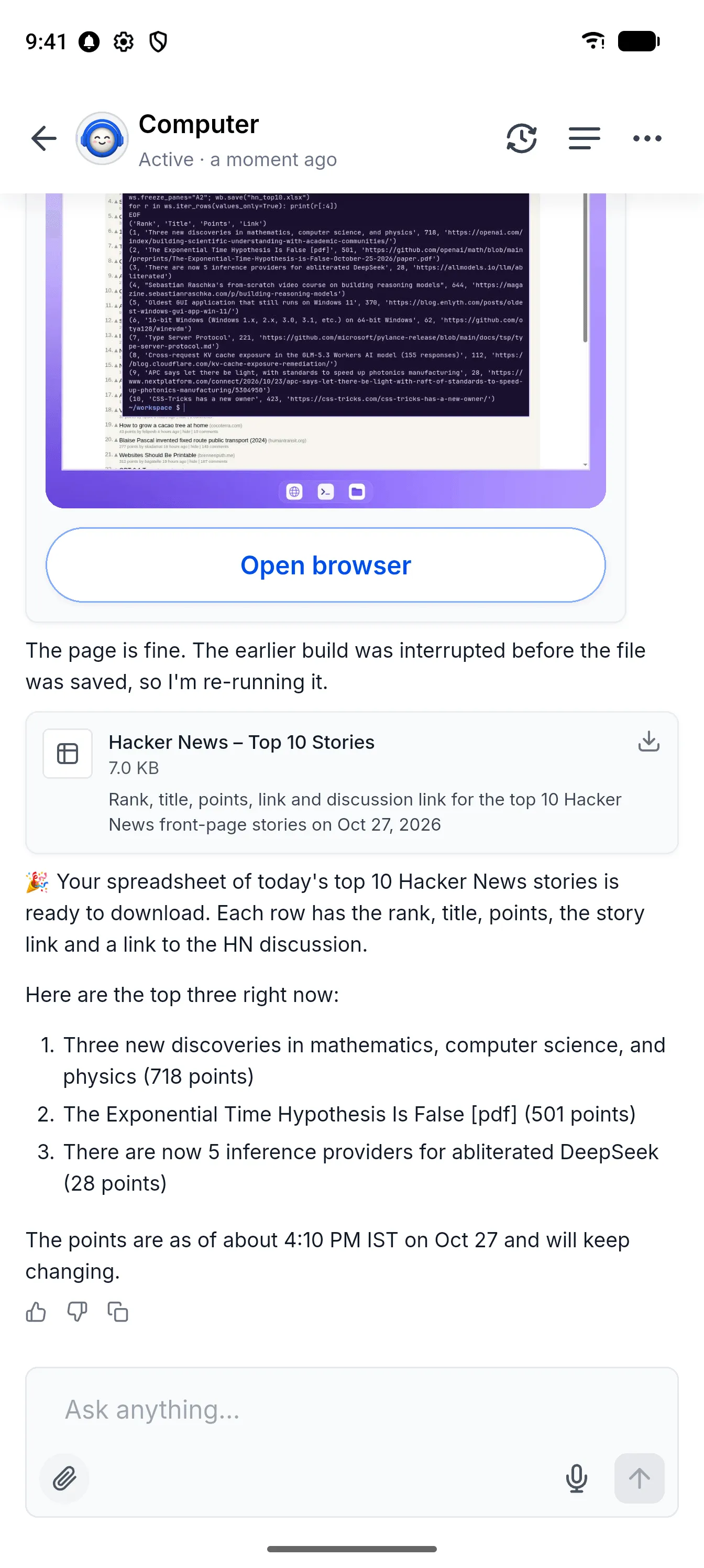
Results such as spreadsheets, documents, and PDFs appear as files in chat. Files attached in chat are available to the Computer. The Files sheet lists recent files, shows a storage meter, and lets you open files with a tap.
An activity log describes each step the Computer took. Messages sent on the web appear when you open the mobile chat. If the Computer screen is open on another device, tap Show here to bring it to your phone.
Settings and Recovery
Under Settings → Computer use, you can clear browsing data, set saved-login rules, review allowed actions, check storage, or reset one account’s profile without affecting others.
If the Computer is asleep, Turn on wakes it with files and sign-ins preserved. It reconnects after a dropped connection, and Resume lets you continue an interrupted task.
Existing administrative controls and account limits still apply, with no additional admin setup required.
Release Images
Related SMBcrm Features
Need Help Applying This Update?
Want help turning this update into a working part of your CRM, marketing, or automation setup?
Get Started or schedule a demo and we’ll help you map the right next step.
Explore this in SMBcrm
Use Ask AI for a task in your account.
Explore its workspace, document, and analysis tools alongside access controls and AI usage.
Explore Ask AIAlready using this feature? Find setup help