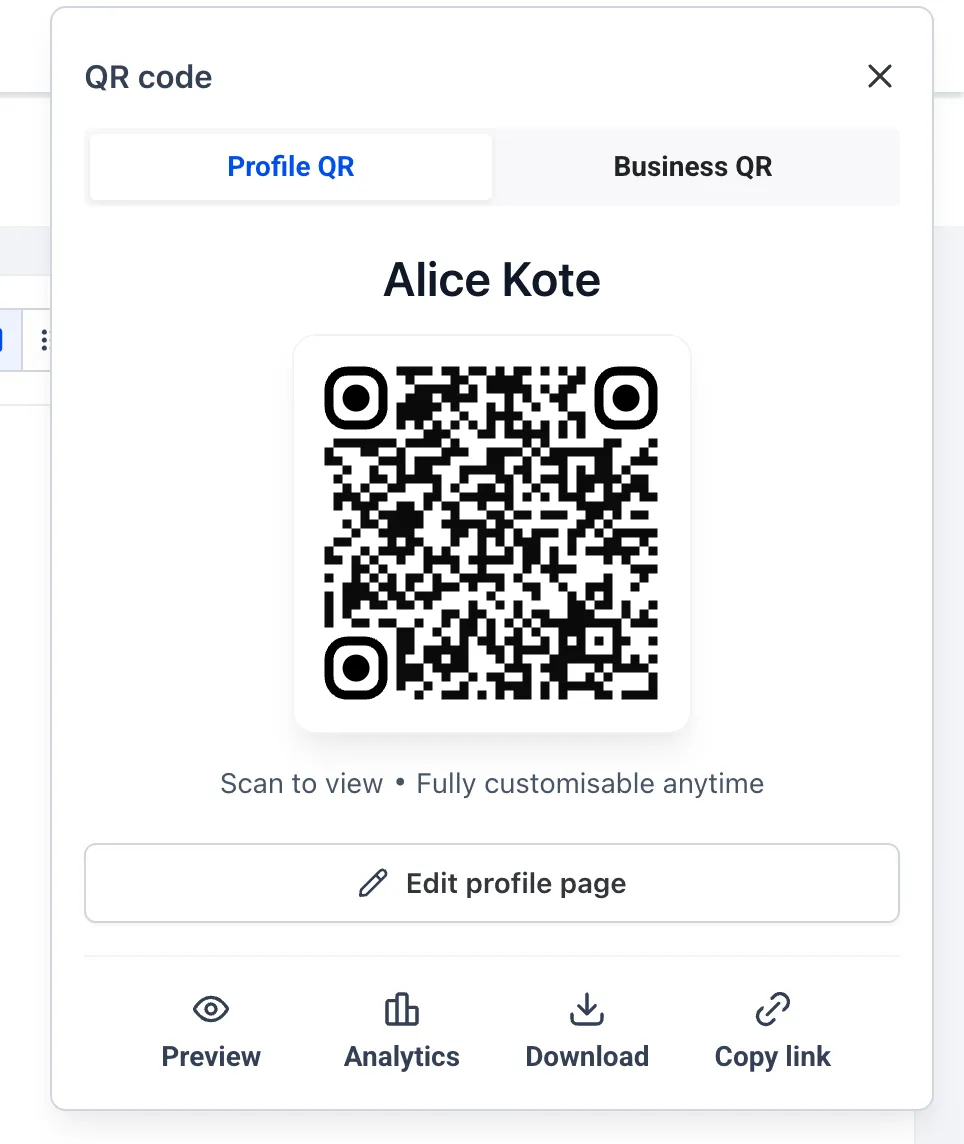
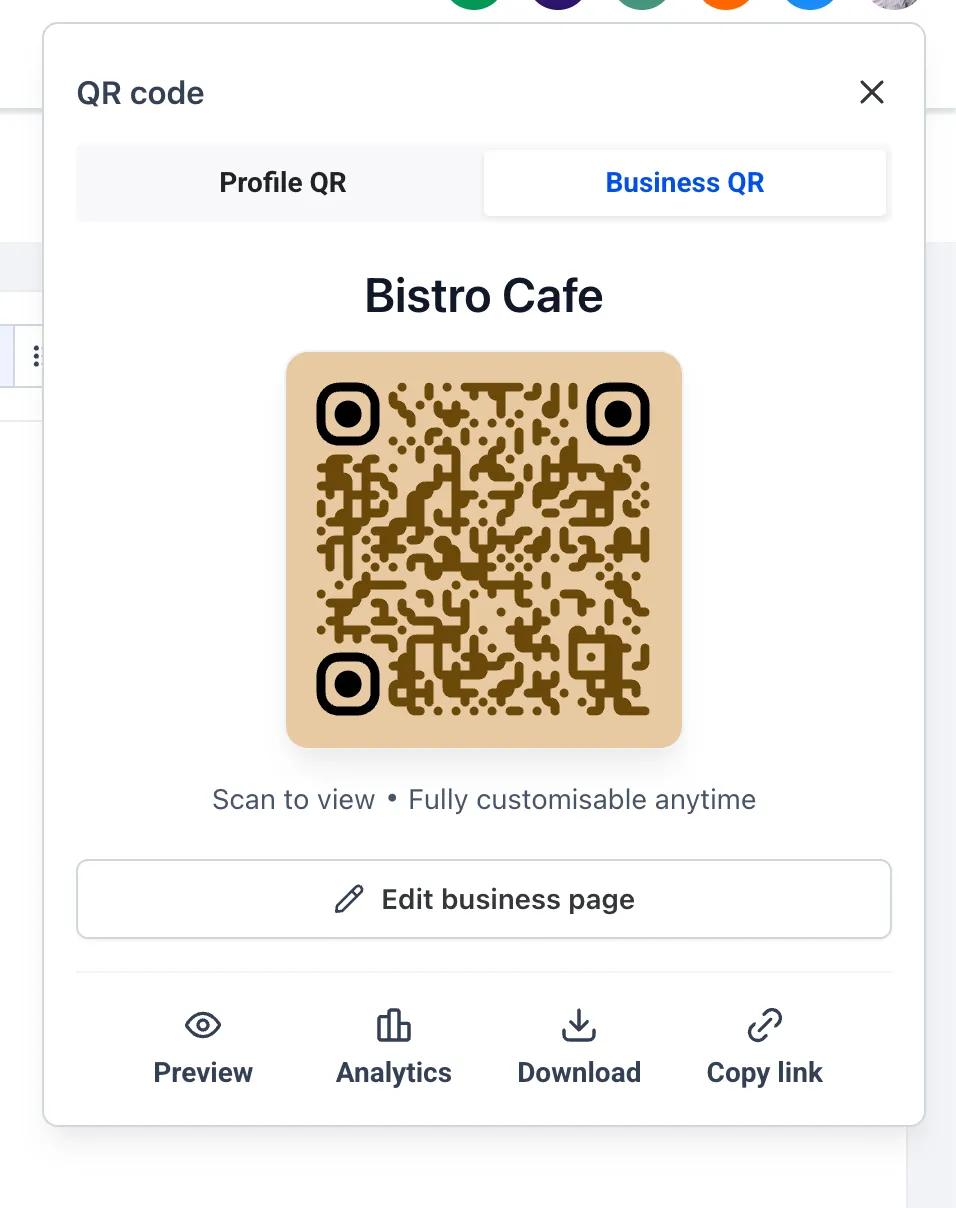
SMBcrm now generates your Profile Card and Business Card the first time you open the new QR icon in the top navigation bar. Both cards use existing details, so you can start sharing without building them manually.
Two cards, ready to share
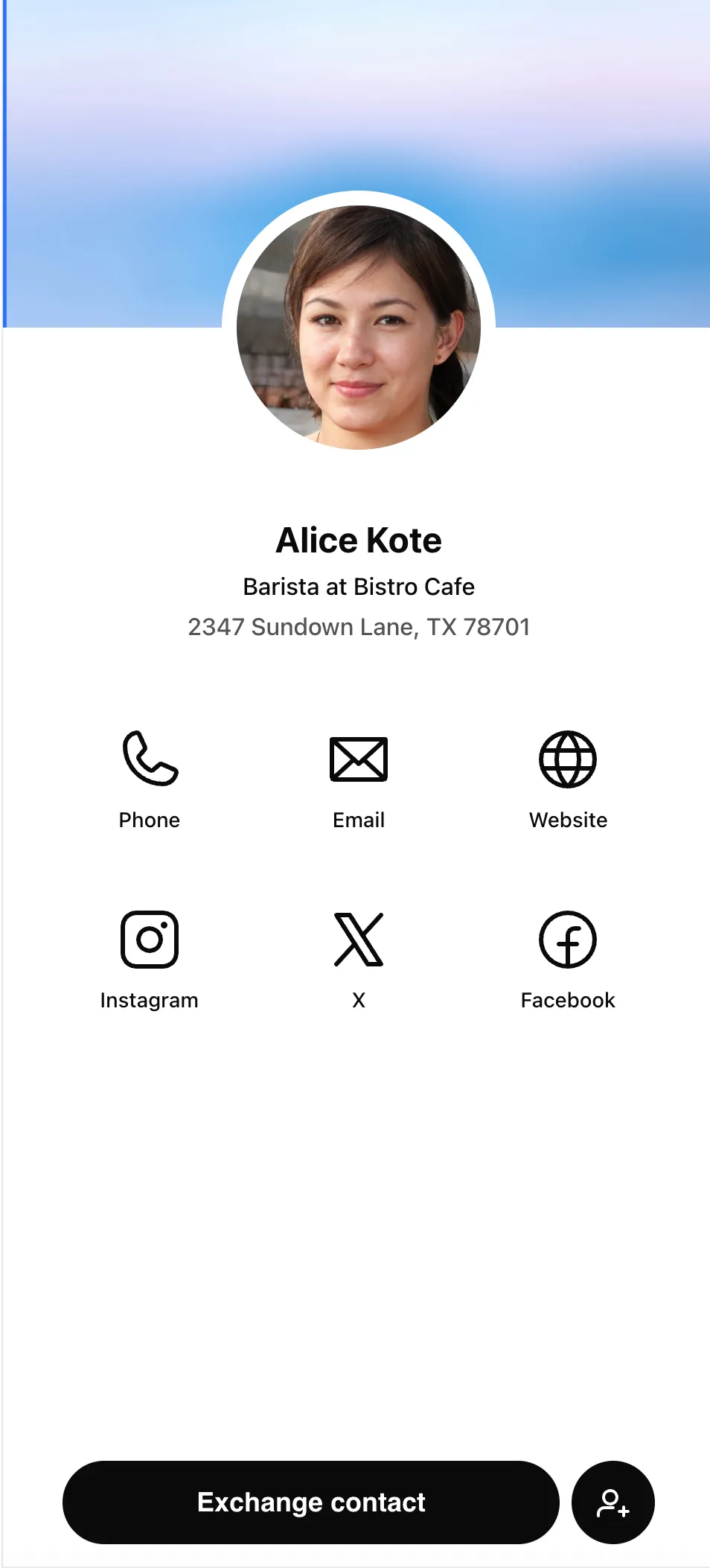
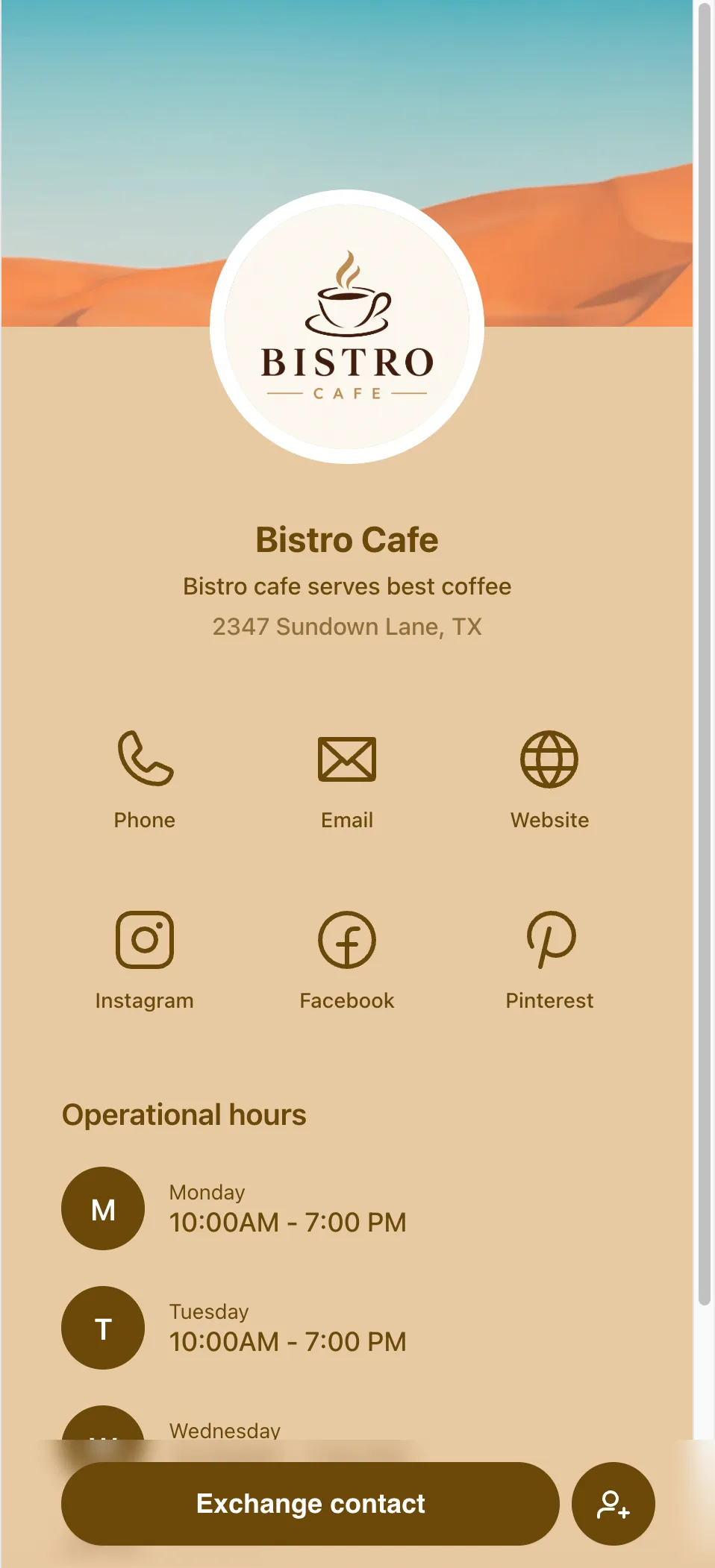
- Profile Card: Personal to each team member, using their name, title, and contact details.
- Business Card: Shared across the account, using its business details.
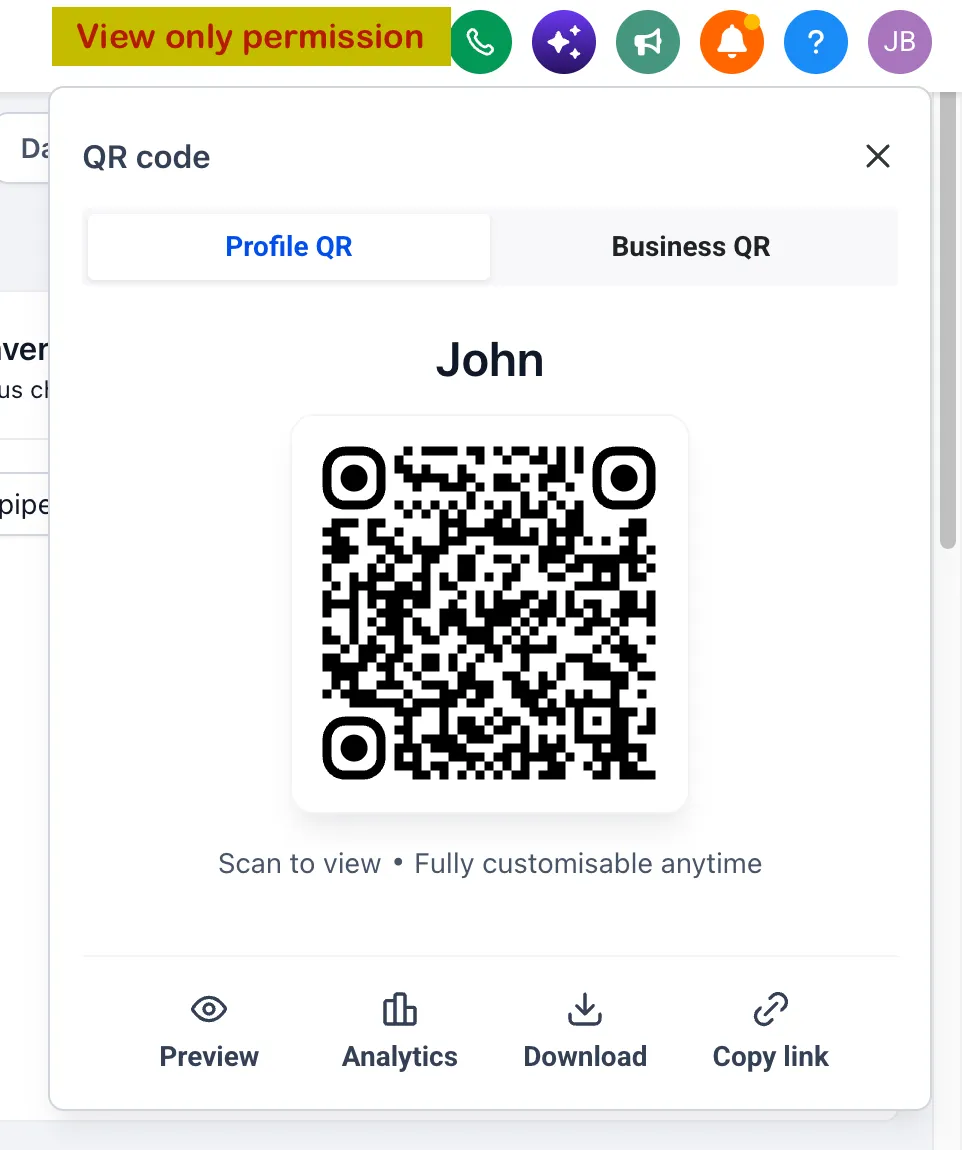
Each card has its own shareable link, downloadable QR code, and scan analytics. Print the QR code for offline use or save it to your phone’s wallet.
You can customize the design, colors, and landing page, and add links for X, Instagram, Facebook, LinkedIn, and YouTube. Custom links can point to a website, email address, booking page, or portfolio.
Save and collect contact details
Save Contact is enabled automatically on every card. People scanning a card can download your contact information directly to their phone.
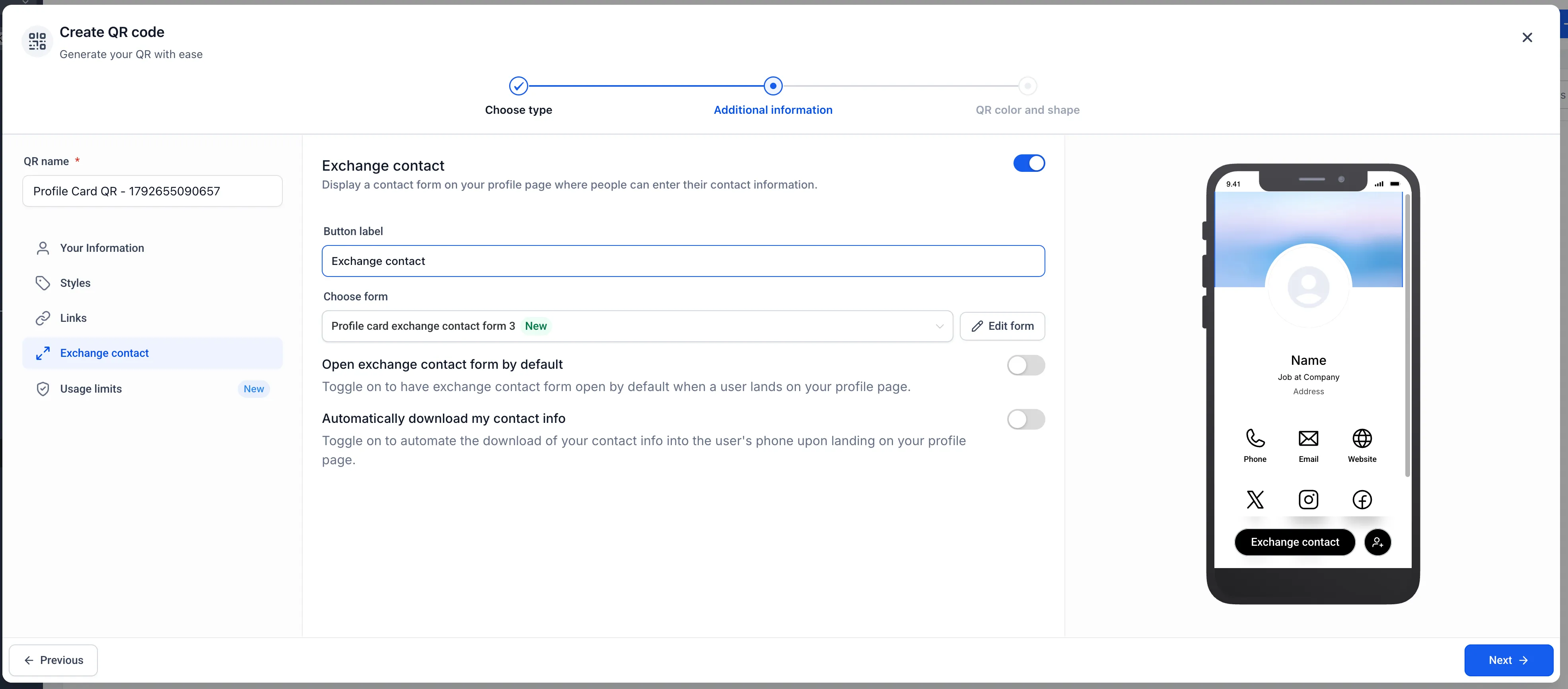
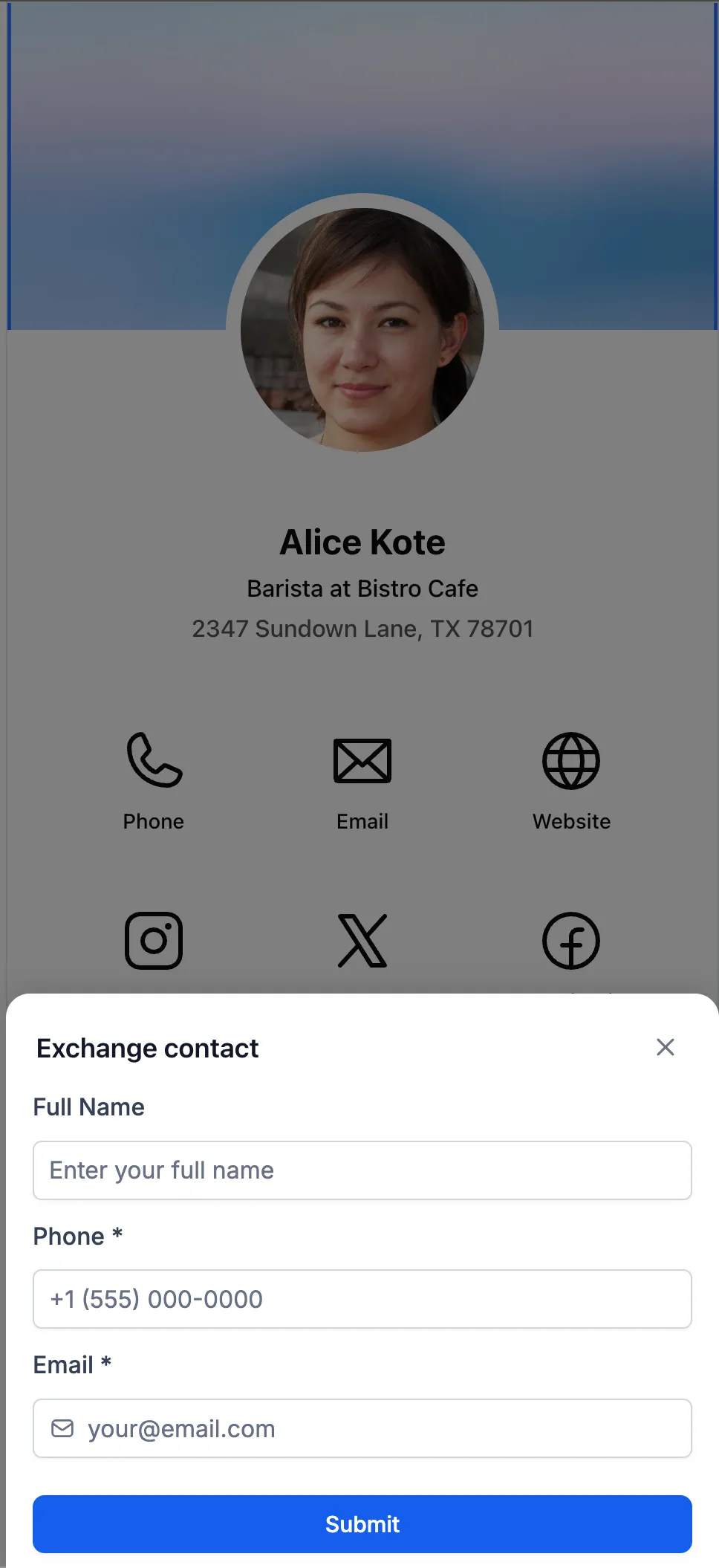
Exchange Contact lets people send their details to you. It is off by default and can be enabled in the card editor using the built-in form or an existing form in your account. Submissions create CRM contacts and record which card they came from.
How to get started
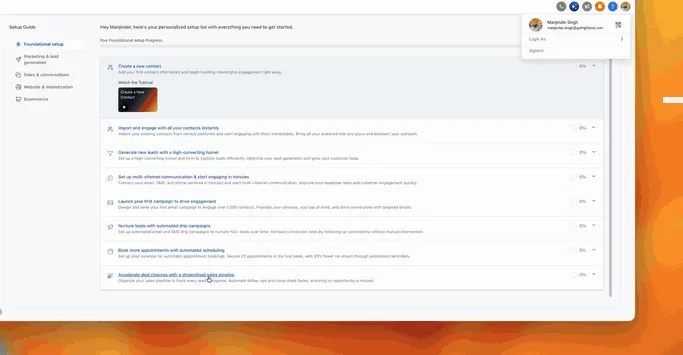
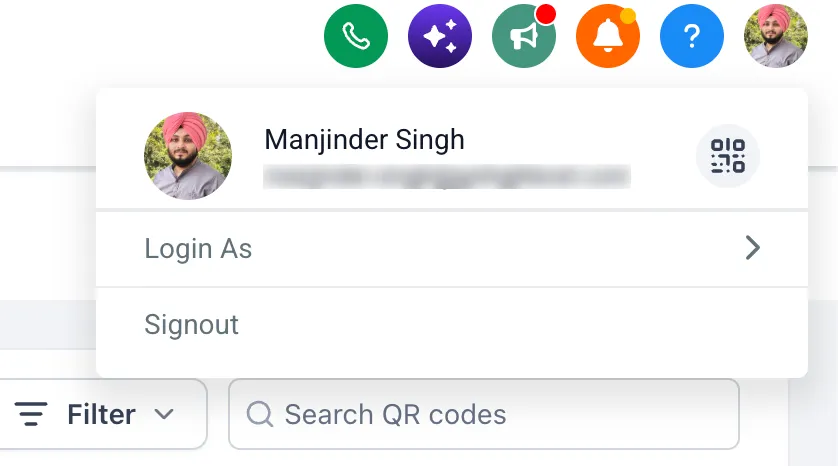
- Open your account and click the QR icon in the top navigation bar.
- Access the automatically generated Profile Card and Business Card, subject to your permissions.
- If you want to collect contacts, open the card editor and enable Exchange Contact.
- Choose a form and customize the card if needed.
- Copy the card link or download its QR code to share it.
Card access and permissions
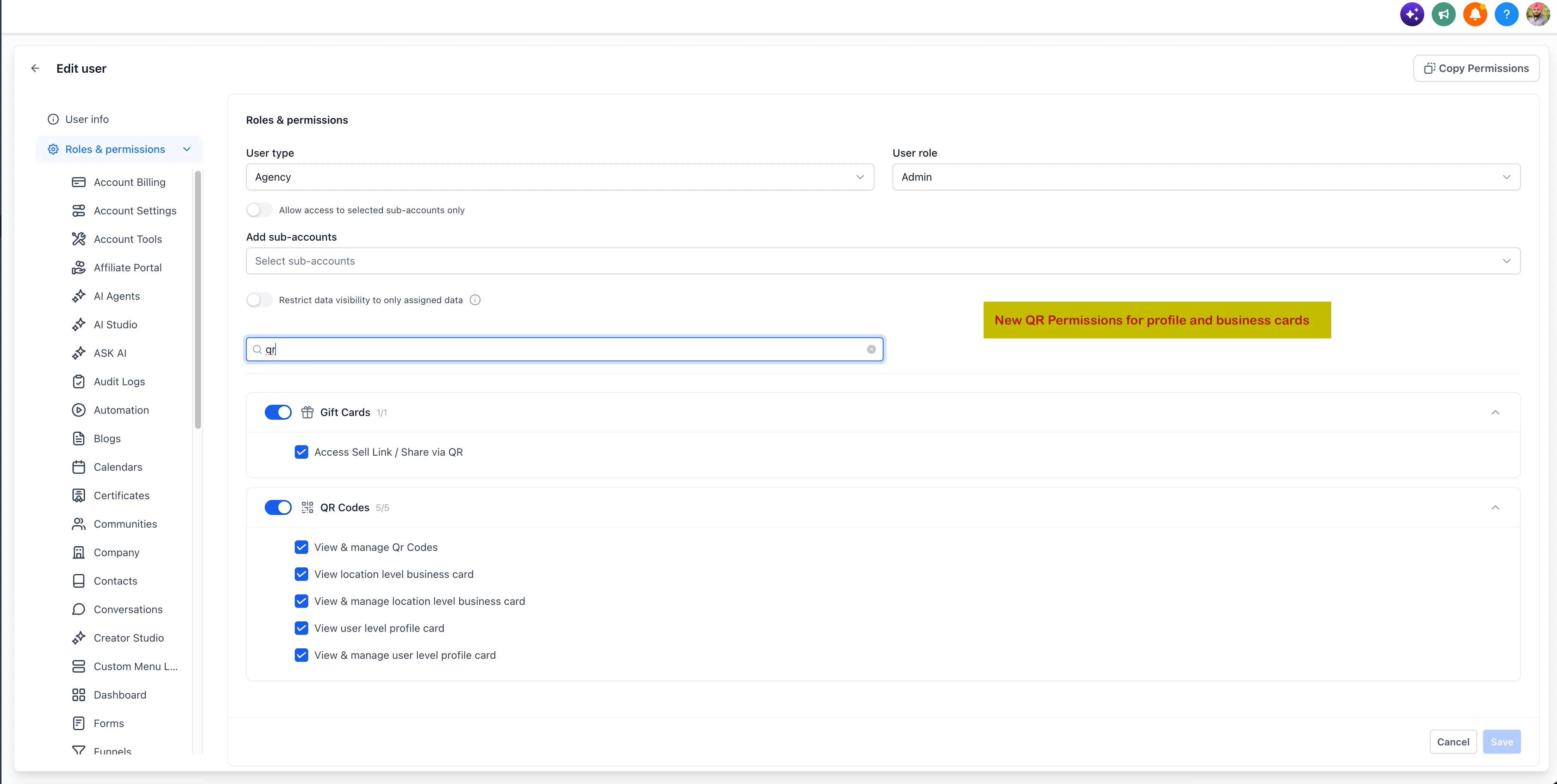
Four permission toggles under QR Codes control viewing and management separately for Business Cards and Profile Cards. These permissions are enabled for all users by default.
- View access: Generate or access a card, copy its link, download its QR code, and view analytics. Editing controls are hidden.
- Manage access: Includes View access and adds design and landing-page editing.
- No card permissions: The QR icon and card access are unavailable.
QR Codes access is required. Without it, the card permission toggles are disabled and cleared. These permissions do not affect manually created QR codes.
Regular users can access only their own Profile Card. Administrators with the appropriate permission can manage everyone’s Profile Cards. The Business Card is shared by everyone in the account who has the appropriate permission.
System folders
Automatically generated cards are organized into Profile Cards and Business Cards system folders in a separate section of the QR Codes list. These folders cannot be renamed or deleted, and you cannot create additional QR codes inside them. The cards remain editable with Manage access.
Automatically generated cards and their system folders appear in the QR Codes list only for administrators with matching permissions. Non-admin users with the required access can still open their own Profile Card through the top-bar QR icon.
Release Images
Need Help Applying This Update?
Want help turning this update into a working part of your CRM, marketing, or automation setup?
Get Started or schedule a demo and we’ll help you map the right next step.