SMBcrm Forms and Surveys now support automatic tax calculations and enhanced address collection for order forms. These updates extend lead capture forms and surveys with clearer address fields and less repetitive checkout entry.
What Changed
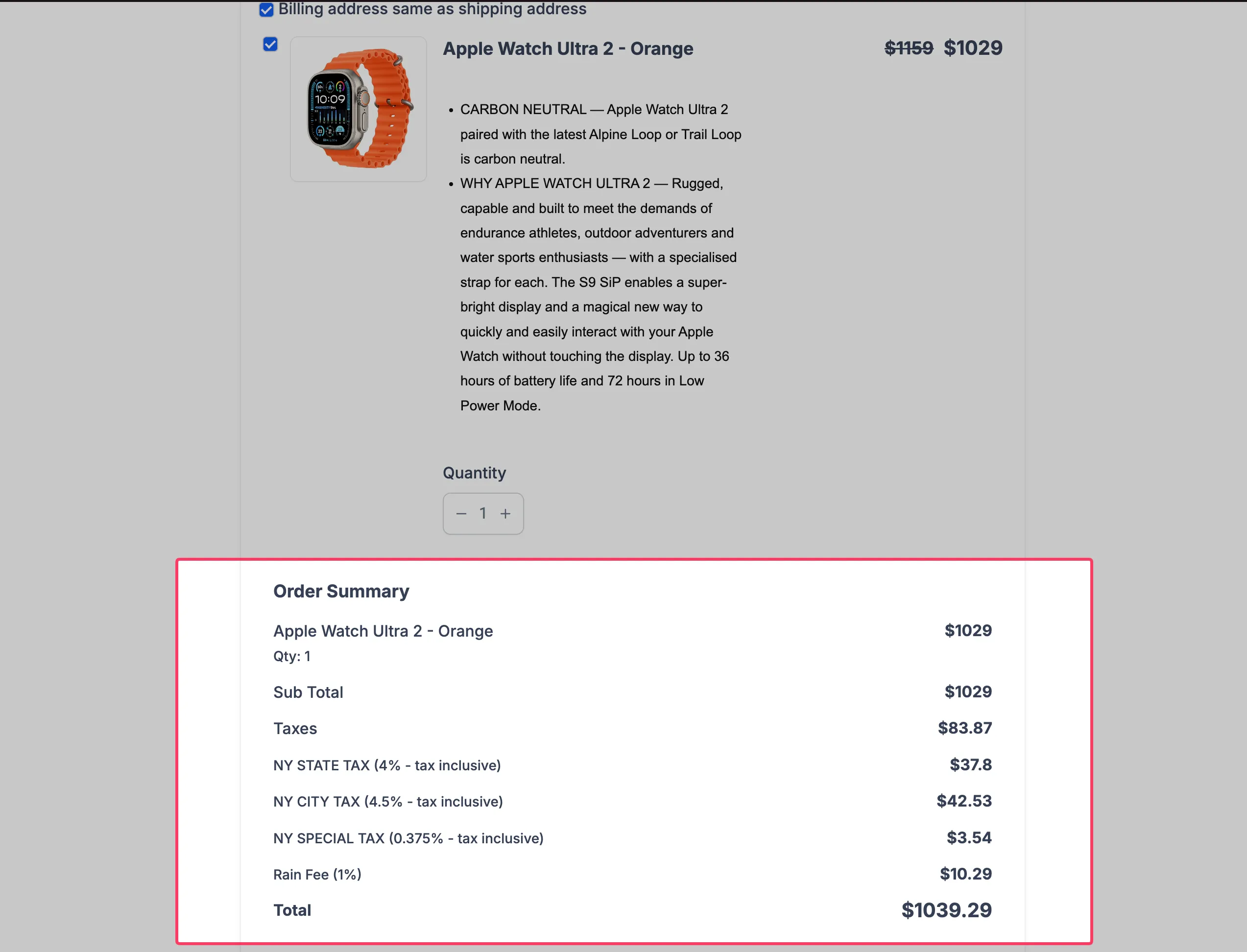
- Automatic taxes: Calculate applicable taxes using customer address details collected through the Address element.
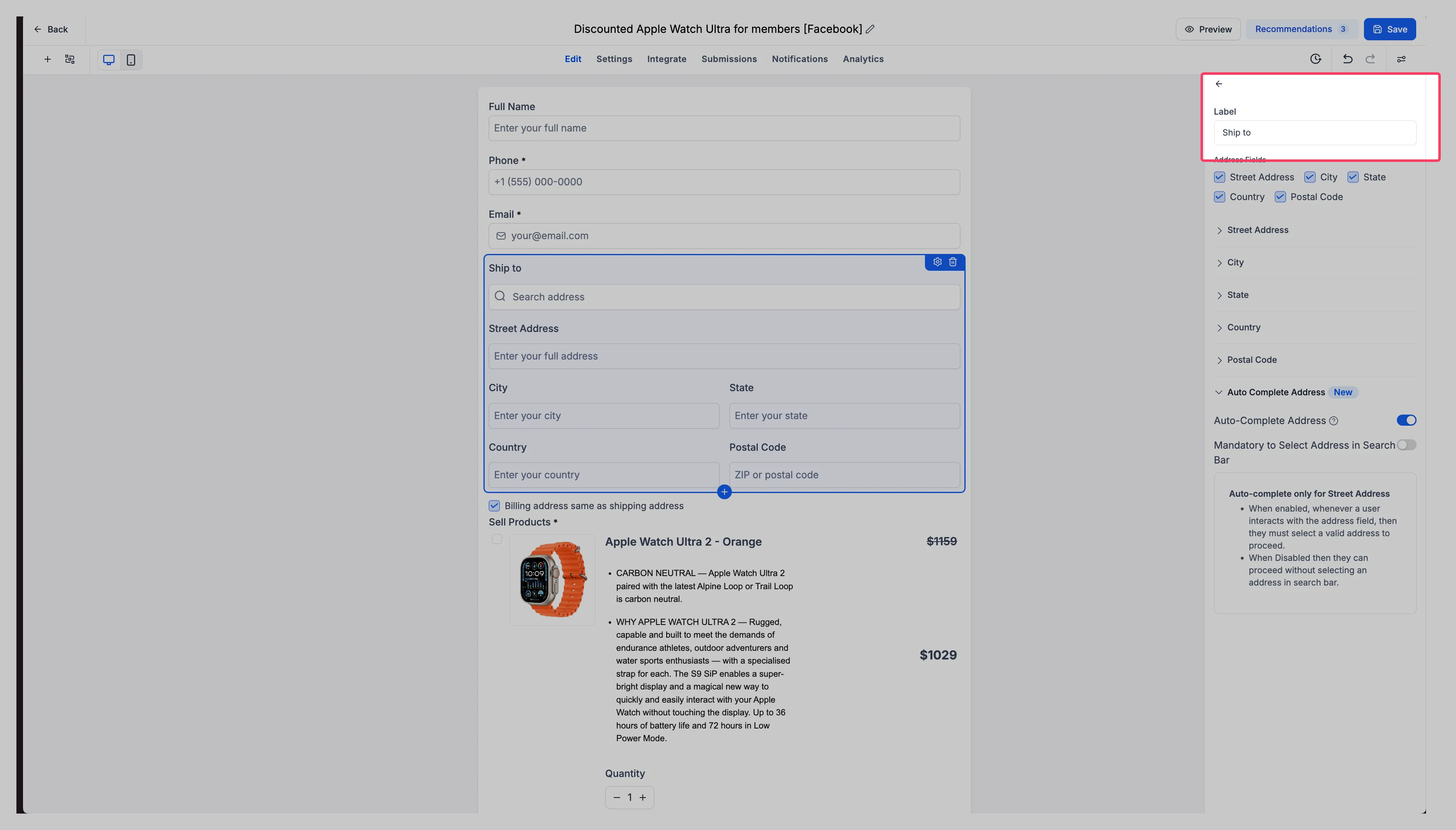
- Customizable address labels: Rename the Address element to clarify its purpose, such as “Shipping Address.”
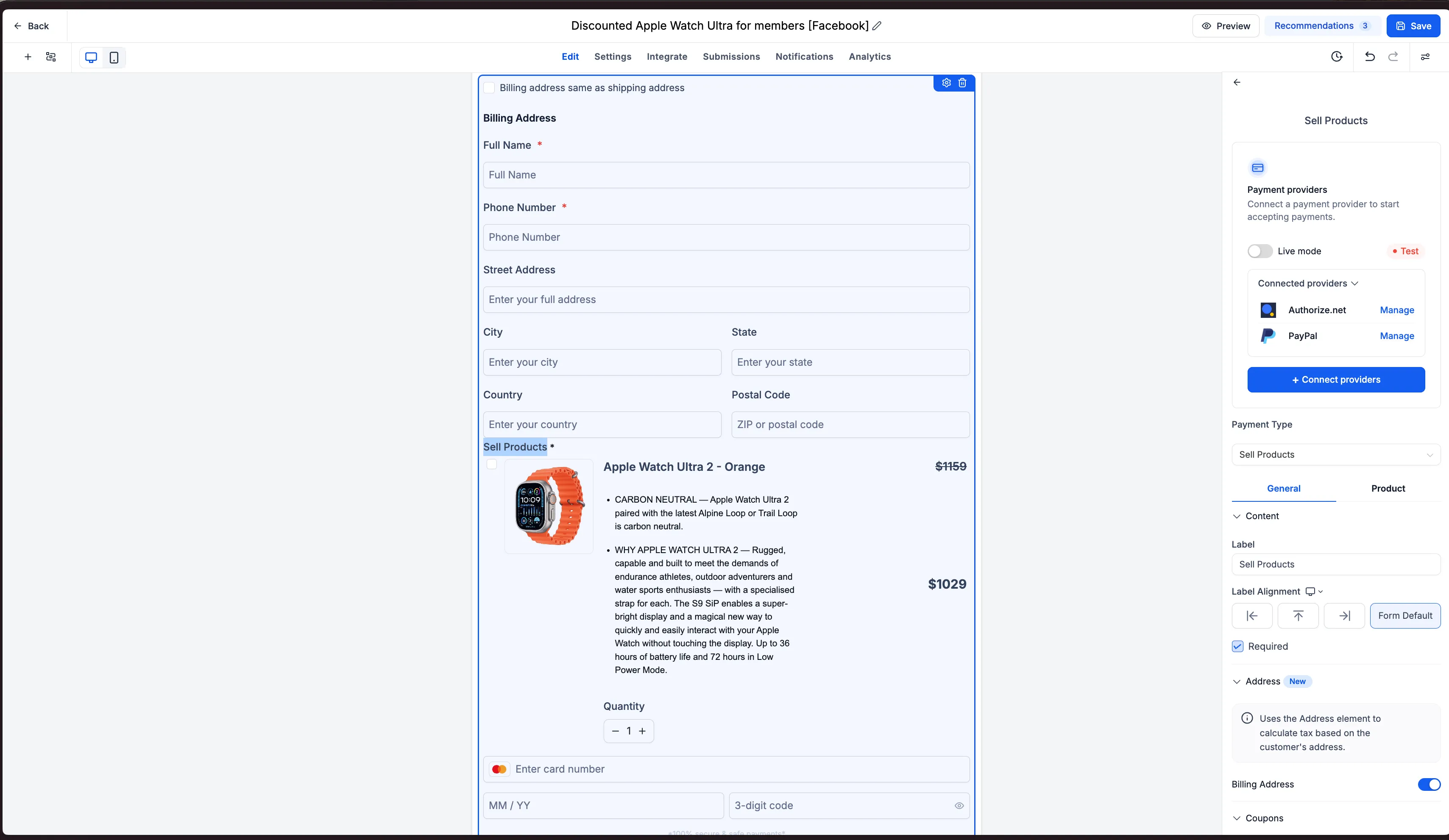
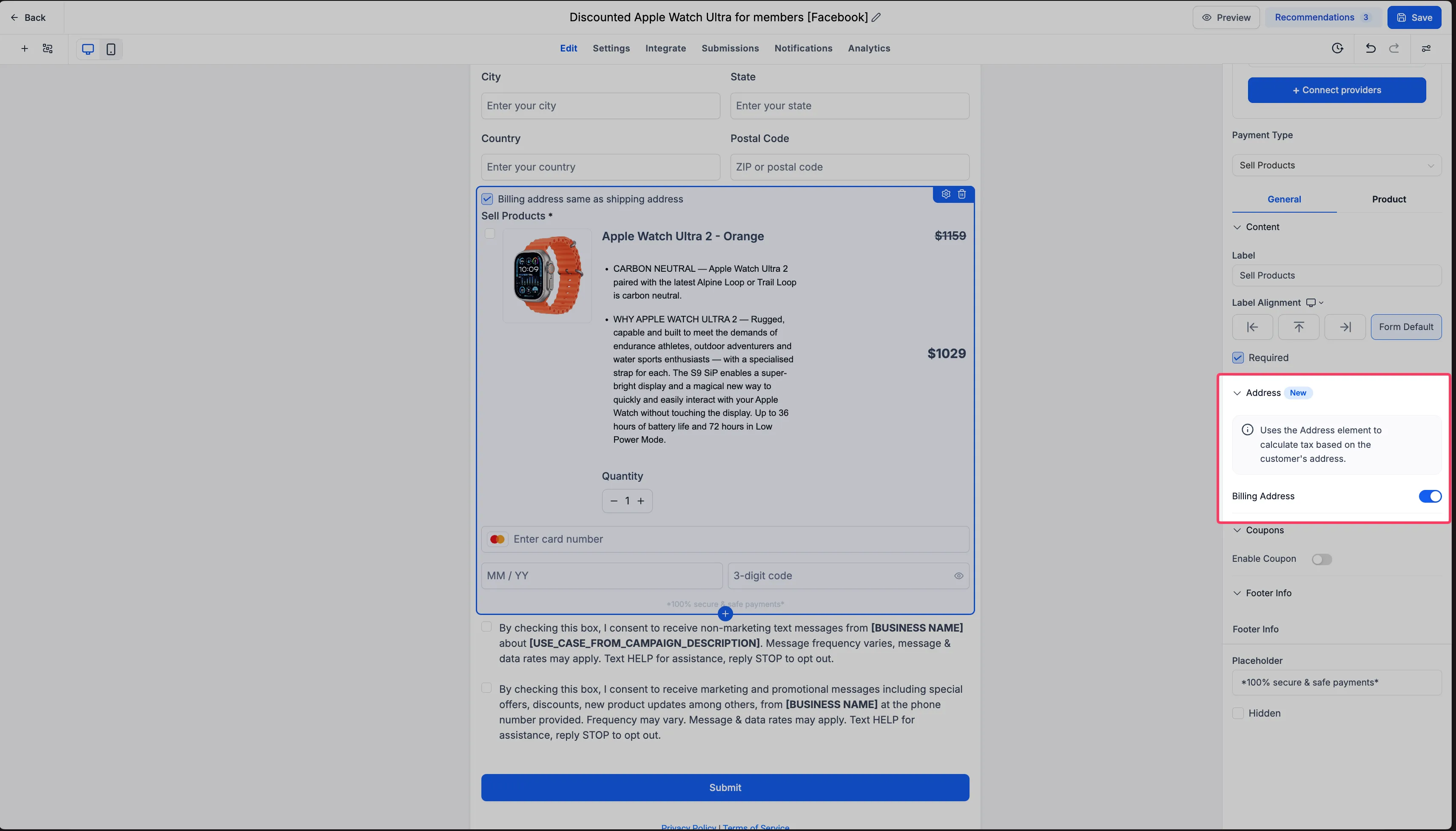
- Separate billing details: Enable Billing Address collection in the Sell Products element when Shipping Address is enabled.
- Matching address fields: Billing Address automatically uses the same fields configured in the Address element, so you do not need to configure them twice.
- Same as Shipping Address: Customers can select a checkbox when their billing and shipping addresses match, avoiding duplicate entry.
How to Configure It
- Open a Form or Survey containing the Sell Products element.
- Add or configure the Address element with the address fields you need to collect.
- Customize its label, such as “Shipping Address.”
- Configure Automatic Taxes to use the collected customer address information.
- Enable Shipping Address, then turn on Billing Address in the Sell Products element if separate billing details are needed.
Billing Address mirrors the Address element’s field configuration. For example, if you collect street address, city, state, postal code, and country, those same fields appear for billing. Customers whose addresses match can use “Same as Shipping Address” instead of entering those details again.
Release Images
Need Help Applying This Update?
Want help turning this update into a working part of your CRM, marketing, or automation setup?
Get Started or schedule a demo and we’ll help you map the right next step.