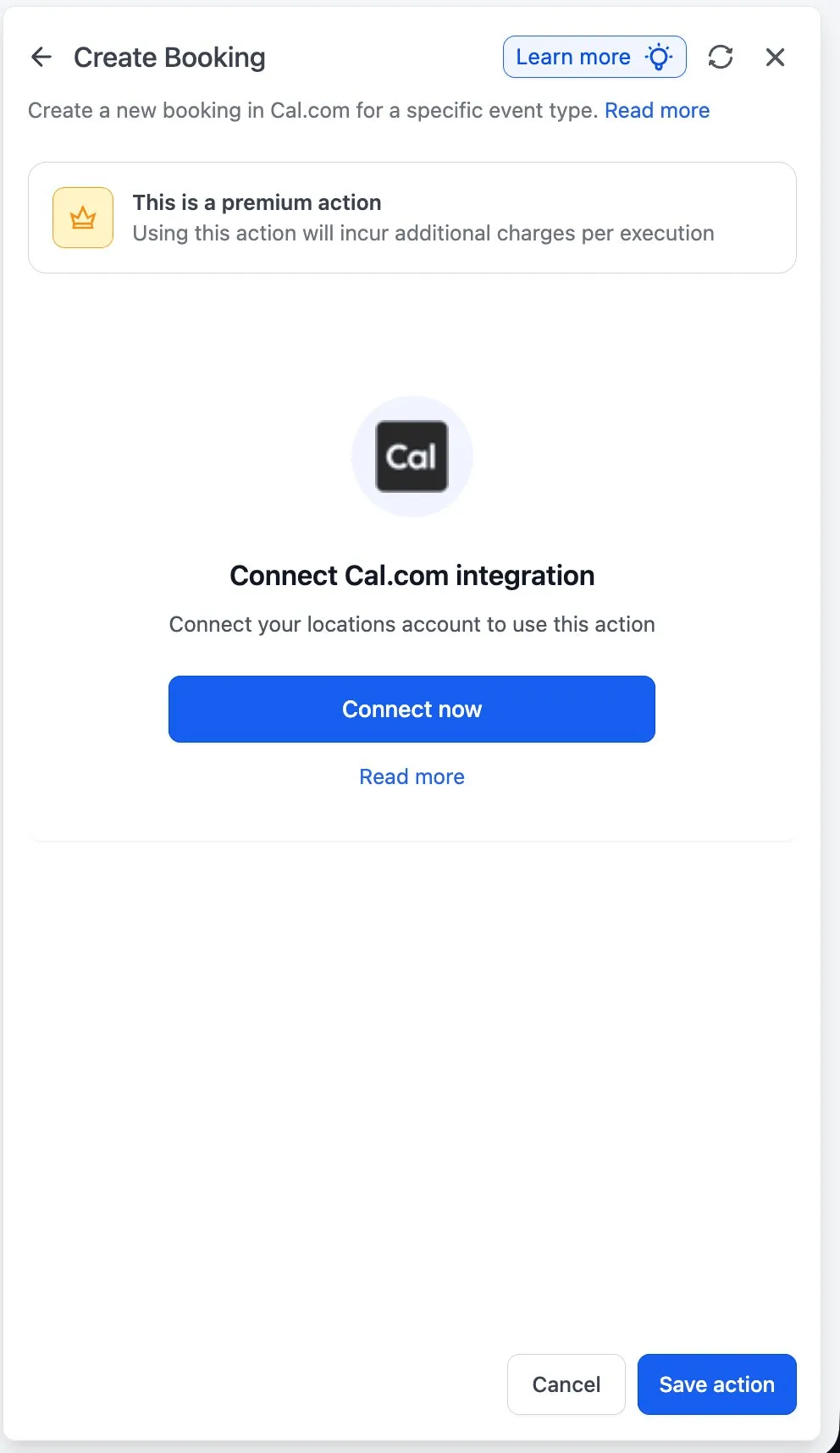
SMBcrm now connects Cal.com booking events with Workflow Builder, so scheduling activity can start automations and workflows can manage bookings directly.
Use this update when you want booking changes to drive follow-up, CRM updates, reminders, or rescheduling steps inside SMBcrm automation.
What Changed
The Cal.com integration includes two parts:
- Instant workflow triggers for booking lifecycle events
- Premium workflow actions for common booking operations
Triggers are webhook-backed and typically fire within 1 to 3 seconds of the booking event. Actions let workflows create, cancel, reschedule, or find bookings without using separate webhook plumbing or third-party tools.
All Cal.com triggers and actions are marked as premium, so premium action credits apply at the standard automation rate.
Supported Triggers
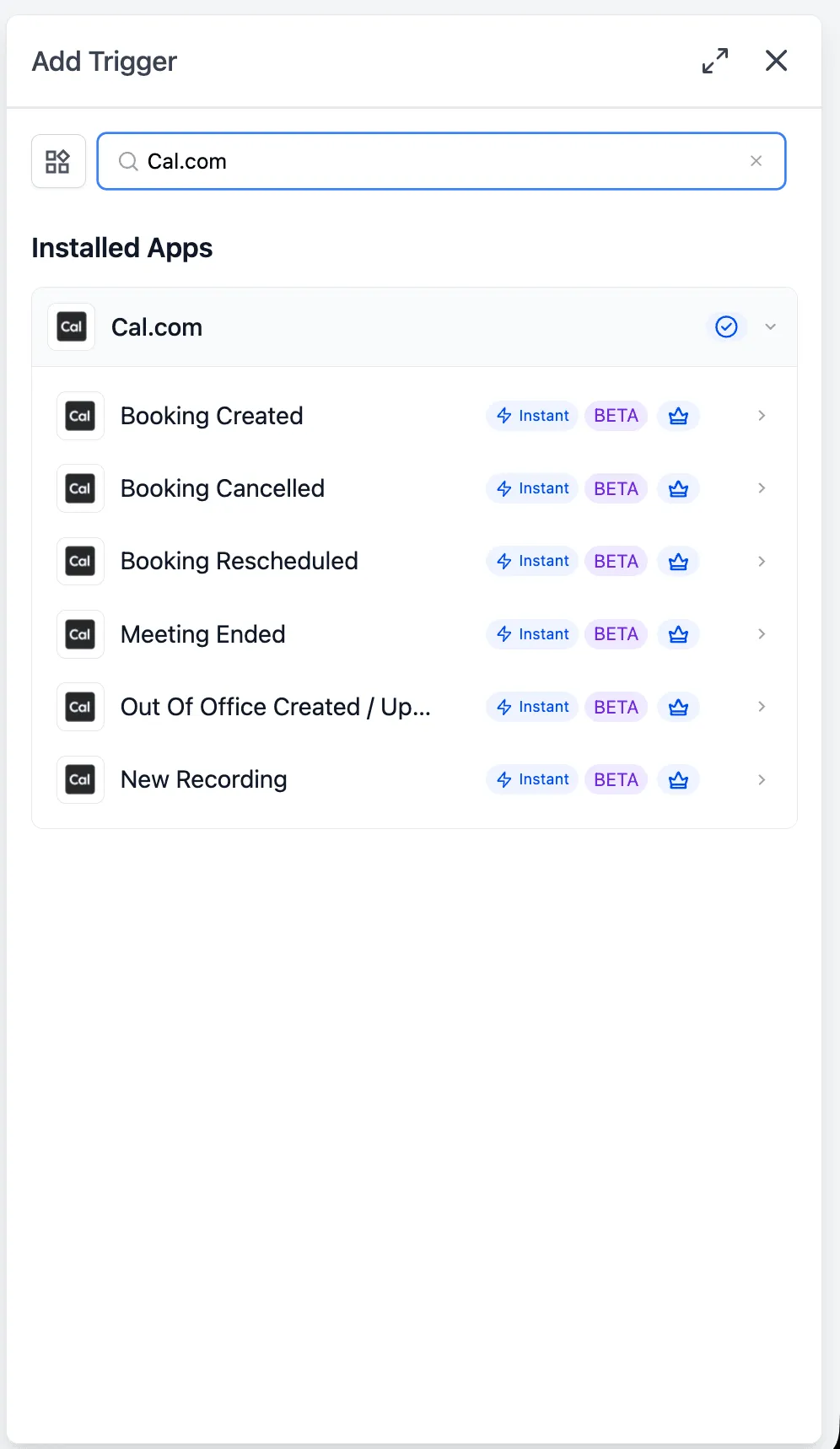
The integration supports these Cal.com workflow triggers:
- Booking Created
- Booking Rescheduled
- Booking Cancelled
- Meeting Ended
- Out of Office Created or Updated
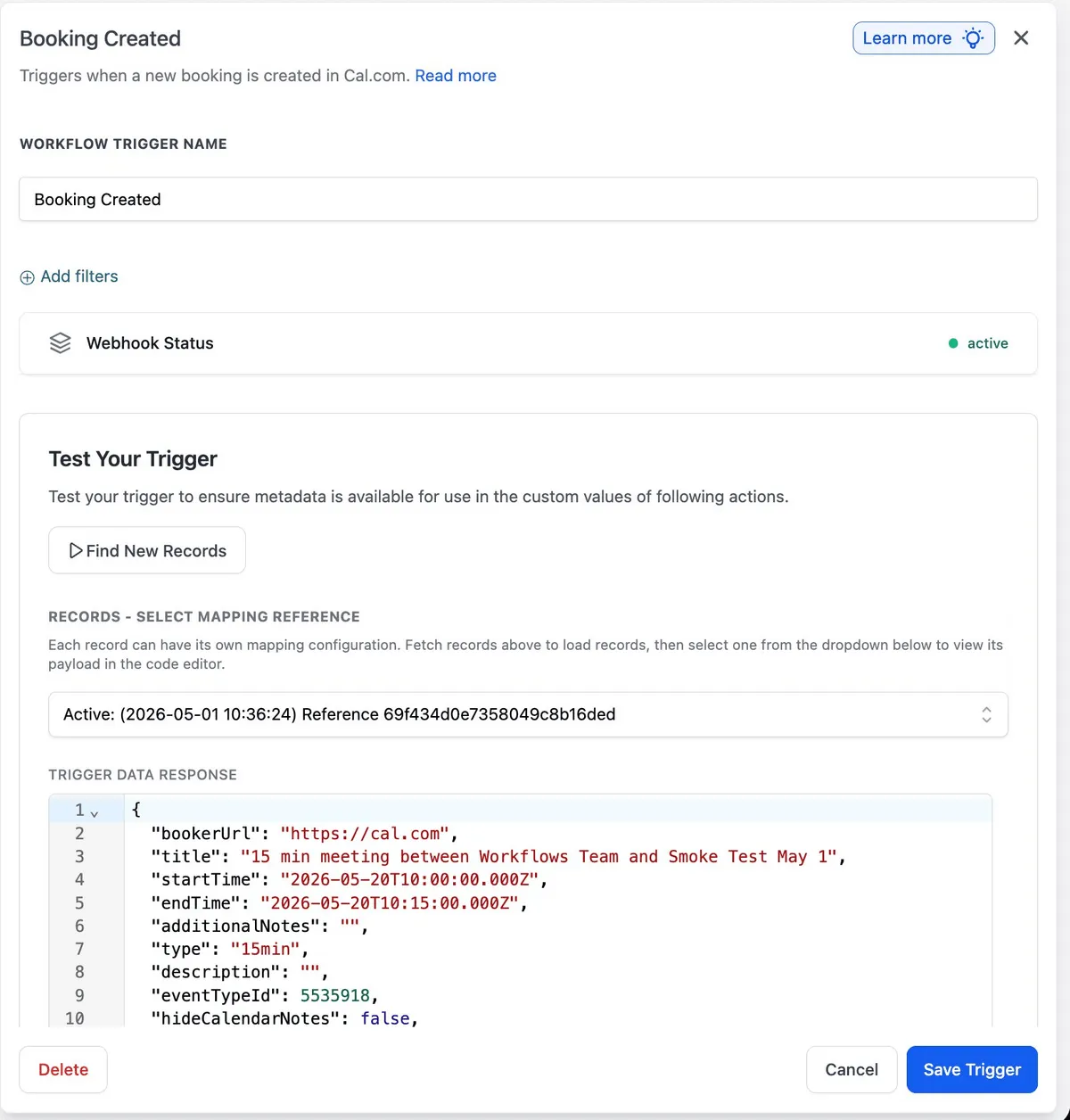
Each trigger returns booking data that can be used in downstream workflow steps, including fields such as booker URL, title, start time, end time, notes, event type ID, attendees, and organizer.
Supported Actions
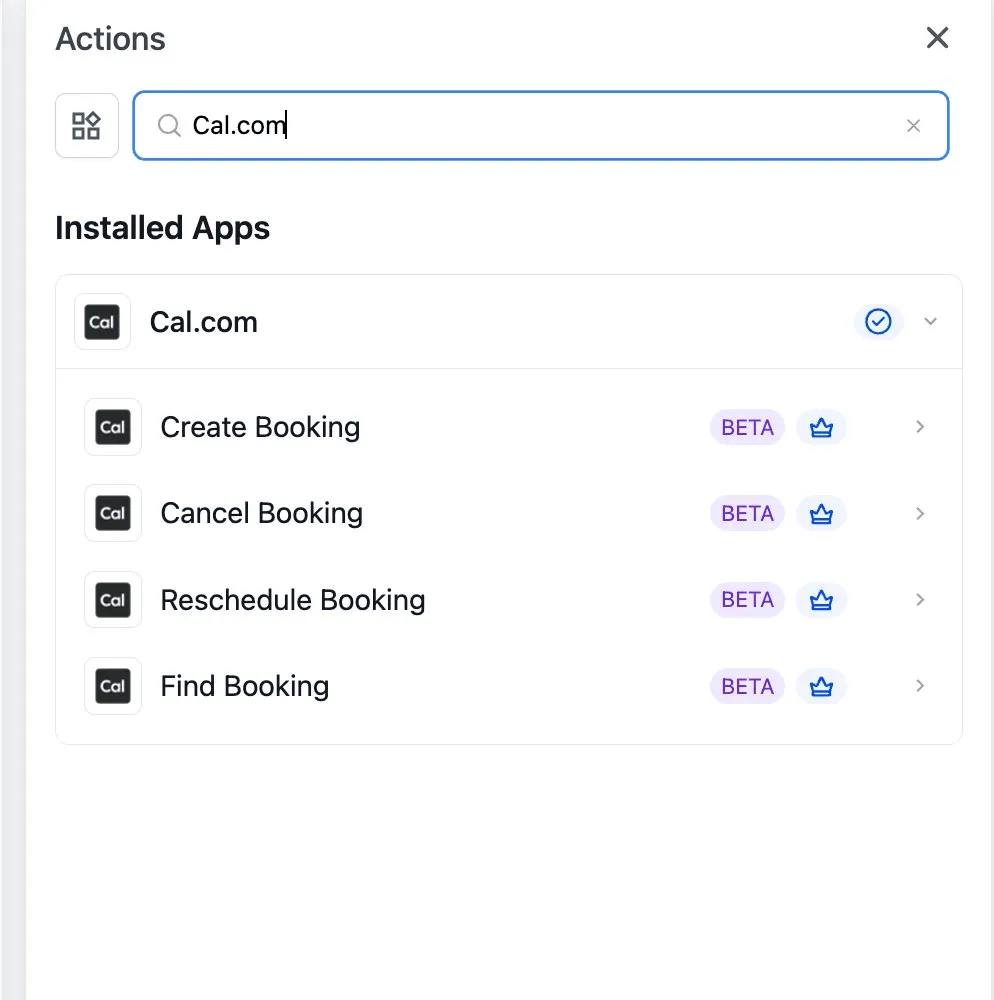
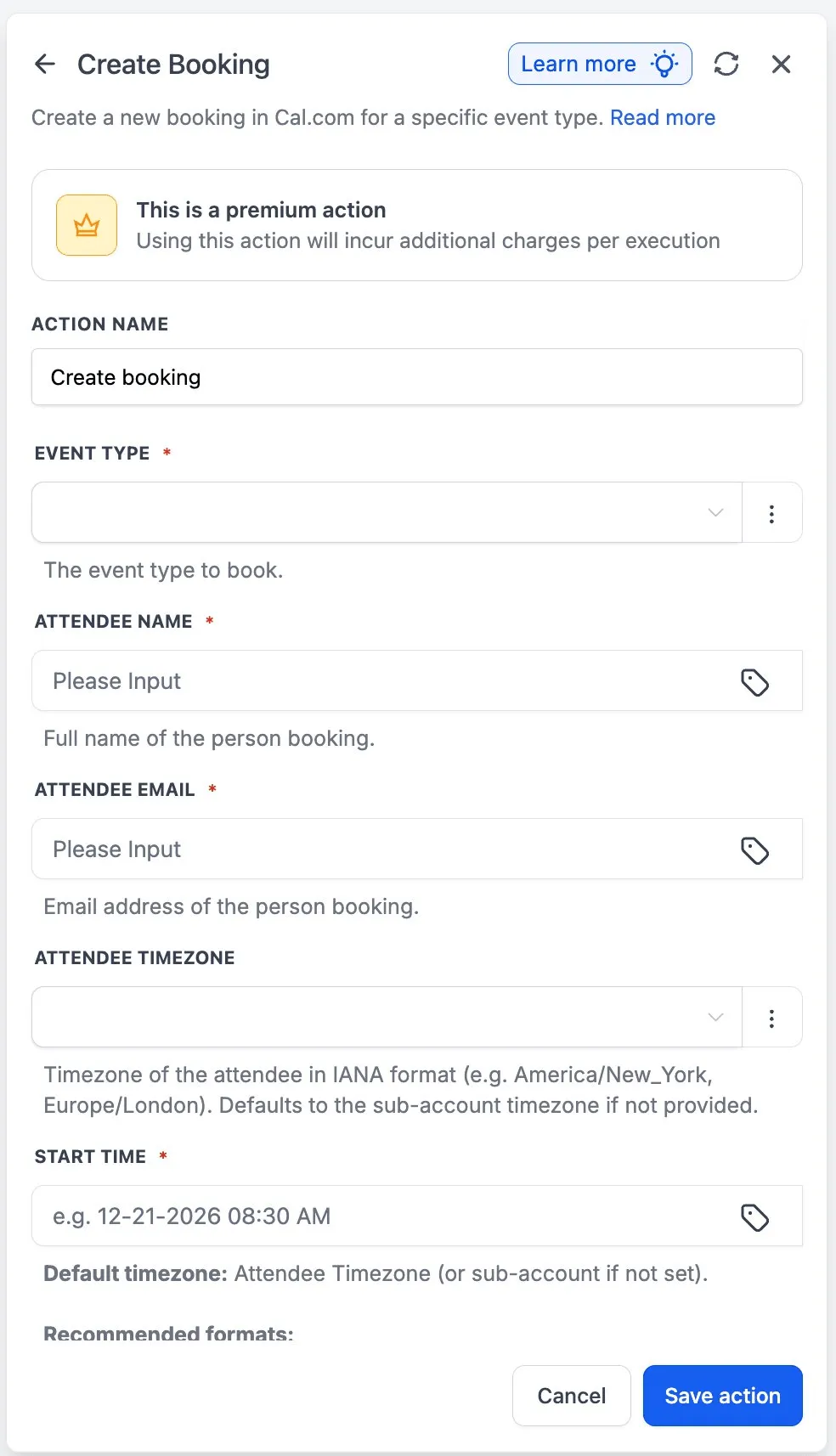
The integration also supports four workflow actions:
- Create Booking
- Cancel Booking
- Reschedule Booking
- Find Booking
Create Booking requires the event type, attendee name, attendee email, and start time. Cancel Booking can include an optional cancellation reason. Reschedule Booking moves an existing booking to a new start time, and Find Booking can look up bookings by ID, attendee email, or filter.
Setup and Testing Notes
Before a Cal.com trigger or action can run, connect the integration from either:
- Automation > Workflows, by adding a Cal.com trigger or action and selecting Connect Now
- Settings > Integrations, by finding Cal.com and selecting Connect
When testing a trigger, use Find New Records and select a recent booking as the mapping reference. This locks the payload schema so later workflow steps can map fields consistently.
For Create Booking, workflow variables can be used in fields such as attendee name, attendee email, and start time. For example, use {{contact.full_name}} for the attendee name and {{contact.email}} for the attendee email.
If you are booking on behalf of leads in different regions, provide the attendee timezone in IANA format, such as America/New_York or Europe/London. If the timezone is not supplied, Cal.com falls back to the account timezone.
Practical Use Cases
Common ways to use the Cal.com integration include:
- Create or update a CRM contact when a new booking is created
- Send a welcome email after a discovery call is booked
- Trigger no-show recovery after a meeting ends
- Start a save flow when a booking is cancelled
- Create a booking from a high-intent form submission
- Distribute recording links and summaries where recording-ready workflows are supported
Important Details
- Use Find Booking before canceling or rescheduling when downstream logic depends on the booking state.
- Meeting Ended is re-armed automatically when a booking is rescheduled.
- Cancel Booking sends Cal.com’s standard cancellation email, including the reason if supplied.
- Reschedule Booking refreshes the invite for the new time.
- Self-hosted Cal.com setups should be tested with a real booking, especially for meeting-ended behavior.
- These triggers and actions are released as Beta, and the source notes that incremental UX changes may continue.
In Case You Missed It
For another workflow update, read AI Builder for Workflows Gets a Major Upgrade.
Release Images
Need Help Applying This Update?
Want help turning this update into a working part of your CRM, marketing, or automation setup?
Get Started or schedule a demo and we’ll help you map the right next step.