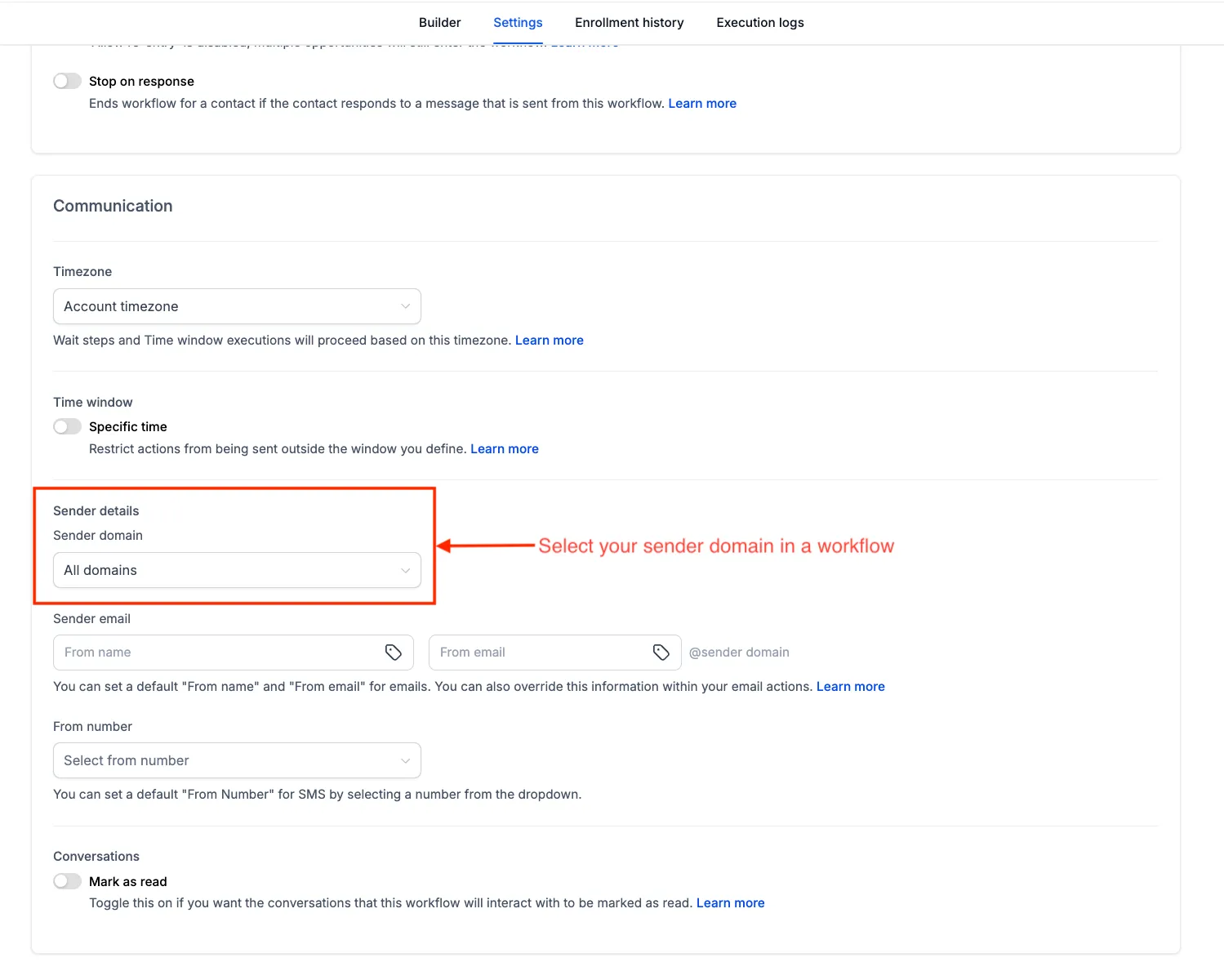
SMBcrm Workflow Settings now includes a Sender domain option under Sender details. If an account has verified dedicated domains, users can choose one for all email actions in that workflow or continue using all configured domains.
For teams using SMBcrm automation and communication, this gives more control over which domain sends different types of workflow email.
How It Works
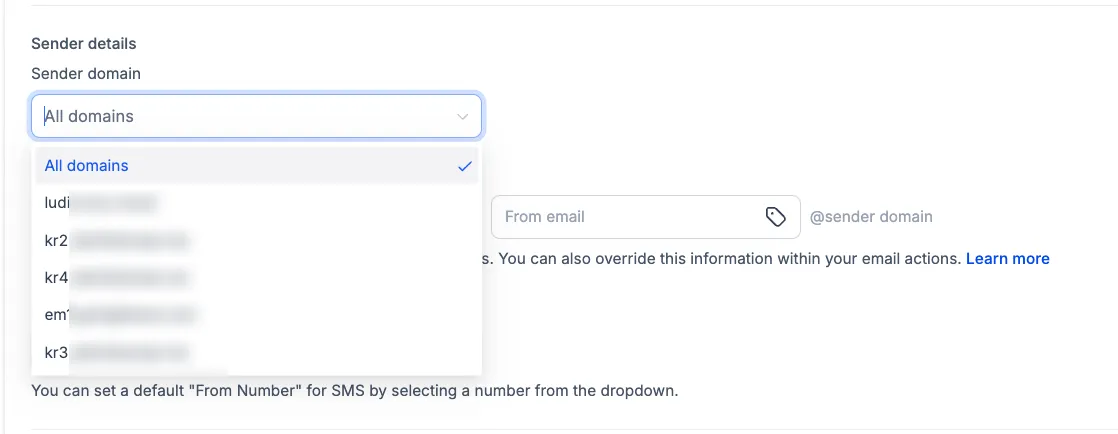
The Sender domain dropdown appears only when verified dedicated domains are configured for the account. It shows all verified dedicated domains, plus an All domains option.
All Domains
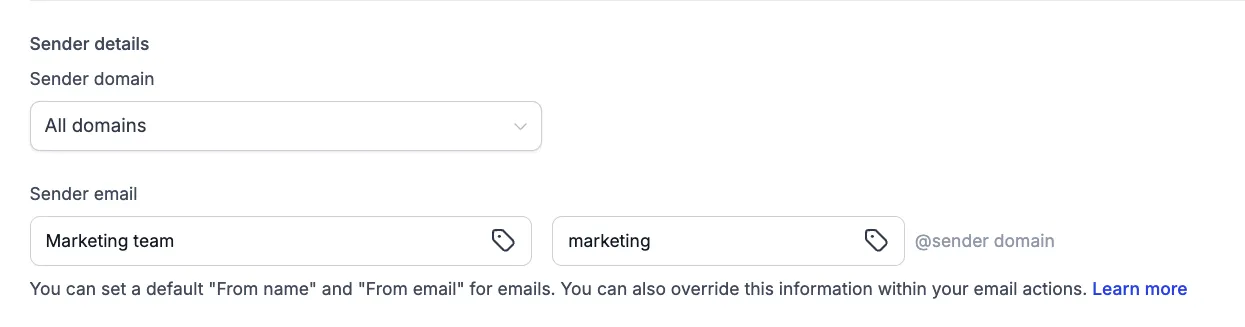
Choose All domains, then enter the sender name and email prefix, such as marketing. Emails continue to send across configured domains using the weighted distribution configured in the account.
Specific Domain
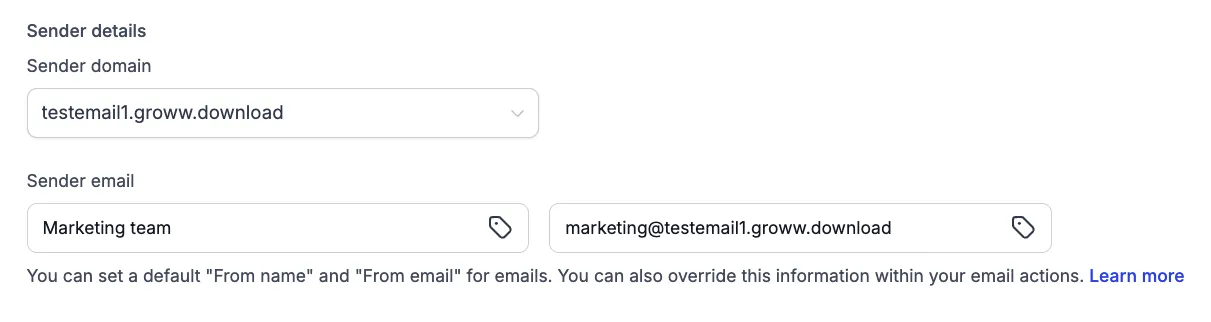
Choose a specific domain, then enter the email prefix. For example, marketing with example.com sends as marketing@example.com.
If a full sender email is entered on a different domain, that sender email overrides the selected domain. SMBcrm shows a Sender domain mismatch warning because mismatched domains may affect deliverability.
Sender details set inside an individual email action take priority over the workflow-level settings.
How to Use It
- Add and verify your domain under Email Services, Dedicated Domains.
- Open the workflow and go to Settings.
- Pick the domain under Sender domain.
- Set a From name and From email, then save.
Every email action in the workflow inherits the workflow-level sender domain unless the individual email action has its own sender details.
Why It Matters
Previously, every workflow in an account used the same sending domain. Changing the From address changed the name or address people saw, but not necessarily the domain the email was sent through.
Now, different workflow types can use different sender domains. For example, appointment reminders and payment receipts can send from one domain, while promotional nurture emails can send from another. This also makes it possible to test a domain on one workflow before moving other workflows to it.
Additional Notes
- Only verified domains from Email Services appear in the dropdown.
- Sender details on an individual email action override workflow settings, including the domain.
- Email headers configured in dedicated email settings take priority over workflow settings.
In Case You Missed It
You may also want to read More AI Models Added to Workflow AI Agent Actions.
Release Images
Need Help Applying This Update?
Want help turning this update into a working part of your CRM, marketing, or automation setup?
Get Started or schedule a demo and we’ll help you map the right next step.