SMBcrm can now send in-app notifications to account admins and users when a contact uploads files through the Client Portal.
What changed
When a contact uploads one or more files through the Shared Documents section of the Client Portal, relevant account admins and users receive an in-app notification.
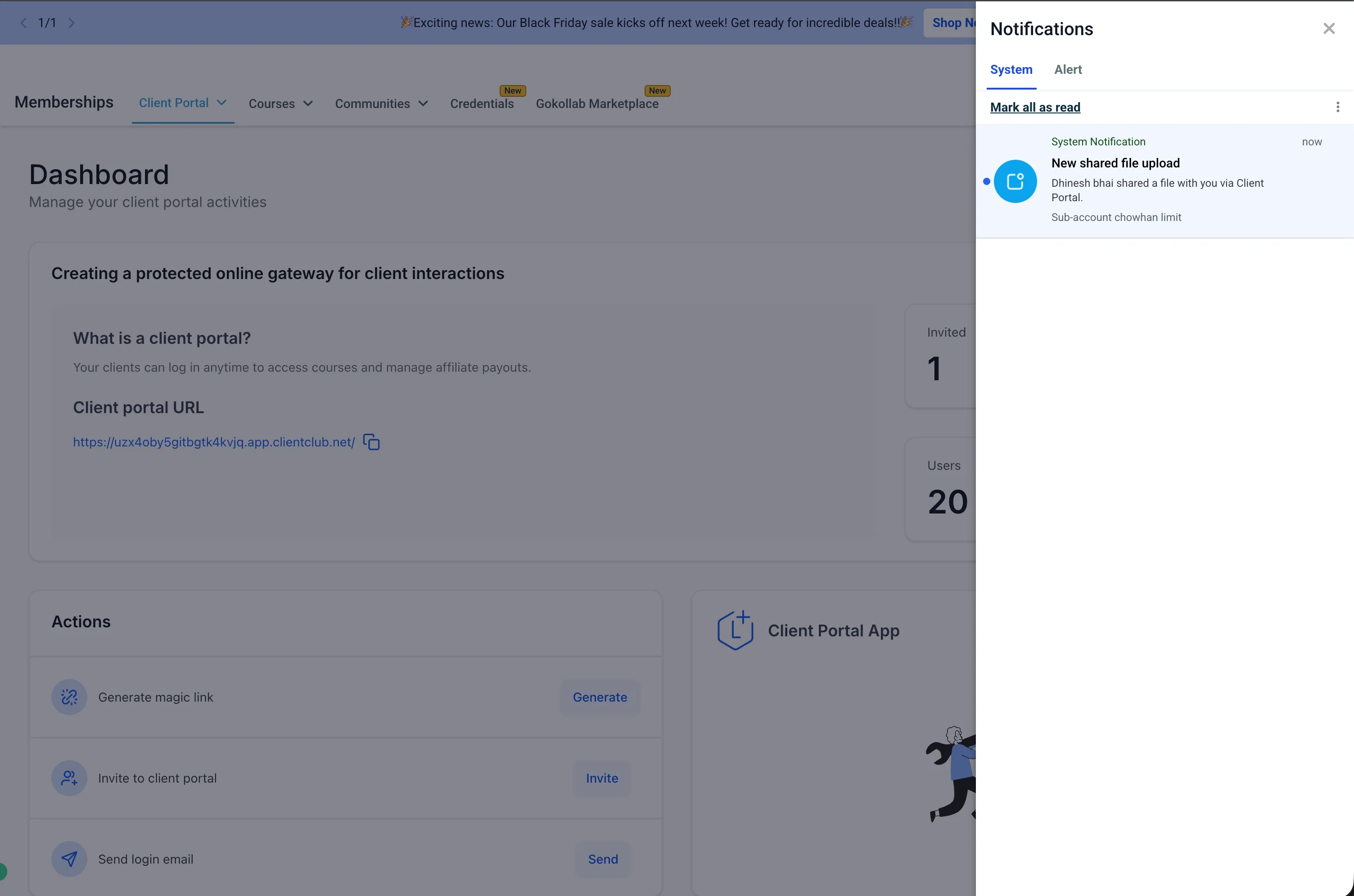
Clients can upload up to 10 files at a time.
Manage who gets notified
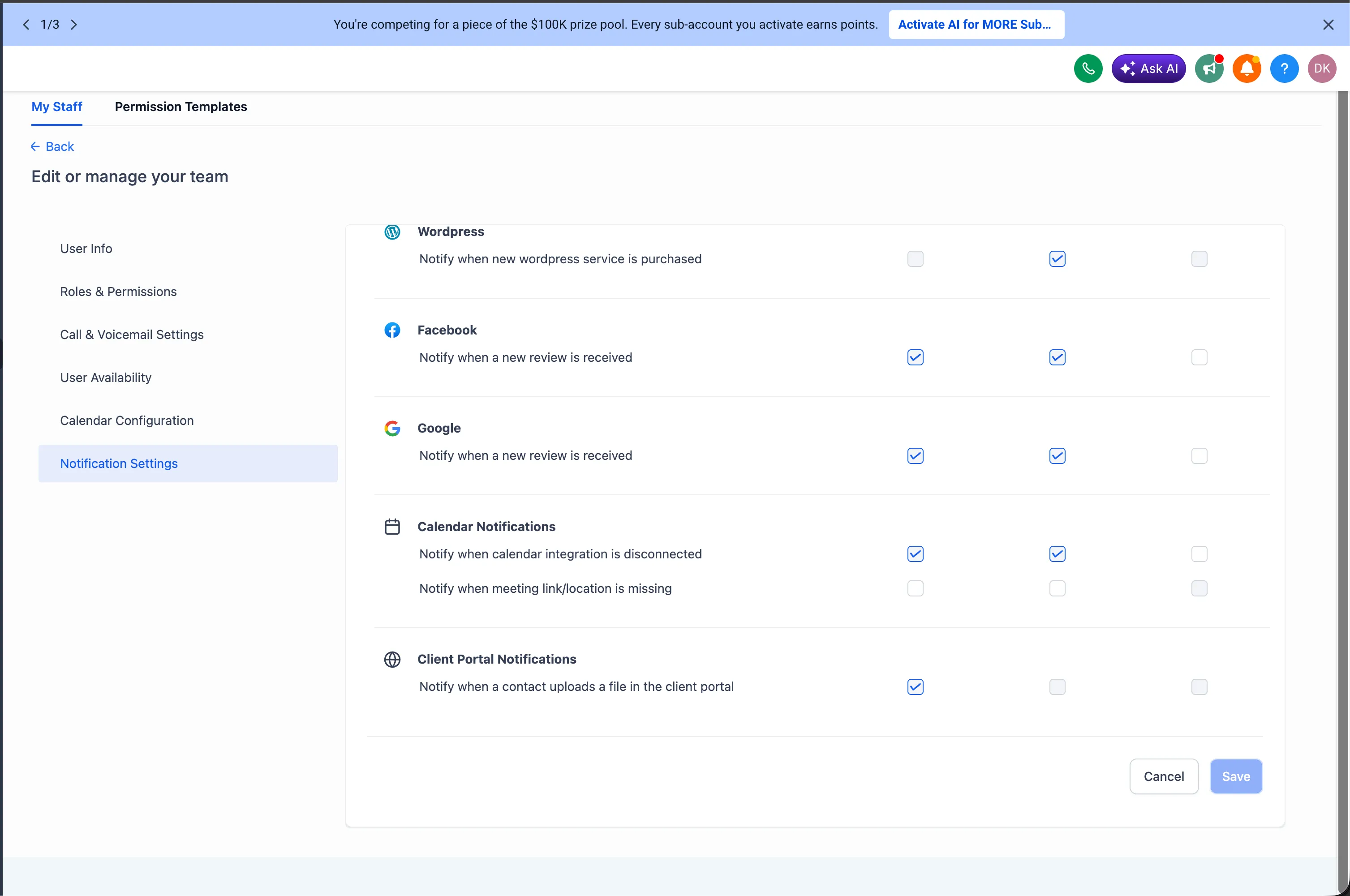
Account admins can manage these preferences for each staff member at the account level.
To update notification settings:
- Go to Settings > My Staff.
- Select the staff member.
- Open Notification Settings.
- Under Client Portal Notifications, enable or disable Notify when a contact uploads a file in the Client Portal.
- Save changes.
How it works
When a client uploads a file:
- The client logs in to the Client Portal.
- They go to Shared Documents.
- They select Share File.
- They upload one or more files.
- After the upload is complete, the relevant account admins and users receive an in-app notification.
Why it matters
Client-uploaded documents often need timely review, such as contracts, identity documents, onboarding paperwork, or project deliverables. These notifications reduce the need to manually check the Client Portal for new uploads and help teams keep document-based workflows moving.
In Case You Missed It
Read More Marketing Templates Added to SMBcrm for another recent product update.
Important notes
- Notifications are triggered only when a contact uploads files through the Client Portal Shared Documents experience.
- Notification preferences are managed individually for each staff member.
- Preferences are configured at the account level under Settings > My Staff > Notification Settings.
- The currently supported notification channel is in-app notifications.
Need Help Applying This Update?
Want help turning this update into a working part of your CRM, marketing, or automation setup?
Get Started or schedule a demo and we’ll help you map the right next step.
Explore this in SMBcrm
See the customer side of the CRM.
Explore the client portal and decide which documents, invoices, and conversations customers should be able to access.
Explore the client portalAlready using this feature? Find setup help