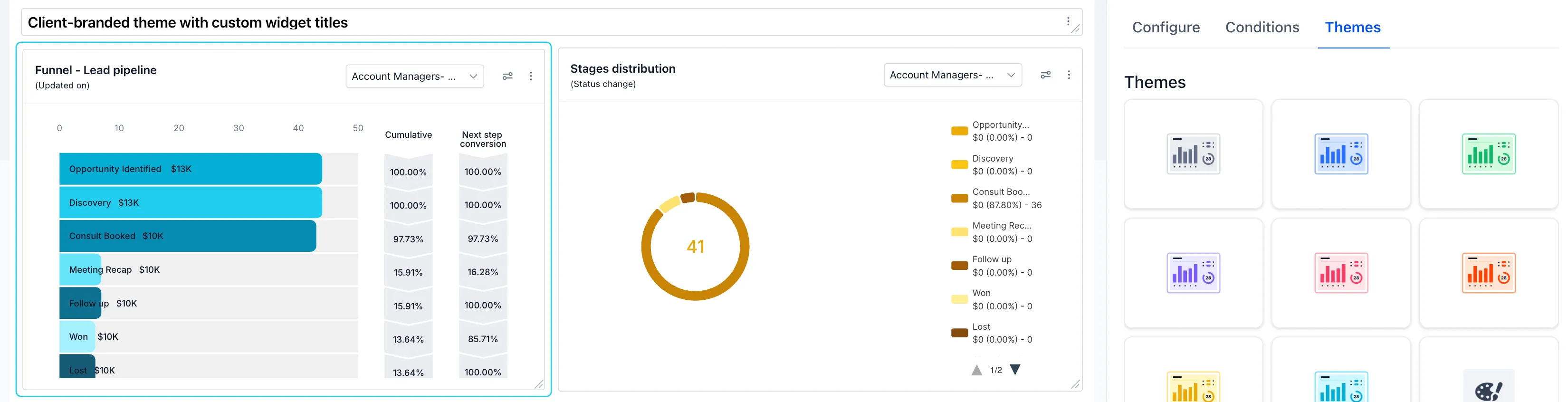
General widgets on account dashboards can now be edited to show more relevant data. You can add filters that persist when the dashboard is reopened, set a widget-specific date range, compare periods, rename or duplicate widgets, and apply a visual theme.
Configure a widget
Open Dashboard, select Edit dashboard, then use the three-dot menu on a general widget to select Edit. From there:
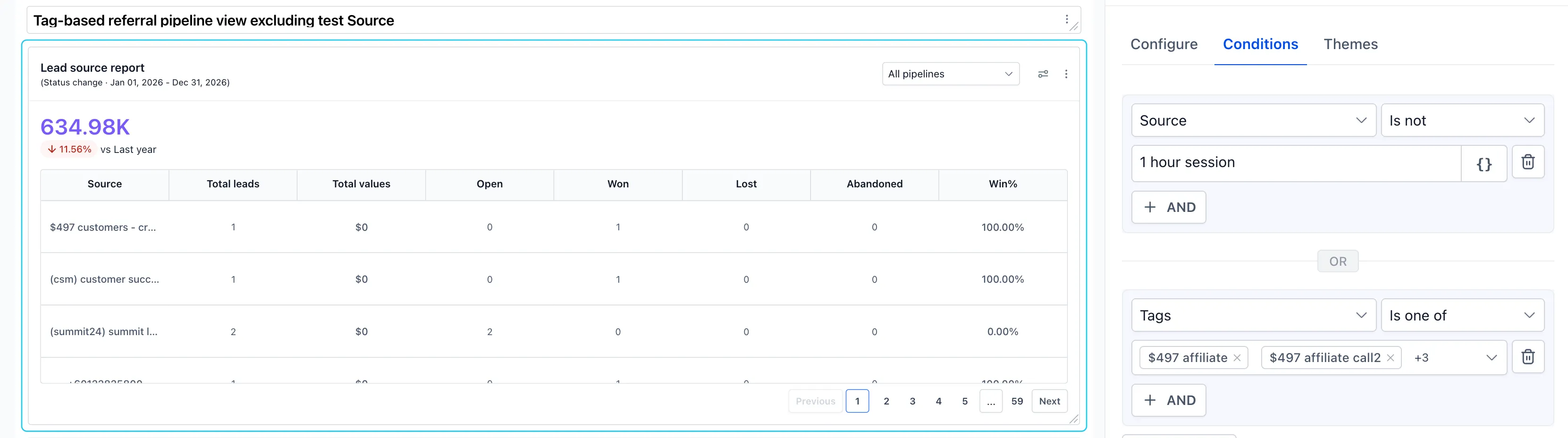
- Use Configure to rename the widget and set a date range override under Advanced Settings. The override is independent of the dashboard-level date filter.
- Use Conditions to add persistent filters by choosing a field, operator, and value. Available fields can include assigned user, tags, source, lead value, custom fields, and attribution, depending on the widget and module.
- Use Themes to change the widget’s appearance, then select Save.
Widgets now display their date property and date range on the widget itself. Comparison mode shows the current period alongside the last period or last year.
Pipeline filtering remains available on the widget itself rather than in Conditions. General widgets do not currently respond to dashboard-level Quick Filters.
Release Images

Need Help Applying This Update?
Want help turning this update into a working part of your CRM, marketing, or automation setup?
Get Started or schedule a demo and we’ll help you map the right next step.
Explore this in SMBcrm
Use the CRM to review your next decision.
Explore contacts, pipelines, and dashboards. Choose the records and definitions your team will use before relying on a report.
Explore CRM dashboardsAlready using this feature? Find setup help