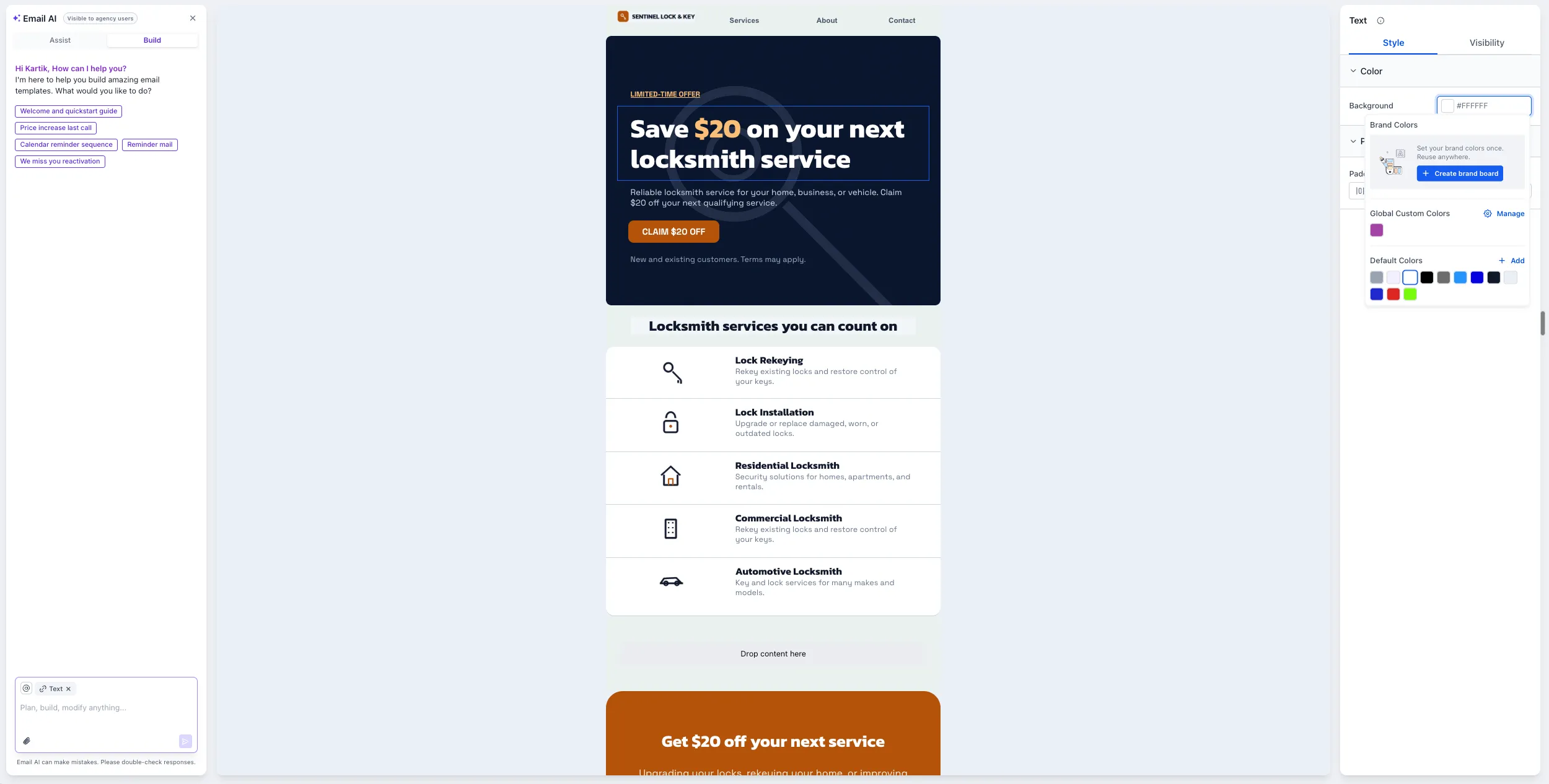
Creating a brand board from the email builder’s color picker now opens a quick-create modal instead of a separate tab. This keeps you in your email while you set up your branding in SMBcrm’s communication tools.
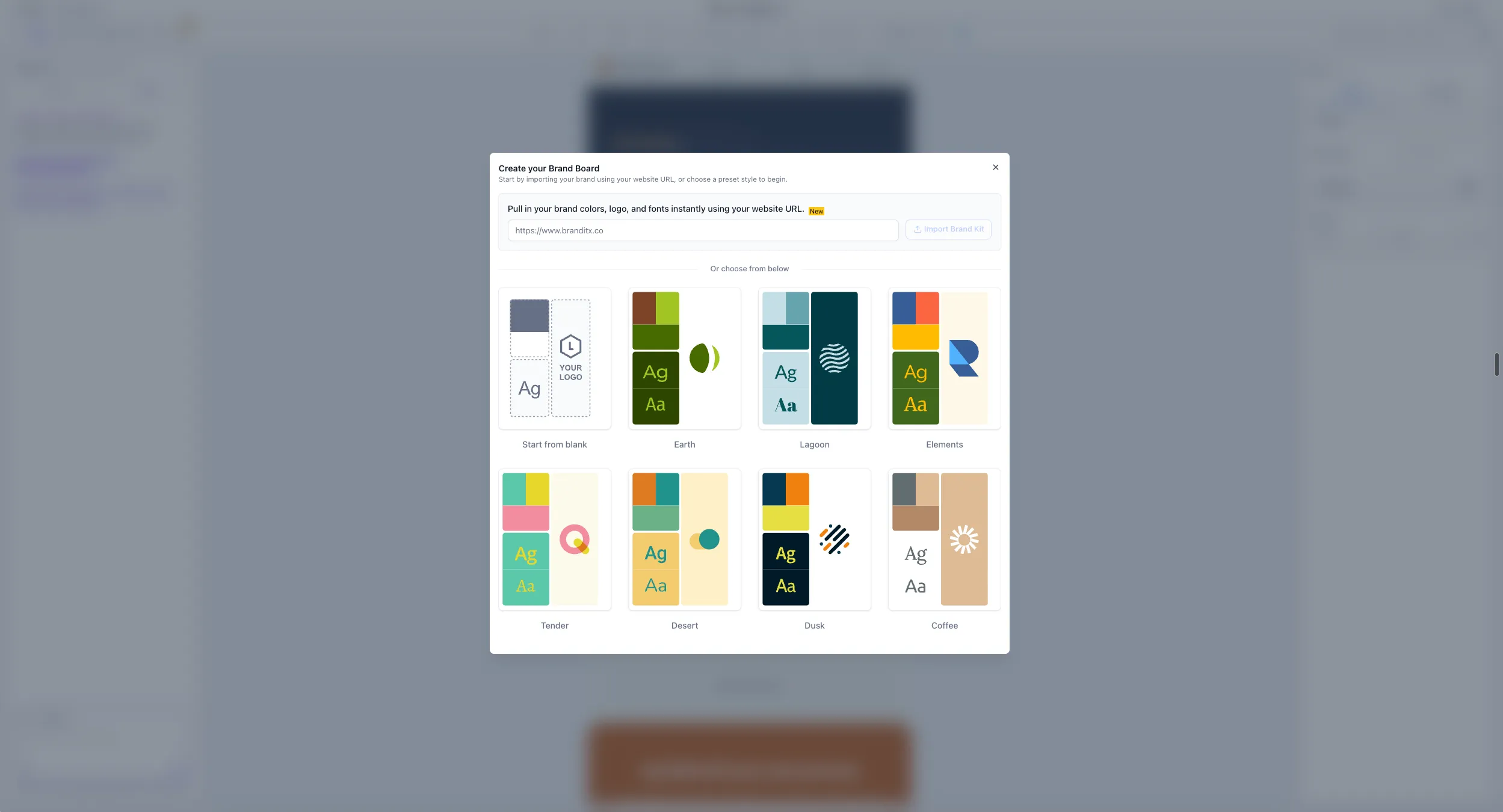
Choose Your Starting Point
Paste your website URL to import your brand colors, logo, and fonts automatically. You can also choose a ready-made style preset or start from a blank board.
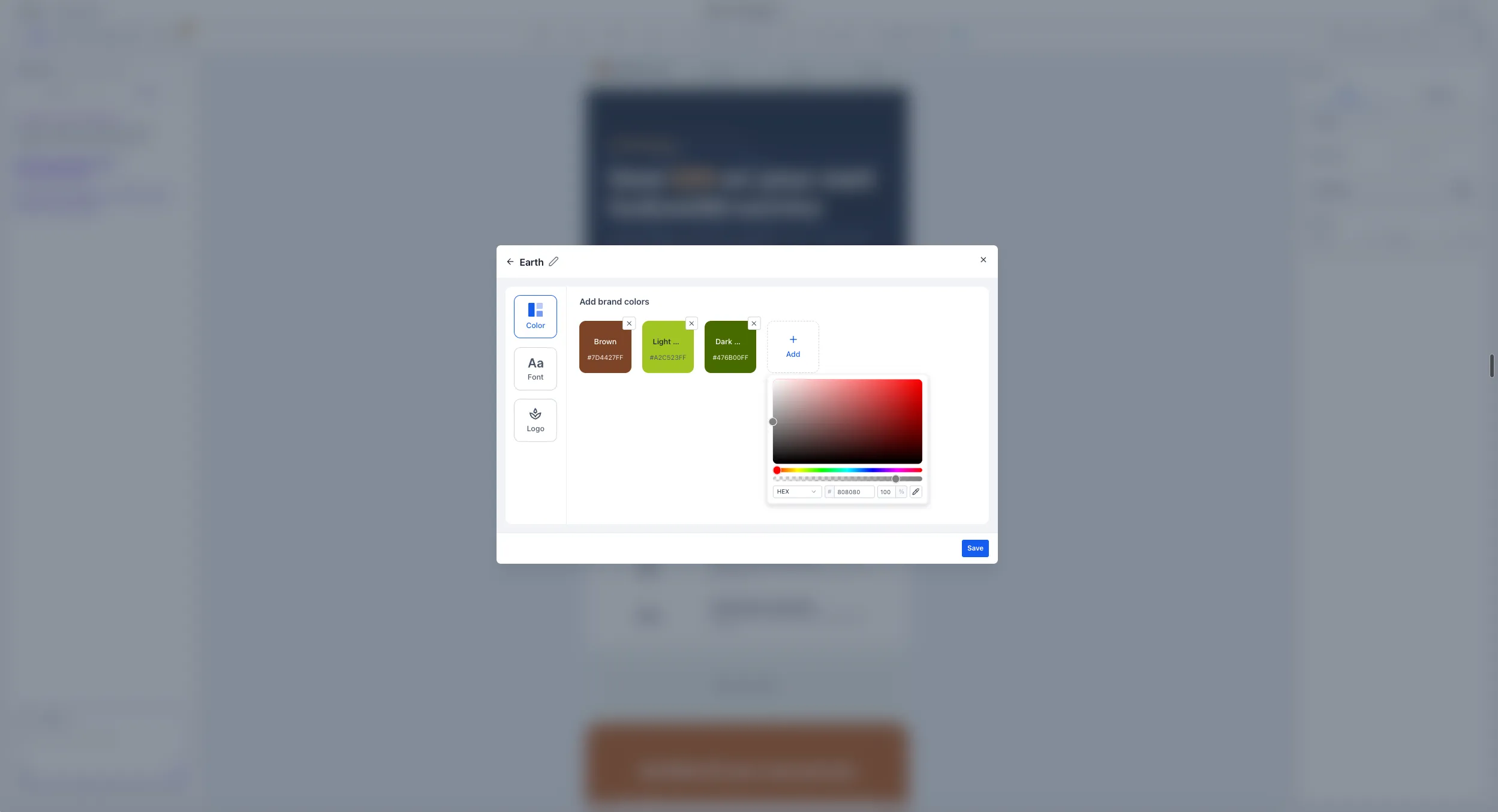
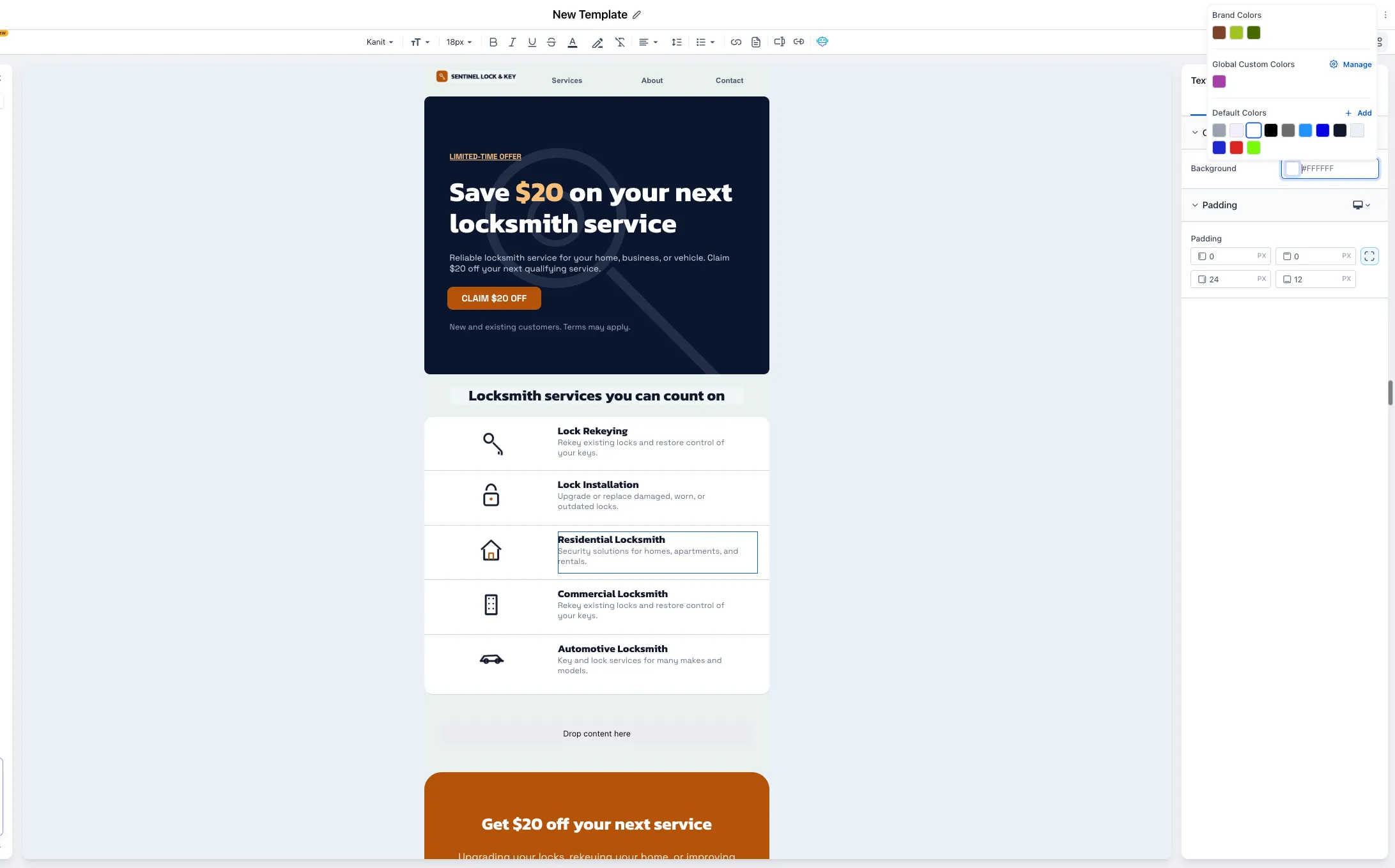
Before saving, adjust colors, add fonts, and upload your logo within the same modal. Once saved, your brand colors appear immediately as swatches in the color picker.
How to Create a Brand Board
- Open the email builder and go to the color picker.
- Click Create brand board. This option appears only when your account has no brand boards set up.
- Enter your website URL, choose a preset, or start from blank.
- Use the tabs on the left to customize colors, fonts, and your logo.
- Save the board to make its colors available in the color picker.
Current Scope
Quick-create is currently available only in the email builder’s color picker. Support for Websites, Funnels, and Forms, along with editing brand boards and switching between existing boards, is planned for future releases.
Release Images
Need Help Applying This Update?
Want help turning this update into a working part of your CRM, marketing, or automation setup?
Get Started or schedule a demo and we’ll help you map the right next step.