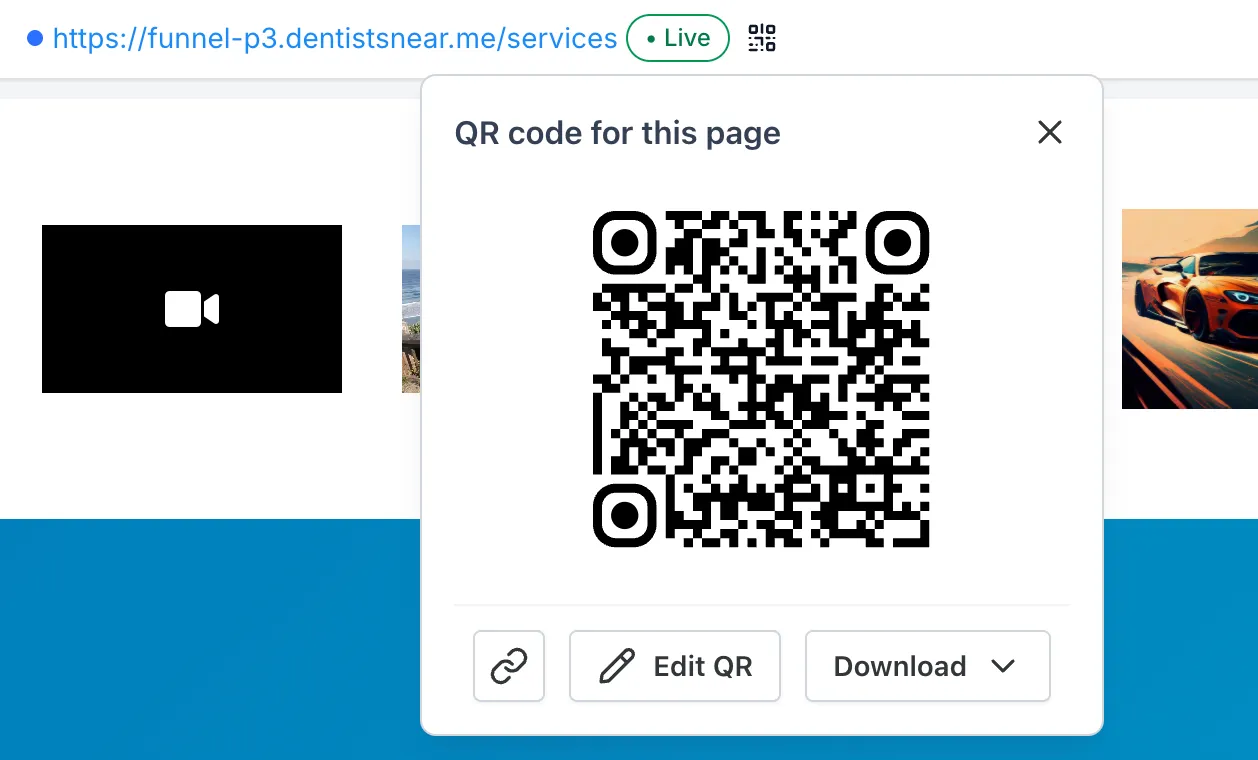
You can now create a QR code for a website page directly in the SMBcrm Website Builder. Click the QR code icon next to the page URL to download the code or customize its appearance.
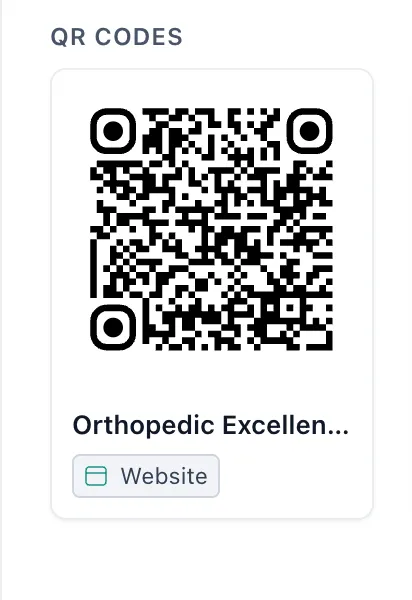
The QR Code Builder also has a new Website type. Select a website and page from dropdowns instead of copying and pasting a URL.
QR Codes That Follow Your Page
Website QR codes link to the page itself rather than a fixed URL. If you change the page slug or domain, the same printed QR code continues to open the correct page.
You can also:
- Download PNG, SVG, or PDF files for menus, signage, packaging, and digital use.
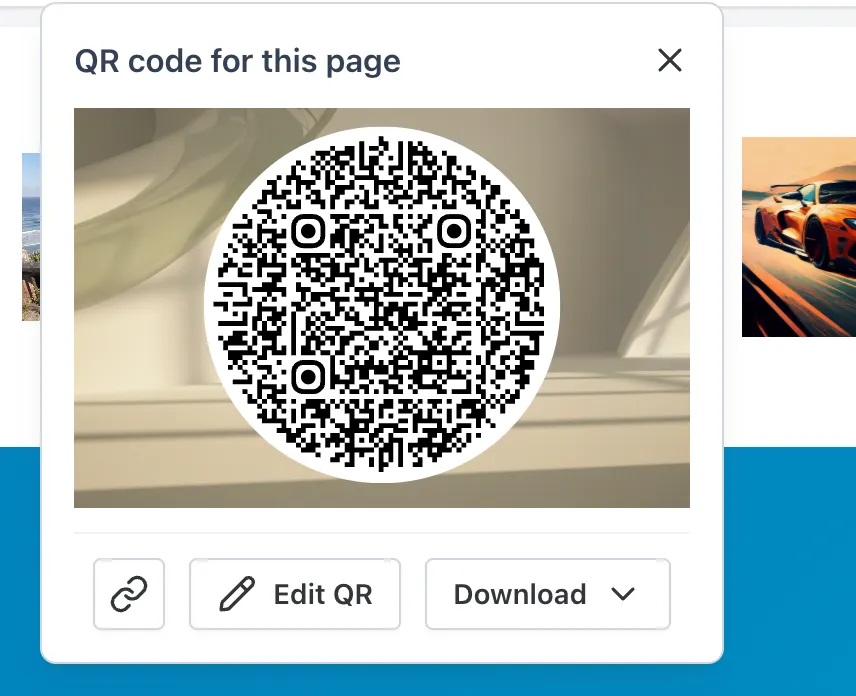
- Customize colors, shapes, and branding by selecting Edit QR, which opens Step 3 of the QR Code Builder.
- Use Add to Wallet, with the website and page names shown on the wallet pass.
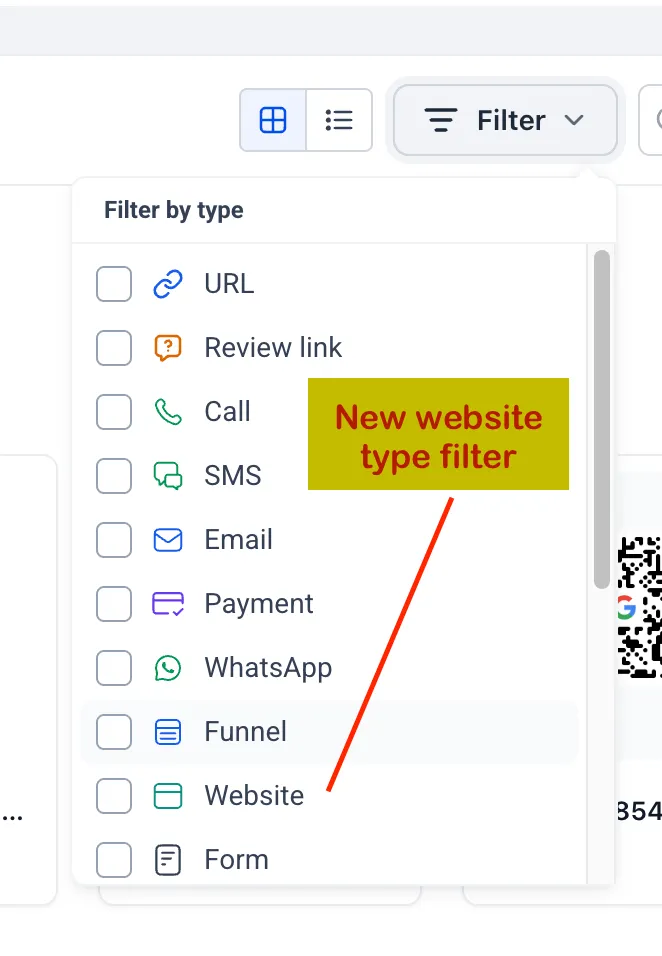
- Filter the QR Codes list by the Website type.
How to Create a Website QR Code
From the Website Builder
- Open a website with a connected domain.
- Open the page you want to share.
- Click the QR code icon next to the page URL.
- Download the code as PNG, SVG, or PDF, or select Edit QR to customize it.
- Scan the code to check that it opens the correct page.
From the QR Code Builder
- Go to Sites → QR Codes → Create QR.
- Choose Website.
- Select your website and page.
- Style the QR code, then save and download it.
Existing Website QR Type Renamed
The previous Website type, which stored a plain link, is now labeled URL. Only the name has changed. Existing QR codes continue to work as before.
Release Images
Need Help Applying This Update?
Want help turning this update into a working part of your CRM, marketing, or automation setup?
Get Started or schedule a demo and we’ll help you map the right next step.