SMBcrm’s Date Range setting now includes a Count available days only option for Calendars, Services, and Rentals. When enabled, the booking window counts only days that match your availability instead of every calendar day.
What changed
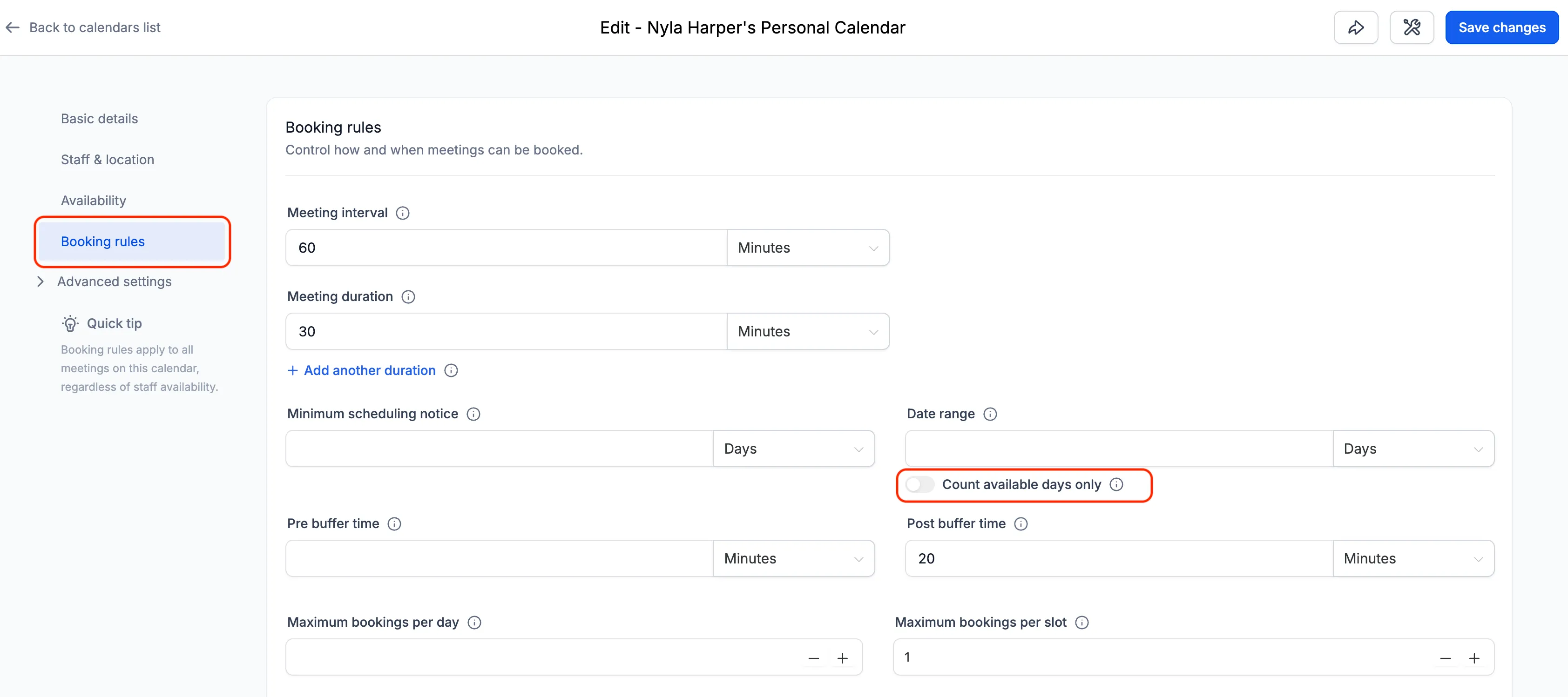
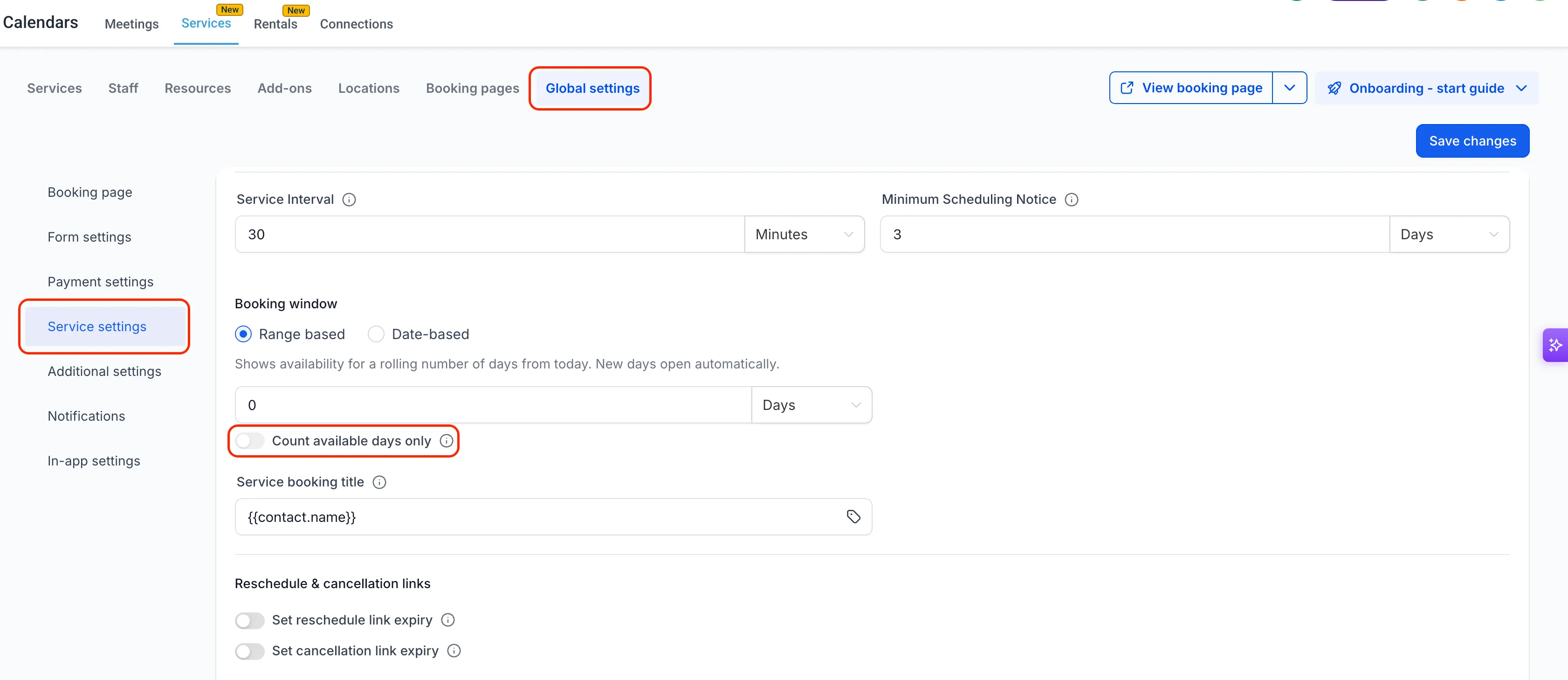
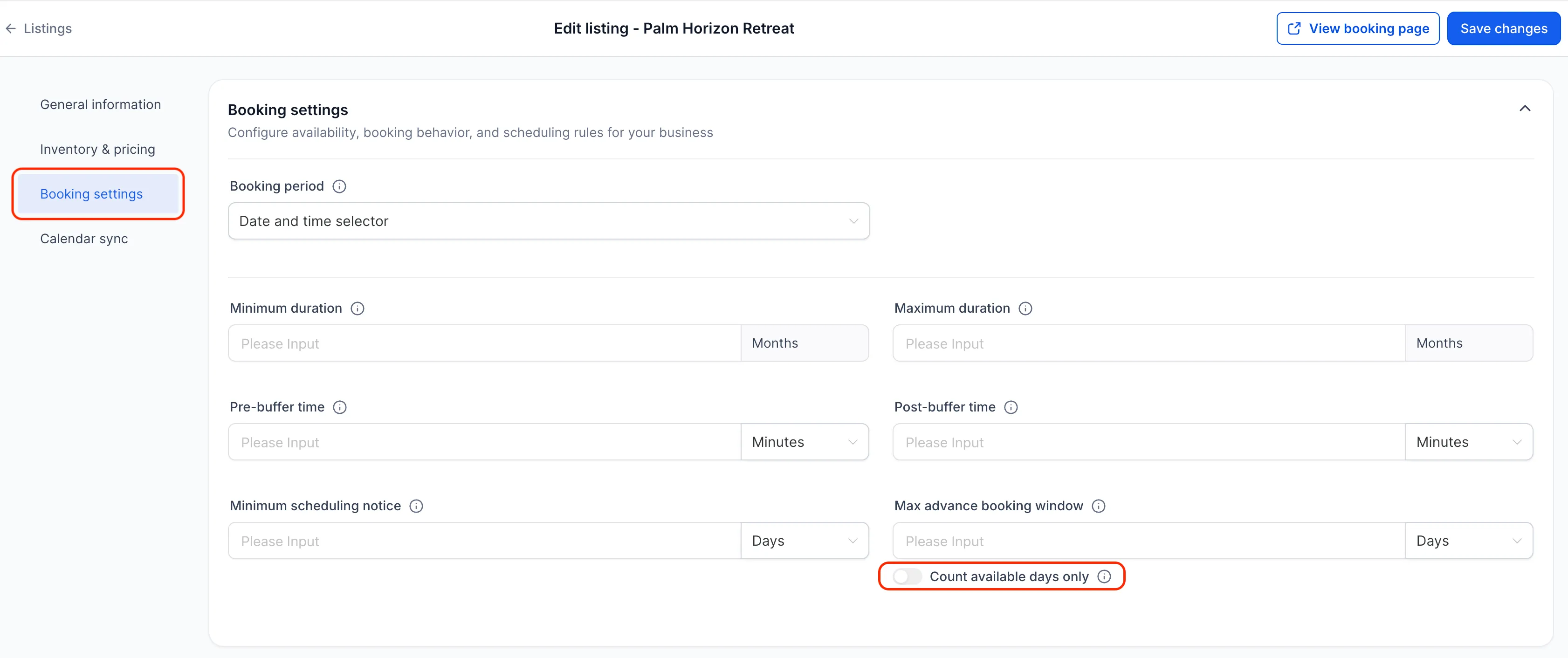
The Count available days only toggle appears below the Date Range setting. When turned on, SMBcrm skips days outside your availability schedule while calculating the date range.
For example, if a business is closed on weekends and uses a 2-day range, visitors who open the calendar on Friday will see availability continue into Monday and Tuesday instead of seeing a blank weekend-only window.
How it works with scheduling notice
When Count available days only is enabled, the date range starts from the first available day after the minimum scheduling notice period ends. This helps bookers see the full number of configured booking days even when notice rules move the window forward.
Supported booking types
The setting is available for:
- Meeting calendars
- Services
- Rentals
Round robin and collective calendars are supported. A day counts as available if at least one assigned team member has availability that day.
Date-specific hour overrides are also respected. Days added through date-specific hours count toward the booking window, while days blocked through date-specific hours are skipped.
How to turn it on
- Open the booking settings you want to update:
- For calendars, go to Calendars, then Calendar Settings, and edit the calendar.
- For services, go to Services, then Global Settings, then Service Settings.
- For rentals, edit a listing and open Booking Settings.
- Find Date range.
- Turn on Count available days only.
- Save your changes.
Why it matters
This update helps businesses with weekend closures, rotating schedules, or custom working days show a booking window based on real availability. It can reduce blank-looking calendar experiences when available times exist later in the week.
Release Images
Need Help Applying This Update?
Want help turning this update into a working part of your CRM, marketing, or automation setup?
Get Started or schedule a demo and we’ll help you map the right next step.
Explore this in SMBcrm
Connect booking to the next conversation.
Explore calendars and lead capture, then see how a booking fits into the wider CRM workflow.
Explore calendars and lead captureAlready using this feature? Find setup help