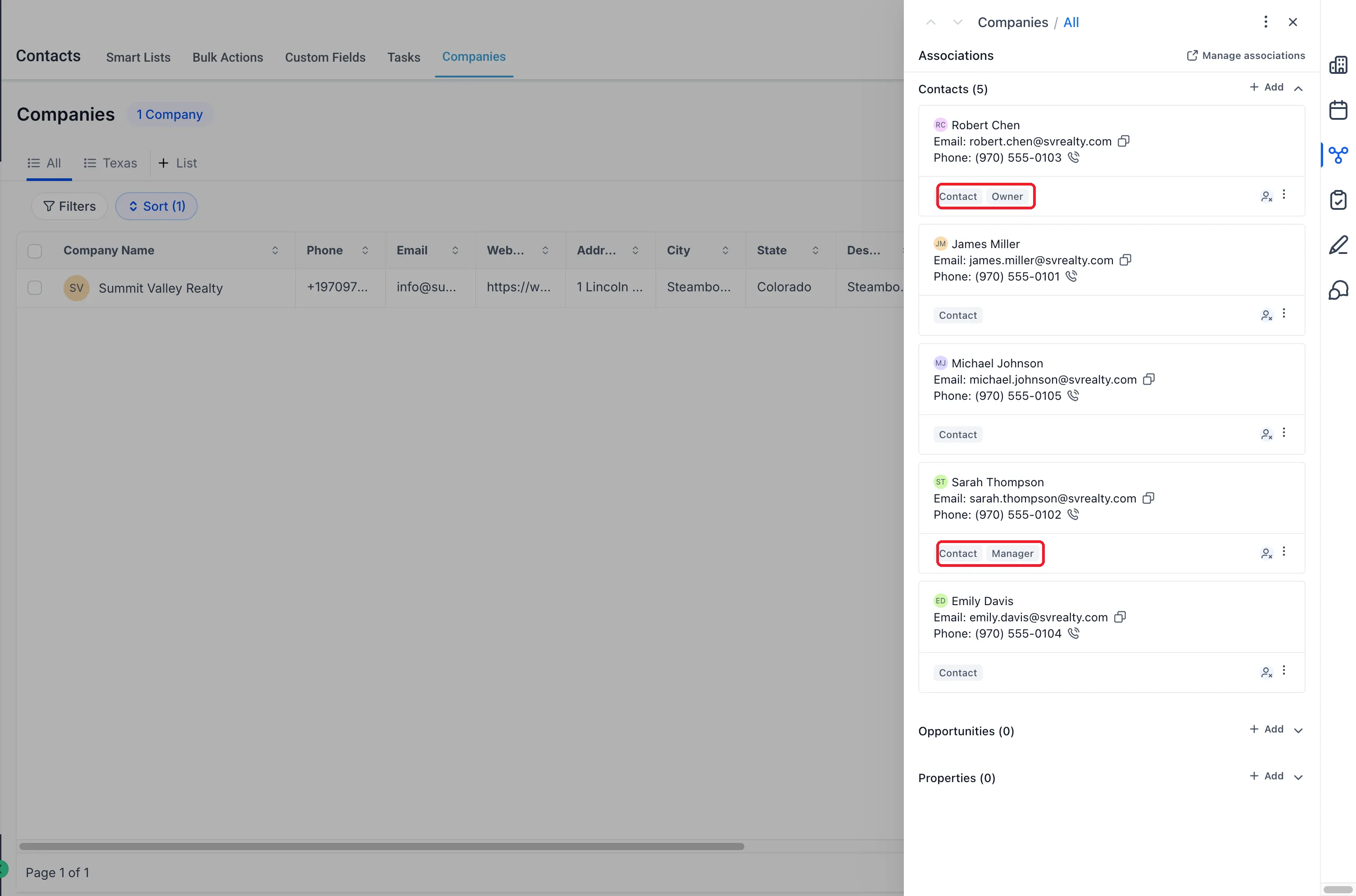
Association labels in SMBcrm CRM help you identify who does what at each company. Assign roles such as Employee, Billing contact, or Decision maker to contact-company relationships, then use those roles to review responsibilities and select email recipients.
What Changed
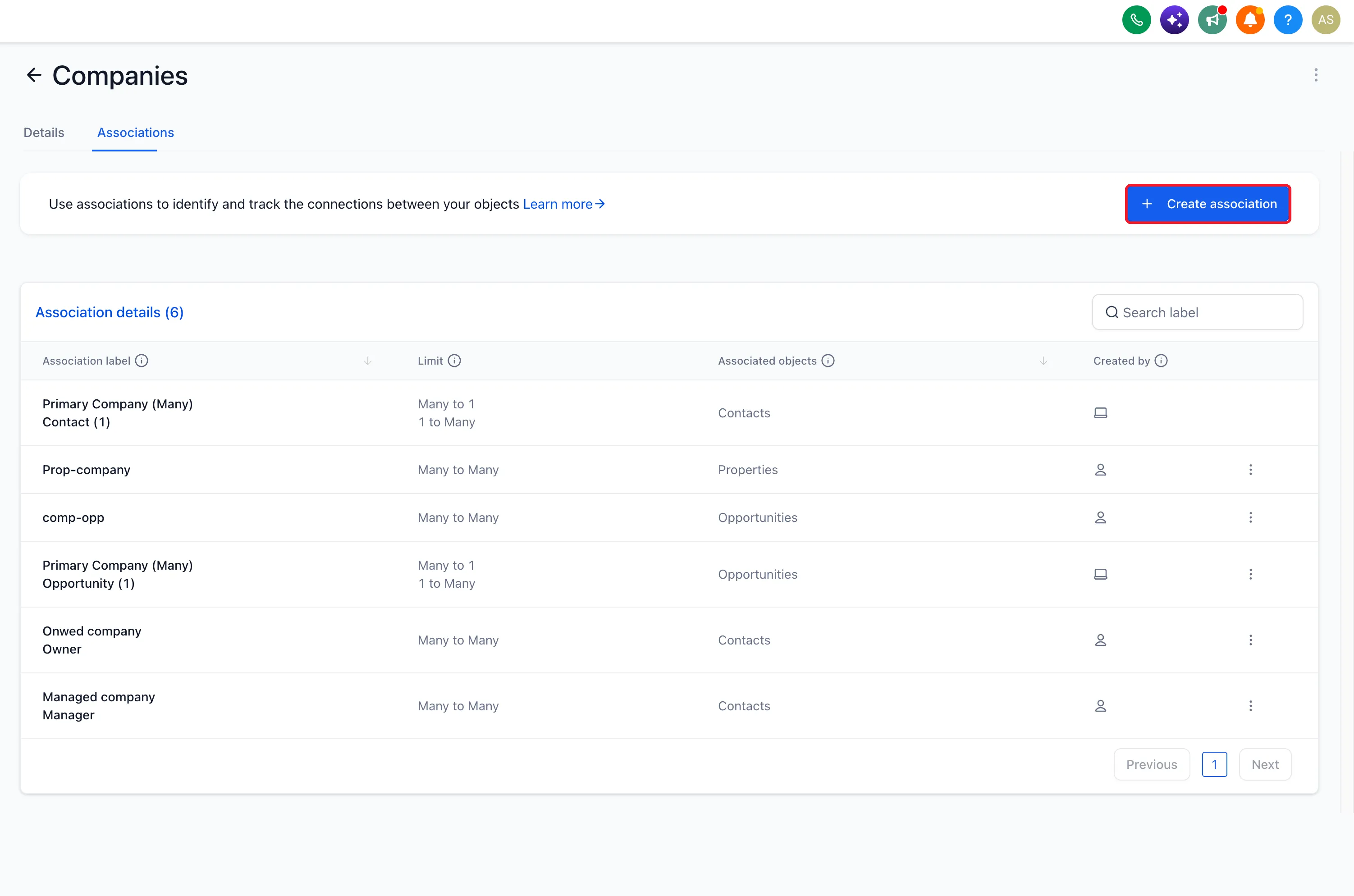
- Custom relationship labels: Create company and contact association labels in object settings.
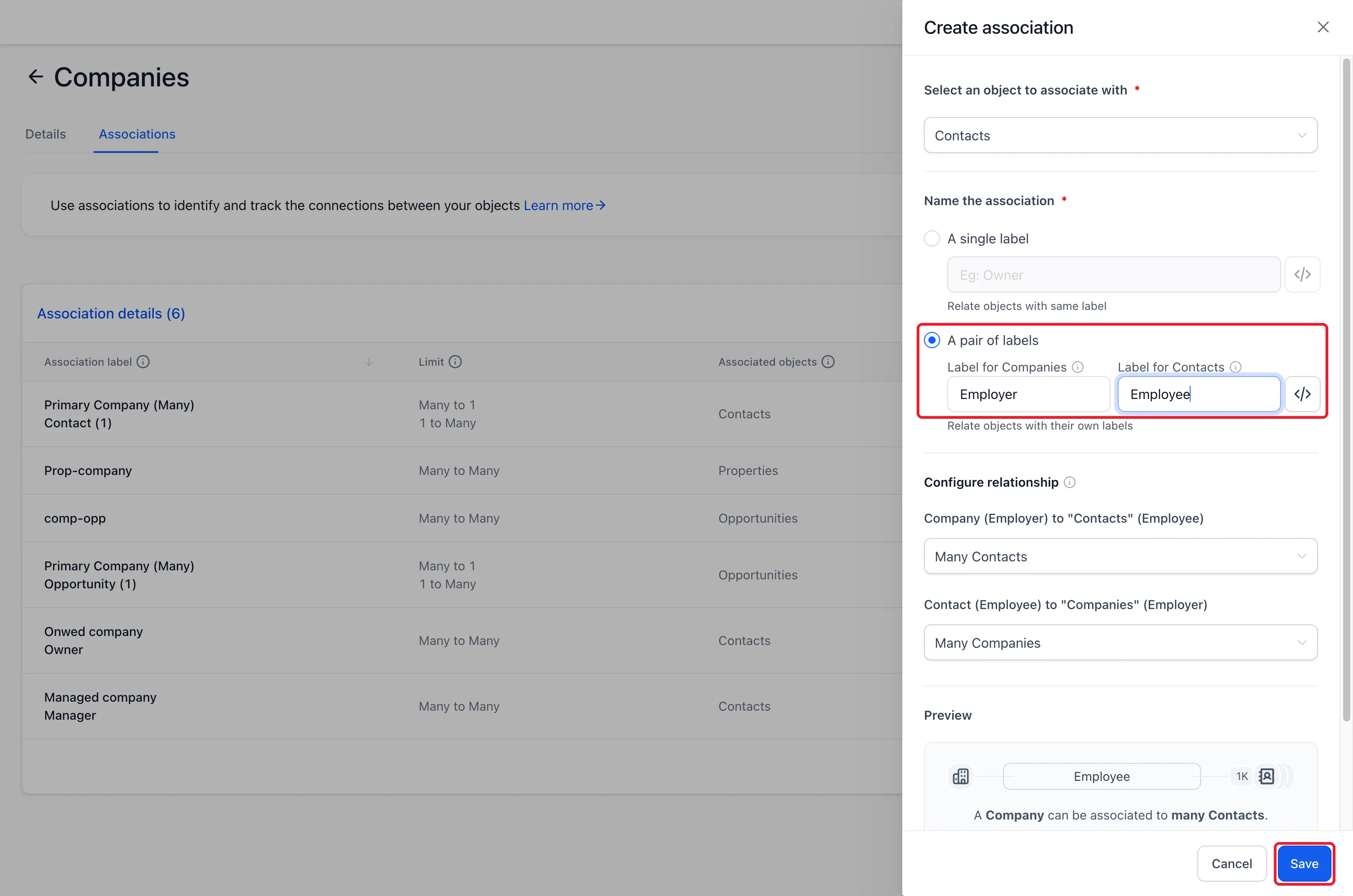
- Single or paired names: Use the same label in both directions or paired names such as Employer and Employee. Configure relationship limits in each direction.
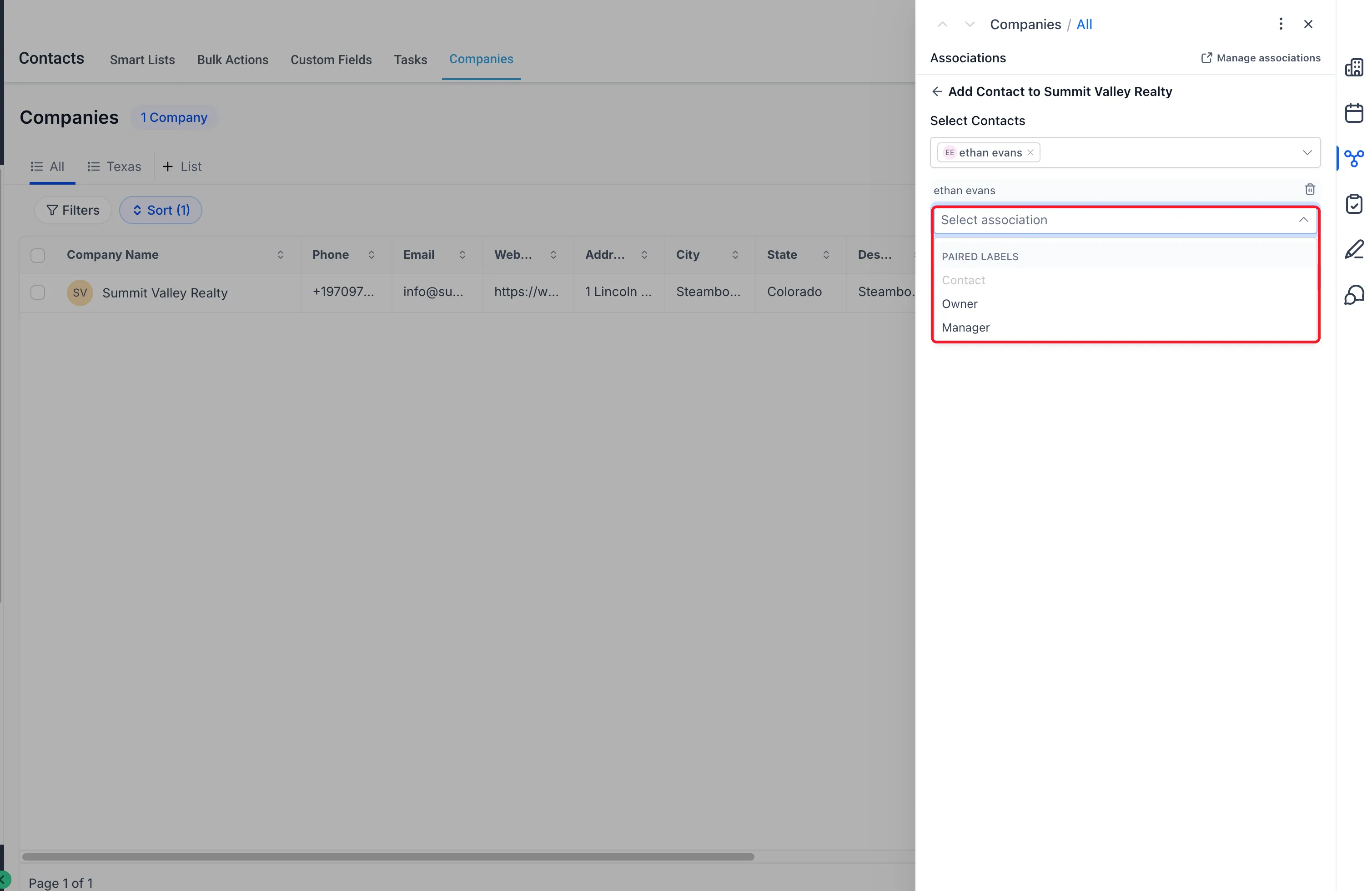
- Editable roles: Choose a label when linking records and edit custom labels on existing relationships.
- Multiple roles: Link the same contact and company under more than one label.
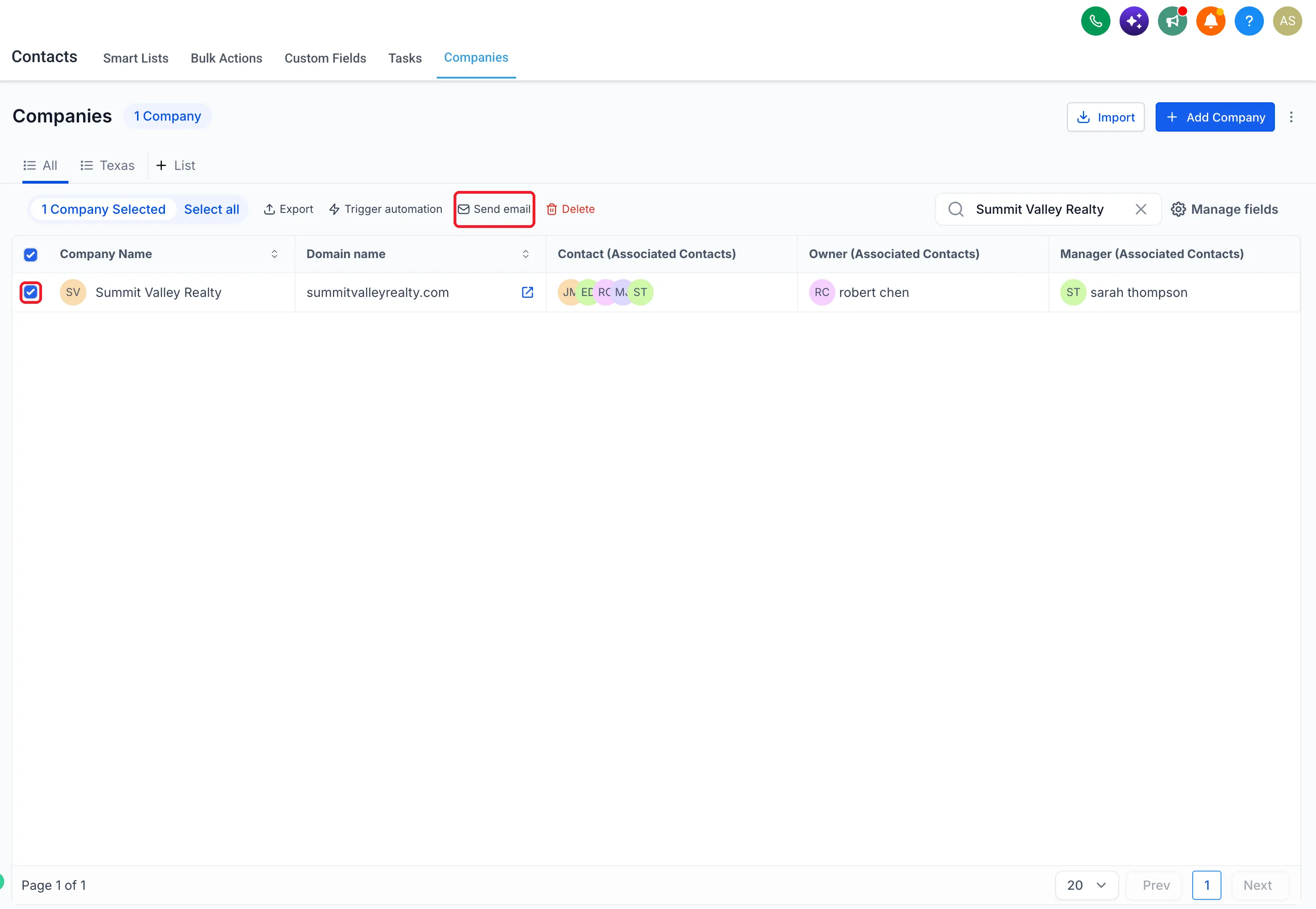
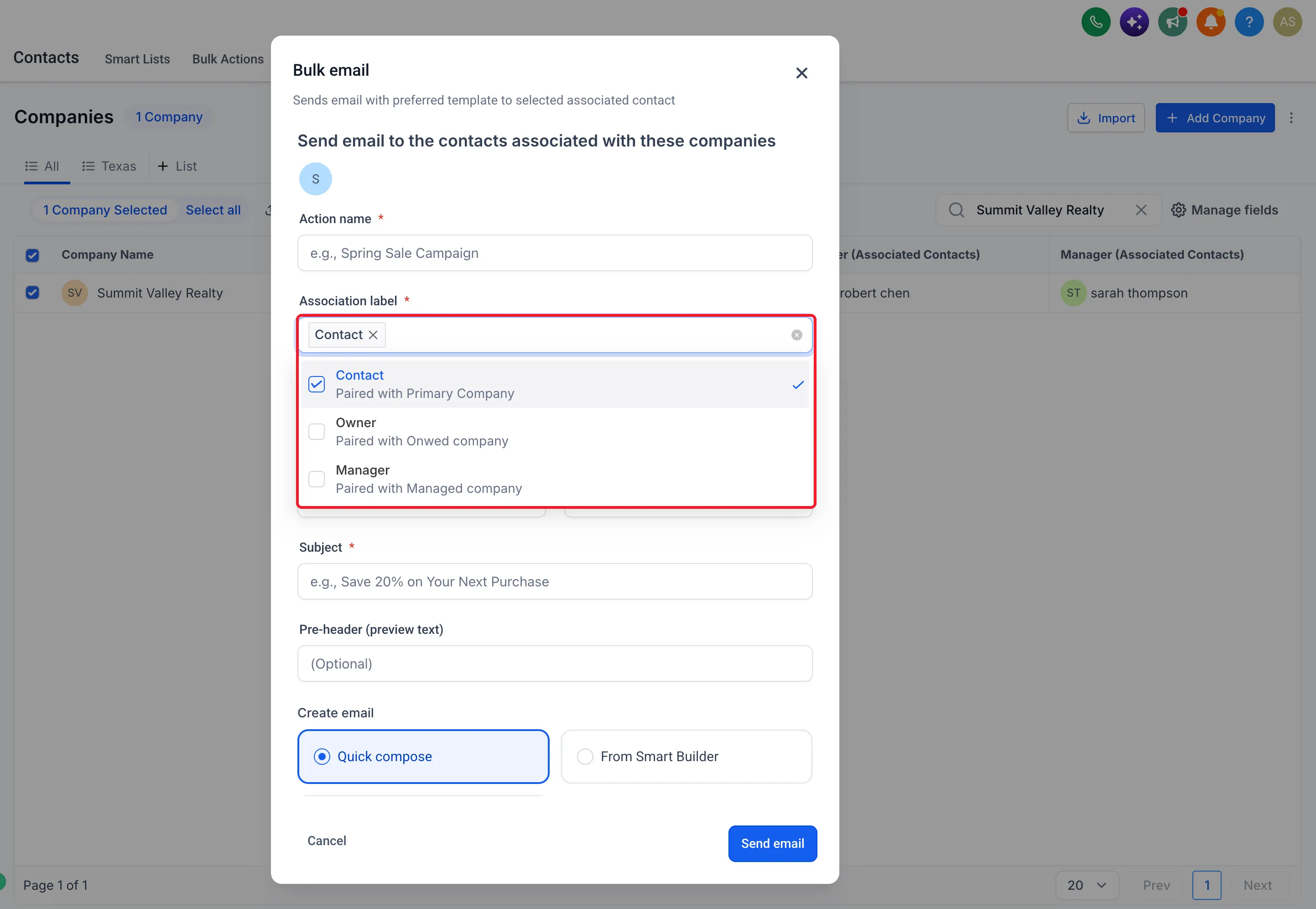
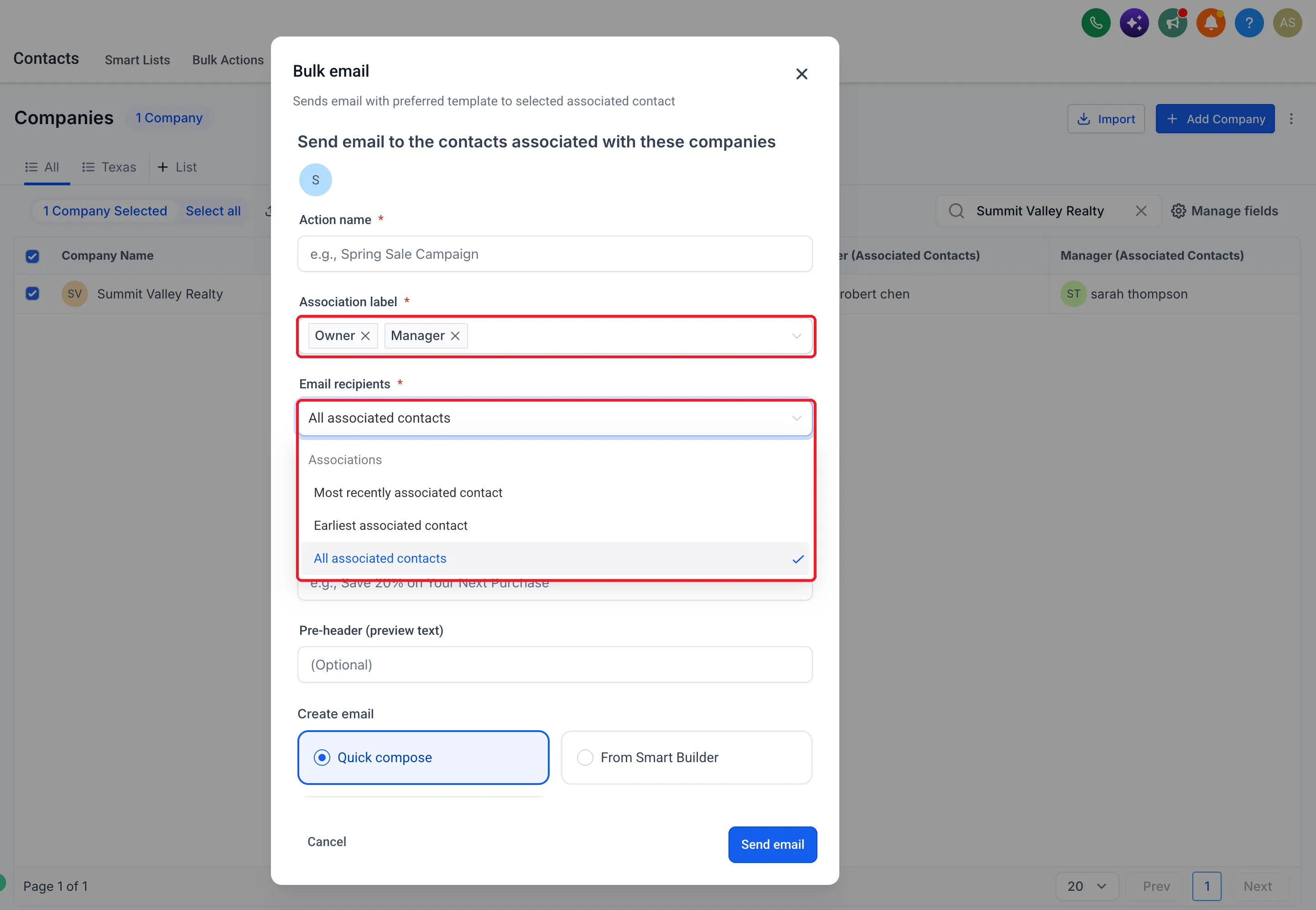
- Email by role: Select association labels when emailing from companies. Contacts matching multiple selected labels are deduplicated.
How to Set Up Association Labels
- Enable Association Labels and Multiple Companies for Contacts in Labs.
- Go to Settings > Objects > Companies or Contacts > Associations.
- Create a single or paired relationship label and configure its limits.
- Open a record’s Associations, select the records and label, then save.
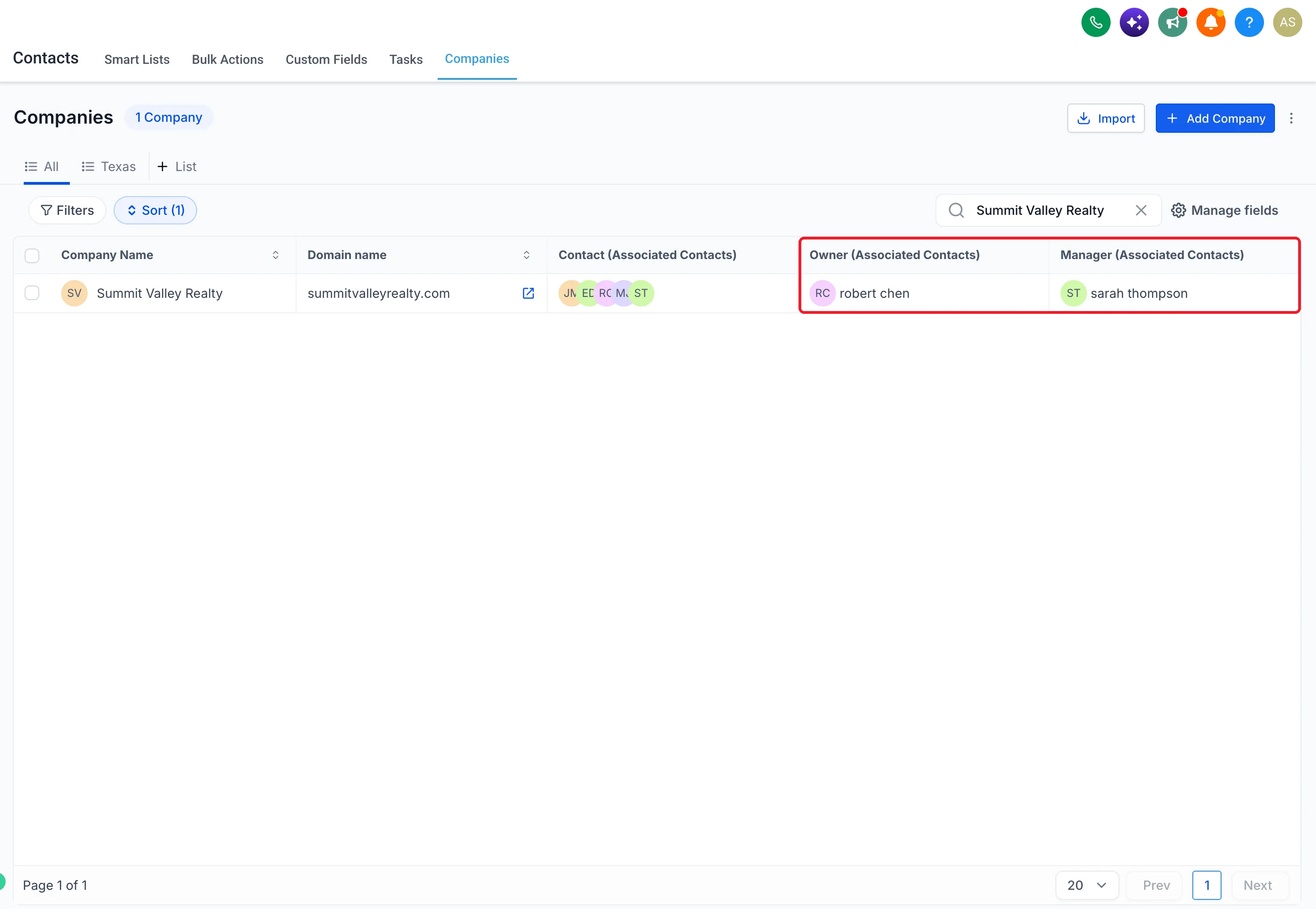
- Use the relevant labels when reviewing company list columns or selecting an email audience.
Keep Roles and Recipients Clear
Custom labels describe roles alongside the system Primary Company relationship; they do not replace it. Update labels when a contact’s responsibilities change, and name both directions clearly so each record’s relationship is easy to understand.
When selecting email recipients, custom labels support all matching contacts, the most recently associated contact, or the earliest associated contact. Including Primary Company uses All contacts.
Release Images
Need Help Applying This Update?
Want help turning this update into a working part of your CRM, marketing, or automation setup?
Get Started or schedule a demo and we’ll help you map the right next step.