Granular WhatsApp Permissions for SMBcrm Users
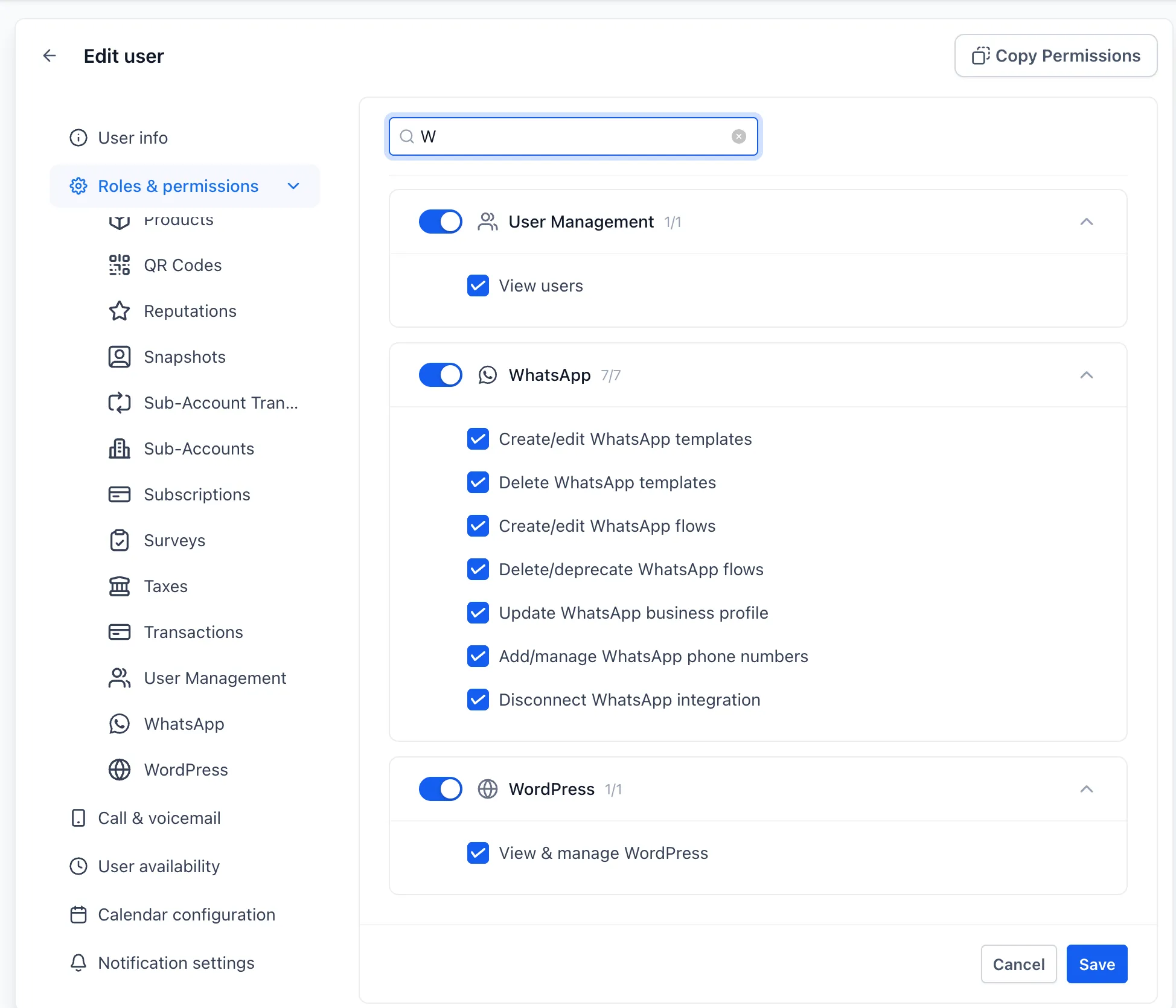
SMBcrm now includes a dedicated WhatsApp permission section under Settings → Users → Edit → Roles & permissions. Admins can decide which users can change specific WhatsApp settings instead of granting all-or-nothing access.
WhatsApp is part of many SMBcrm communication workflows, so these controls help protect templates, flows, phone numbers, profile details, and integration access.
What’s changing
Admins can now manage seven per-action WhatsApp permissions:
- Create and edit templates: Control who can create or change WhatsApp templates. Edited templates go back to Meta for review, so this helps prevent unplanned changes from interrupting approved templates.
- Delete templates: Limit who can remove approved templates.
- Create and edit flows: Decide who can build or update WhatsApp flows.
- Delete or deprecate flows: Protect flows used by active automations.
- Update business profile: Restrict who can change the WhatsApp profile customers see.
- Add and manage phone numbers: Control who can attach or manage sender numbers.
- Disconnect WhatsApp integration: Limit the most sensitive action to trusted admins.
Default access and enforcement
All seven permissions are granted by default to agency owner, admin, and user roles, plus account admin and user roles. Existing access stays in place until an admin chooses to tighten permissions.
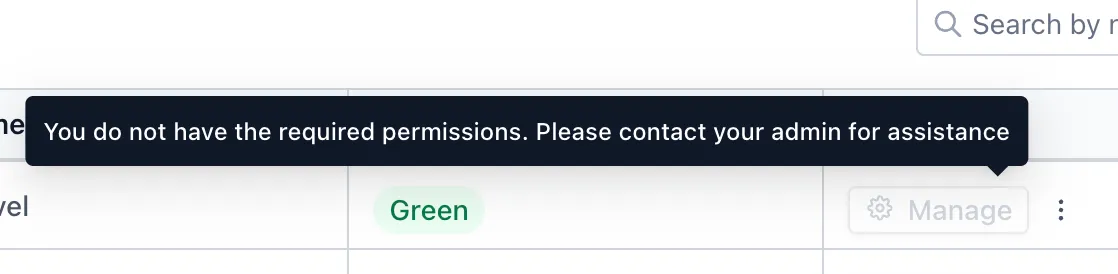
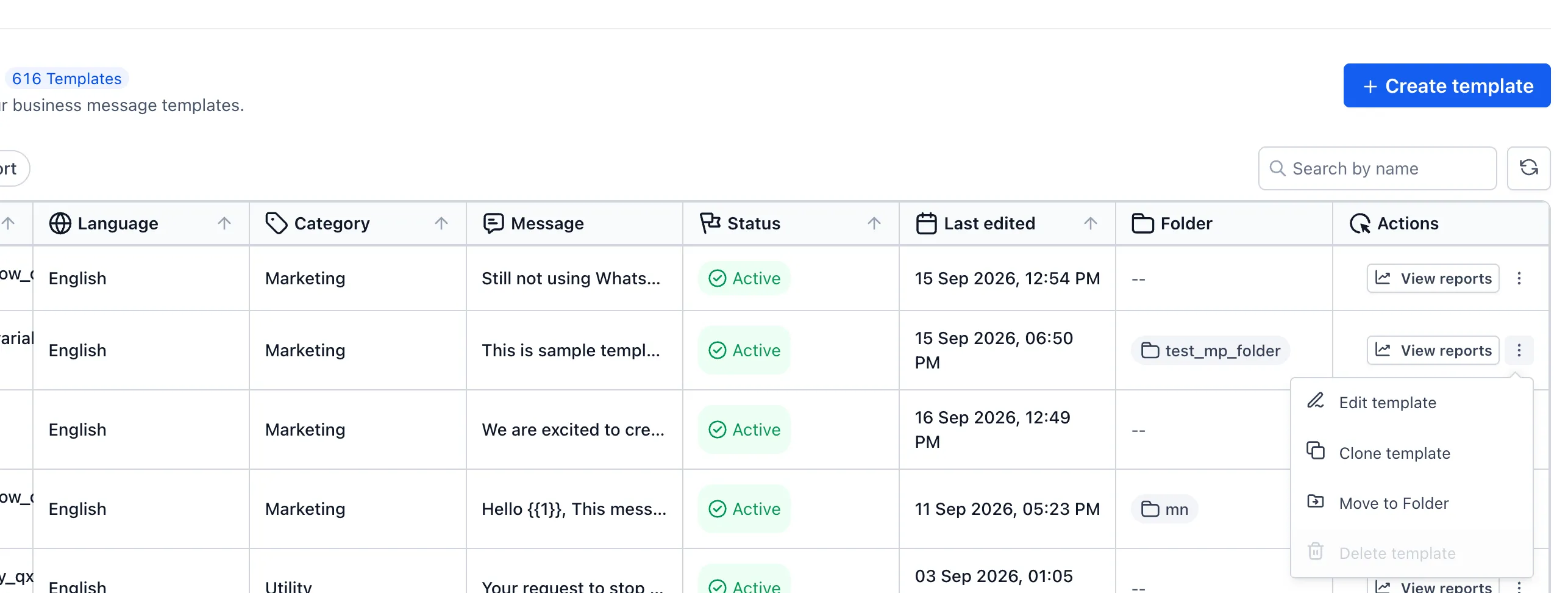
Restricted actions are disabled in the WhatsApp settings screen with a tooltip explaining why. The same permission rules are also enforced behind the scenes, so turning off a permission blocks the action rather than only hiding it in the interface.
How to configure WhatsApp permissions
- Go to Settings → Users.
- Select a user and choose Edit.
- Open Roles & permissions.
- Find the WhatsApp section.
- Toggle the seven permissions to match the access that user should have.
- Save the changes.
Good to know
- Permissions follow the user: A WhatsApp permission is granted or revoked for that user across the accounts they belong to, rather than being set separately for each account.
- Changes are auditable: Permission changes appear in admin-level audit logs under Users.
- Available regardless of reselling: The WhatsApp permission toggles appear under Users whether or not WhatsApp reselling is enabled.
- Localized controls: The permission section is translated for teams working in supported languages.
In Case You Missed It
For another update focused on safer operations, read about how Workflow Publish Validation Blocks Errors.
Release Images
Need Help Applying This Update?
Want help turning this update into a working part of your CRM, marketing, or automation setup?
Get Started or schedule a demo and we’ll help you map the right next step.