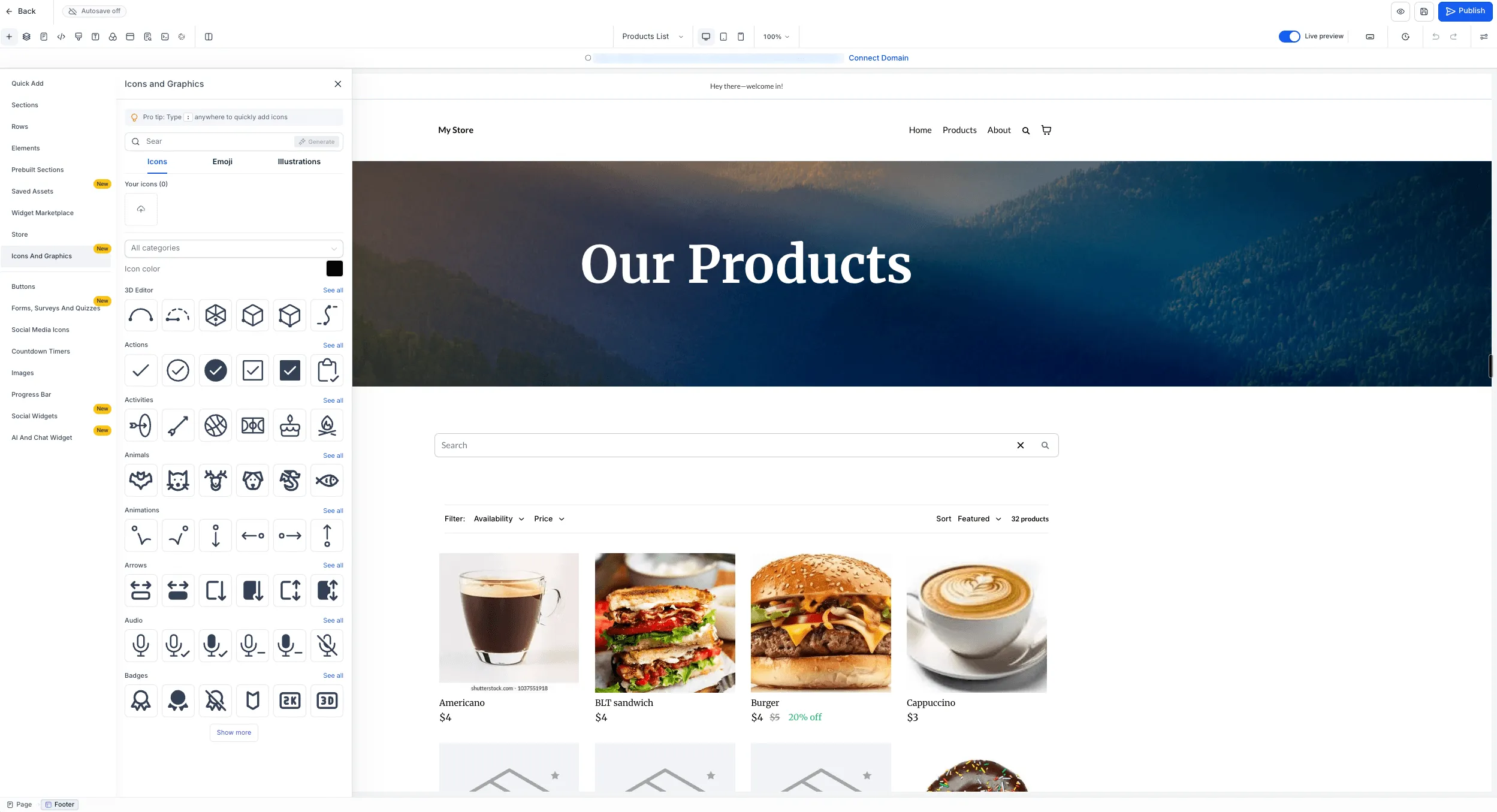
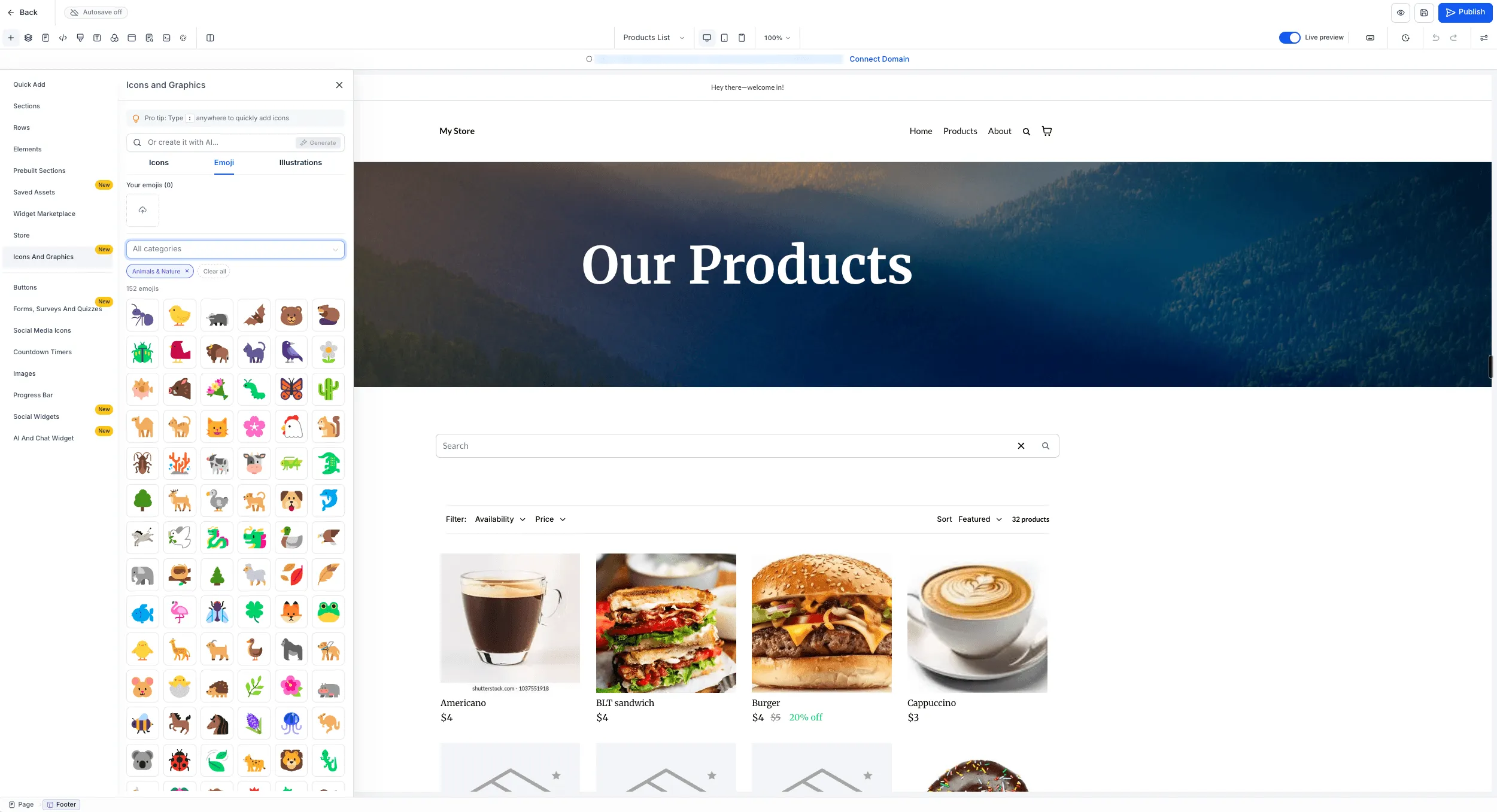
A native Graphic Library is now available in the Funnel, Website, Store, and Webinar Builders. It includes more than 11,000 icons, emojis, and illustrations, with category browsing and search.
For users building websites and funnels, this reduces the need to source graphics elsewhere and upload them manually.
What You Can Do
- Browse and search: Find graphics across the Icons, Emojis, and Illustrations tabs.
- Customize icon colors: Adjust icon colors to match your page design. Color customization is available for icons only, not illustrations.
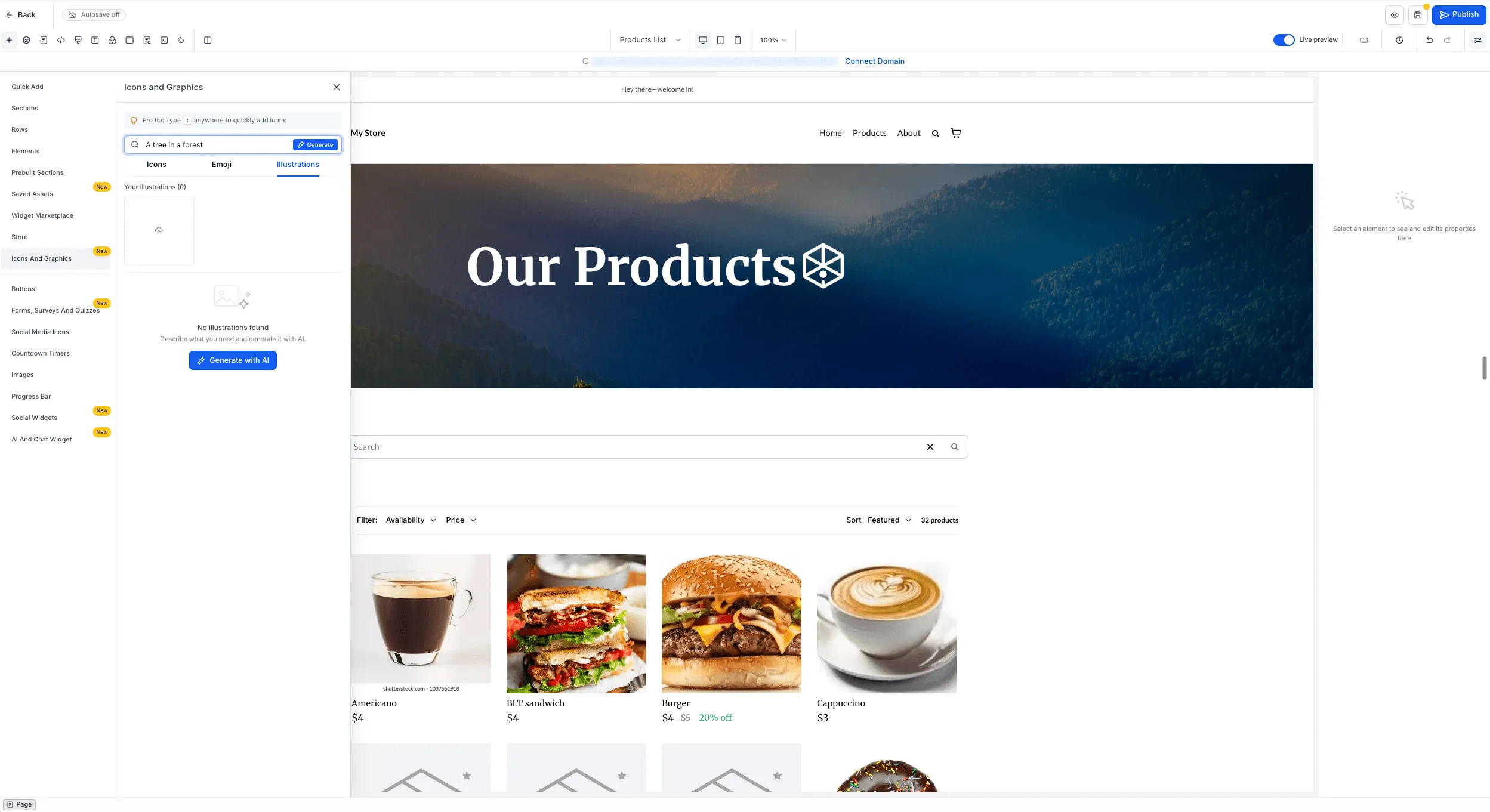
- Create or upload graphics: Generate custom illustrations with AI or upload your own graphics.
- Place graphics where needed: Add standalone graphics to the canvas or attach them to existing elements, such as a leading icon on a button or heading.
How to Use the Graphic Library
- Open a page in the Funnel, Website, Store, or Webinar Builder.
- Open the Graphic Library from the left panel, an element’s settings, or by typing
:while editing text. - Choose the Icons, Emojis, or Illustrations tab, then browse categories or search.
- Click or drag a graphic onto the canvas. For icons, adjust the color as needed.
- To use a custom illustration, select Generate with AI or upload your own graphic.
Release Images
Need Help Applying This Update?
Want help turning this update into a working part of your CRM, marketing, or automation setup?
Get Started or schedule a demo and we’ll help you map the right next step.