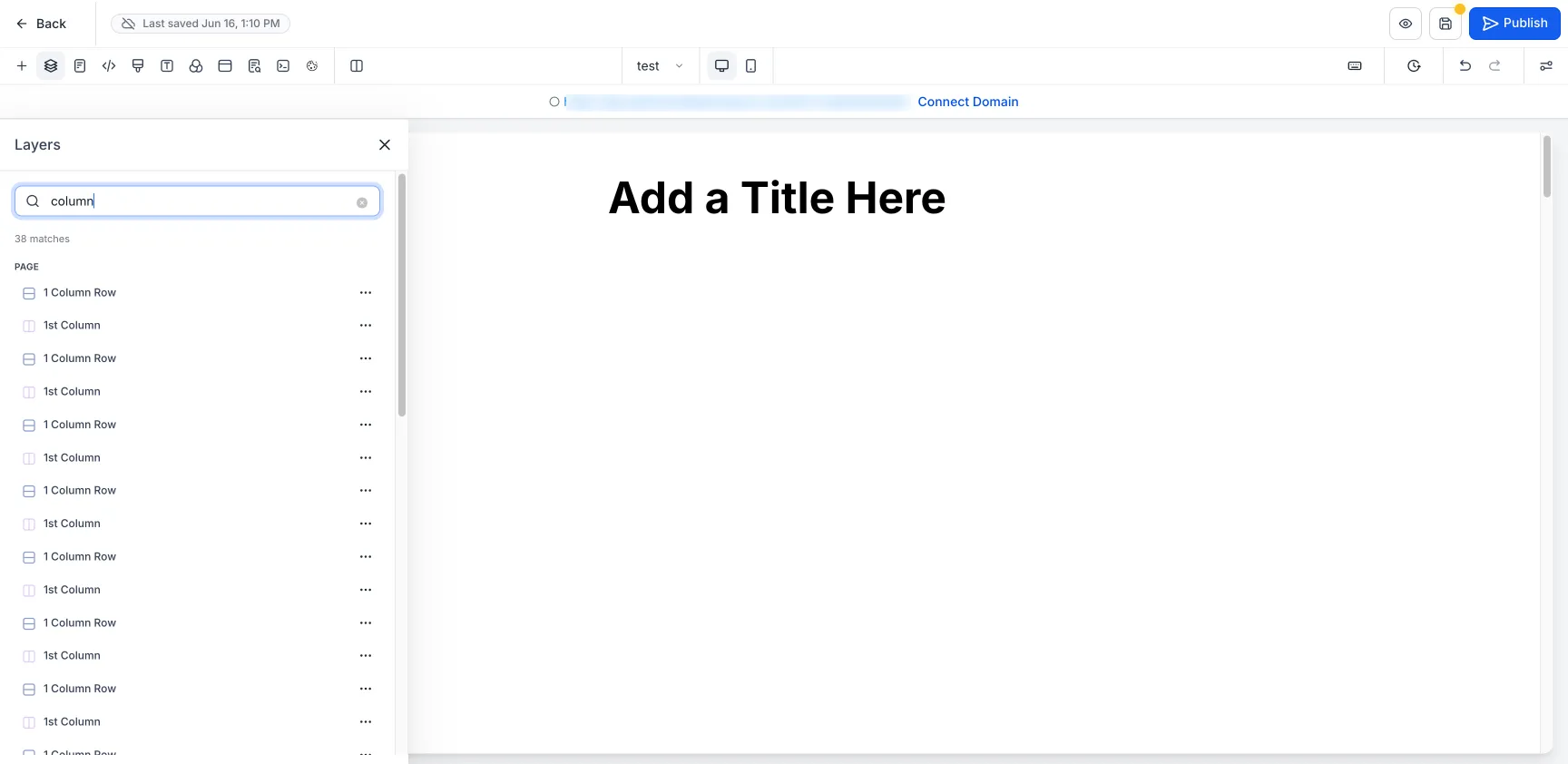
SMBcrm has added search directly inside the Layers panel for the website and funnel builder. This helps you quickly find elements on content-heavy pages without manually expanding long, nested layer trees.
What changed
You can now search for an element by:
- Name, such as a headline or button label
- Type, such as Image, Column, Row, or Section
- Element ID
Matching results appear in a flat list grouped under Page and Popup, with a live count of matches.
What you can do from search results
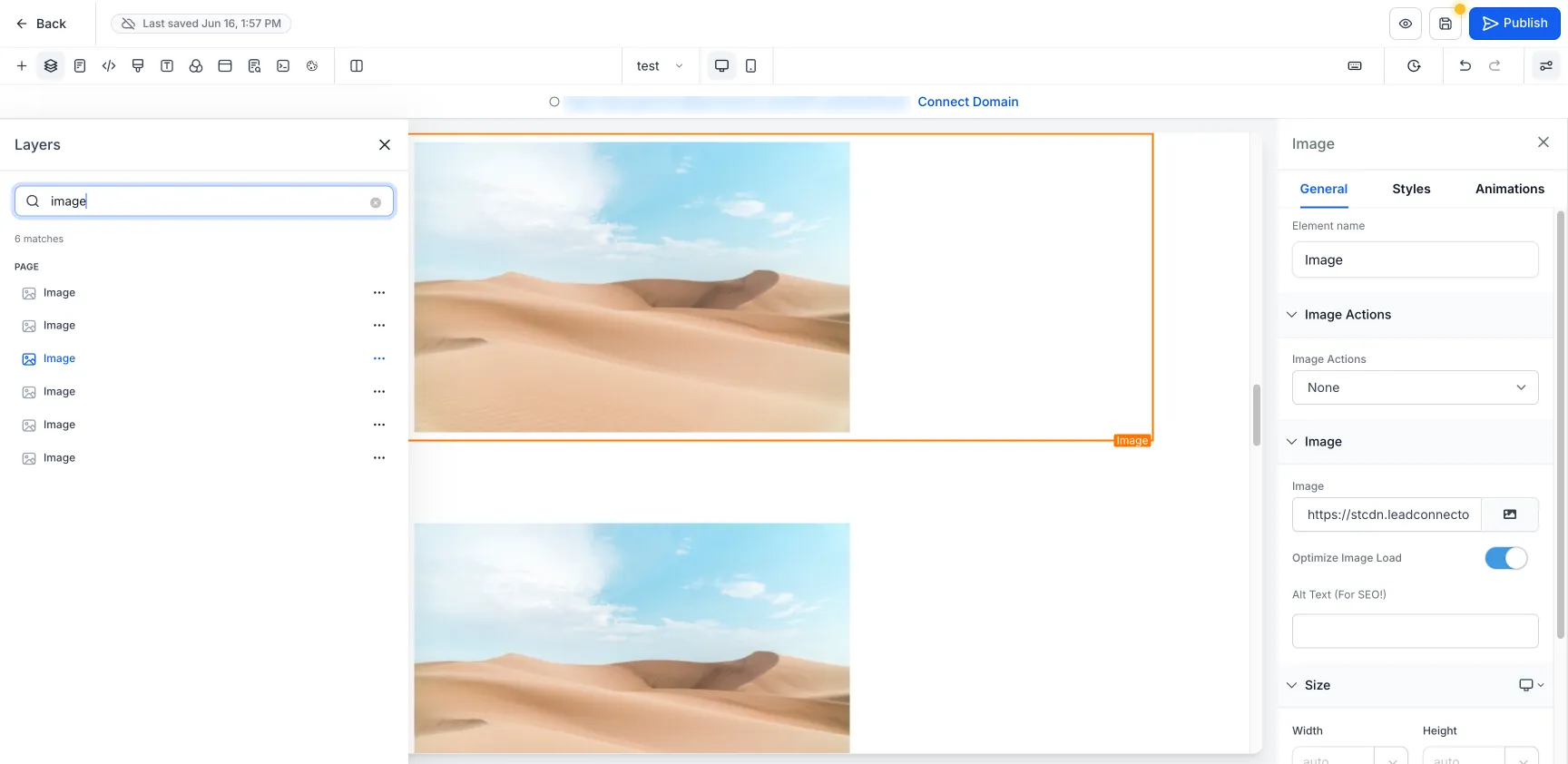
From the results list, you can click an item to jump to it on the canvas, select it, and open its settings. You can also use the result menu to:
- Hide or show the element
- Edit the element
- Clone the element
- Delete the element
Sections, rows, and columns keep their familiar color-coded icons in the results list, making it easier to recognize structure at a glance.
How to use it
- Open the website or funnel builder.
- Edit a page.
- Open the Layers panel from the left toolbar.
- Type an element name, type, or ID in the search box.
- Click a result to jump to and select it, or use the menu for available actions.
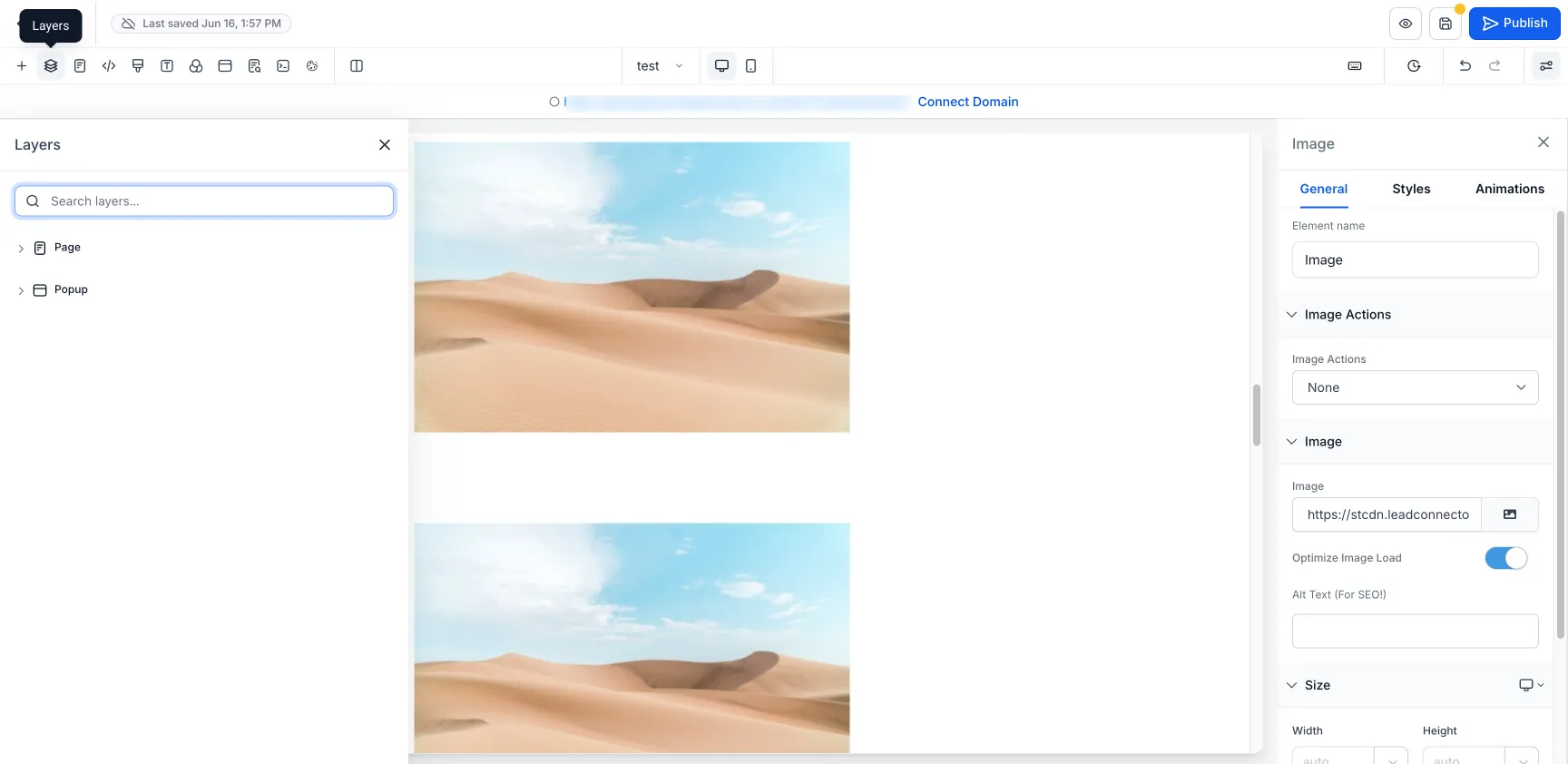
- Clear the search to return to the full Layers tree.
Good to know
- Search applies to the current page only, including Page and Popup branches.
- It does not search other pages or funnel steps.
- Matching is case-insensitive and works with partial text.
- Results update as you type.
- Clearing the search restores the full Layers tree.
In Case You Missed It
You may also want to read about appointment sorting in Contacts and Conversations.
Need Help Applying This Update?
Want help turning this update into a working part of your CRM, marketing, or automation setup?
Get Started or schedule a demo and we’ll help you map the right next step.