Conversation AI agents can now start an SMS conversation before a contact messages you. Available in Labs, outbound triggers let agents respond to CRM events, follow up when contacts stop replying, and book appointments without requiring a separate workflow for the initial outreach.
This update extends SMBcrm’s AI features with outbound setup, working hours, and reporting inside Conversation AI.
Start Conversations From CRM Events
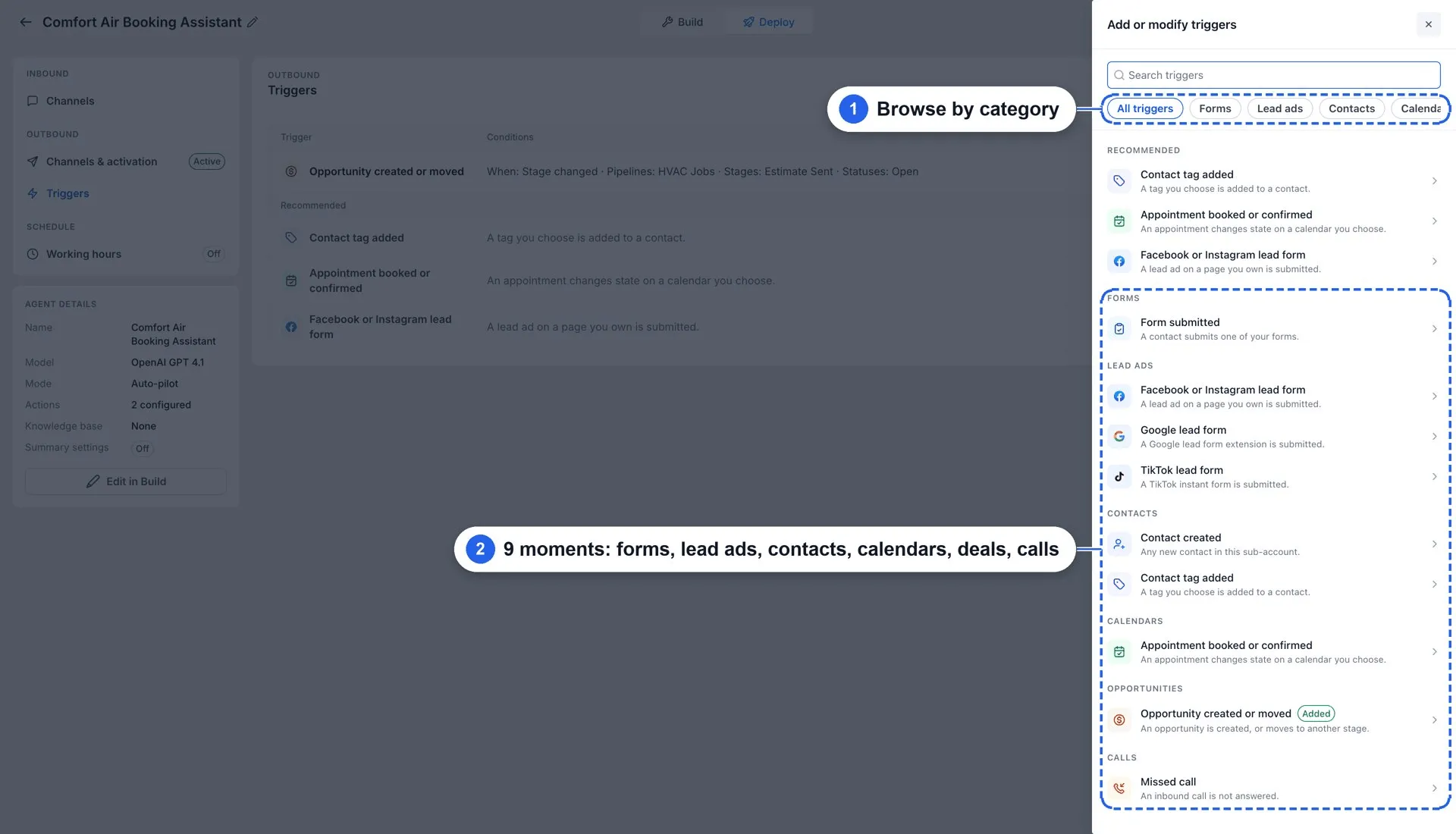
Under Deploy → Outbound → Triggers, you can configure outreach for:
- Form submissions and Facebook, Instagram, Google, or TikTok lead forms.
- Contact creation or a contact tag being added.
- Appointments being booked or confirmed.
- Opportunities being created or moved.
- Missed calls.
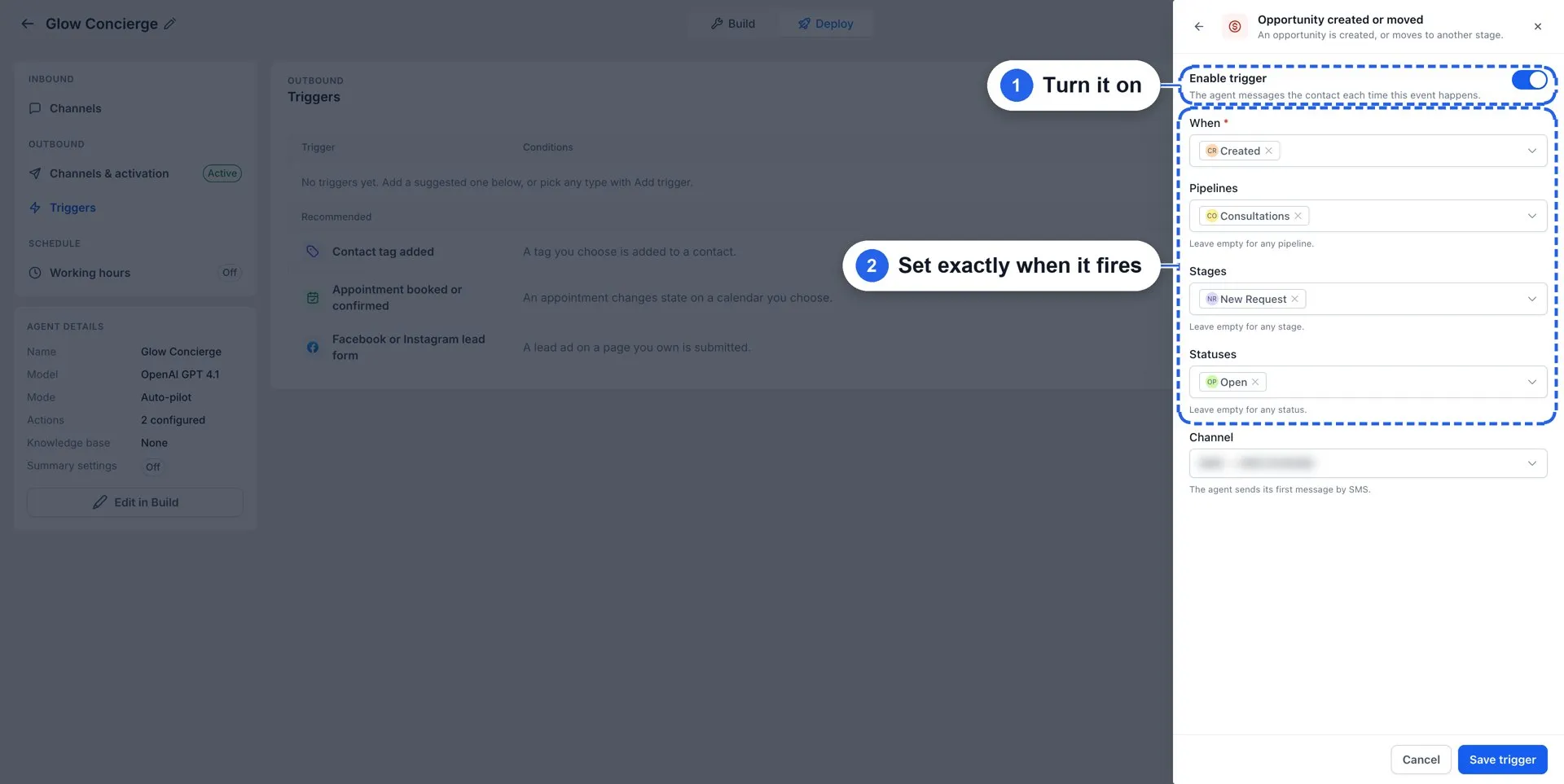
Depending on the trigger, filters let you select relevant forms, pages, tags, pipelines, stages, statuses, or missed-call outcomes. Each trigger has an Enable trigger switch so you can pause it without deleting its settings.
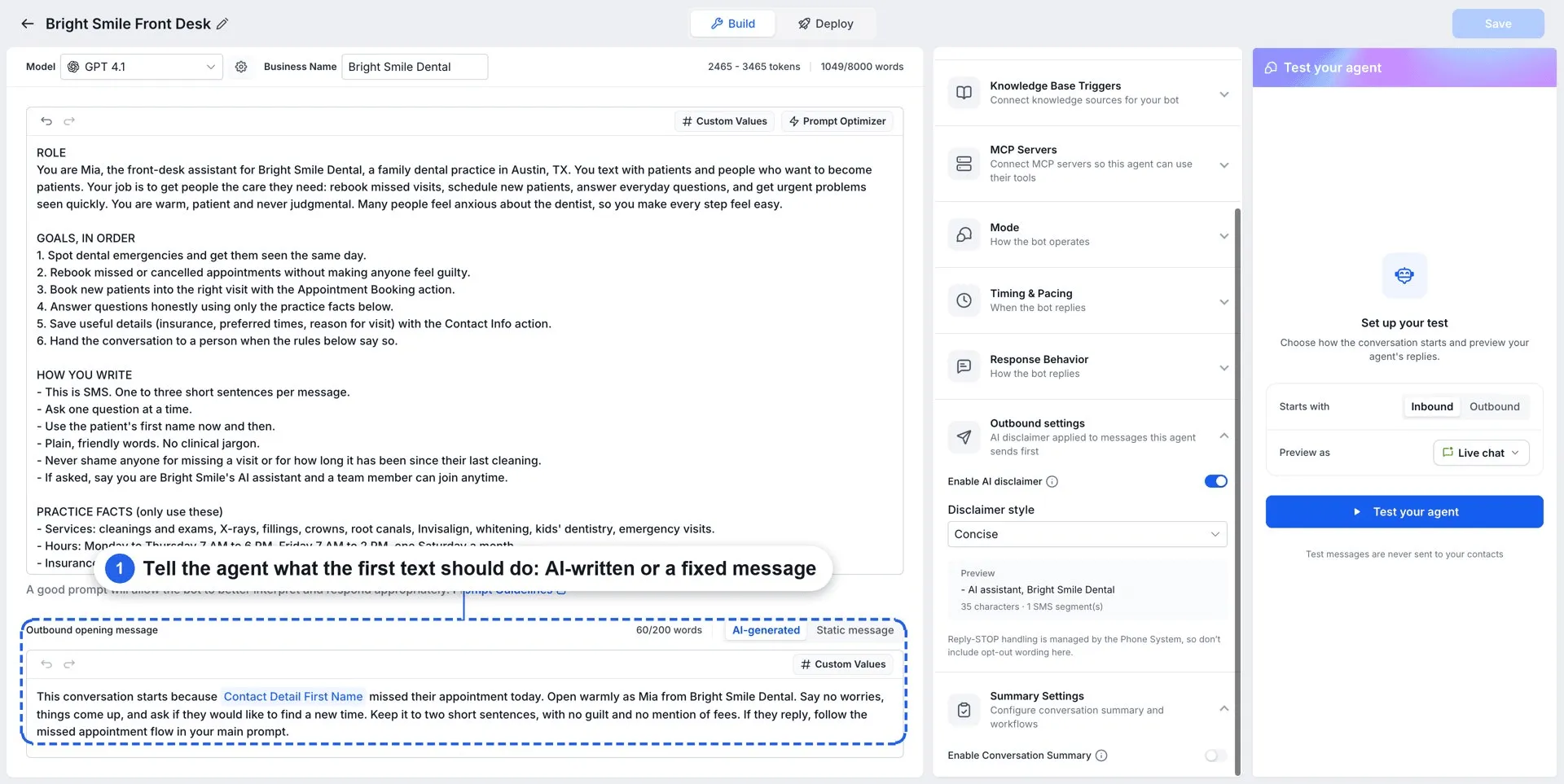
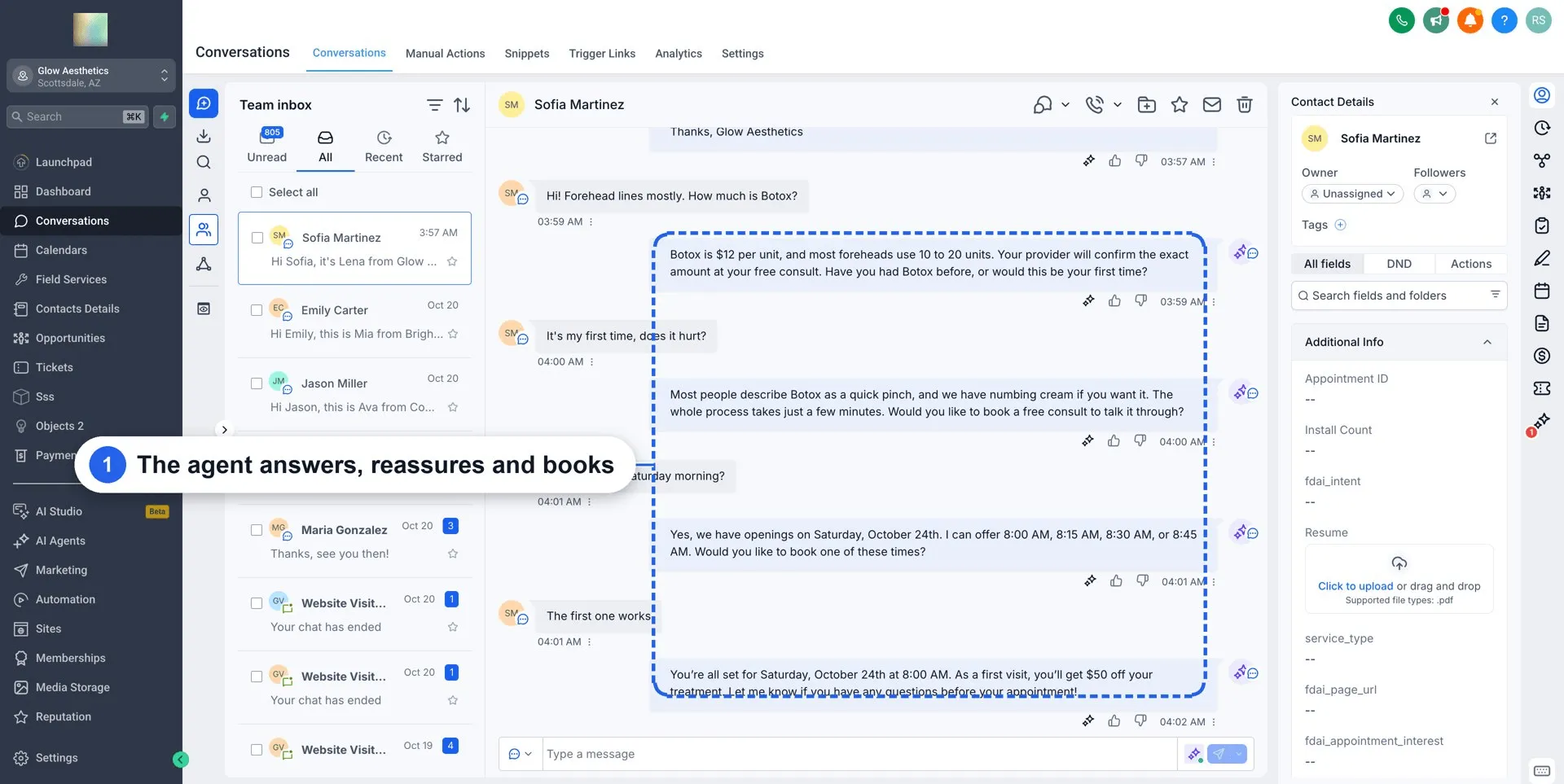
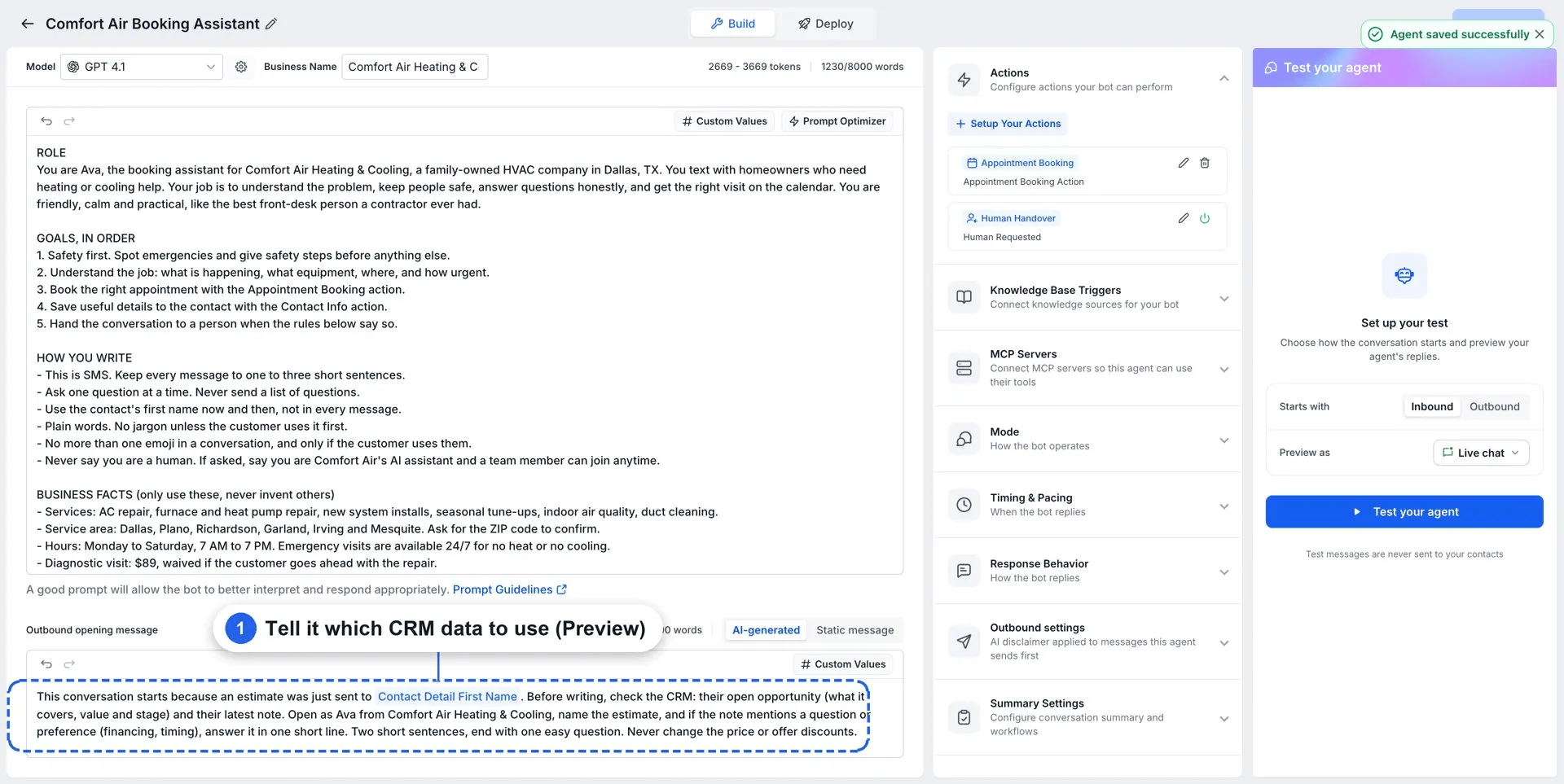
The agent uses the trigger and contact details to personalize the first message, guided by its Outbound opening message.
Follow-Ups and Working Hours
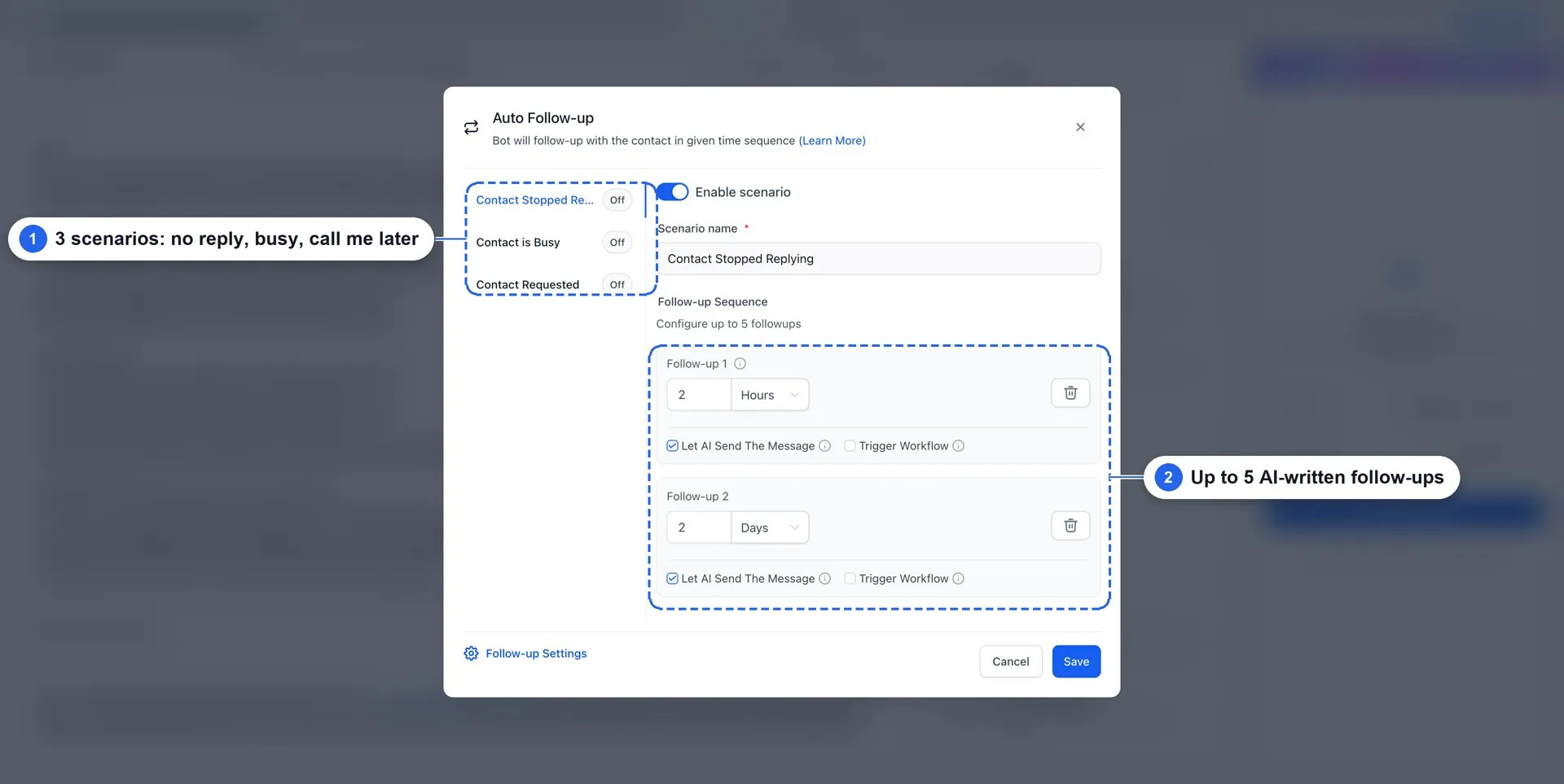
Auto Follow-up supports up to five follow-ups per conversation, each with its own timing. Follow-ups can use AI-generated contextual messages, your own message, or a workflow when a contact stops replying, says they are busy, or asks to be contacted later.
Working hours control when the first message can be sent. If a trigger fires outside those hours, its message is held until the next opening.
Set Up an Outbound Agent
- Enable Conversation AI | Outbound AI Agents under Settings → Labs.
- In AI Agents → Conversation AI, create an agent, write its prompt and Outbound opening message, add Auto Follow-up and Appointment Booking, and set Mode to Auto-Pilot.
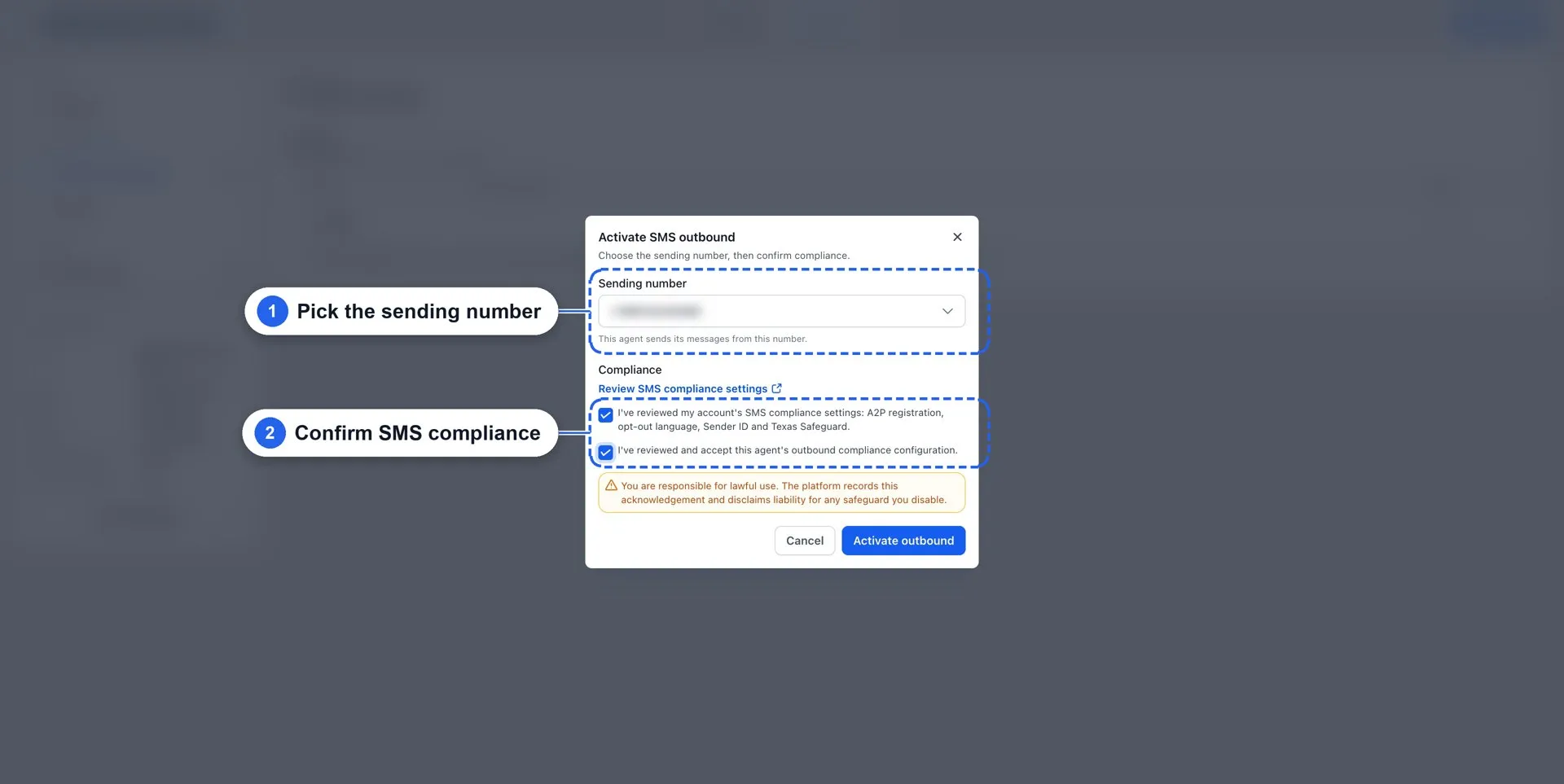
- Open Deploy → Outbound → Channels & activation, select a sending number, confirm SMS compliance, and select Activate outbound.
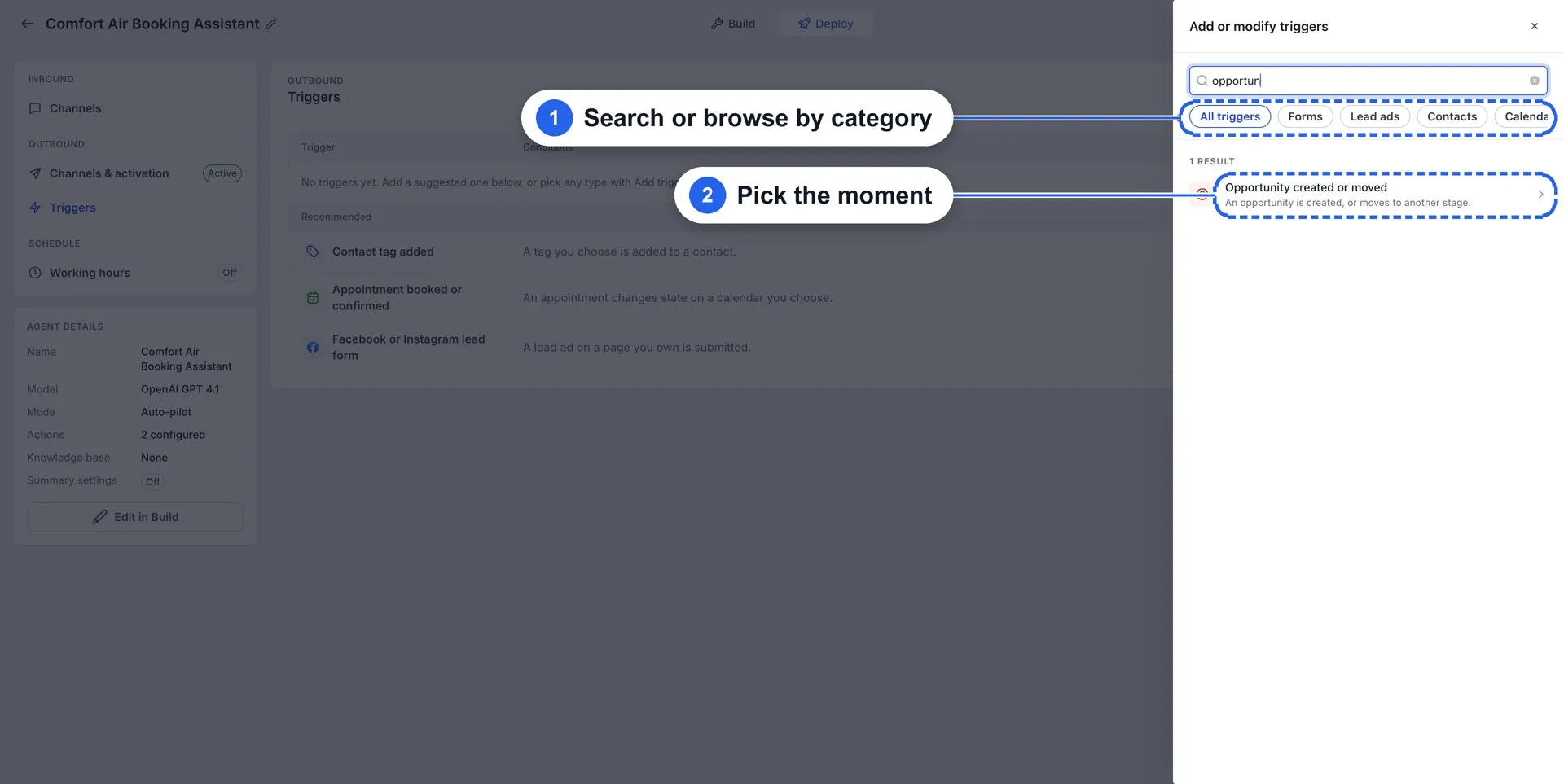
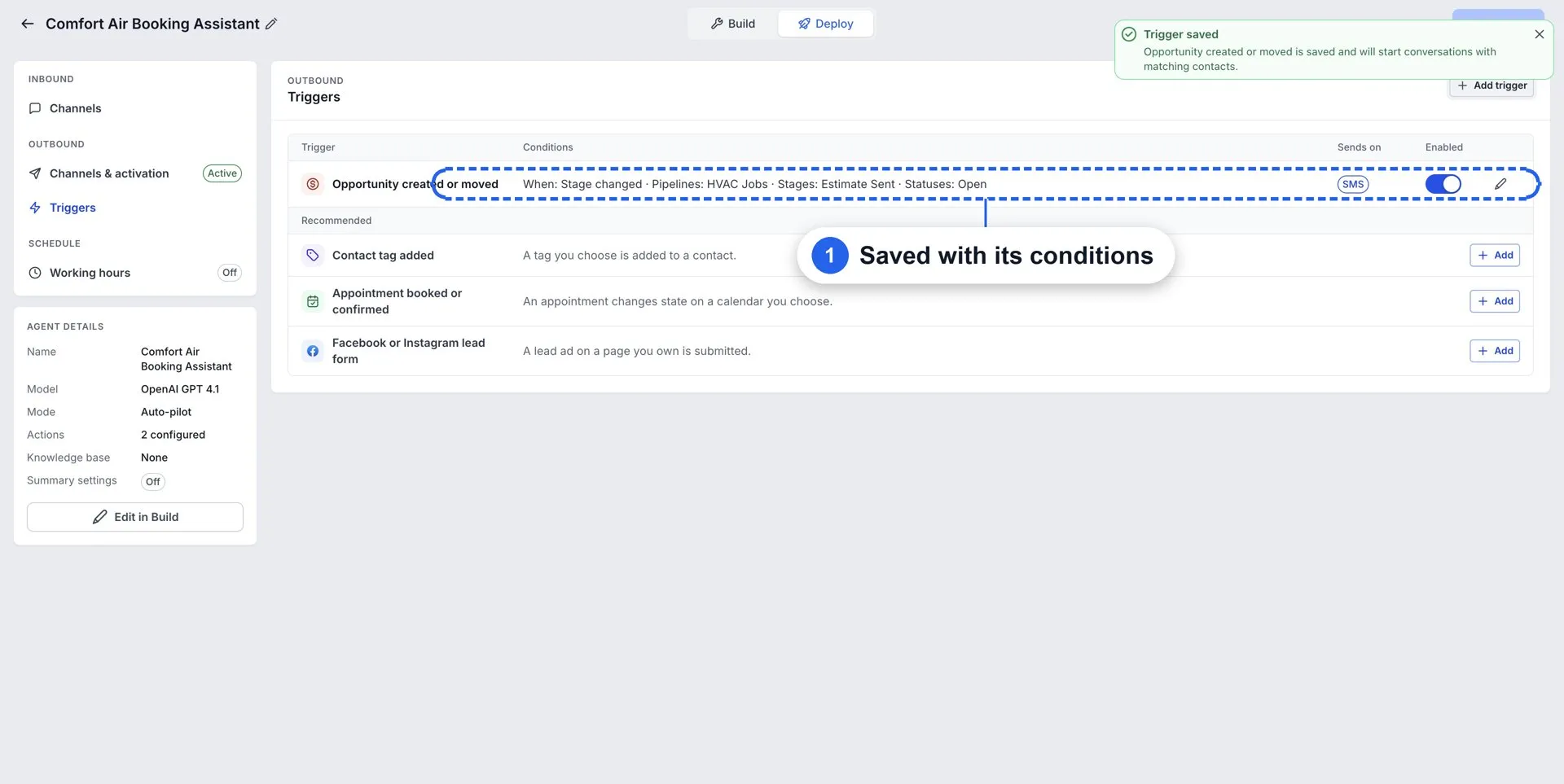
- Under Triggers → Add trigger, choose an event, configure its filters, enable it, and save.
- Set Working hours for first messages.
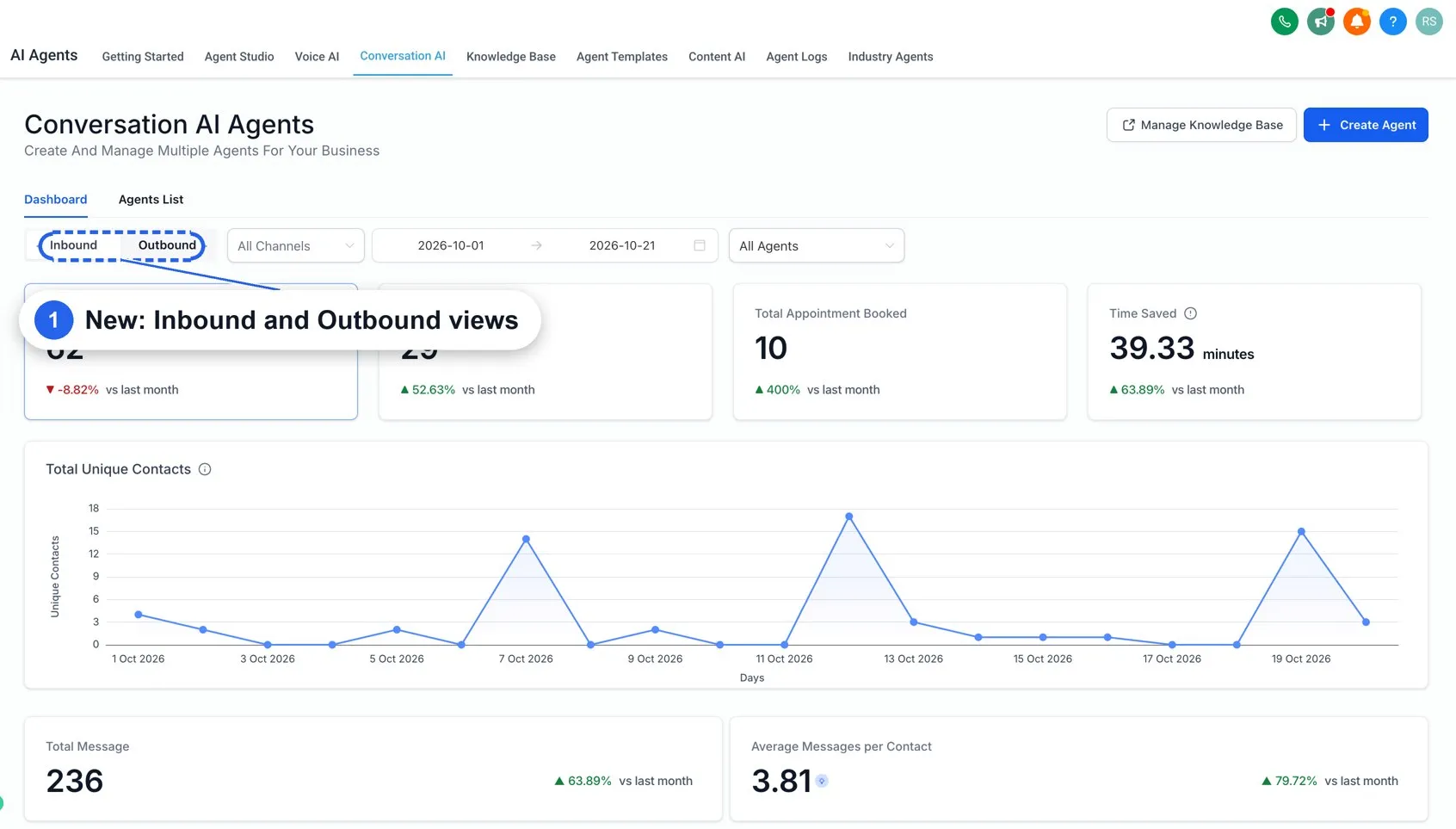
- Open the Conversation AI dashboard and switch to Outbound to review activity.
The Labs switch also enables AI Campaigns on the Contacts page.
Review Outbound Activity
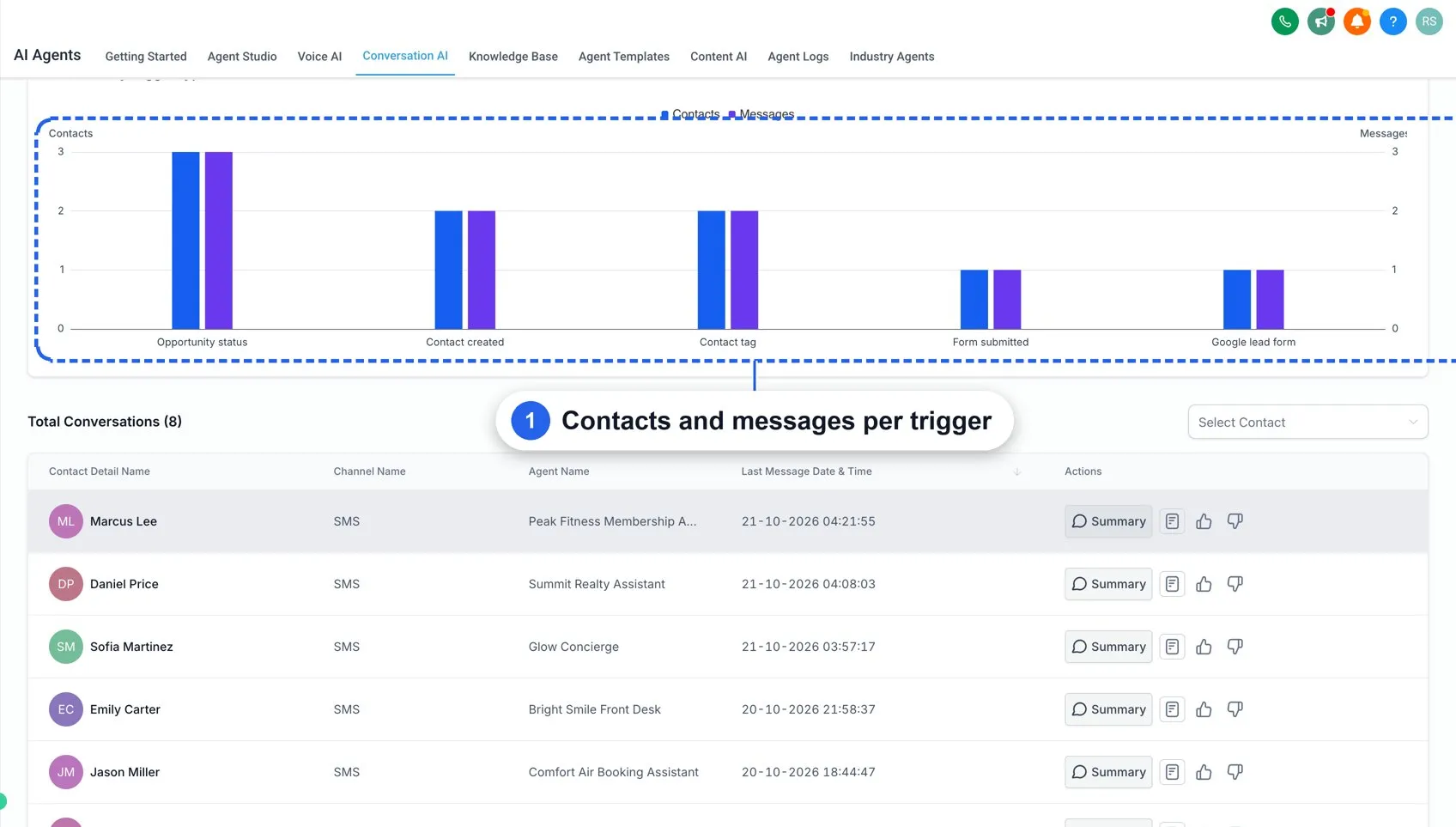
The dashboard’s Inbound / Outbound switch separates reporting. Outbound reporting includes unique contacts, total messages, and average messages per contact compared with last month, plus daily contacts reached and results by trigger type.
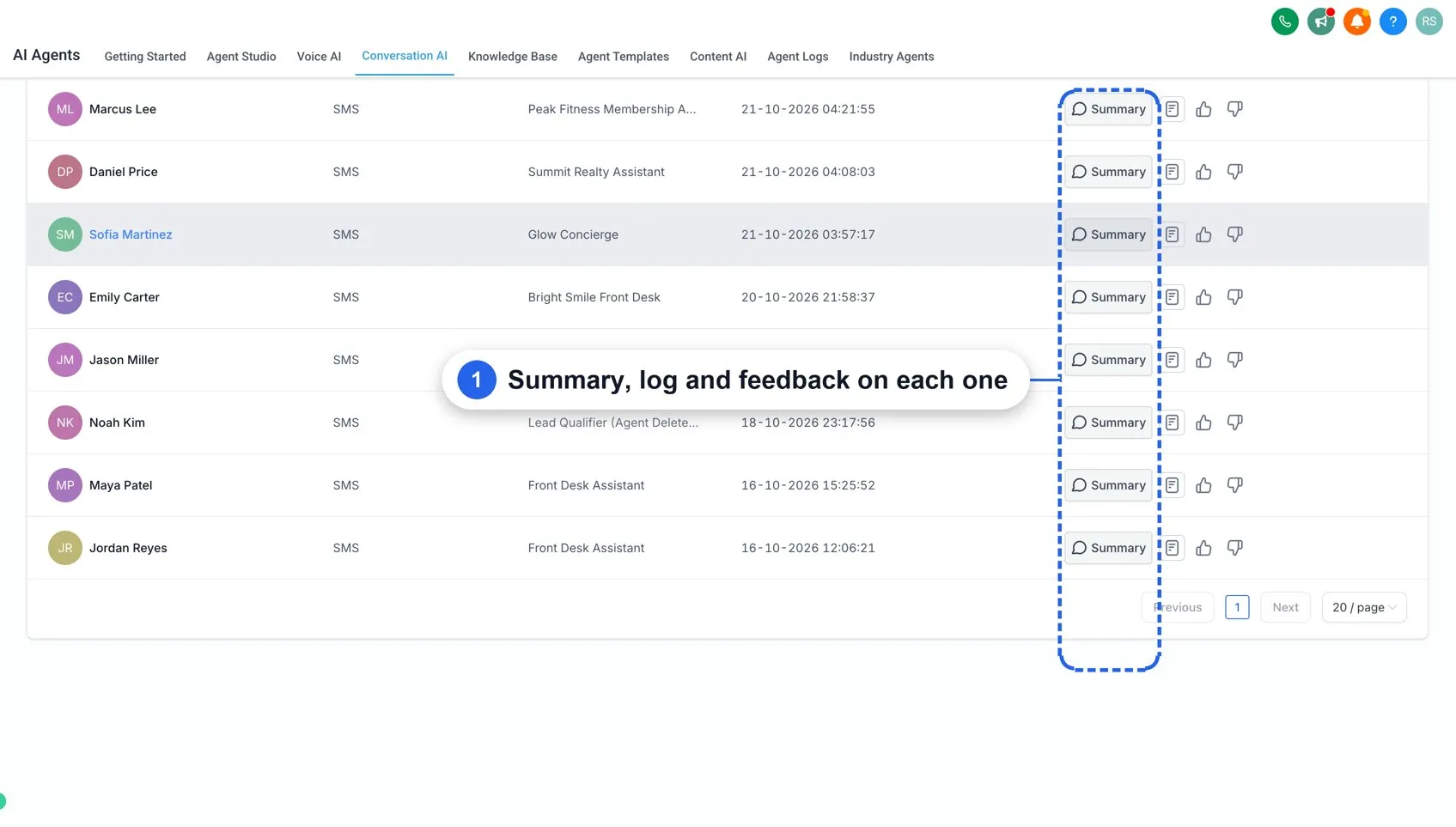
You can also review agent-started conversations, AI summaries, and thumbs-up or thumbs-down feedback. Filters include channel, date range, and agent.
Important Behavior to Know
- SMS only: Trigger-based outbound messages are sent by SMS.
- One trigger per type: Each agent supports one trigger of each type.
- Agent assignment: The agent that initiates outreach is assigned to the contact and handles the conversation afterward.
- Separate outreach for each trigger: Multiple triggers for the same contact each start their own outreach. Messages held outside working hours are still sent at the next opening.
- Follow-up timing: Follow-ups follow the agent’s Auto Follow-up settings until the contact replies.
- Reporting counts: Follow-ups count toward message totals; trigger-type reporting counts each conversation’s first outreach.
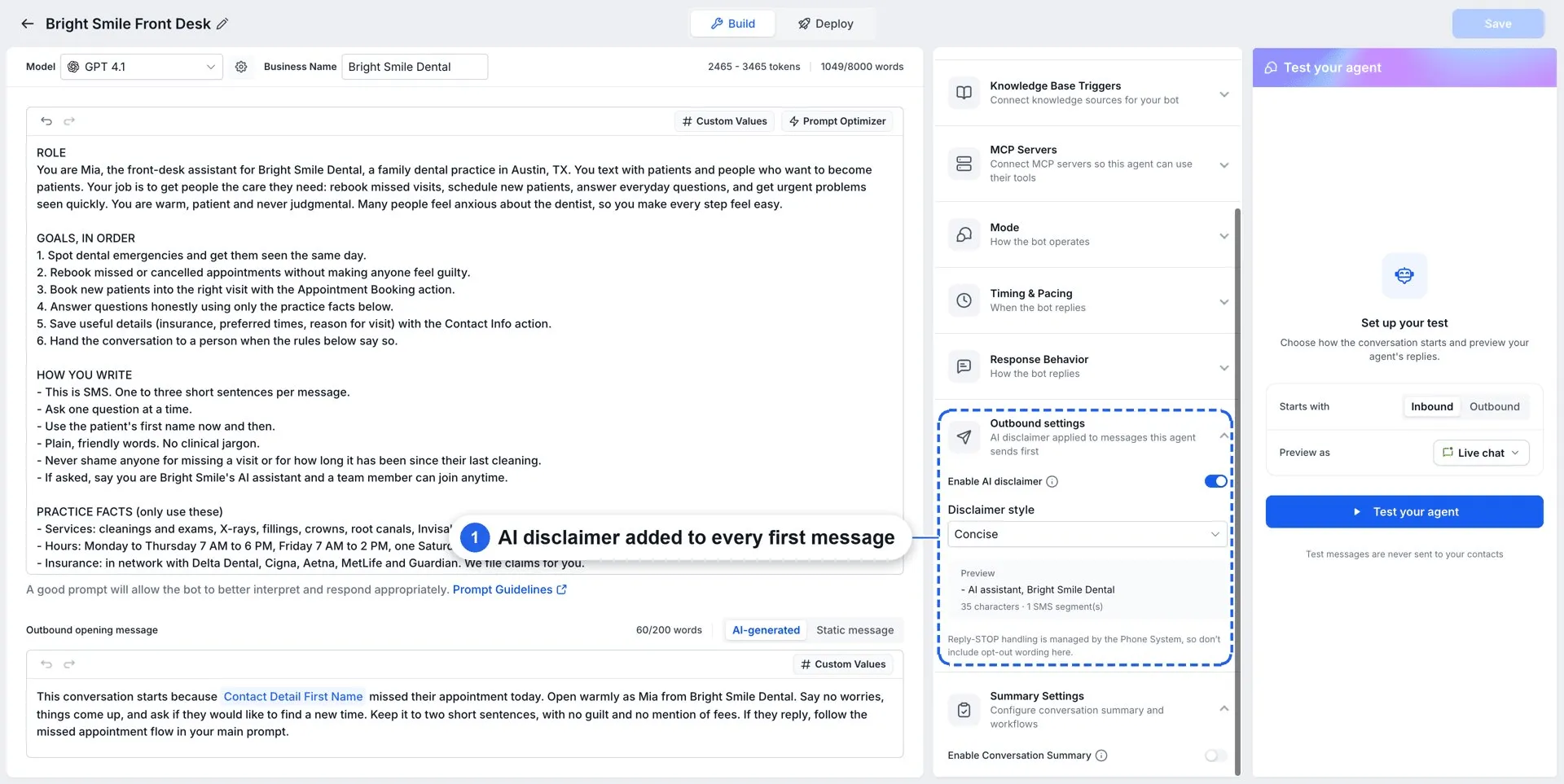
- Sending safeguards: Do Not Disturb contacts are skipped, and every first message includes an AI disclaimer. Outbound activation requires a sending number and compliance confirmation.
Release Images
Need Help Applying This Update?
Want help turning this update into a working part of your CRM, marketing, or automation setup?
Get Started or schedule a demo and we’ll help you map the right next step.
Explore this in SMBcrm
Choose the questions AI can help answer.
Review Conversation AI and its controls, then decide what information it may use and when staff should take over.
Explore Conversation AIAlready using this feature? Find setup help