SMBcrm Rentals now supports optional add-ons such as pet fees, GPS units, guided tours, and equipment insurance. Customers can select extras while booking, and admins can manage them on existing bookings.
Create and reuse add-ons
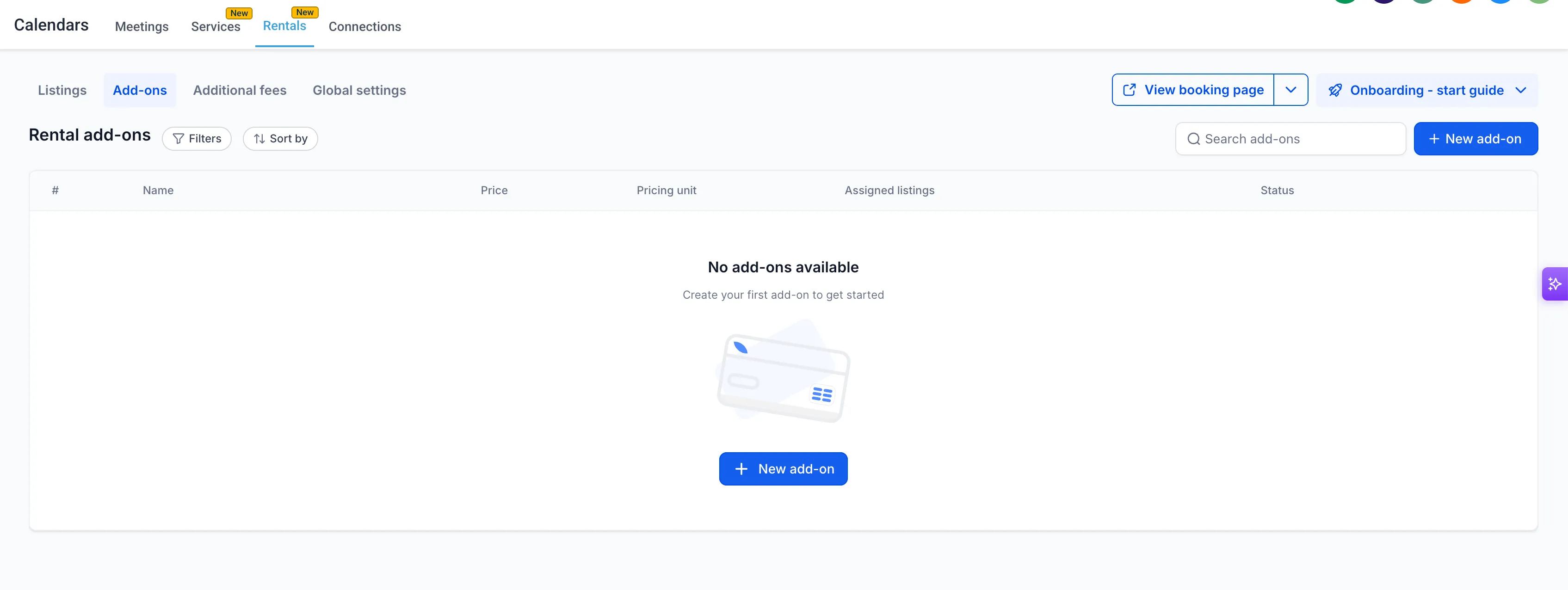
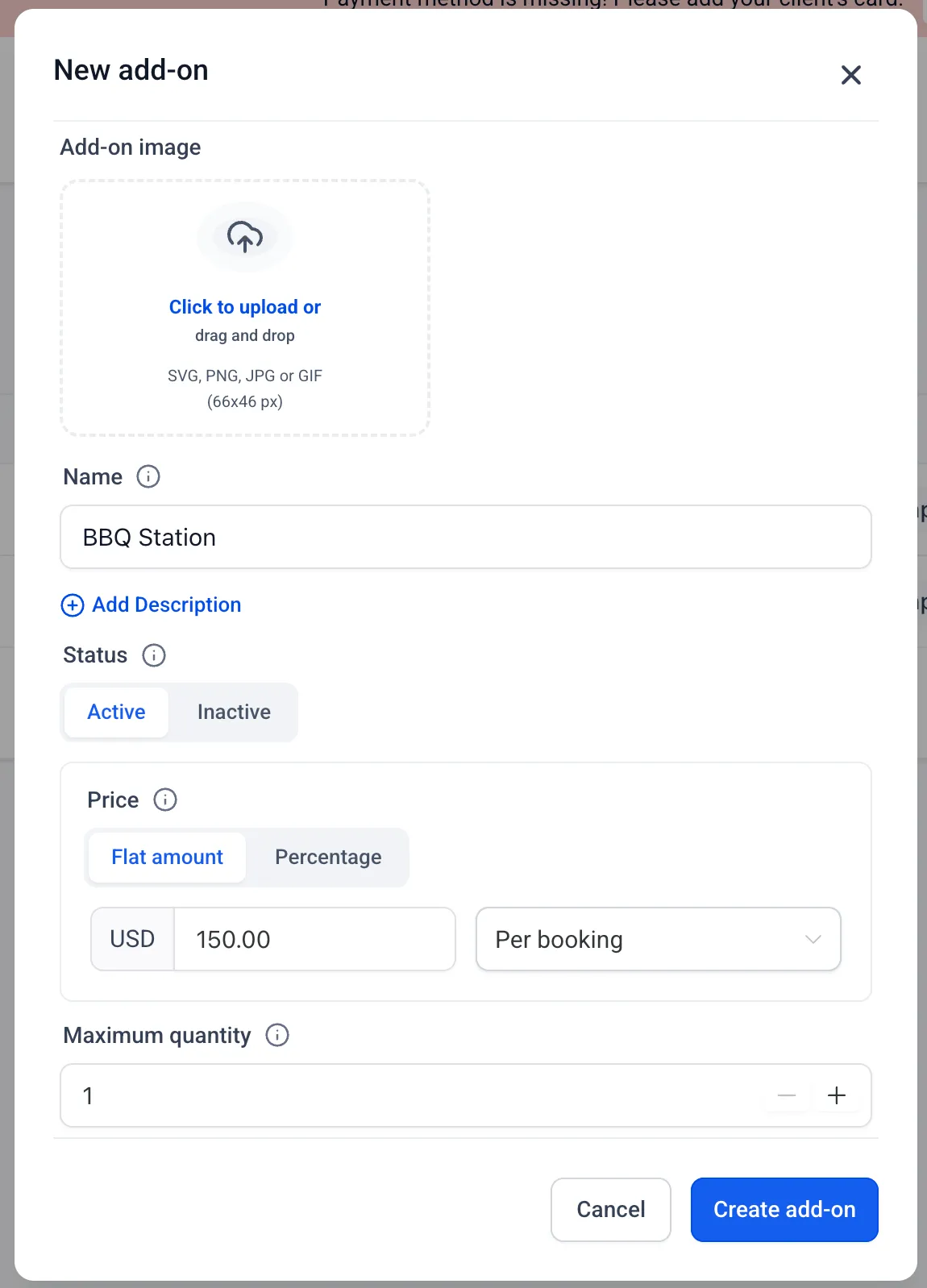
Build a shared catalog under Calendars → Calendar Settings → Rentals → Add-ons. Each add-on supports a name, description, optional image, pricing configuration, maximum quantity, and tax settings.
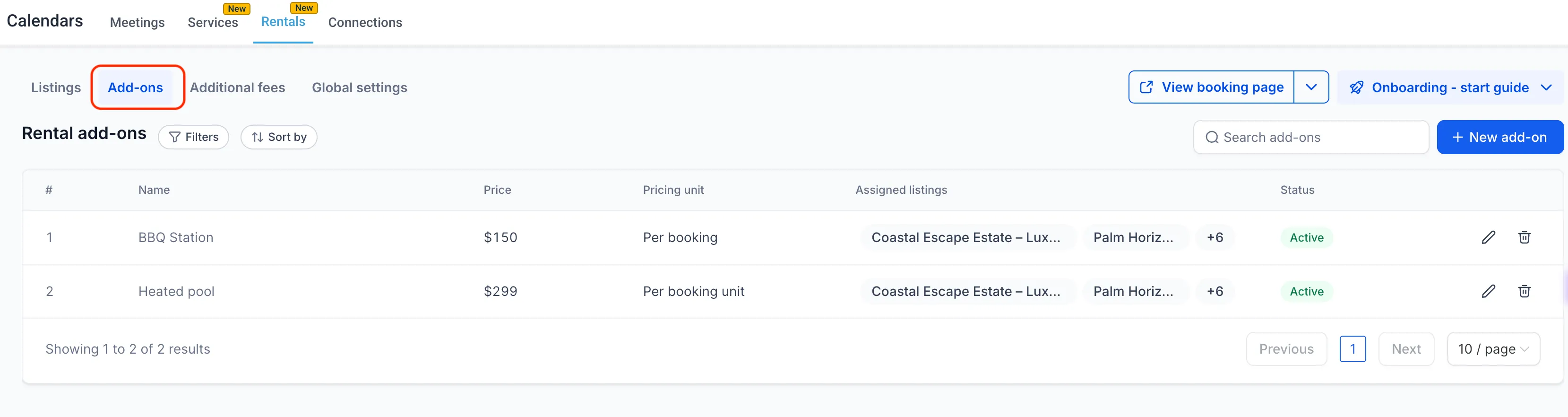
Attach an add-on to multiple listings from the catalog or from an individual listing’s Add-ons tab. Settings can also be edited from a listing, but those changes apply globally to every listing sharing that add-on.
Configure pricing and quantities
Add-ons support two pricing types:
- Flat amount: A fixed charge per booking or per booking unit. Per-unit charges match the listing’s hourly, daily, weekly, or monthly booking unit.
- Percentage: A percentage of the base rental subtotal.
The maximum quantity sets a fixed cap on how many of each add-on can be selected per booking. Taxes can be configured independently for each add-on and appear as a separate line.
Let customers choose extras during booking
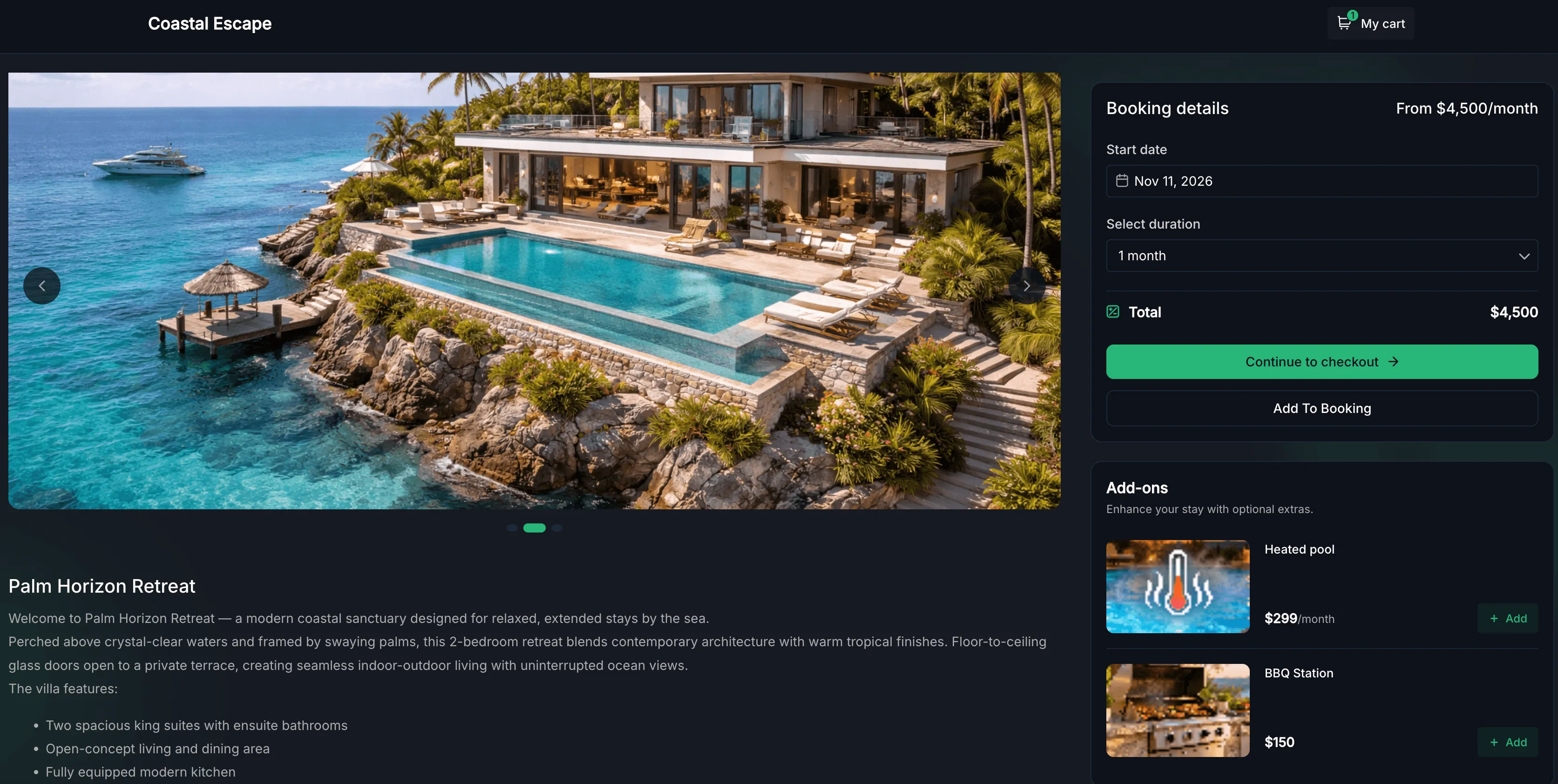
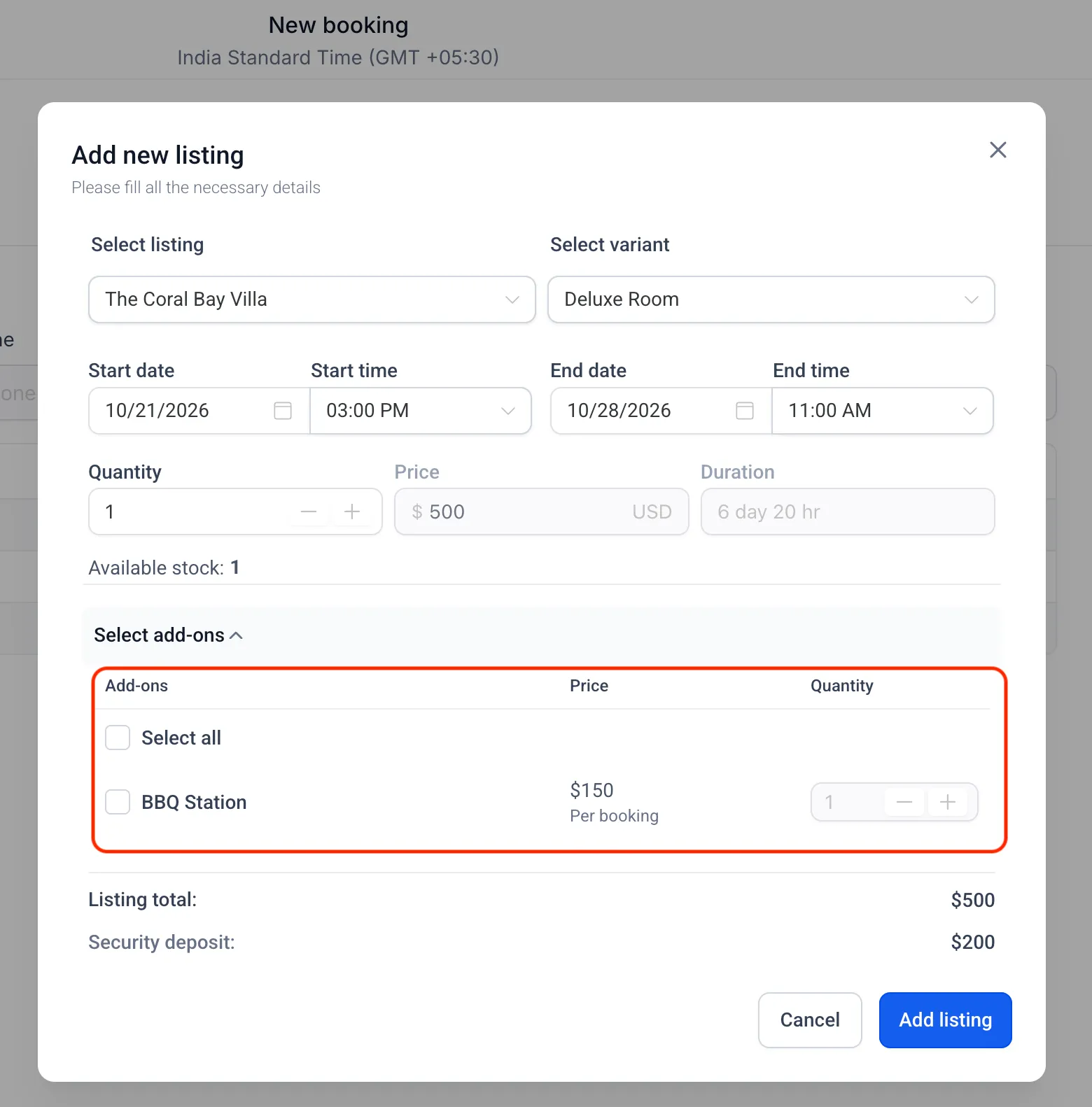
After selecting dates, customers see a dedicated Add-ons section with images, names, descriptions, prices, and quantity selectors. Adding or removing an extra updates the booking total in real time, and each selected add-on appears as an invoice line item.
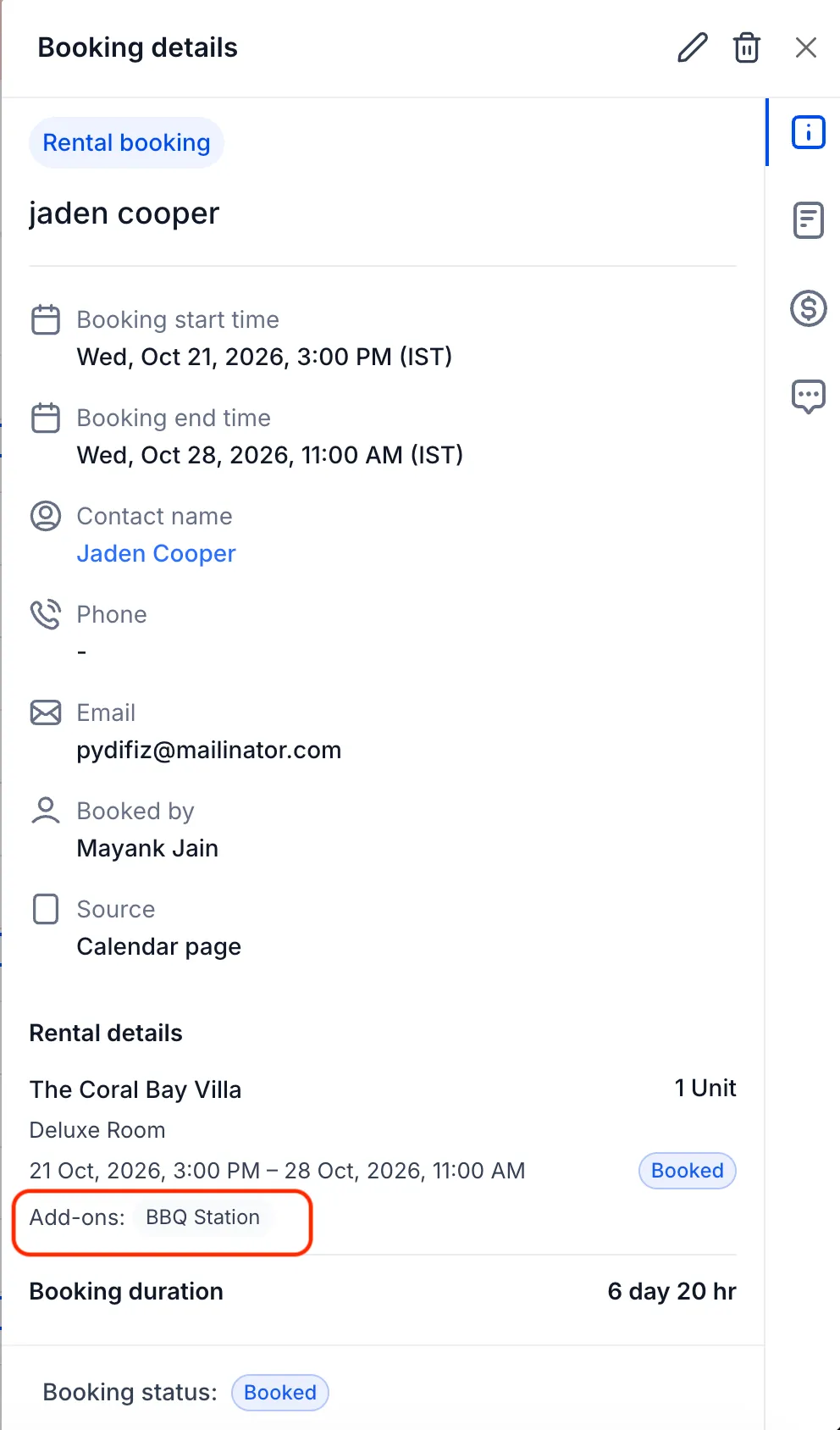
Add-ons marked Hide from booking page remain available to admins but are not shown to customers. Admins can also add or remove extras and change quantities from the booking edit screen.
Set up an add-on
- Go to Calendars → Calendar Settings → Rentals → Add-ons.
- Select + New Add-on and enter the details, pricing, and maximum quantity.
- Optionally select listings, then click Create Add-on.
- To change attached listings later, use the Edit icon in the Add-ons table.
- To configure taxes, save the add-on first, then edit it and select Configure tax.
Release Images
Need Help Applying This Update?
Want help turning this update into a working part of your CRM, marketing, or automation setup?
Get Started or schedule a demo and we’ll help you map the right next step.