SMBcrm Rentals now supports mandatory additional fees, such as cleaning, resort, service, and damage waiver fees. Once attached to a listing, these charges apply automatically to every booking.
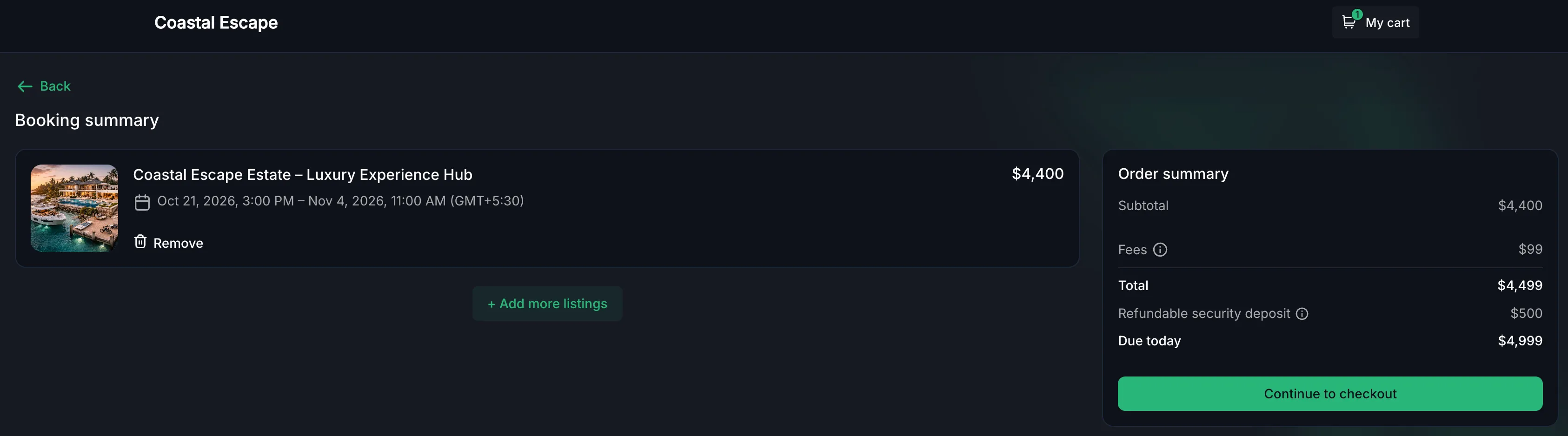
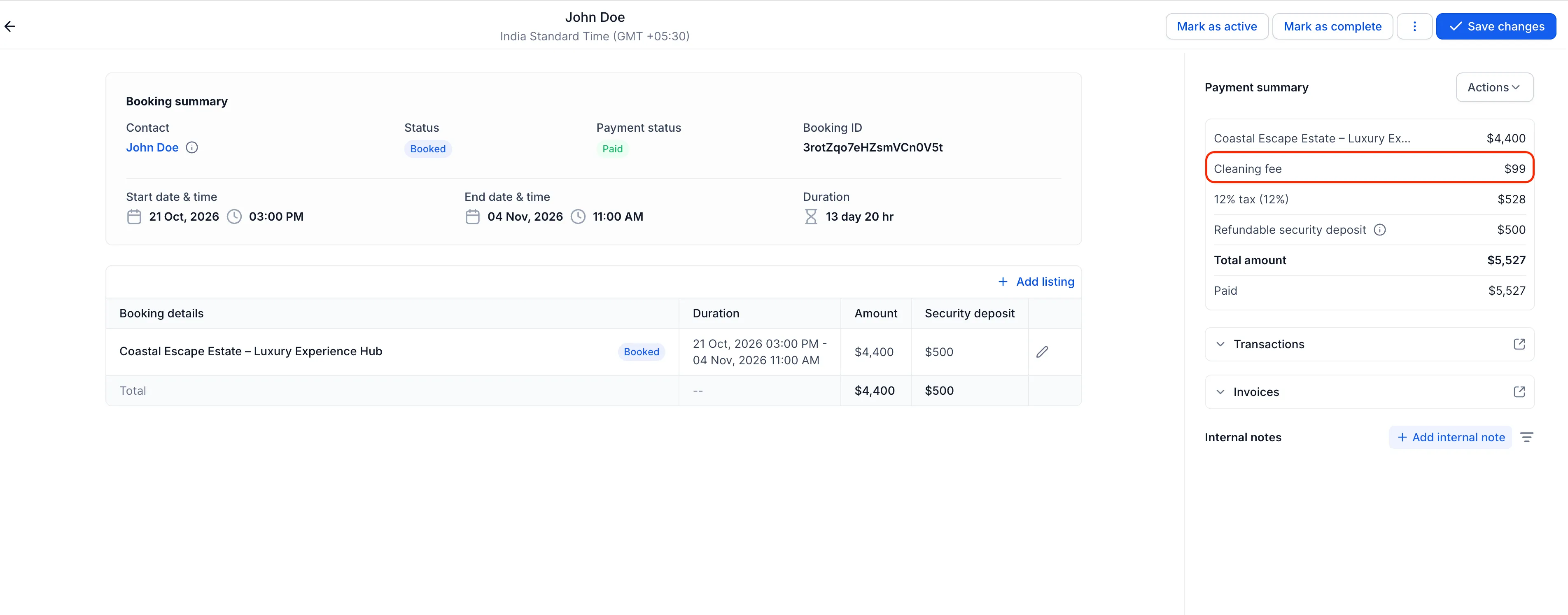
Fees are included in the first total customers see in the booking widget and appear as separate line items on invoices.
Fee Pricing and Configuration
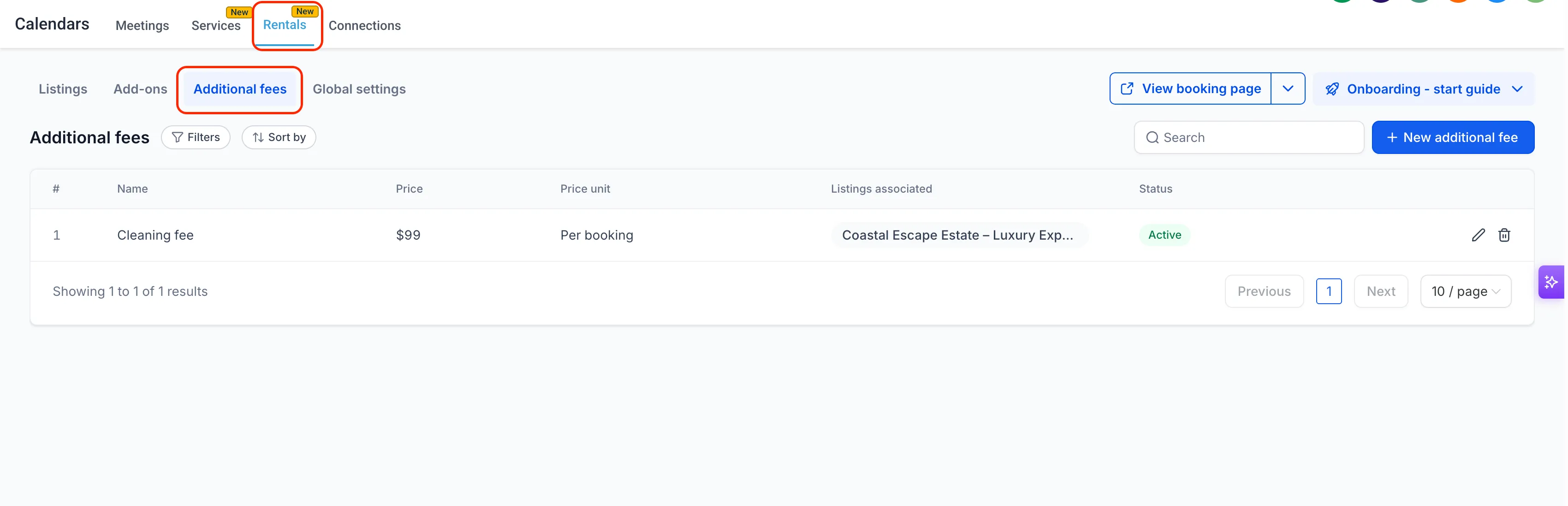
Create reusable fee templates under Calendars → Calendar Settings → Rentals → Additional fees, then attach them to one or more listings.
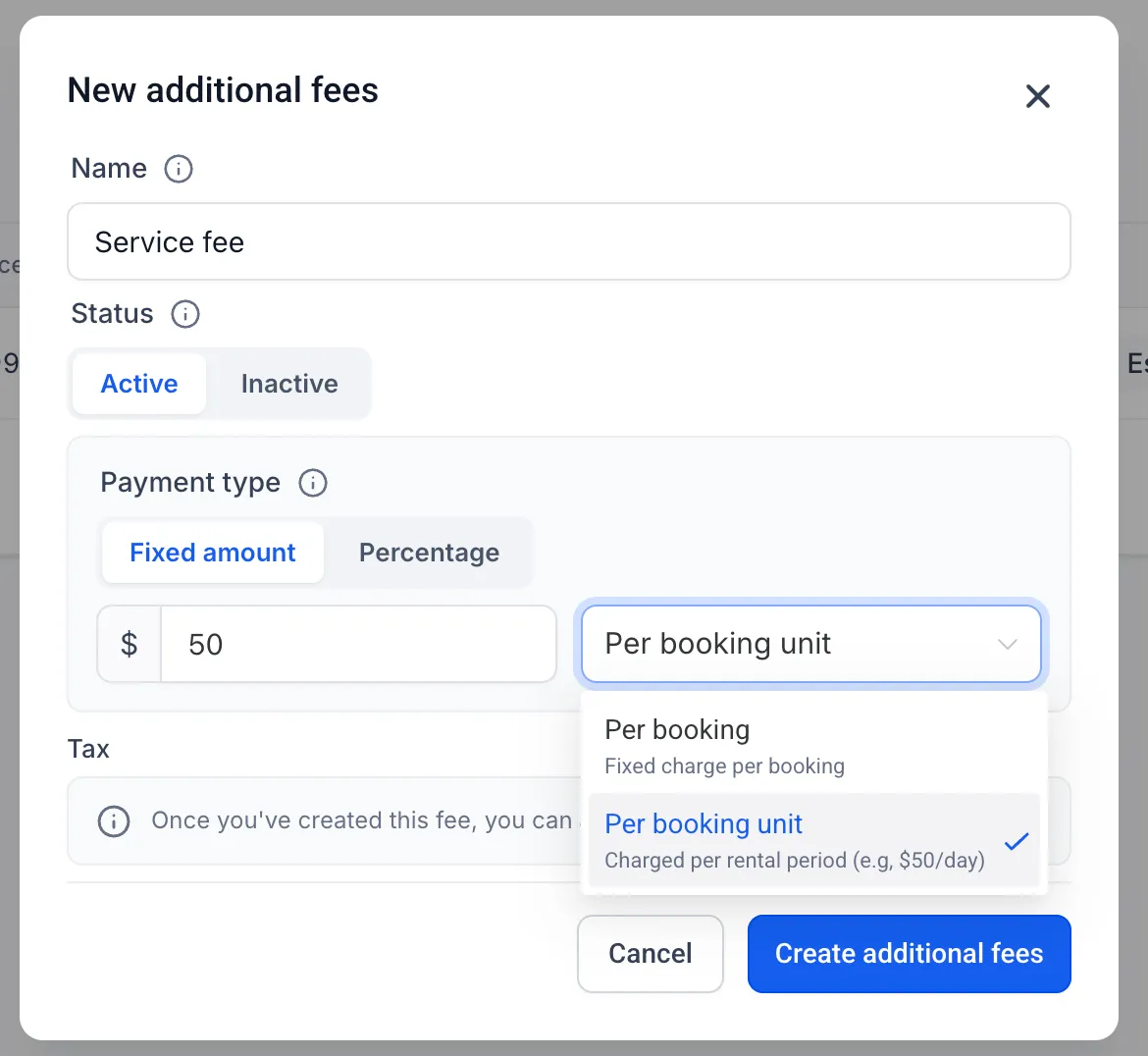
Each fee supports one of two pricing types:
- Flat amount: A fixed charge per booking or per booking unit, such as an hour, day, week, or month, based on the listing’s booking unit.
- Percentage: A charge calculated from the base rental subtotal.
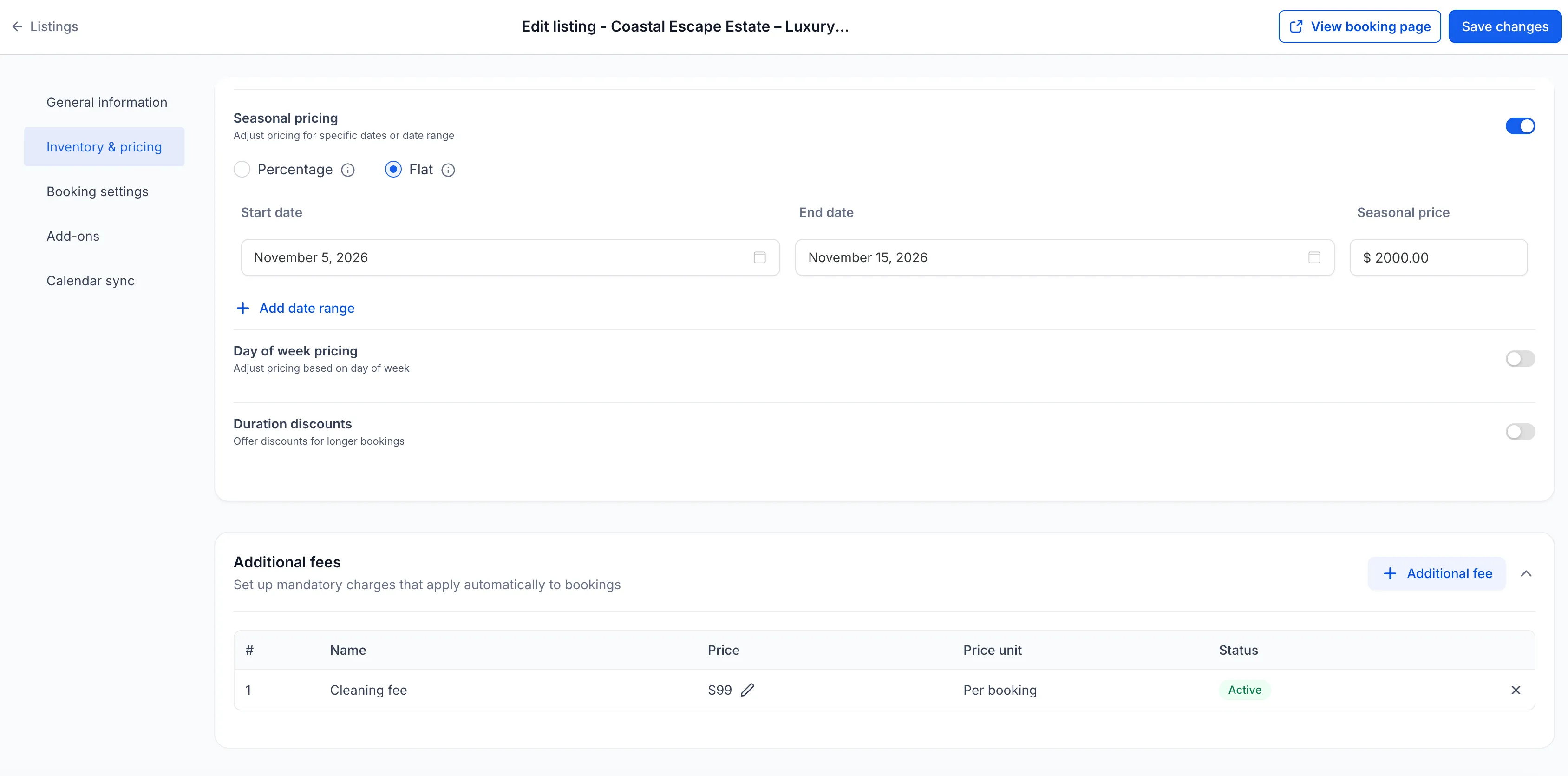
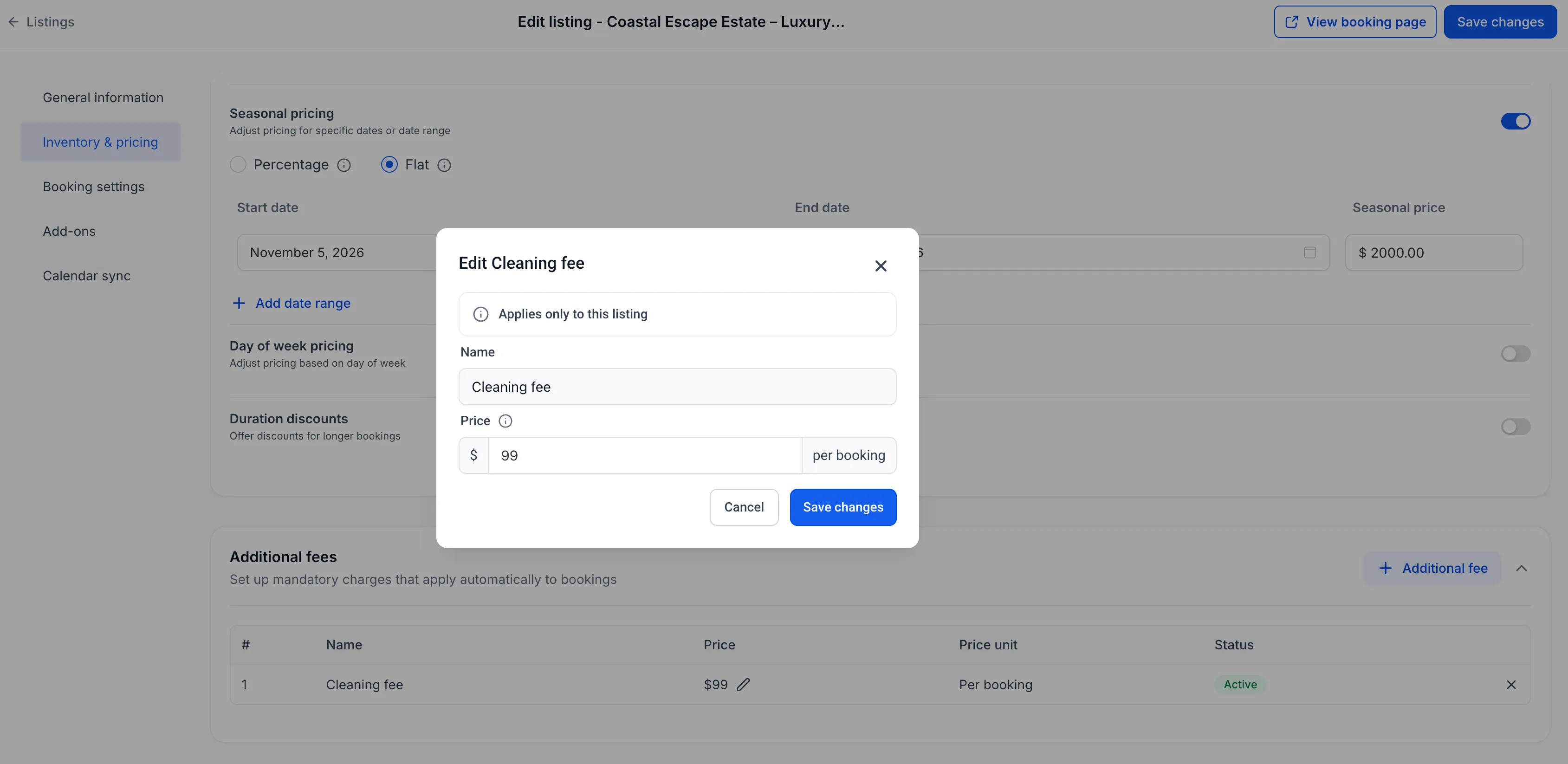
You can override a fee’s amount for a specific listing without changing the global template or other listings.
Taxes can also be configured independently of the base rental price. Tax is calculated on the fee amount and displayed as a separate line item.
Set Up Additional Fees
- Open Calendars → Calendar Settings → Rentals → Additional fees.
- Click + New additional fee and enter the fee name, pricing type, amount, and applicable pricing unit.
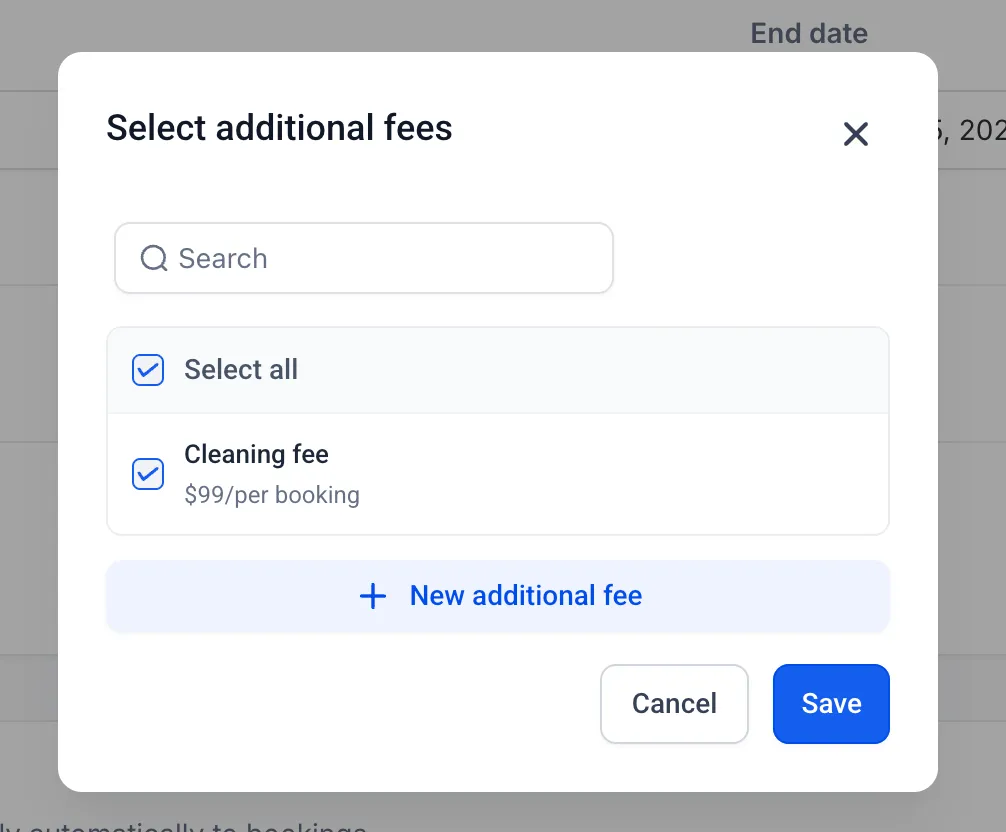
- Edit a rental listing and open Inventory & pricing. In the additional fees section, click + Additional fee to attach a fee.
- To change the amount for that listing only, click the edit icon beside the fee amount.
- To apply tax, edit the fee and click Configure tax.
This keeps mandatory charges separate from the base rental price while making the full booking total visible before checkout.
Release Images
Need Help Applying This Update?
Want help turning this update into a working part of your CRM, marketing, or automation setup?
Get Started or schedule a demo and we’ll help you map the right next step.