Rentals Booking Is Now Available in SMBcrm
Rentals is now available in SMBcrm for businesses that manage bookable inventory such as equipment, vehicles, spaces, vacation properties, event setups, and similar offerings.
Unlike traditional appointment scheduling, Rentals is designed for duration-based, inventory-driven bookings. It helps teams manage availability, pricing, booking types, multi-item checkouts, payments, invoices, and rental calendars from one place.
What Rentals Supports
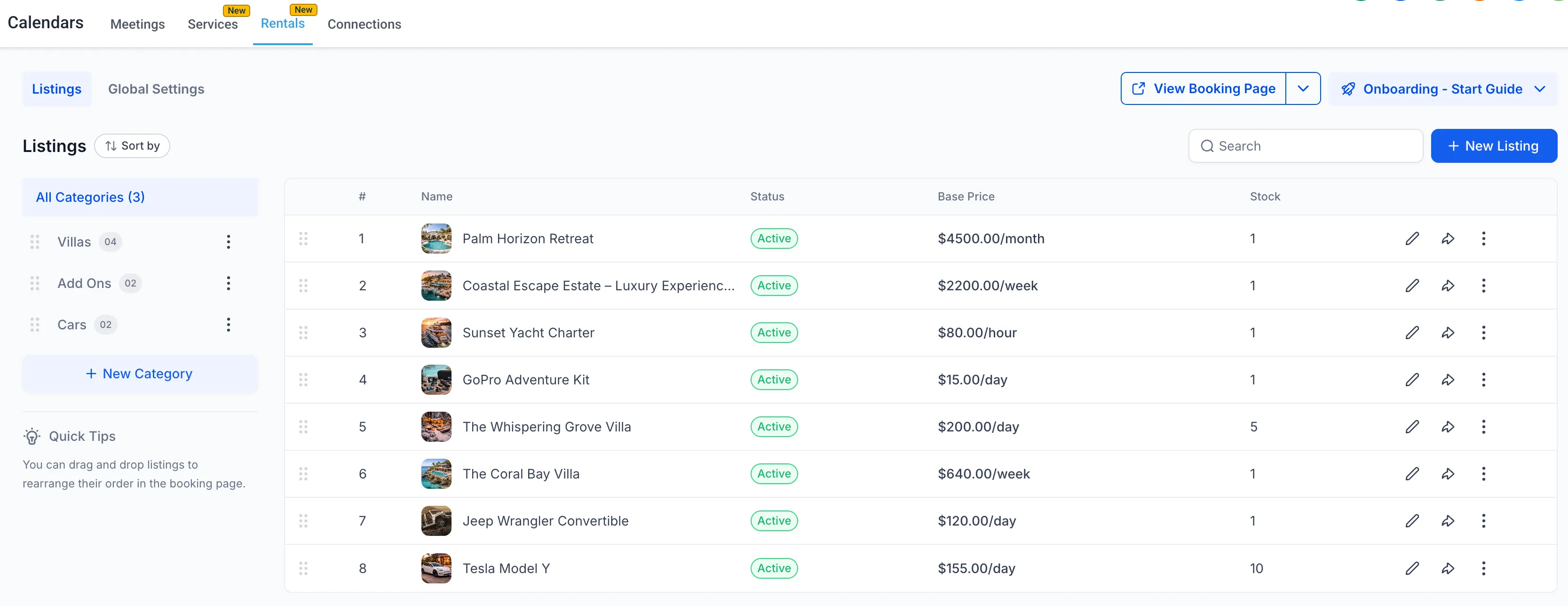
Custom rental listings
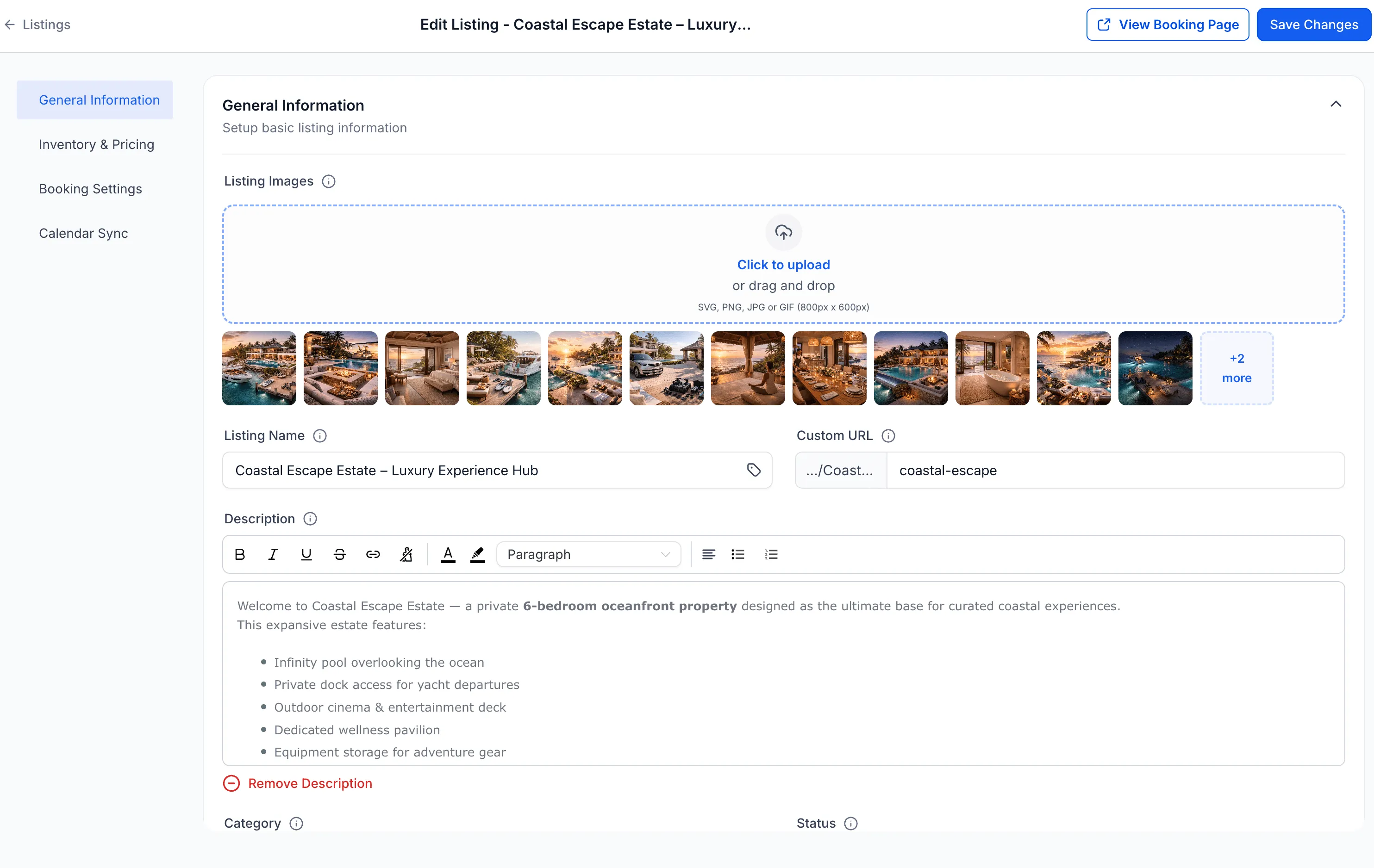
Create listings for each rental offering and configure details such as:
- Pricing by hour, day, week, or month
- Quantity tracking
- Variants such as size, type, or configuration
- Lead time, buffer time, and booking window rules
Inventory and availability control
Rentals tracks how many units of each listing are available for selected dates and helps prevent overbooking by blocking unavailable inventory.
Flexible pricing models
Configure pricing based on how your business rents inventory, including:
- Hourly, daily, weekly, and monthly rentals
- Day-based pricing
- Seasonal pricing
- Tiered pricing by duration and quantity
- Security deposits
Multiple booking types
Each listing can have its own booking behavior:
- Date and time selector for hourly or short-term rentals
- Date selector only for day-based or night-based rentals
- Fixed duration bookings for predefined packages, such as a 4-hour rental or 3-day bundle
Multi-item checkout
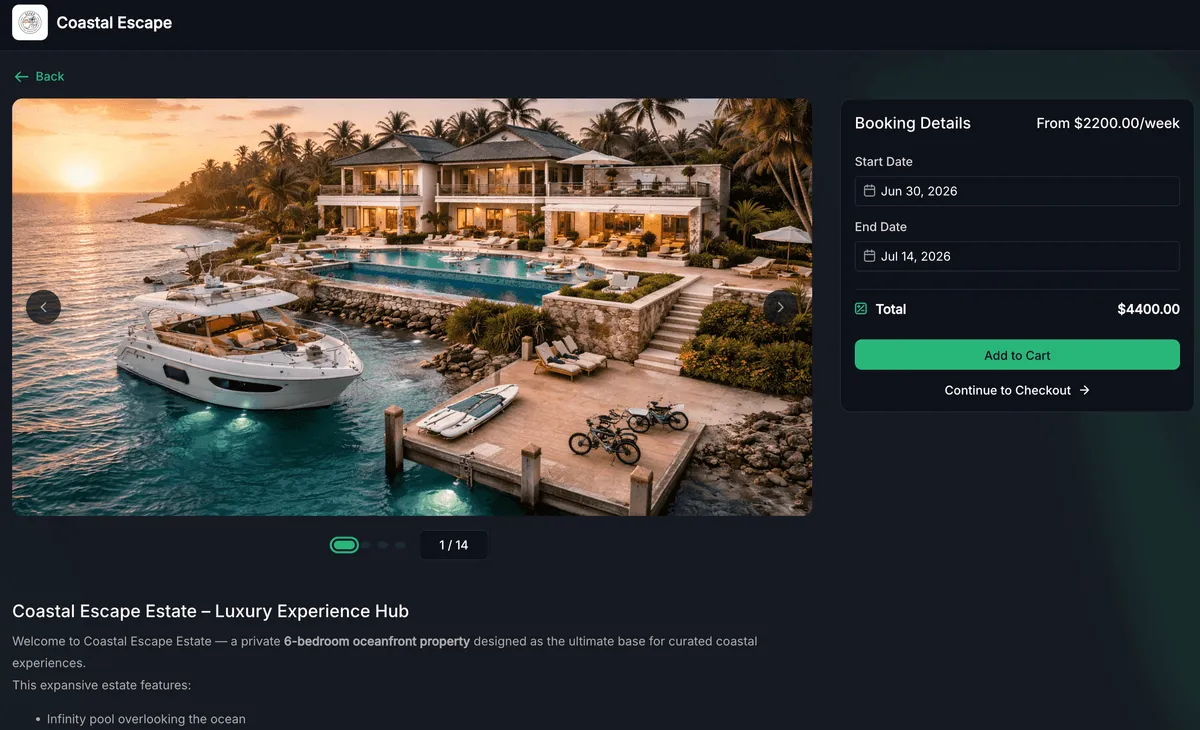
Customers can book multiple rental listings in one checkout, which is useful for bundles, event setups, or combined equipment rentals.
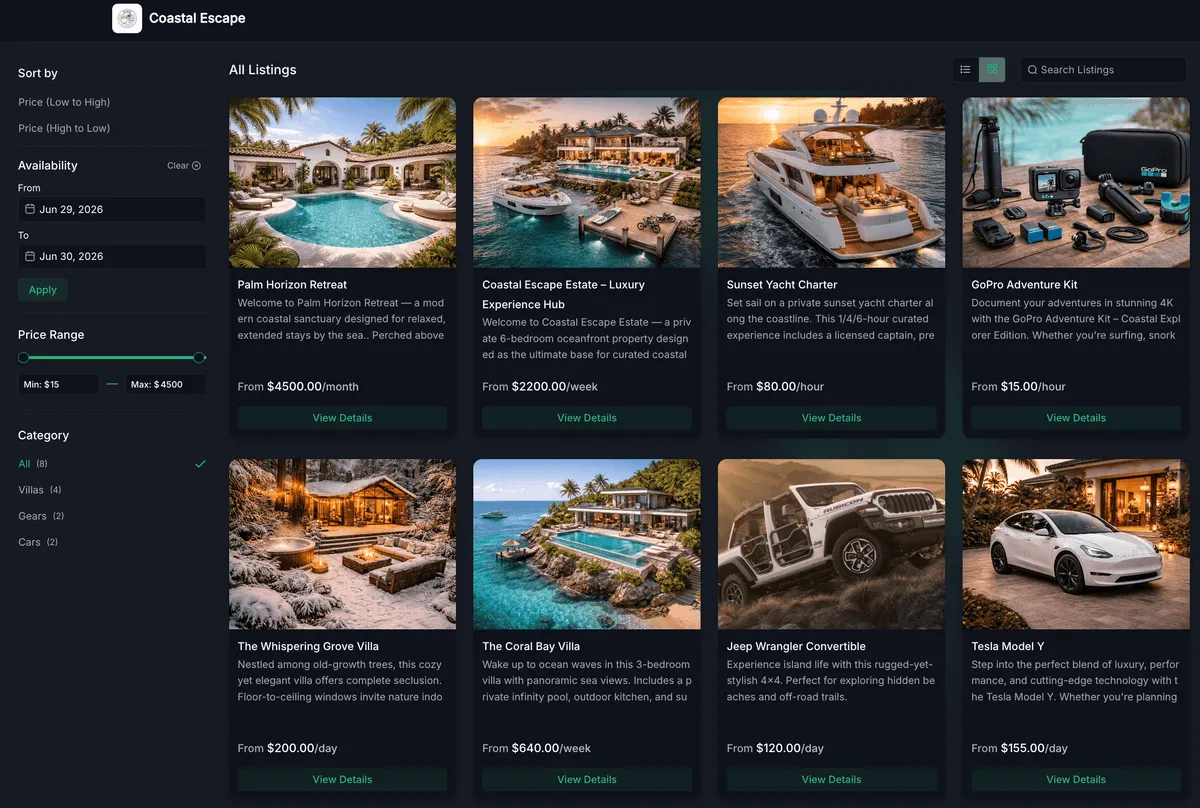
Customer Booking Page
Rentals includes a customizable public booking page that can display listings and categories, show real-time availability, and guide customers through the booking process.
Booking Management
Inside SMBcrm, teams can manage rental bookings by:
- Creating bookings or blocked slots manually
- Adding multiple listings to one booking
- Modifying dates, duration, quantity, or pricing
- Automatically generating invoices for every booking
- Collecting payments in-app
- Tracking booking status
- Managing bookings from Appointment List View or Calendar View
Rentals Calendar View
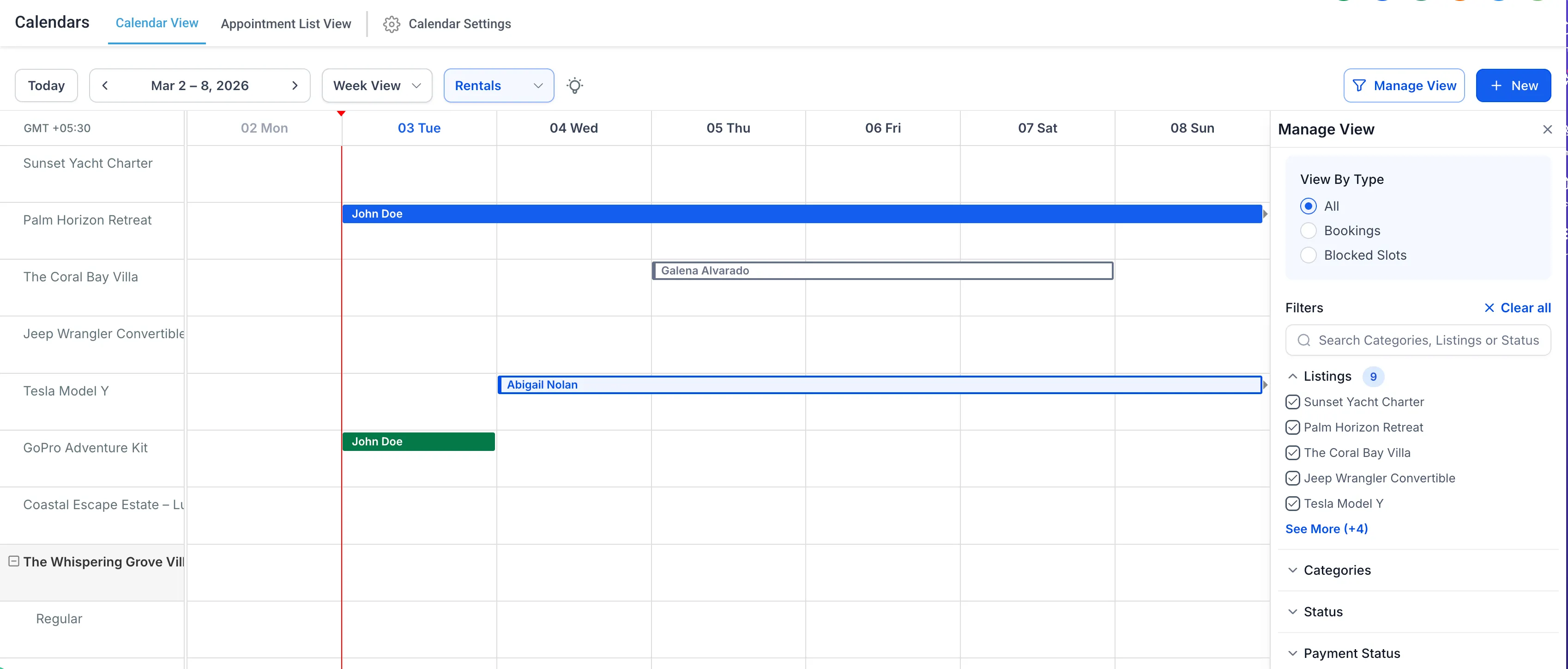
The Rentals Calendar View gives teams a centralized way to manage rental operations. You can view bookings across listings, identify bookings by status with color coding, filter by listing, category, booking status, or payment status, and open bookings directly from the calendar.
How to Get Started
Rentals is enabled by default for newly created accounts. It is not automatically enabled for existing accounts.
To enable or disable Rentals for one or more existing accounts:
- Go to Agency View > Accounts.
- Select the account or accounts you want to update.
- Click Setup Calendars.
- Toggle the Rentals module on or off.
Once Rentals is enabled, go to Calendars > Calendar Settings > Rentals to create a rental listing, configure pricing and inventory, adjust availability and booking settings, preview the customer booking page, and manage bookings from Appointment List View or the Rentals Calendar View.
Why It Matters
Rentals helps businesses support hourly, daily, weekly, and monthly rentals while managing inventory, quantities, variants, payments, invoices, blocked slots, and availability. It also supports calendar sync functionality for rental availability across external platforms.
In Case You Missed It
For more on rental availability, see Smarter Calendar Sync for Rental Availability.
Need Help Applying This Update?
Want help turning this update into a working part of your CRM, marketing, or automation setup?
Get Started or schedule a demo and we’ll help you map the right next step.