Social Planner CSV and XLSX uploads now support custom thumbnails for video posts. This gives teams more control over how bulk-scheduled videos appear before viewers click.
What Changed
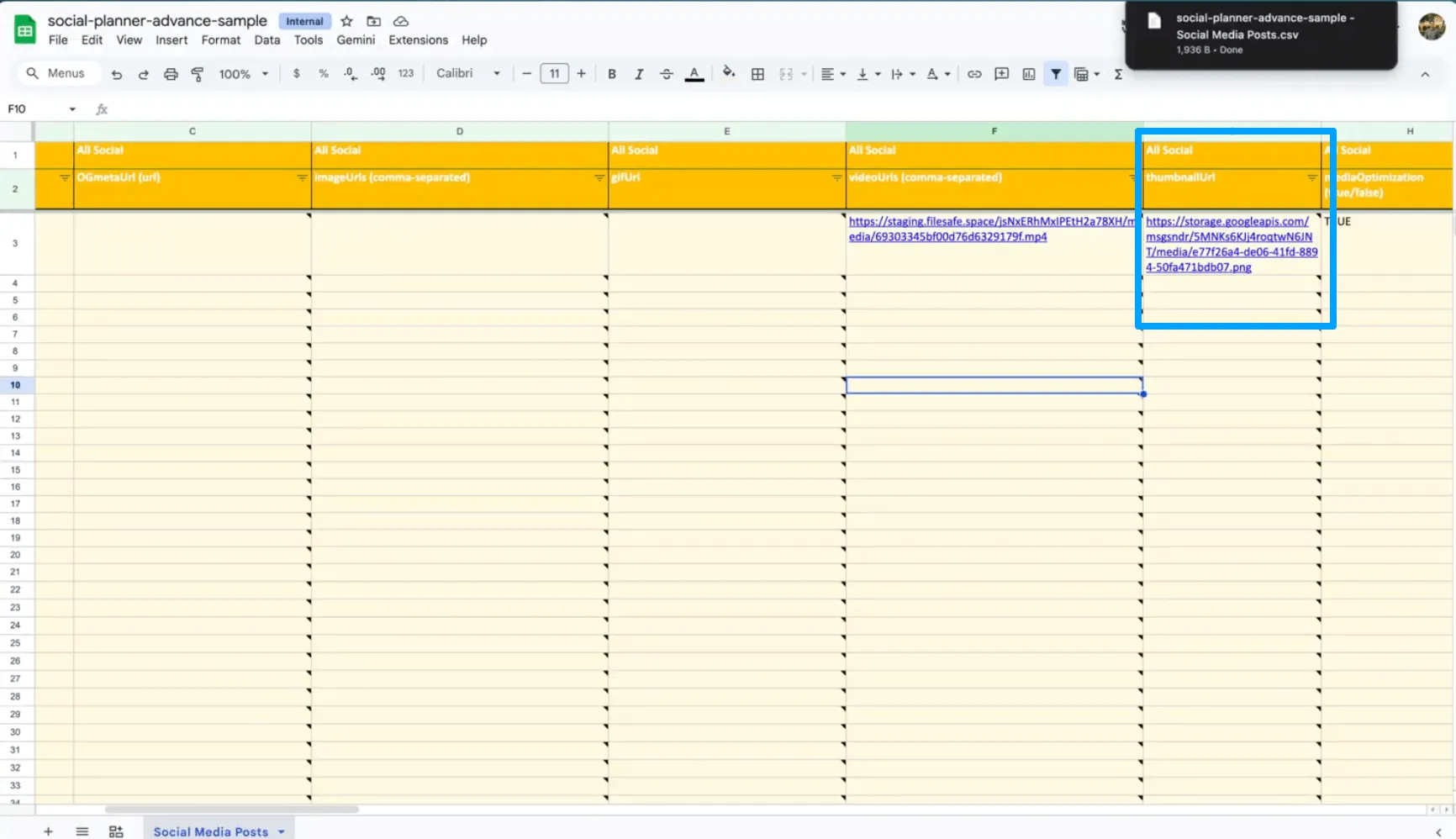
You can now add a thumbnailUrl field to your CSV or XLSX file. When the file is uploaded, SMBcrm automatically applies that thumbnail to the first video in the post.
Updated sample CSV and XLSX templates now include the thumbnailUrl field so users can start with the correct format.
How to Use Video Thumbnails in CSV Posts
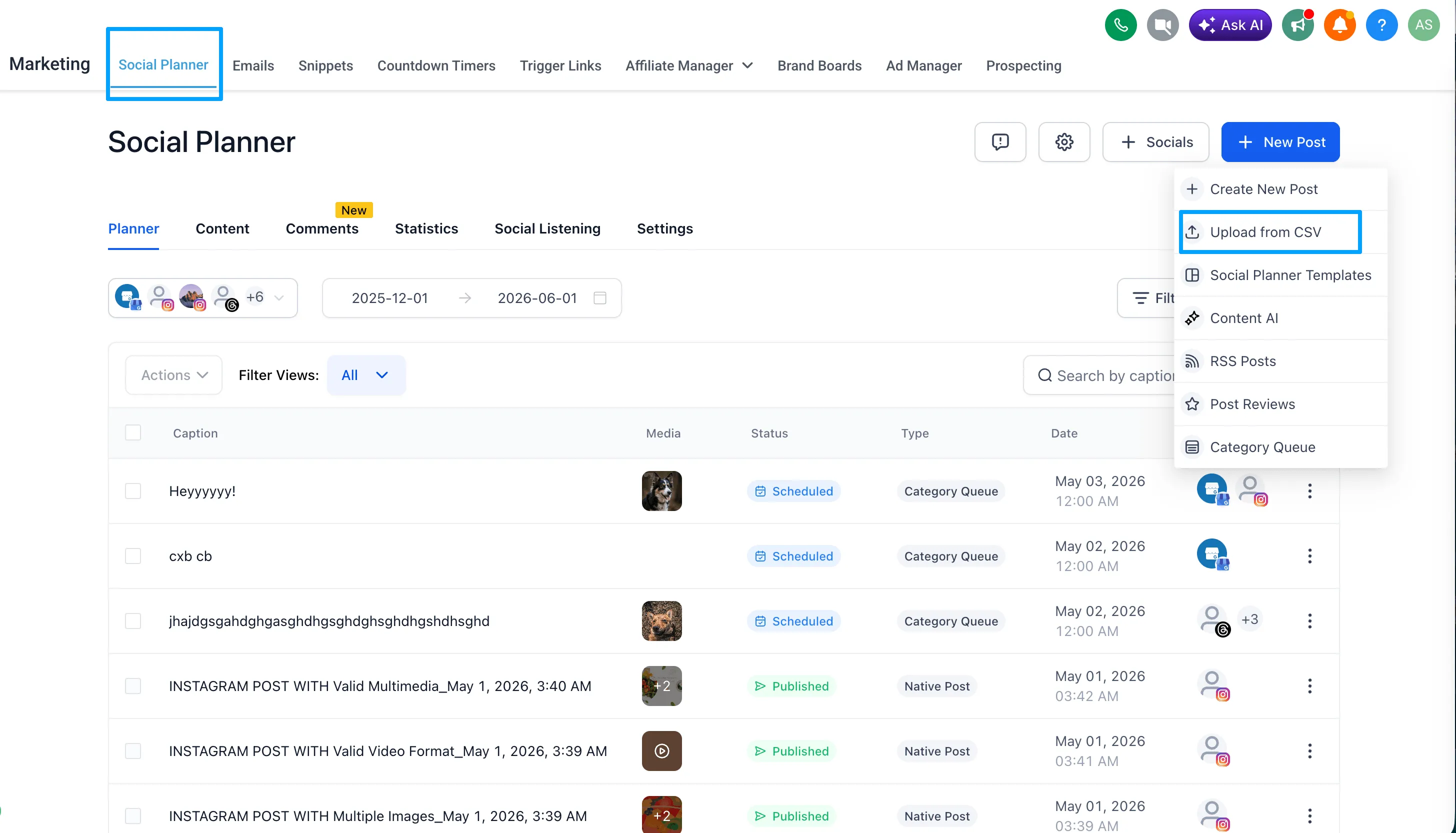
- Go to Marketing > Social Planner > Create Post > CSV Post.
- Download the latest CSV or XLSX template.
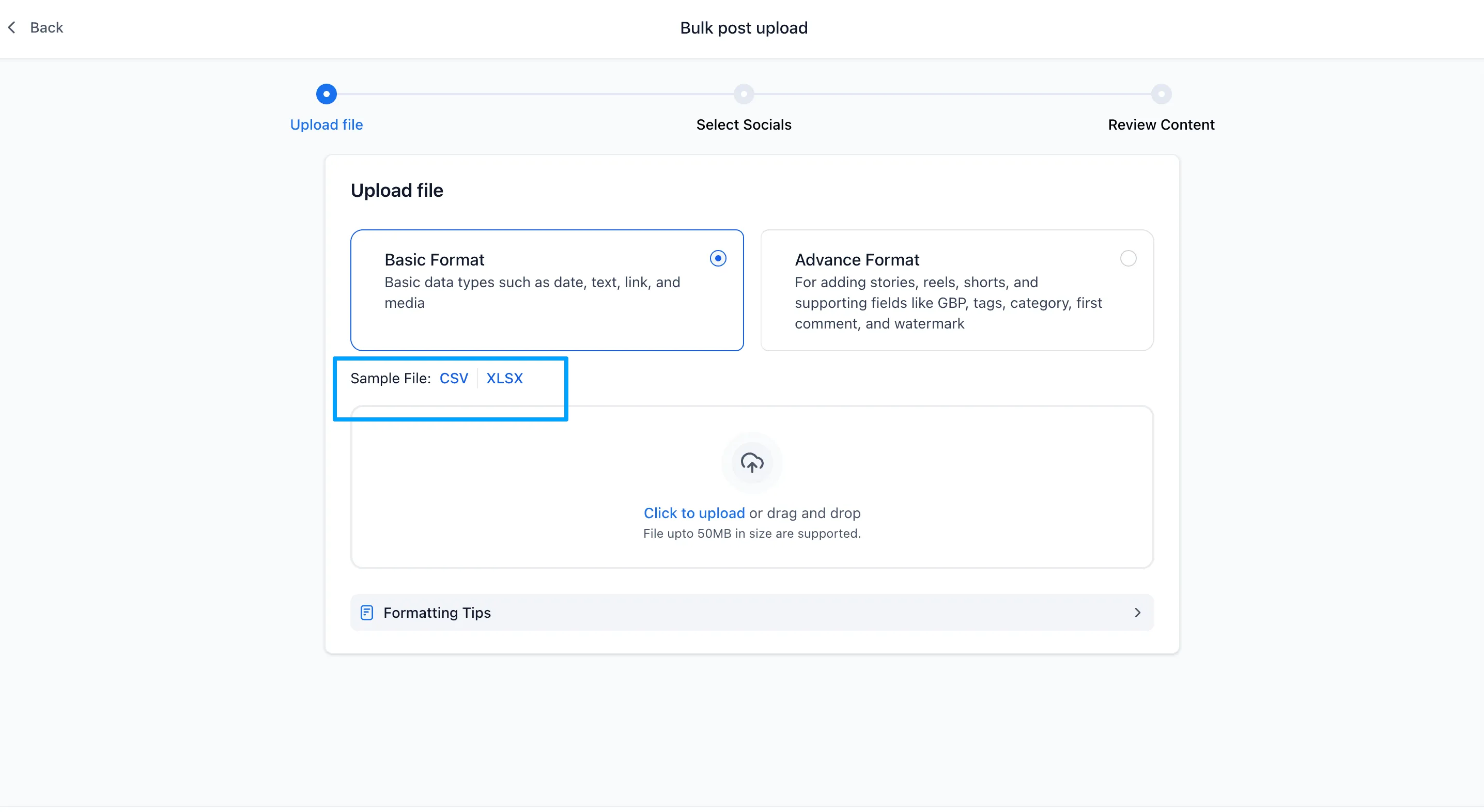
- Add your image link in the
thumbnailUrlcolumn. - Upload your file as usual in Social Planner.
- Your video post will automatically use the provided thumbnail.
Why It Matters
Custom thumbnails can help teams:
- Present video posts with more consistent visuals
- Maintain brand consistency across bulk uploads
- Save time by managing thumbnails during scheduling
- Improve the visual quality of video content at scale
Notes
- The thumbnail applies only to the first video in a post.
- Multiple video thumbnails are not supported.
- Behavior may vary across different social platforms.
In Case You Missed It
For another Social Planner update, see Social Planner Comment Management Now Supports Community Comments.
Need Help Applying This Update?
If you’d like help rolling this out in SMBcrm, visit Support or request a demo.
Explore this in SMBcrm
Connect the publishing plan to the next conversation.
Explore scheduling and publishing tools. Review the channels, approvals, and replies your team needs to manage.
Explore social media toolsAlready using this feature? Find setup help