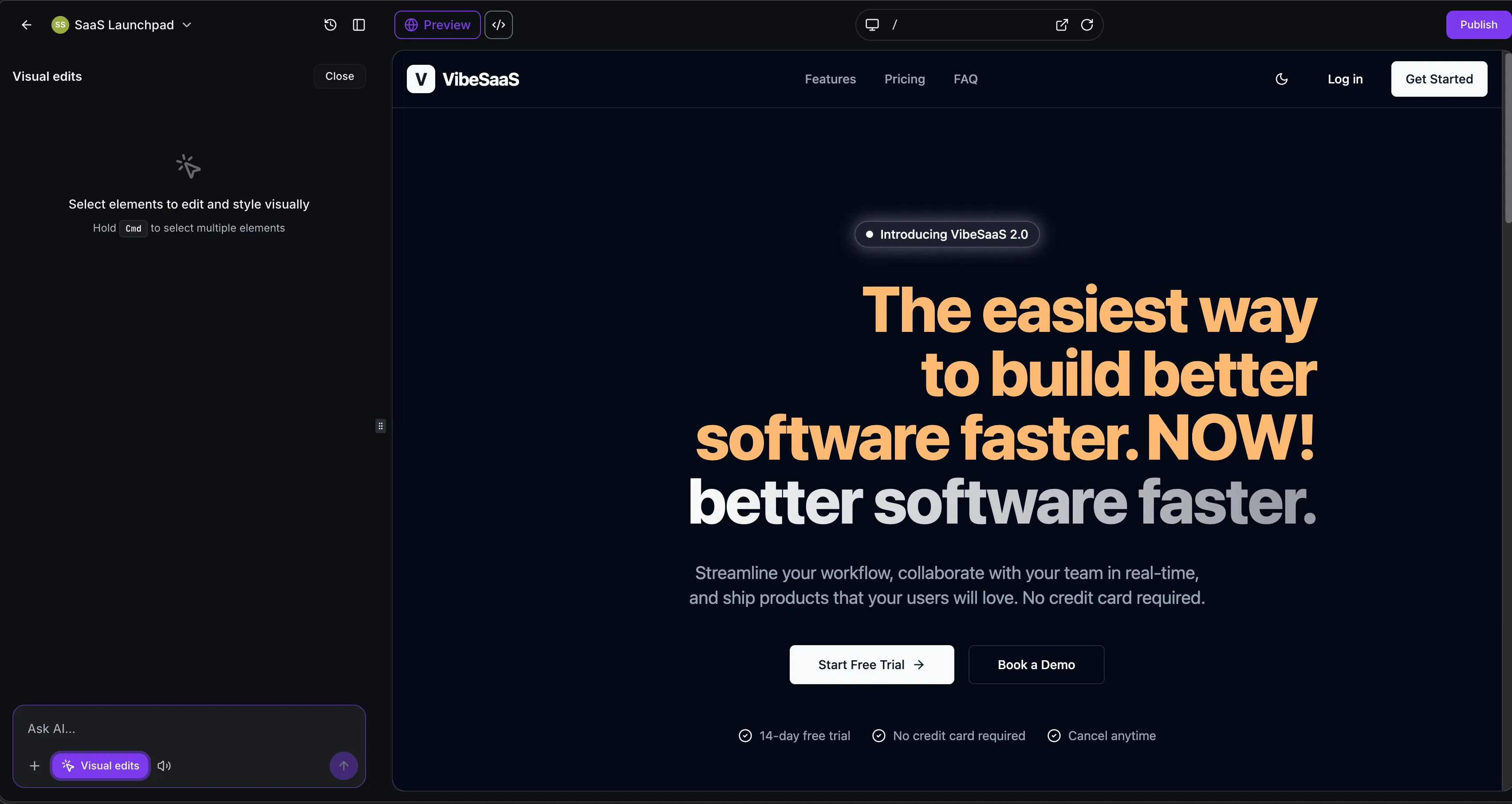
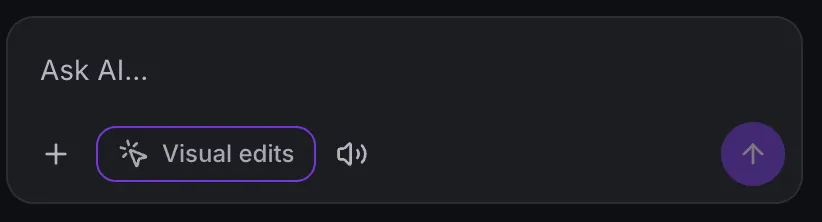
Visual Edits is a new in-canvas editing mode in SMBcrm AI Studio. It lets you change how your site looks by selecting elements directly in the live preview, including colors, fonts, spacing, images, icons, and text.
For teams using SMBcrm’s AI features, this gives you a faster way to make precise visual updates without describing every change in a prompt.
What Changed
Click to select
Click any element in the preview to open the Visual Edits panel. The available controls adapt based on what you select, such as text, buttons, images, icons, or layout elements.
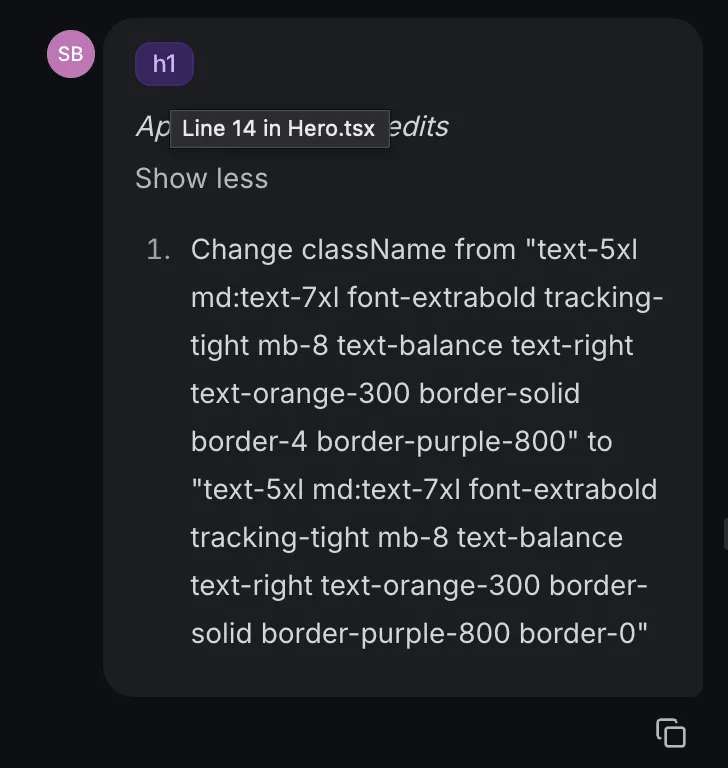
Edit text inline
Double-click any text element to edit it directly in the preview. Press Escape or click outside the element when you are done.
Swap icons faster
Click any Lucide icon to open a searchable library of more than 1,600 icons. Choose a replacement and it swaps instantly without a reload.
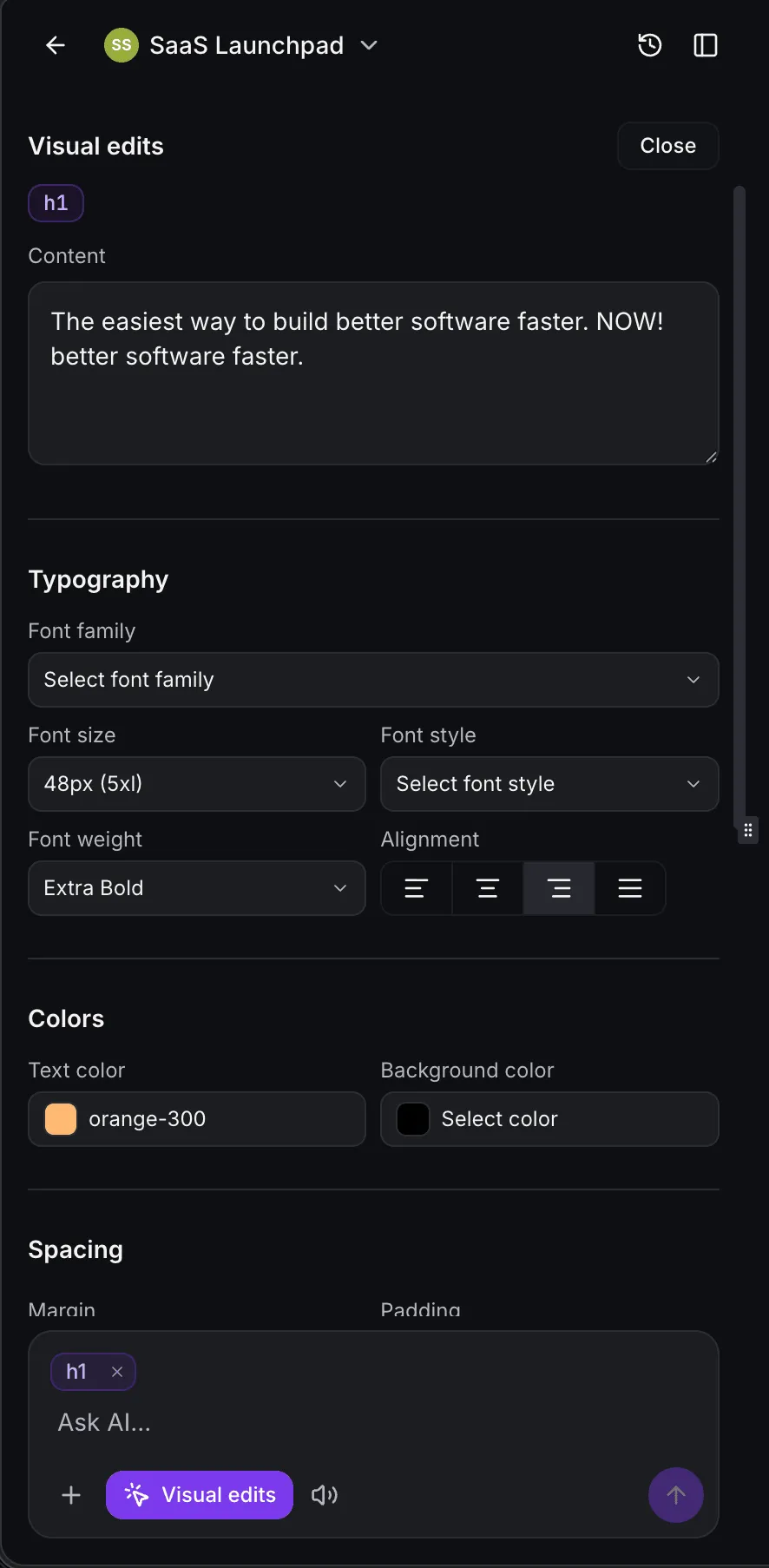
Use live color controls
Your project’s theme colors appear alongside the full Tailwind palette. Click a color swatch to apply it to the selected element.
Adjust spacing and layout
Margin and padding controls are shown side by side, with a toggle to link or unlink all four sides. For images, a Layout dropdown lets you choose Fill, Contain, Cover, or Scale down.
Resize icons
Select a Lucide icon to adjust width and height. Values can snap to Tailwind classes or use custom sizes.
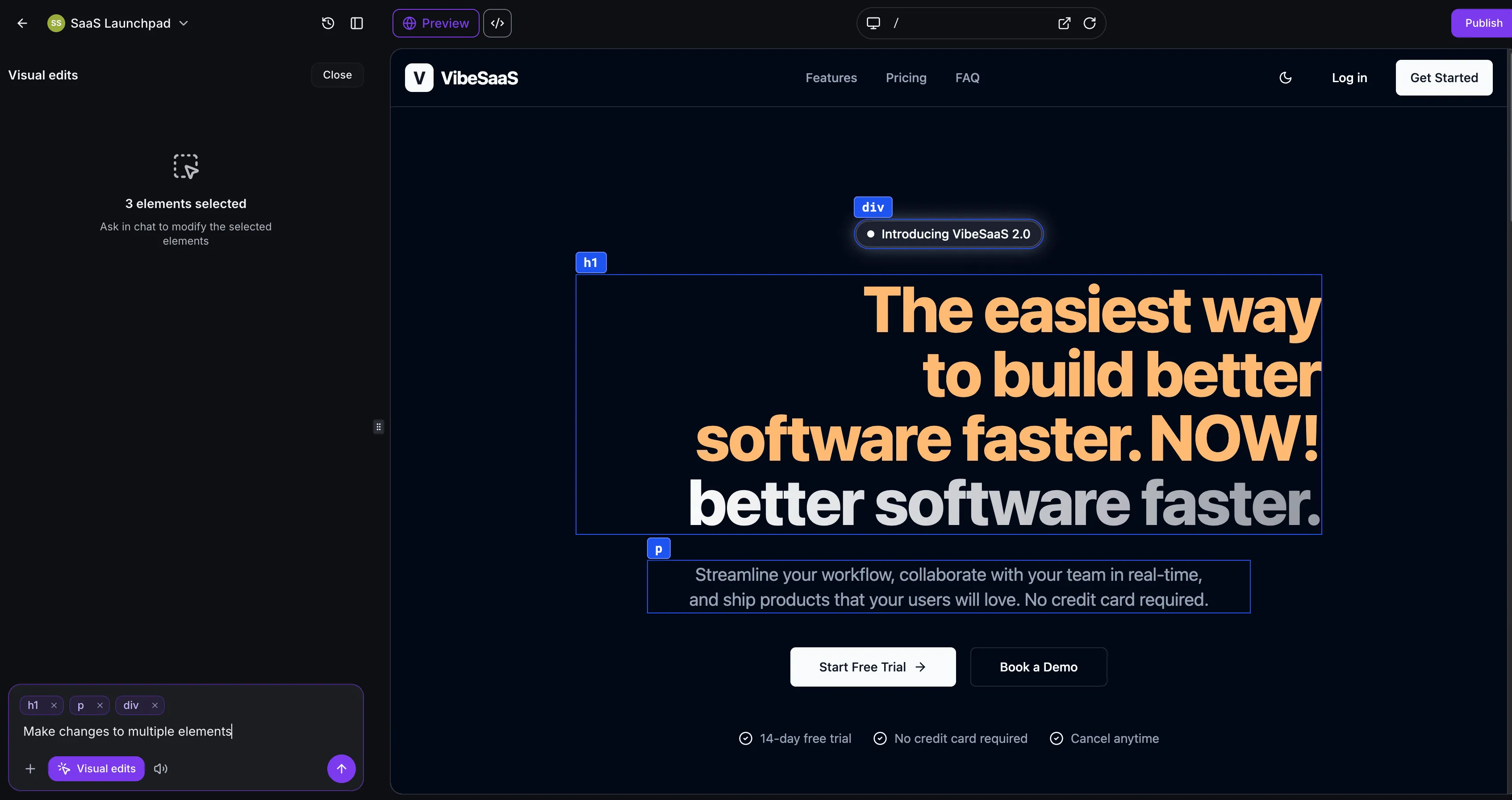
Apply changes across multiple elements
Select multiple elements at once and describe the change you want across all of them in a single prompt. This is useful for applying consistent styling or coordinated updates across several components.
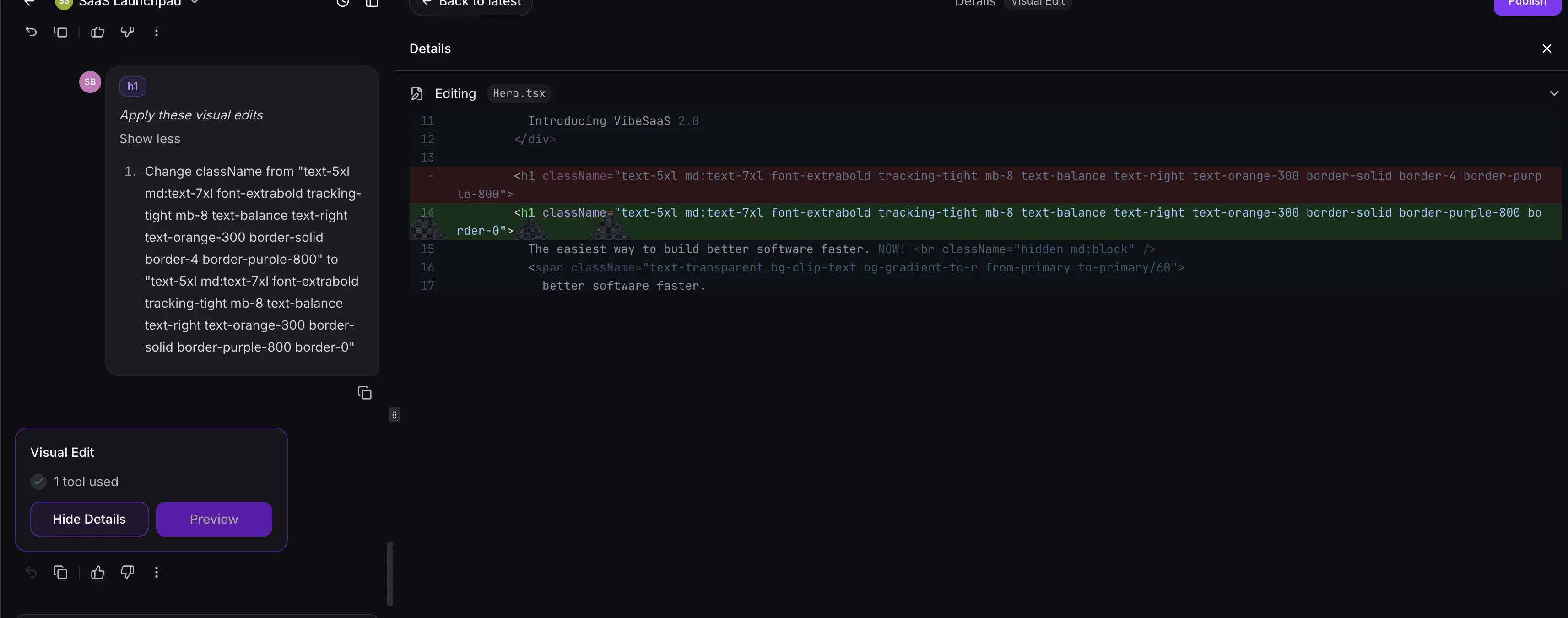
Direct Edits Do Not Use AI Model Calls
Color changes, spacing tweaks, icon swaps, and inline text edits apply instantly without calling the AI model. These direct edits do not count against token usage. The AI model is only used when you explicitly send a prompt.
Save or Discard Changes
Changes are previewed live. Select Save to apply them to your code, or Discard to throw them away.
What You Can Edit
- Any element: colors, spacing, border, shadow, border radius, opacity, and typography
- Text: inline content
- Buttons and inputs: type and aria label
- Links: URL, target, and rel
- Images: source, alt text, and object-fit
- Lucide icons: icon selection and sizing
- Textareas: placeholder, name, and rows
In Case You Missed It
You may also want to read AI Studio Deleted Projects Are Now Marked Inactive.
Release Images
Need Help Applying This Update?
Want help turning this update into a working part of your CRM, marketing, or automation setup?
Get Started or schedule a demo and we’ll help you map the right next step.