SMBcrm workflows can now generate an image as part of an automation. The AI Image Generation action is available under AI Actions in workflow automation and works with the broader SMBcrm AI features.
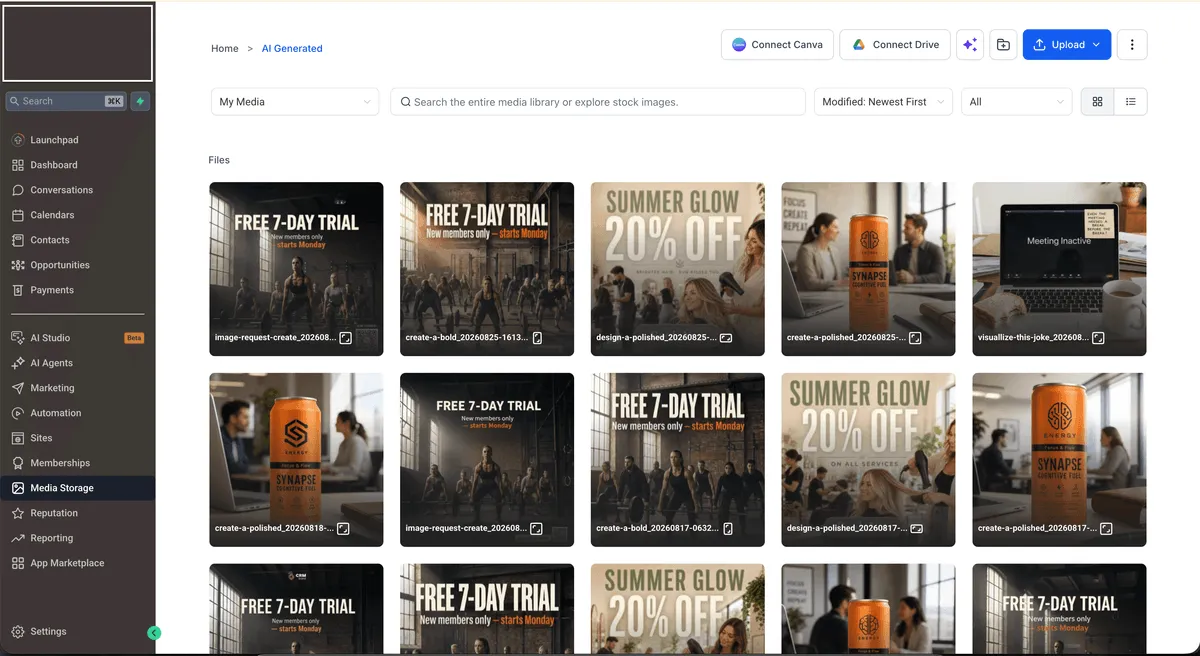
When the action runs, an AI model creates the image, stores it in Media Storage, and returns a public Image URL as text for later workflow steps. This is a premium action, and each execution has an additional charge.
What changed
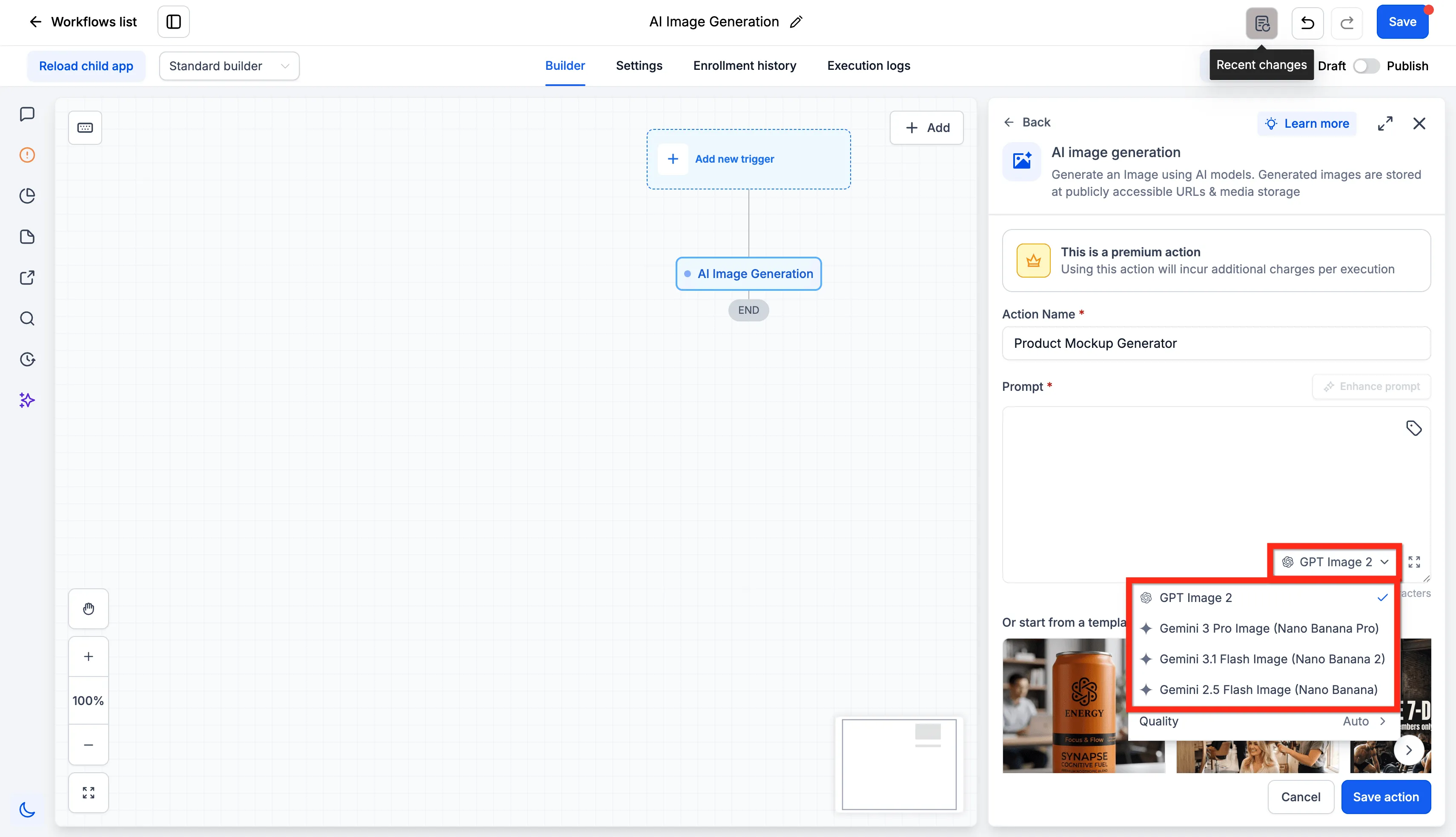
- Choose from four models: GPT Image 2, Gemini 3 Pro Image (Nano Banana Pro), Gemini 3.1 Flash Image (Nano Banana 2), or Gemini 2.5 Flash Image (Nano Banana).
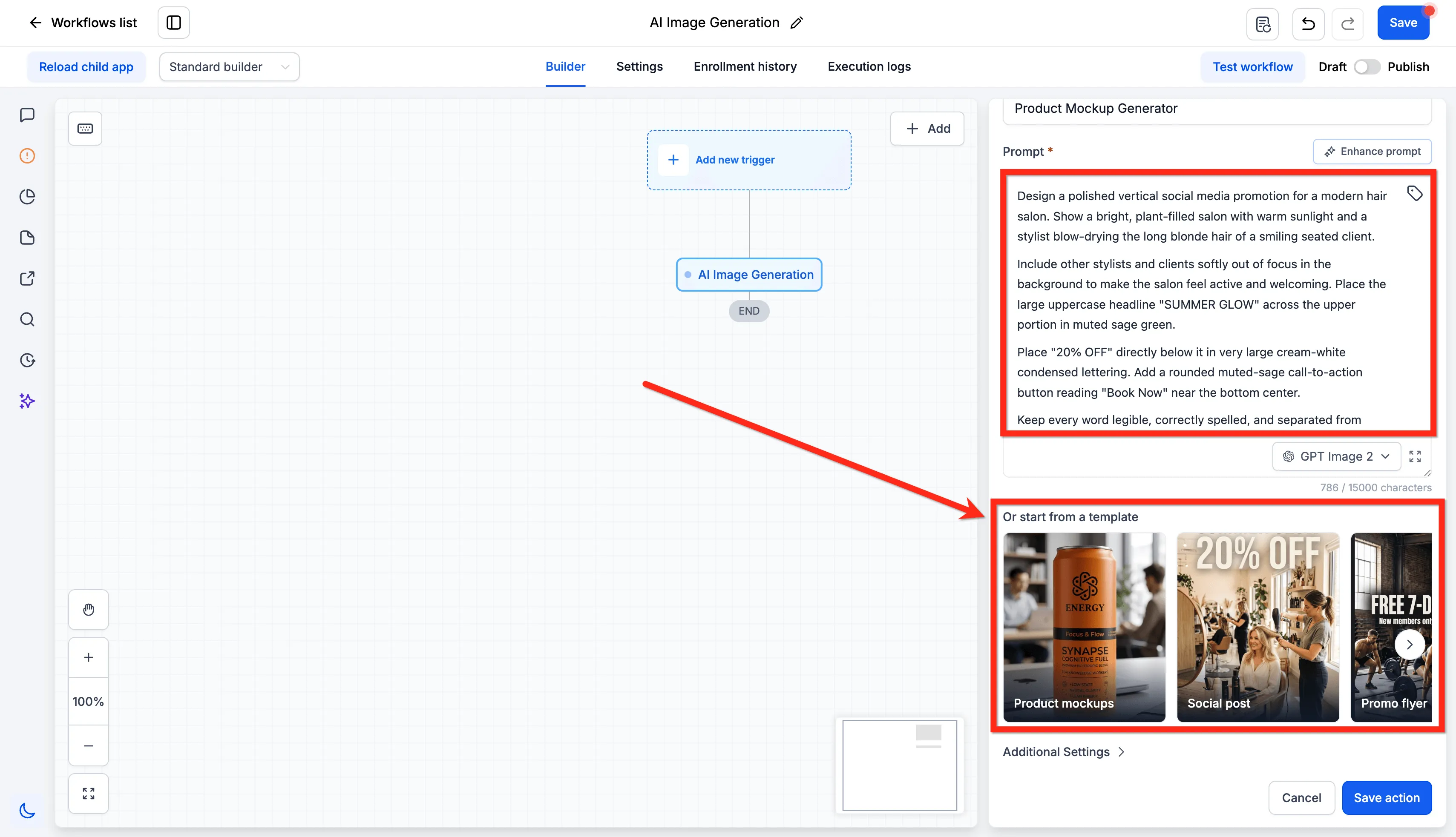
- Build prompts manually or insert custom values from sources such as a contact field, webhook payload, or earlier action.
- Use Enhance Prompt to expand a short prompt into a more detailed one.
- Start from Product Mockups, Social Post, Promo Flyer, or Lifestyle templates.
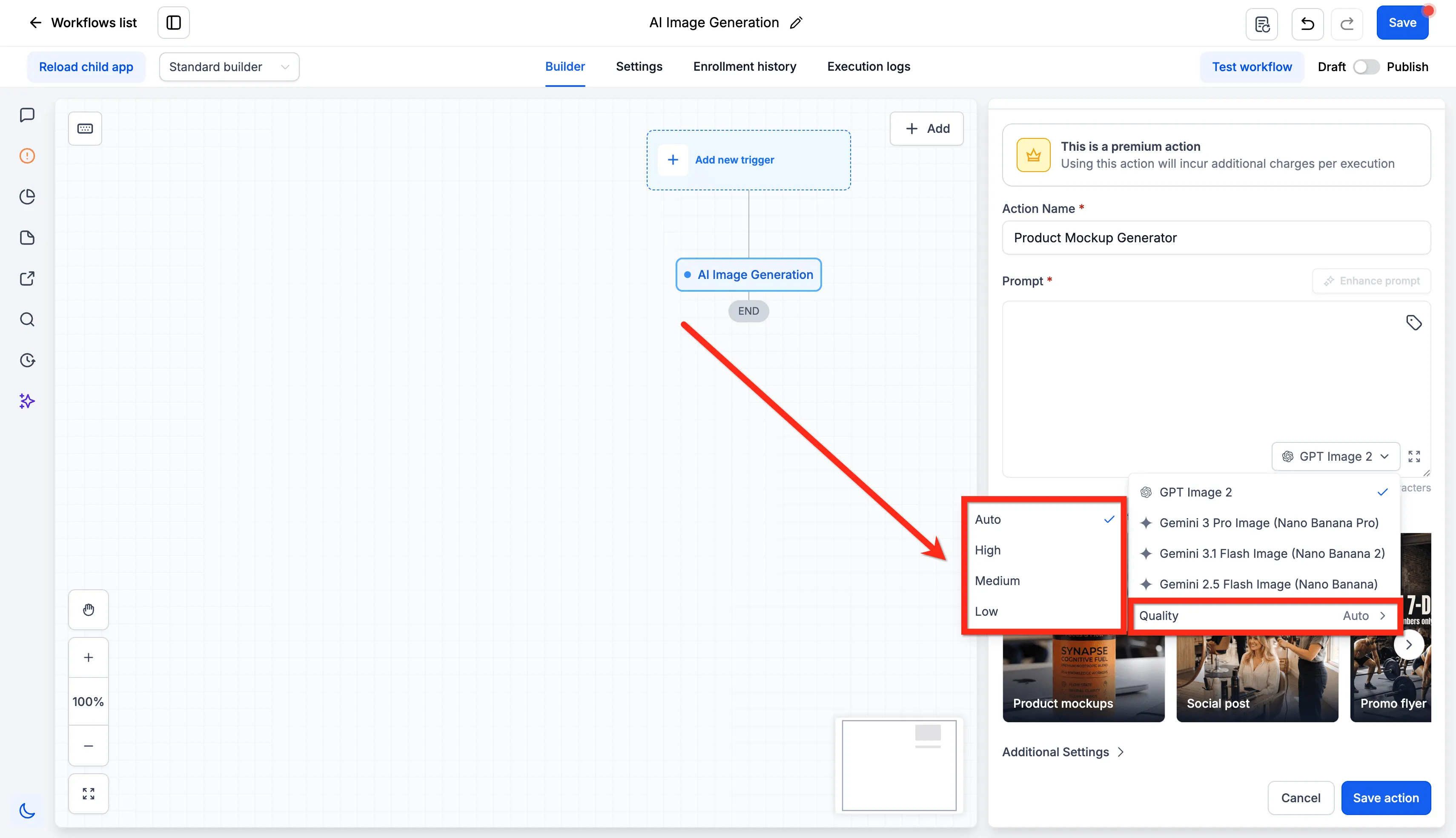
- Set image quality to Auto, High, Medium, or Low. Auto is the default.
- Apply Design Kit and Brand Voice settings for brand context.
- Control the output size, background, and file format.
- Store each generated image automatically in Media Storage and use the returned Image URL variable in later actions.
Pricing note
Image generation is billed per execution. Typical image costs should be treated as planning estimates, not fixed rates. Actual cost depends on the selected model, quality, image size, and whether Design Kit or Brand Voice adds extra context.
How to use it
- Go to Automation > Workflows.
- Open a workflow, then add the AI Image Generation action.
- Select the model and set the quality. Auto is the default.
- Write the prompt, either manually or by inserting a custom value that pulls from workflow data at run time.
- Optionally use Enhance Prompt or start from a template.
- Optionally open Additional Settings to set size, background, output format, Design Kit, and Brand Voice.
- Save the action.
Important public URL note
The generated image is stored at a public URL. Anyone with the link can open it without logging in, so keep that in mind when a prompt pulls in customer data.
Why it matters
Workflows can now create visuals instead of only moving images that were uploaded in advance. The returned Image URL can be used in later actions, such as attaching the image to an email or SMS, publishing it to a social post, saving it to a custom field, or passing it to a webhook.
Because prompts can come from workflow data, one workflow can generate different images for different contacts or fill in image URLs across rows in a Google Sheet.
In Case You Missed It
For another workflow control update, read Choose Sender Domains for Each Workflow.
Release Images
Need Help Applying This Update?
Want help turning this update into a working part of your CRM, marketing, or automation setup?
Get Started or schedule a demo and we’ll help you map the right next step.