Clients can now manage appointments directly inside the Client Portal. They can view their schedule, book available times, and handle eligible changes without switching to email, separate booking links, or other tools.
What changed
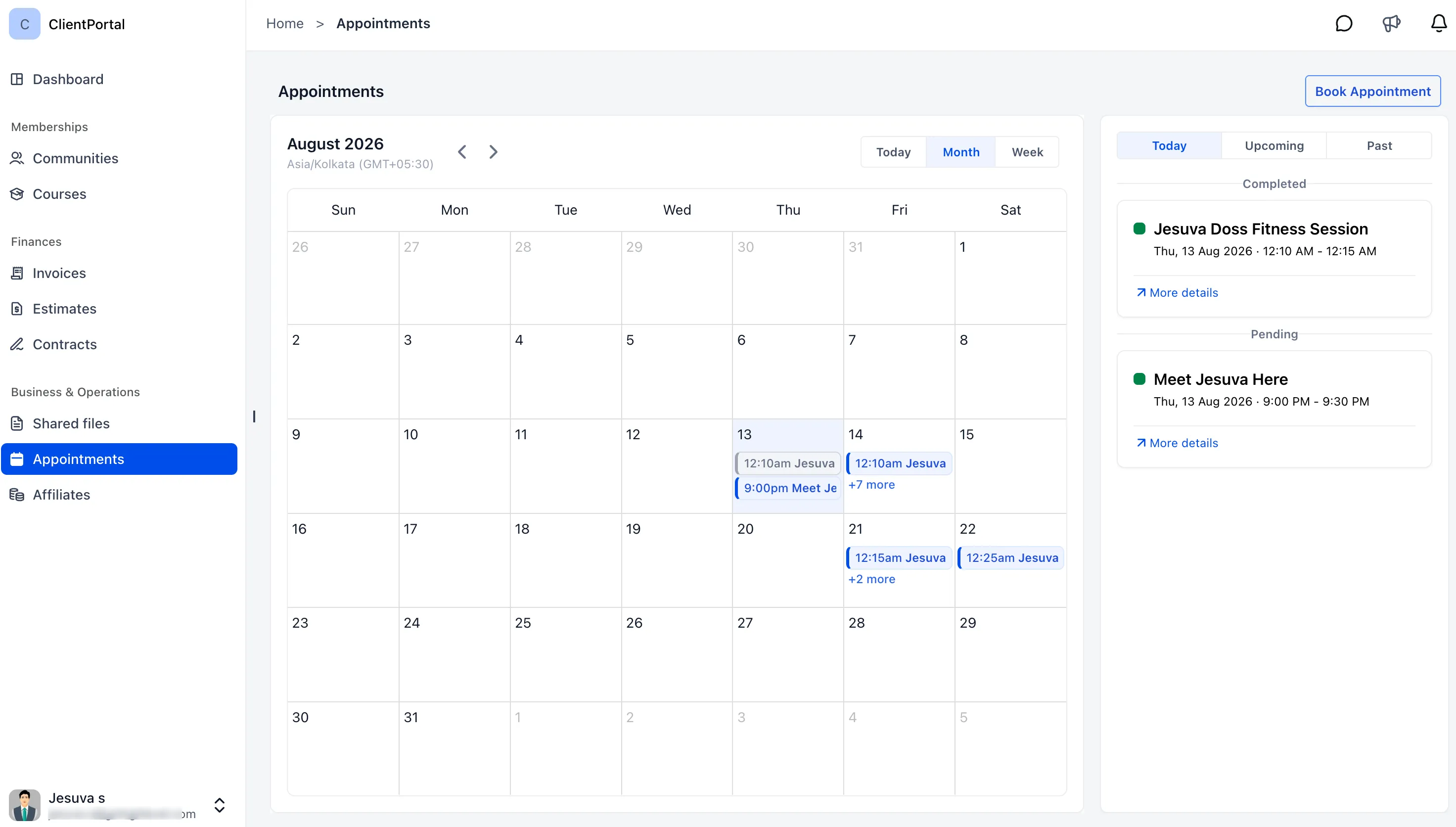
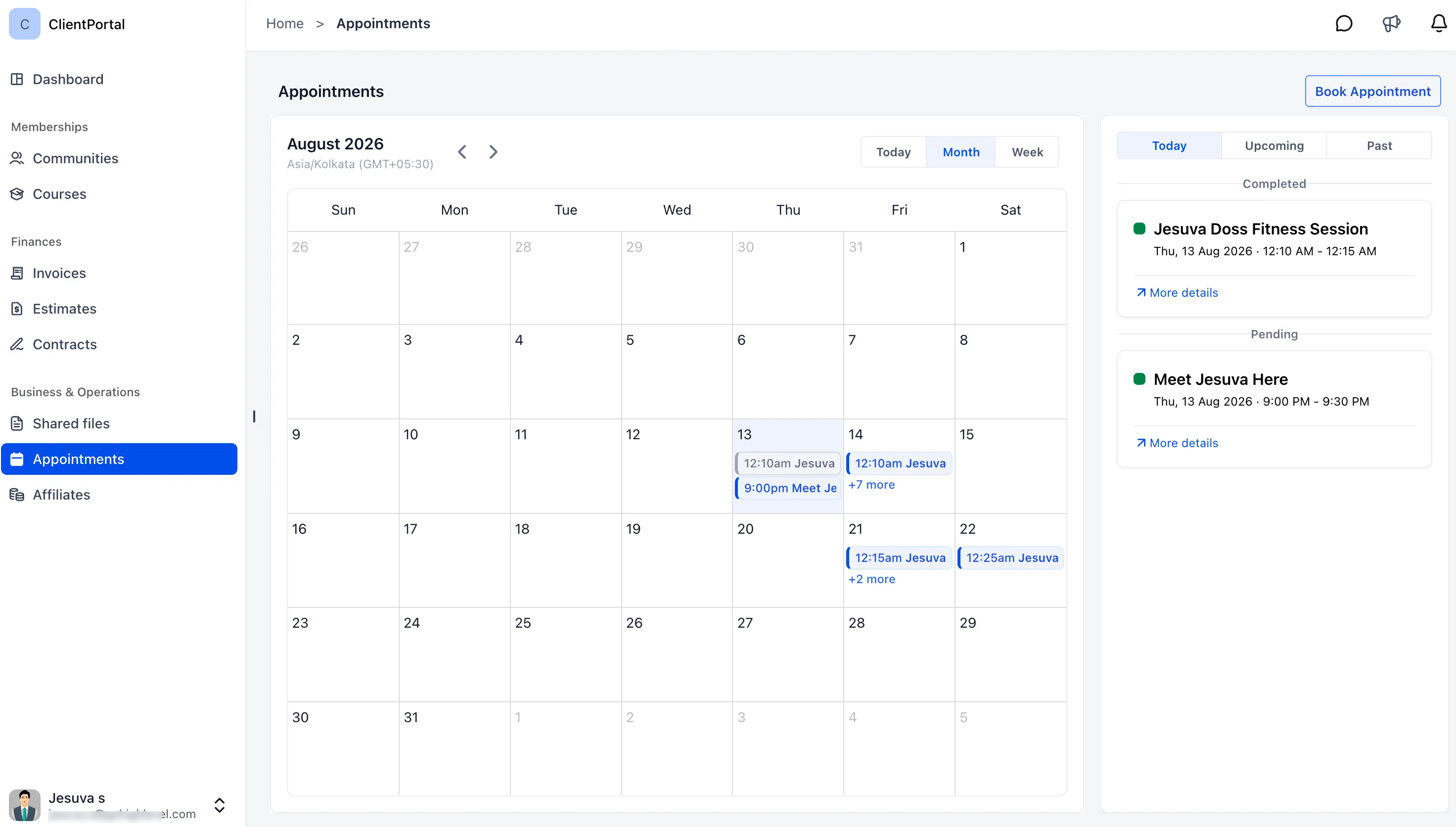
View appointments in one place
Clients can see appointments inside the Client Portal, including:
- Today, upcoming, and past appointment views
- A full calendar view
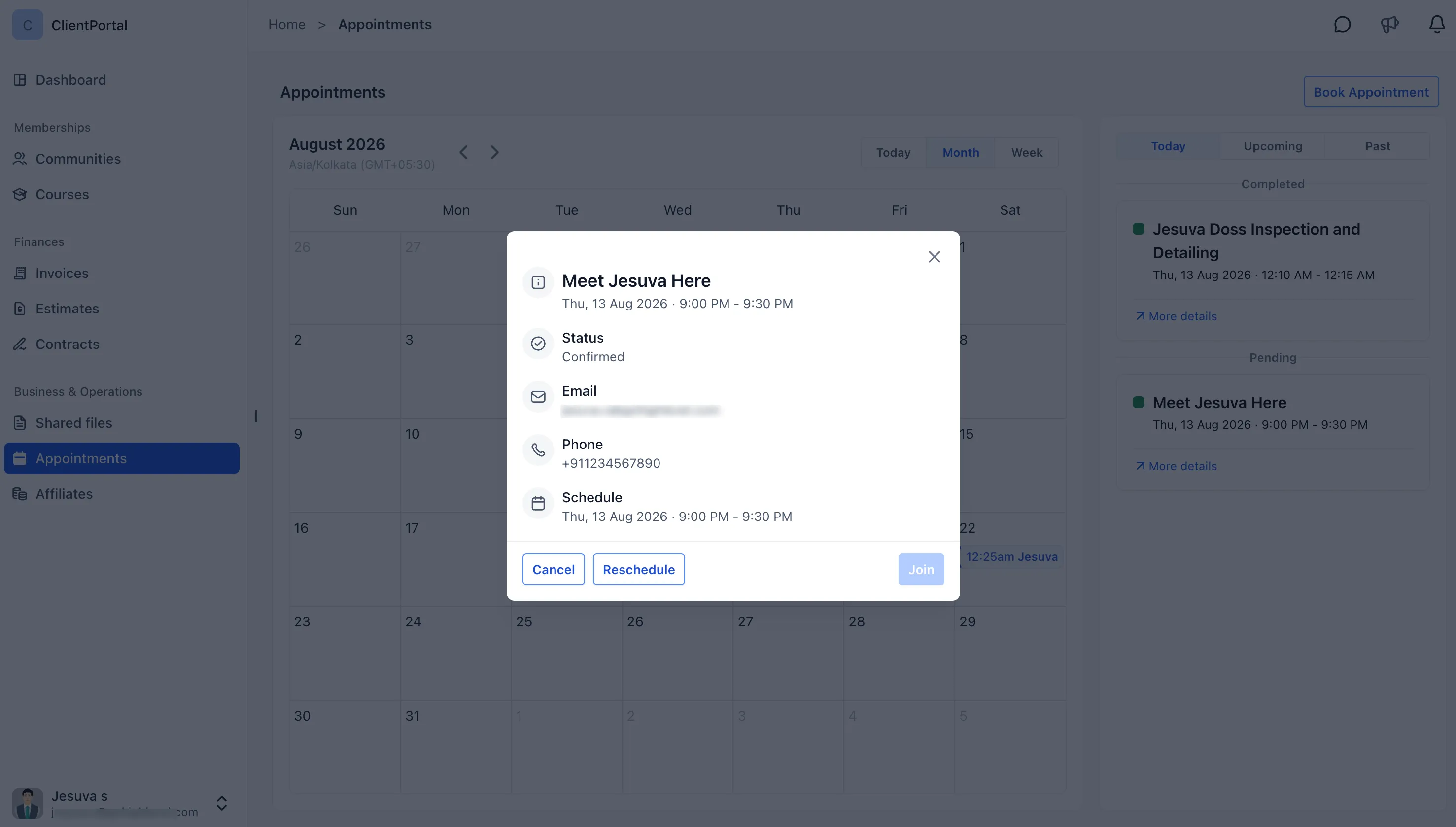
- Appointment details such as date, time, and status
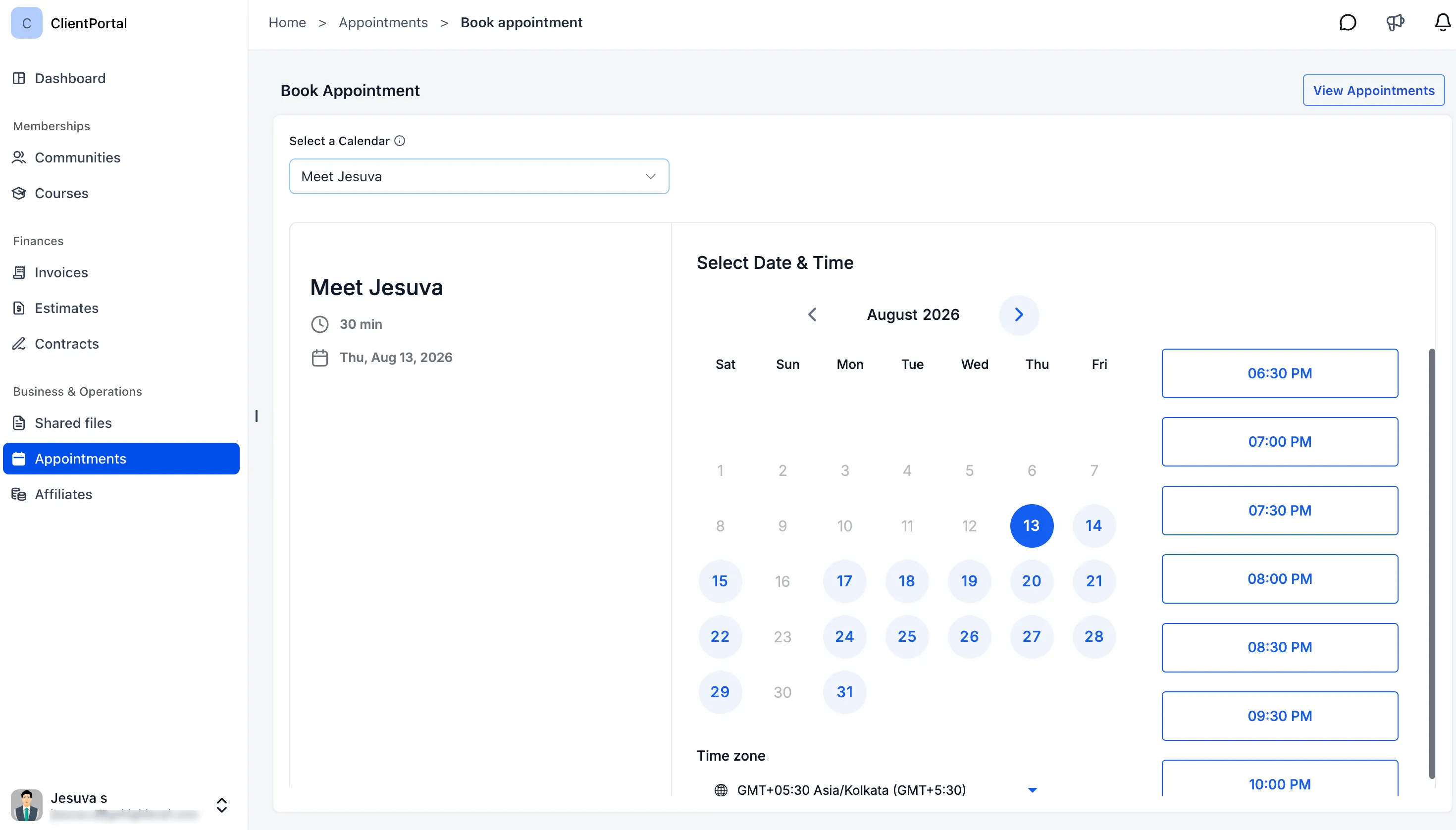
Book new appointments
Clients can book appointments without leaving the portal. Their existing contact information is used automatically to reduce repetitive data entry.
If multiple calendars are enabled for Client Portal booking, clients can choose which calendar they want to book with.
Book again
After completing an appointment, clients can quickly book another appointment from the portal when they need to.
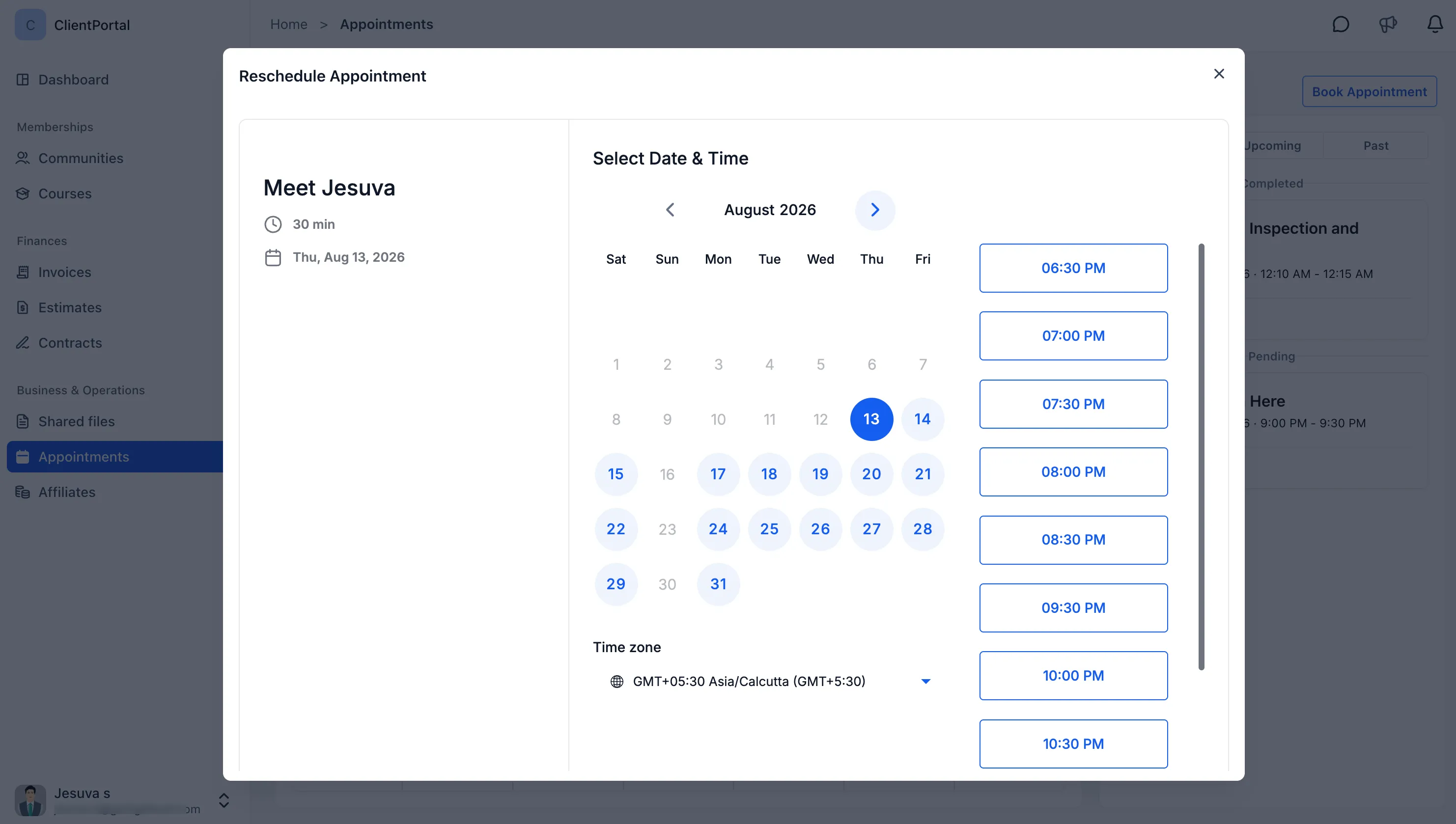
Reschedule or cancel appointments
Eligible appointments can be rescheduled or canceled directly from the Client Portal, helping reduce back-and-forth communication for schedule changes.
Business controls
Businesses decide which booking options are available to clients. You can:
- Enable one or multiple calendars for Client Portal bookings
- Choose which calendars clients can select when booking
- Enable or disable the Appointments experience through Client Portal app permissions
How to enable appointments
1. Enable calendars for Client Portal booking
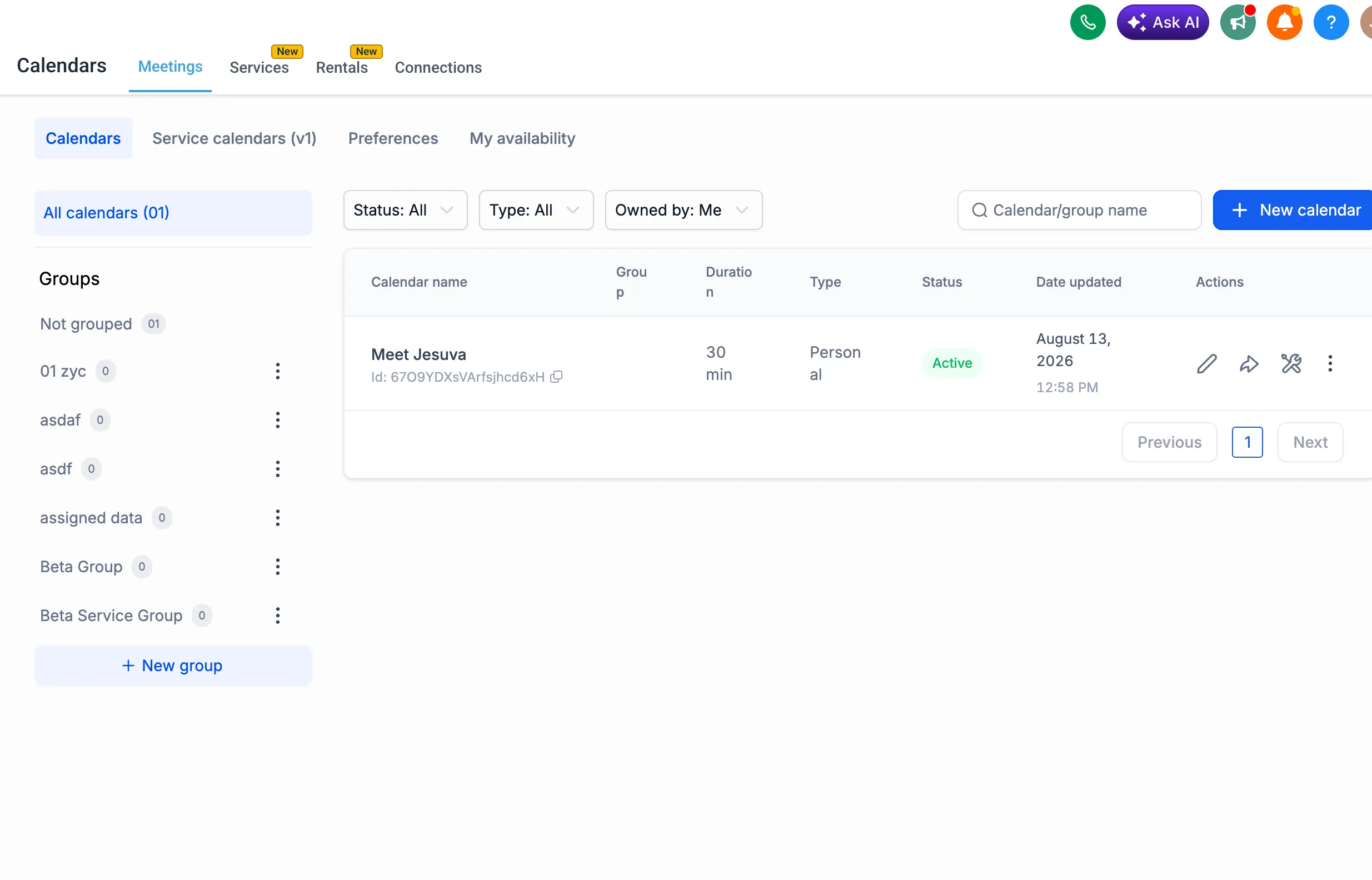
Go to Calendars > Calendar Settings > Meetings > Calendars.
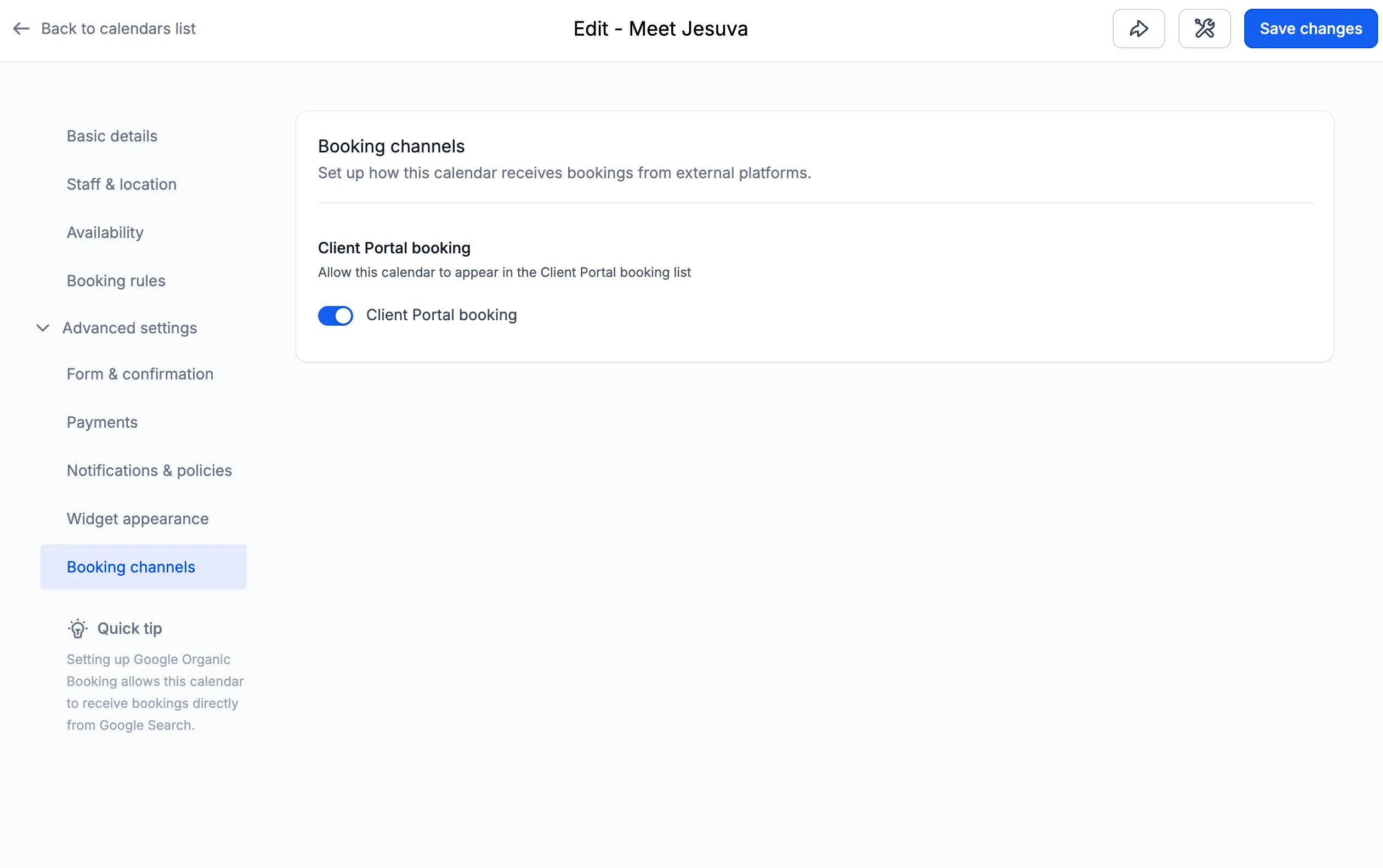
Open the calendar you want to make available, then go to Edit Calendar > Booking Channels. Turn on Client Portal booking and save your changes.
Repeat this for each calendar you want clients to be able to book.
2. Enable the Appointments app
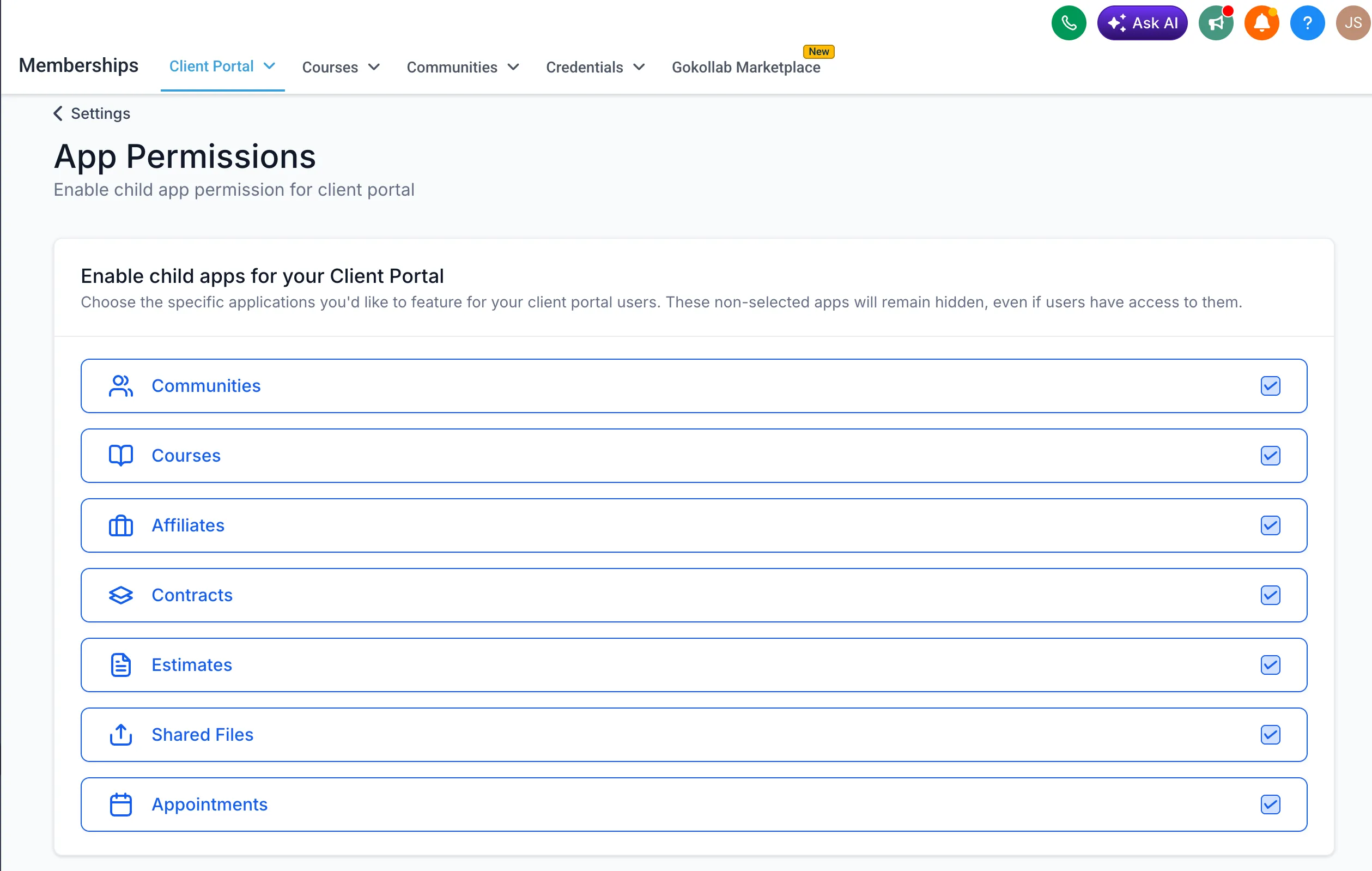
Go to Memberships > Client Portal > Settings > App Permissions.
Enable Appointments and save your settings. Once enabled, clients will see Appointments inside their Client Portal and can start viewing and booking available appointments.
Why it matters
Appointment management is now part of the Client Portal experience. Clients get more control over their schedules, while businesses can reduce manual booking, rescheduling, and cancellation requests.
Appointments are currently available in the new Client Portal UI.
In Case You Missed It
You may also want to read Import HubSpot CRM Data Directly into SMBcrm.
Release Images
Need Help Applying This Update?
Want help turning this update into a working part of your CRM, marketing, or automation setup?
Get Started or schedule a demo and we’ll help you map the right next step.
Explore this in SMBcrm
See the customer side of the CRM.
Explore the client portal and decide which documents, invoices, and conversations customers should be able to access.
Explore the client portalAlready using this feature? Find setup help