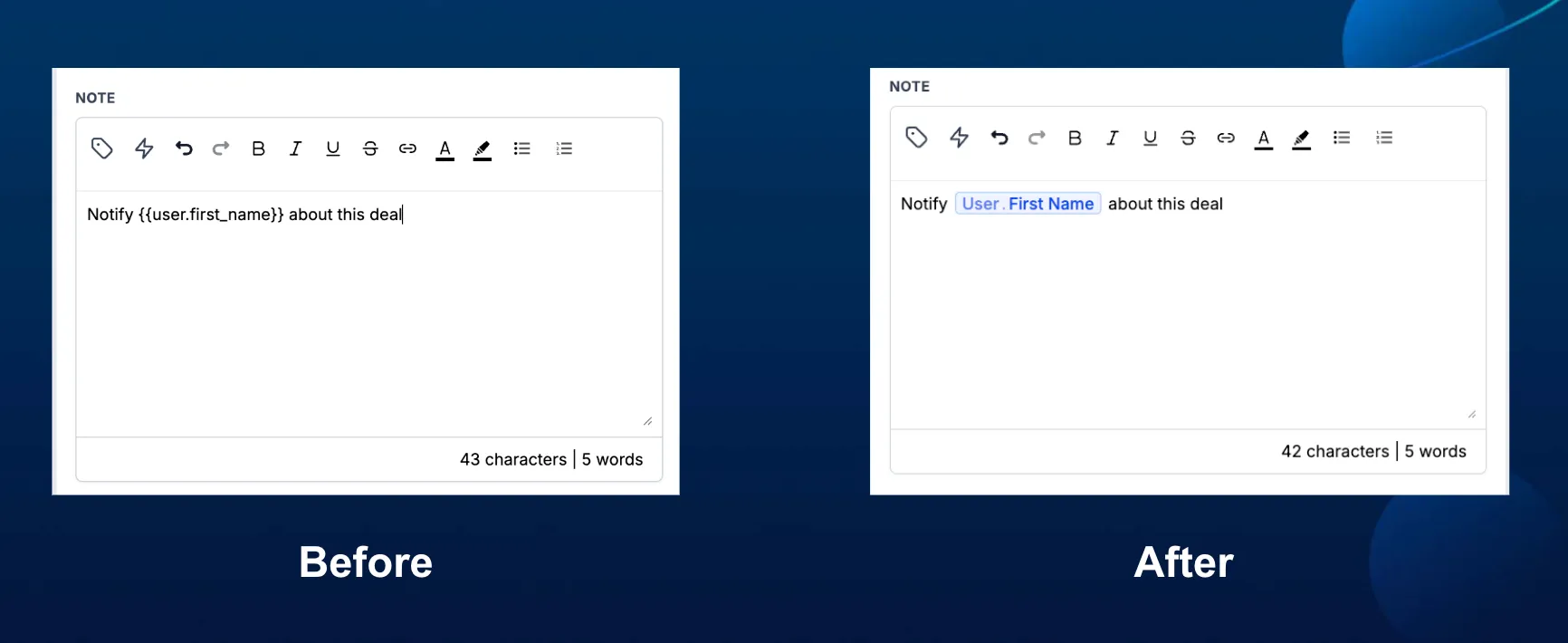
Dynamic values inside workflow text fields now appear as chips, making them easier to distinguish from regular text while building or editing automation workflows.
This is a visual editing update only. Existing custom values are not changed, and there is no change to how values are rendered or resolved when a workflow runs.
What Changed
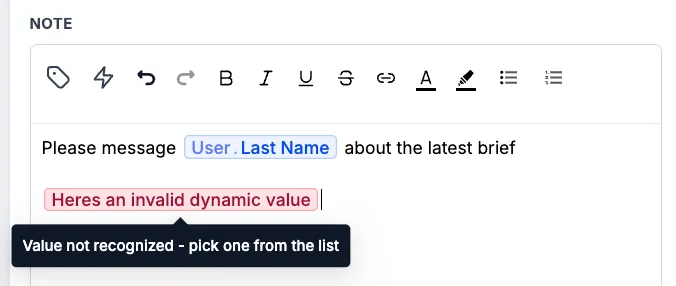
Valid dynamic values now appear as chips inside workflow text fields. If a value is stale or not recognized, it is highlighted in red so you can spot it and replace it with a valid value.
You can also type / inside a workflow text field to search for and insert a custom value directly from the text box.
How to Use It
- Type
/in a workflow text field to search for and add a custom value. - Click an existing chip to replace it with another custom value in the same position.
- Replace any red highlighted value with a valid custom value from the list.
Why It Matters
Custom values can be hard to review when they are mixed with regular text. The chip interface makes dynamic content easier to identify, speeds up editing, and helps flag values that need attention before a workflow is saved or updated.
Important Notes
- Existing custom values are not changed or affected.
- Workflow behavior and custom value rendering are unchanged.
- Chips are only a visual representation inside workflow text fields.
- Stale or invalid values are highlighted in red and should be replaced with recognized values.
In Case You Missed It
You may also want to read about WhatsApp Analytics Added to Workflow AI Assistant.
Release Images
Need Help Applying This Update?
Want help turning this update into a working part of your CRM, marketing, or automation setup?
Get Started or schedule a demo and we’ll help you map the right next step.