SMBcrm has improved custom field management in the form, survey, and quiz builders. The Custom Fields sidebar now supports faster browsing, selection, and placement when building longer structured experiences.
This update helps users assemble lead capture assets with fewer repetitive clicks while keeping field placement predictable.
What changed
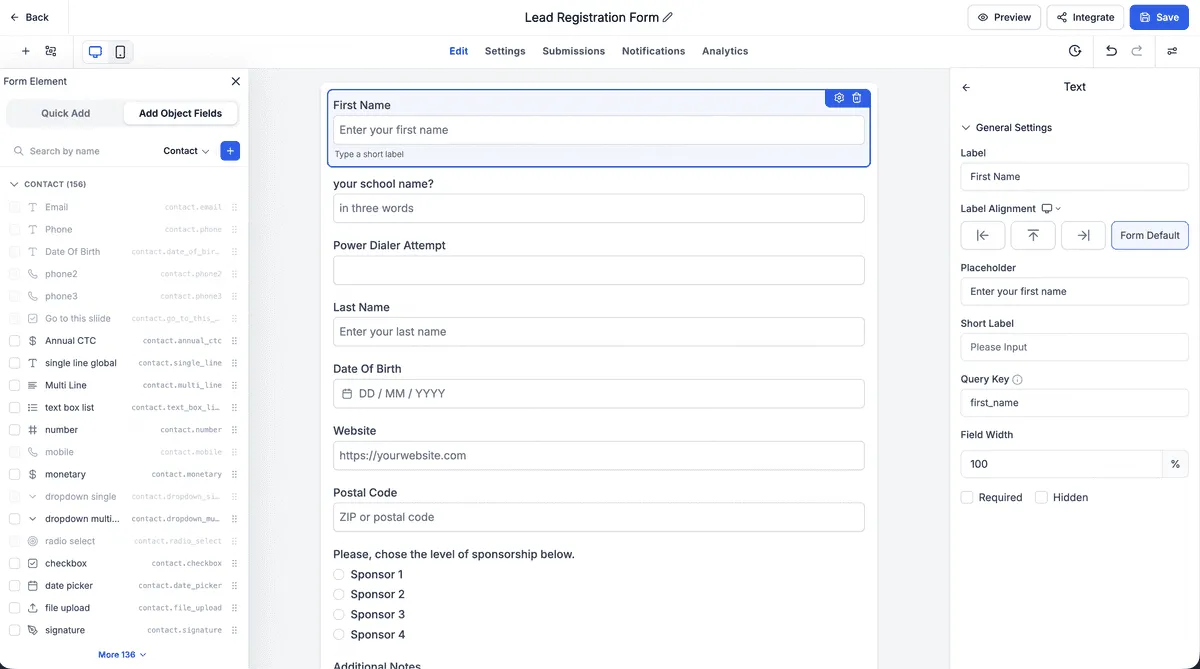
The Custom Fields sidebar now provides a unified experience across forms, surveys, and quizzes. You can:
- Browse fields by object, including Contact, Opportunity, Business, and custom objects.
- Search by field name.
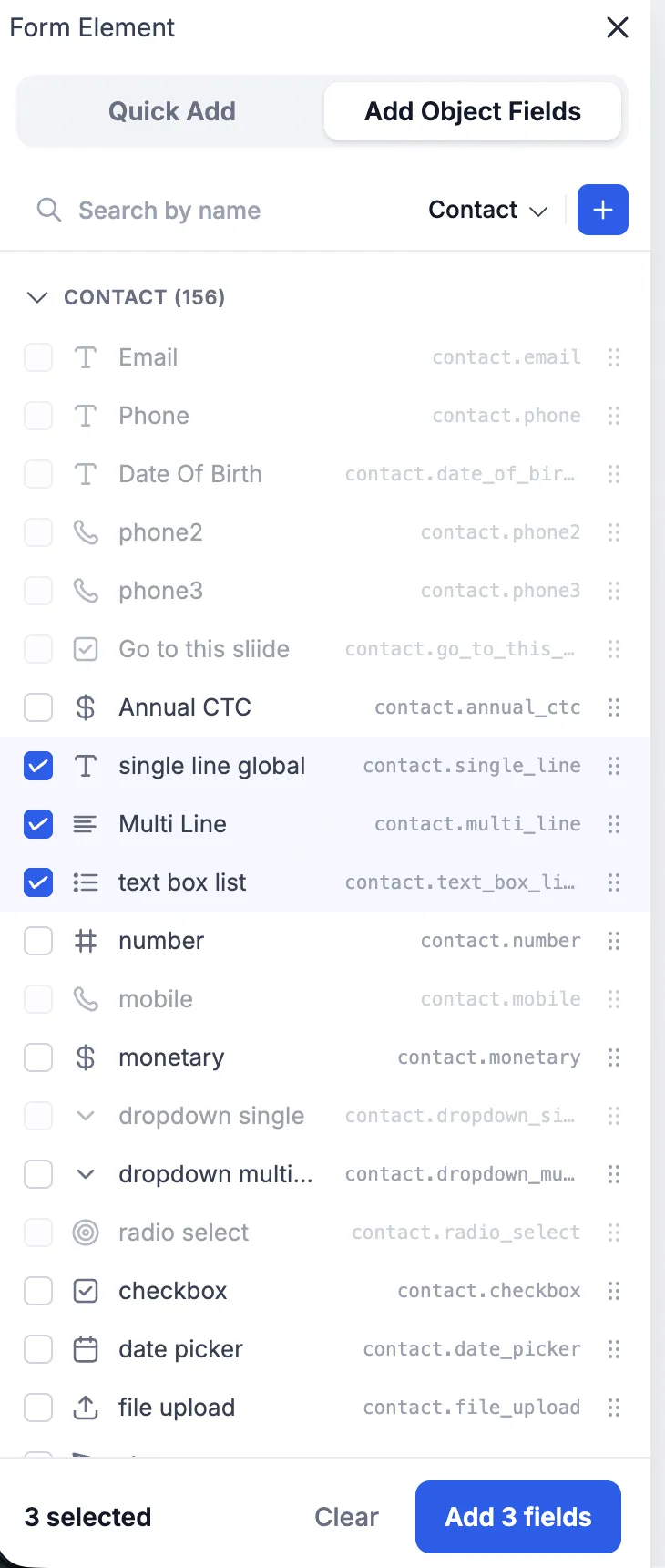
- Select multiple custom fields at once using checkboxes.
- Add selected fields together with the Add N fields action.
- Drag selected fields onto the canvas as a group.
- View full truncated field names and query keys with tooltips.
How bulk placement works
When multiple fields are selected, you can insert them in one action or drag the group onto the canvas. Bulk-added fields are placed in the order they appear in the sidebar.
If a canvas element is active, the selected fields are inserted after that element. If no element is active, they are added at the end of the current slide or page.
Selection behavior
Selections stay intact while you scroll, search, or expand folders, making it easier to build a batch across larger field lists.
A few rules help keep the workflow predictable:
- Switching the object dropdown clears the current selection.
- Shift-click selection skips fields that are already added or blocked.
- The bottom selection bar shows the number of queued fields and the matching add action.
Notes
Existing forms, surveys, and quizzes continue to work as before. Saved builders are not changed by this update.
Bulk-inserted fields use the same validation and normalization as fields added one at a time. Contact standard fields, business fields, custom-object fields, and rating fields follow the same behavior as a single drag action.
For surveys using the one-question-per-slide setting, bulk-inserted fields are split onto their own slides where appropriate.
In Case You Missed It
You may also want to read about how to automate community group join requests.
Release Images
Need Help Applying This Update?
Want help turning this update into a working part of your CRM, marketing, or automation setup?
Get Started or schedule a demo and we’ll help you map the right next step.